
zelotes F33
zelotes Wireless Trackball Mouse User Manual
Modelo: F33
Introdución
Grazas pola compraasing the zelotes Wireless Trackball Mouse. This ergonomic mouse is designed to provide precise and comfortable cursor control, reducing strain on your wrist and arm. It features versatile connectivity options, adjustable DPI settings, and a long-lasting rechargeable battery. Please read this manual thoroughly to ensure proper use and maintenance of your device.
O que hai na caixa
- 1 x Trackball Bluetooth Wireless Mouse
- 1 x receptor USB
- 1 x cable de carga
- 1 x Manual de usuario
Produto rematadoview
Familiarize yourself with the components of your zelotes Wireless Trackball Mouse.

Imaxe: De arriba abaixo view of the zelotes F33 Wireless Trackball Mouse, showcasing its ergonomic design, trackball, and blue LED lighting.

Imaxe: Lateral view of the zelotes F33 Wireless Trackball Mouse, highlighting the trackball and button layout.
Vídeo: Un overview of the F33 Bluetooth Trackball Mouse, demonstrating its features including rechargeable battery and DPI settings.
Guía de configuración
1. Cargar o rato
The mouse comes with a built-in 730mAh rechargeable battery. For the best experience, fully charge the mouse before first use.
- Connect the included USB charging cable to the charging port on the mouse.
- Conecta o outro extremo do cable a unha fonte de alimentación USB (por exemplo, un porto USB do ordenador ou un adaptador de parede USB).
- O rato pódese usar mentres se carga.

Image: The zelotes F33 mouse connected via its USB charging cable, illustrating the rechargeable battery feature.
2. Wireless Connection Modes
This mouse supports two wireless connection modes: 2.4GHz USB wireless and Bluetooth (BT1, BT2). It can connect to three devices simultaneously.
2.1. 2.4GHz USB Wireless Mode
- Localiza o receptor USB gardado no compartimento inferior do rato.
- Conecta o receptor USB a un porto USB dispoñible no teu ordenador ou dispositivo.
- Acende o rato usando o interruptor de acendido situado na parte inferior.
- O rato conectarase automaticamente ao receptor.
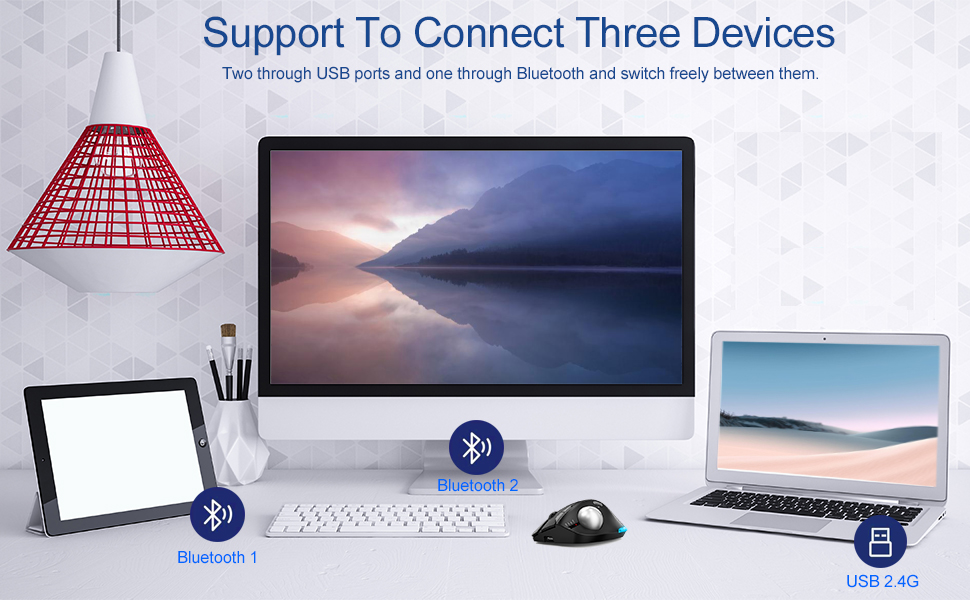
Image: Illustration of the mouse's ability to connect to three devices simultaneously: two via Bluetooth and one via 2.4G USB.
2.2. Bluetooth Mode (BT1 / BT2)
- Acende o rato usando o interruptor de acendido.
- Press the mode switch button on the bottom of the mouse to select either BT1 or BT2 mode. The corresponding indicator light will flash.
- On your device (laptop, tablet, phone), go to Bluetooth settings and search for new devices.
- Select "zelotes F33" (or similar name) from the list of available devices to pair.
- Unha vez vinculado, o indicador luminoso deixará de parpadear e permanecerá fijo.
3. Cambio entre dispositivos
To switch control between connected devices, simply press the mode switch button on the bottom of the mouse to cycle through 2.4G, BT1, and BT2 modes.
Instrucións de funcionamento
1. Thumb Operation
The trackball is designed for thumb operation, allowing you to move the cursor precisely without moving your wrist or arm. This ergonomic design helps reduce muscle strain during prolonged use.
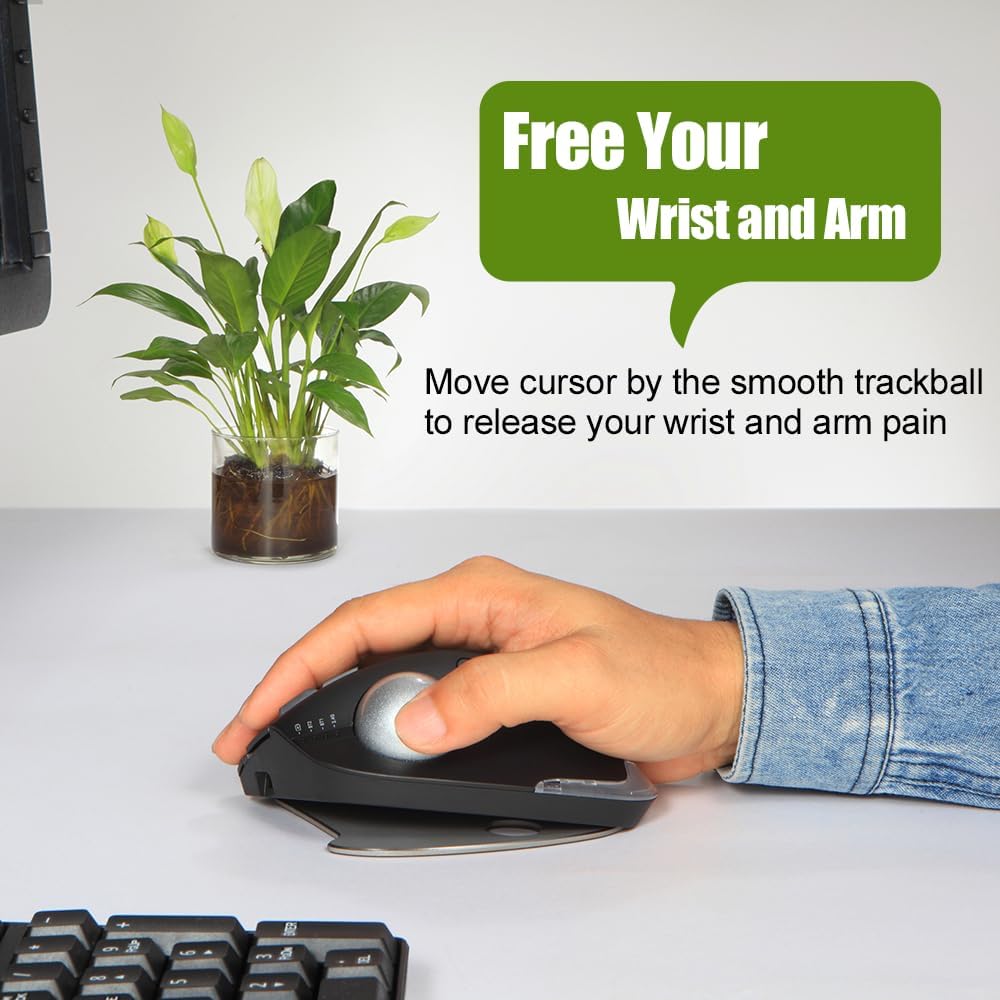
Image: A hand demonstrating the thumb-operated trackball, emphasizing the ergonomic benefit of reducing wrist and arm strain.
2. Axustes de DPI axustables
The mouse features 5 adjustable DPI settings to suit your preference and task requirements:
- 800 DPI
- 1200 DPI
- 1600 DPI
- 2400 DPI
- 4800 DPI
Press the DPI button (usually located near the scroll wheel or on the side) to cycle through the settings. A higher DPI provides faster cursor movement, while a lower DPI offers more precise control.
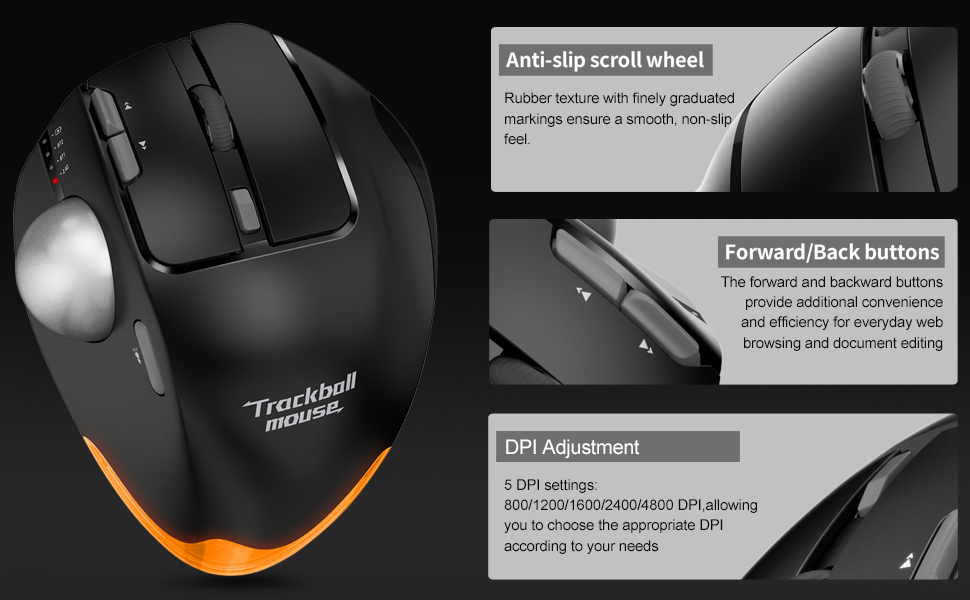
Imaxe: Detallada view of the mouse highlighting the anti-slip scroll wheel, forward/back buttons, and the DPI adjustment feature.
3. Forward/Back Buttons
Conveniently located on the side of the mouse, the forward and back buttons enhance efficiency for web browsing and document editing.
4. Adjustable Angle Design
The mouse features an innovative adjustable angle design with a detachable aluminum alloy base, allowing you to switch between 0-degree and 18-degree angles. This helps maintain a natural palm position for long-term comfort.

Image: Comparison showing the zelotes F33 mouse with its base adjusted to 0-degree and 18-degree angles for ergonomic comfort.
5. Iluminación LED
The mouse features vibrant LED lighting with 16.8 million colors. You can switch lighting colors using independent buttons. The lighting can be turned off if preferred.

Image: The zelotes F33 mouse showcasing its customizable LED lighting in different colors.
Guía de mantemento
Regular cleaning of the trackball ensures smooth and precise movement.
Cleaning the Trackball:
- Paso 1: The trackball can be pushed out from the trackball socket at the bottom of the mouse.
- Paso 2: Remove the trackball and gently clean the trackball socket with a cotton cloth.
- Paso 3: Place the trackball back into the mouse to complete the cleaning process.
* If the surface of the trackball needs cleaning, gently wipe it with water and allow it to air dry. Avoid using chemical agents.

Image: Visual guide detailing the steps for disassembling and cleaning the trackball for optimal performance.
Resolución de problemas
| Problema | Solución |
|---|---|
| O rato non responde (2.4 GHz) |
|
| O rato non se conecta (Bluetooth) |
|
| O movemento do cursor é errático ou fixo |
|
| LED lights not working or stuck |
|
Especificacións
- Modelo: F33
- Conectividade: Bluetooth 5.0/3.0 + 2.4GHz USB Receiver
- Configuración de DPI: 800/1200/1600/2400/4800 DPI
- Batería: Built-in 730mAh Lithium Ion rechargeable battery
- Botóns: 8 Buttons (including trackball, scroll wheel, forward/back, DPI, mode switch)
- Dimensións: 5.2 x 4 x 0.04 polgadas
- Peso do artigo: 13.4 onzas
- Compatibilidade: Win11, Win10, Win8, Win7, Mac OS, Chrome OS, Android 5.0 or higher
- Características especiais: Wireless, Portable, Programmable Buttons, Ergonomic Design, Rechargeable, Adjustable Angle (0°/18°), LED Lighting
- Fabricante: zelotes
- País de orixe: China
Garantía e Soporte
For warranty information or technical support, please refer to the product packaging or contact zelotes customer service through their official websitio web ou o vendedor onde se comprou o produto. Garde o recibo de compra para reclamacións de garantía.
Ask a question about this manual
Ask about setup, troubleshooting, compatibility, parts, safety, or missing instructions. Manuals+ will review the question and use this page’s manual context to help answer it.