
SMRGBCD001
Wireless Mouse for Laptop PC Bluetooth RGB Rechargeable Mouses
Manual de usuario
Brand: Generic | Model: SMRGBCD001
1. Introdución
Grazas pola compraasing the Generic Wireless Mouse. This manual provides detailed instructions for setting up, operating, and maintaining your new mouse to ensure optimal performance and longevity. Please read this manual thoroughly before using the product and keep it for future reference.
This sleek and stylish wireless mouse is designed to elevate your computing experience. Its ergonomic design ensures comfortable use for extended periods, while the smooth gliding surface allows for precise cursor control. Featuring a striking RGB lighting system that cycles through a vibrant spectrum of colors, this mouse adds a touch of flair to your desktop setup. With its plug-and-play functionality and reliable wireless connectivity, you can bid farewell to tangled cords and enjoy seamless operation. Crafted with durability in mind, this mouse is built to withstand the demands of daily use.
2. Produto rematadoview
The Generic Wireless Mouse combines ergonomic comfort with advanced features for an enhanced user experience. Key features include:
- Seamless RGB Lighting: A vibrant RGB lighting strip that cycles through a spectrum of colors.
- Deseño ergonómico: Contoured shape and textured grips for comfortable and secure handling.
- Seguimento preciso: High-precision optical sensor for smooth and accurate cursor control.
- Conectividade dual: Supports 2.4GHz wireless connection and Bluetooth (3.0 and 5.2) for versatile pairing.
- Batería recargable: Built-in 500mAh lithium polymer battery for extended use.
- Botóns silenciosos: Mute buttons for a quiet clicking experience.
- Plug and Play: No software installation required for 2.4GHz mode.
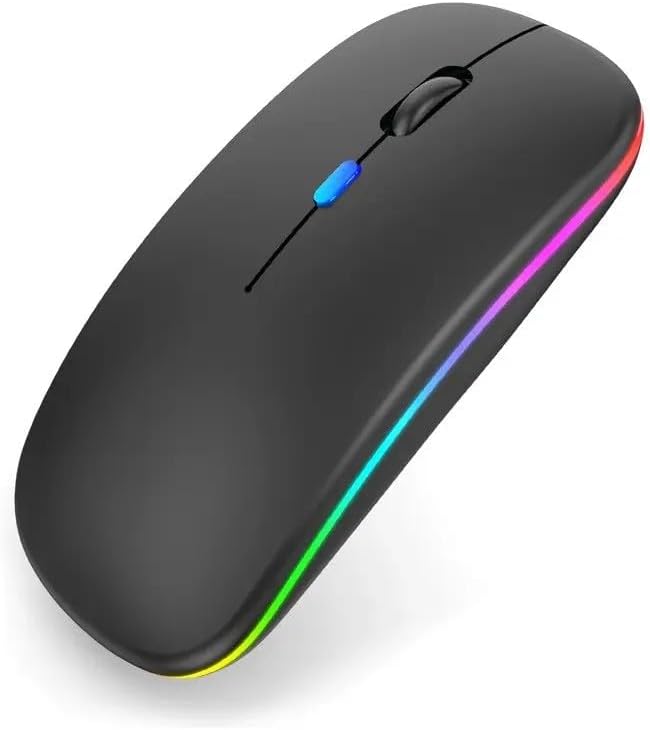
Figura 2.1: Fronte view of the Generic Wireless Mouse, showcasing its sleek black design and vibrant RGB lighting strip along the sides.

Figura 2.2: O Slim Profile of the wireless mouse, highlighting its rechargeable light feature and indicating support for both Bluetooth and USB receiver connectivity.
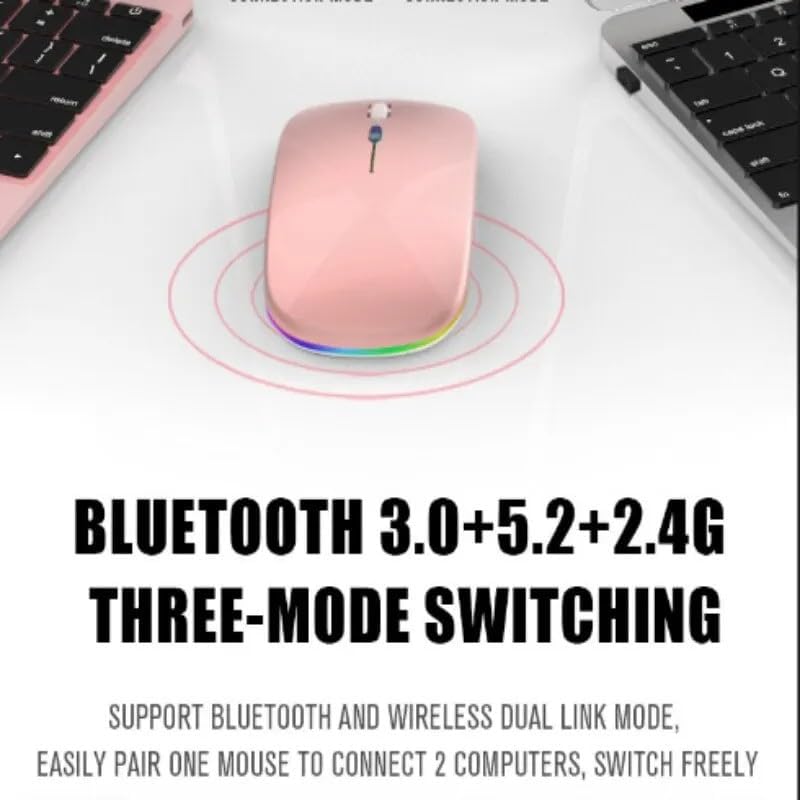
Figure 2.3: Illustration of the mouse's versatile connectivity options, supporting Bluetooth 3.0, Bluetooth 5.2, and 2.4G wireless modes, allowing connection to multiple devices.
3. Configuración
3.1 Carga inicial
Before first use, it is recommended to fully charge the mouse. Connect the included USB charging cable to the mouse's charging port and the other end to a USB power source (e.g., computer USB port, USB wall adapter).

Figure 3.1: The mouse connected to a charging cable, illustrating its 500mAh battery and long endurance after a single charge.
The RGB lighting may indicate charging status. A full charge typically provides up to 60 days of use, depending on usage patterns and RGB lighting settings.
3.2 Conexión do rato
Your mouse supports two primary connection modes: 2.4GHz Wireless and Bluetooth.
Conexión sen fíos de 3.2.1 a 2.4 GHz
- Locate the USB nano receiver, usually stored in a compartment on the bottom of the mouse.
- Conecta o nanorreceptor USB a un porto USB dispoñible do teu ordenador.
- Acende o rato usando o interruptor de acendido situado na parte inferior.
- Switch the mouse to 2.4G mode (refer to the mode switch on the bottom of the mouse).
- The computer should automatically detect and install the necessary drivers. The mouse is ready for use.
3.2.2 Conexión Bluetooth
The mouse supports Bluetooth 3.0 and Bluetooth 5.2. You can easily pair one mouse to connect to two computers and switch freely between them.
- Acende o rato usando o interruptor de acendido situado na parte inferior.
- Switch the mouse to Bluetooth mode (BT1 or BT2, refer to the mode switch on the bottom of the mouse).
- No teu ordenador ou dispositivo, abre a configuración de Bluetooth.
- Busca new devices. The mouse should appear as "Wireless Mouse" or similar.
- Selecciona o rato que queres emparellar. Sigue as instrucións que aparecen na pantalla.
- Unha vez emparellado, o rato está listo para usar.
4. Instrucións de funcionamento
4.1 Encendido/apagado
Use the power switch located on the bottom of the mouse to turn it ON or OFF.
4.2 Cambiar os modos de conexión
The mouse features a mode switch on its underside, allowing you to toggle between 2.4G wireless mode and two Bluetooth modes (BT1, BT2). This enables seamless switching between up to three connected devices.
4.3 Axuste de DPI
The mouse typically features a DPI (Dots Per Inch) button, often located near the scroll wheel, to adjust cursor sensitivity. Press this button to cycle through different DPI settings (e.g., 800, 1200, 1600 DPI) to match your preference and task requirements.
4.4 Control de iluminación RGB
The mouse features dynamic RGB lighting. The lighting typically activates automatically when the mouse is in use. Some models may allow cycling through different lighting modes or turning the lighting off by pressing a specific button (often the DPI button or a dedicated light button) or a combination of buttons. Refer to the product's specific button functions for detailed control.

Figure 4.1: The mouse's colorful and cool RGB lights, designed to enhance the aesthetic of your desktop setup.
4.5 Función de clic silencioso
This mouse is designed with mute buttons, providing a quiet clicking experience. This feature is particularly beneficial in quiet environments, ensuring you do not disturb others.

Figure 4.2: Demonstrating the silent button feature, allowing for comfortable and undisturbed use, even in quiet environments.
5. Mantemento
5.1 Limpeza
Para limpar o rato, limpe suavemente a súa superficie cun pano suave, seco ou lixeiramente húmido.amp cloth. Avoid using harsh chemicals, abrasive cleaners, or excessive moisture, as these can damage the mouse's finish or internal components.
5.2 Coidado coa batería
- Avoid exposing the mouse to extreme temperatures (hot or cold) as this can affect battery life.
- If the mouse will not be used for an extended period, it is advisable to turn it off to conserve battery life.
- Charge the mouse using only the provided cable or a compatible USB charging cable.
6 Solución de problemas
| Problema | Posible Solución |
|---|---|
| O rato non responde (2.4 GHz) |
|
| O rato non responde (Bluetooth) |
|
| Cursor errático ou saltativo |
|
| As luces RGB non funcionan |
|
| O rato non carga |
|
7. Especificacións
| Característica | Detalle |
|---|---|
| Número de modelo | SMRGBCD001 |
| Marca | Xenérico |
| Tecnoloxía de conectividade | Bluetooth (3.0, 5.2), 2.4GHz USB Wireless |
| Tecnoloxía de detección de movemento | Óptica |
| Cor | Negro |
| Característica especial | Ergonomic Design, RGB Lighting, Silent Click Buttons |
| Tipo de batería | 1 batería de polímero de litio (500 mAh) |
| Fabricante | Ch |
| Data de primeira dispoñibilidade | 26 de agosto de 2024 |
8. Garantía e soporte
For warranty information and customer support, please refer to the documentation included with your purchase or visit the manufacturer's official websitio. Garda o comprobante de compra para calquera reclamación de garantía.
If you encounter any issues not covered in this manual, please contact the retailer or manufacturer's customer service for assistance.
Ask a question about this manual
Ask about setup, troubleshooting, compatibility, parts, safety, or missing instructions. Manuals+ will review the question and use this page’s manual context to help answer it.