
1. Introdución
This manual provides comprehensive instructions for the setup, operation, maintenance, and troubleshooting of your Lamzu Maya X Wireless Gaming Mouse. Please read this manual carefully to ensure proper use and to maximize the performance of your device.
2. Produto rematadoview
2.1 Características principais
- Deseño ultralixeiro: Weighs approximately 47g for extended comfort during use.
- Symmetrical Shape: Accommodates various grip styles including palm, claw, and fingertip.
- Optical Switches: Durable and responsive, rated for over 70 million clicks.
- Dust-Proof Encoder: 30-grid roller for precise and responsive scroll wheel actions.
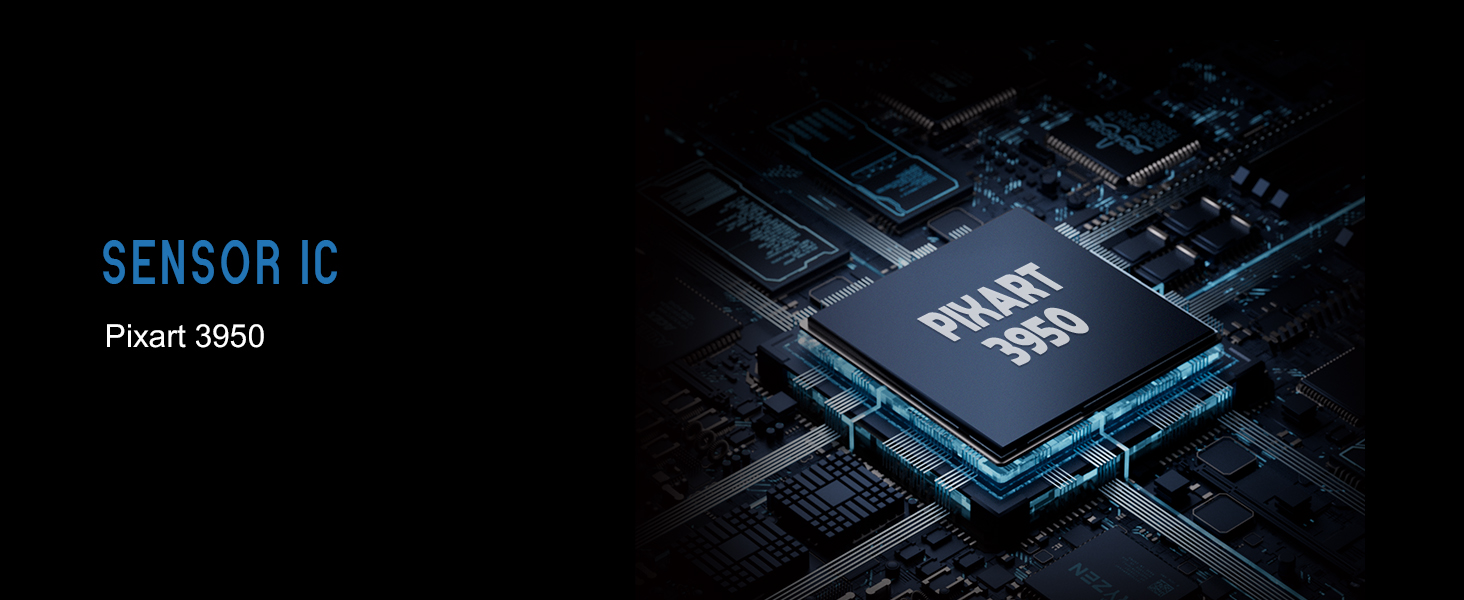
- Pixart PAW 3950 Sensor: Supports up to 30,000 DPI and 750 IPS.
- Nordic 52840 MCU: Ensures power efficiency, fast response times, and accurate motion tracking.
- Alta taxa de votación: Up to 8,000 Hz with the optional 8K dongle.
2.2 Contido do paquete
- Lamzu Maya X Wireless Gaming Mouse
- PTFE Skates (x1 set)
- 8K Dongle (x1)
- MAYA X Dustproof Seal
- 1.8m Type-C Paracord Cable
- Bolsa de veludo
- MAYA X Mouse Grip
2.3 Compoñentes do rato
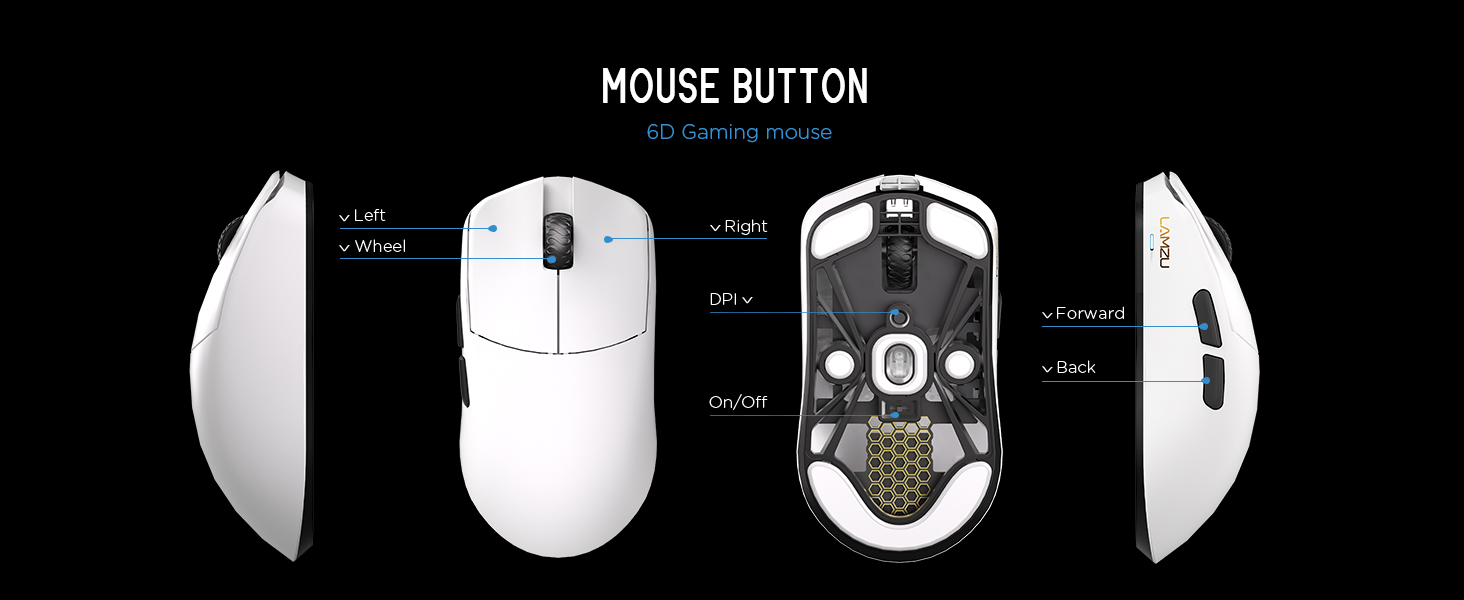
Imaxe 2.3.1: Diagram illustrating the various buttons and internal structure of the Lamzu Maya X mouse, including left click, right click, scroll wheel, DPI button, forward, back buttons, and the on/off switch.
- Botón esquerdo: Función de clic principal.
- Botón dereito: Función de clic secundario.
- Roda de desprazamento: Para a función de desprazamento e clic central.
- Botón DPI: Adjusts Dots Per Inch sensitivity.
- Botón de avance: Navigational function (e.g., browser forward).
- Botón Atrás: Navigational function (e.g., browser back).
- Interruptor On/Off: Acende ou apaga o rato.
3. Configuración
3.1 Initial Connection and Charging
- Carga o rato: Connect the provided Type-C paracord cable to the mouse and a USB port on your computer. The mouse will charge while connected.
- Encendido: Localiza o interruptor de acendido/apagado na parte inferior do rato e deslízao ata a posición "Aceso".
- Conectar o dongle sen fíos: Insert the 8K wireless dongle into an available USB port on your computer. The mouse should automatically pair.
- Wired Mode (Optional): To use the mouse in wired mode, connect the Type-C paracord cable directly to the mouse and your computer. The mouse will function as a wired device and charge simultaneously.
Imaxe 3.1.1: The Lamzu Maya X mouse connected via its Type-C paracord cable, illustrating both wired operation and charging capabilities.
3.2 Instalación de controladores e software
The Lamzu Maya X mouse utilizes a web-based driver for customization. To access the software and update firmware:
- Visit the official Lamzu websitio.
- Navigate to the support or downloads section for the Maya X model.
- Descarga o web driver application. This application allows for DPI adjustment, polling rate settings, macro programming, and firmware updates.
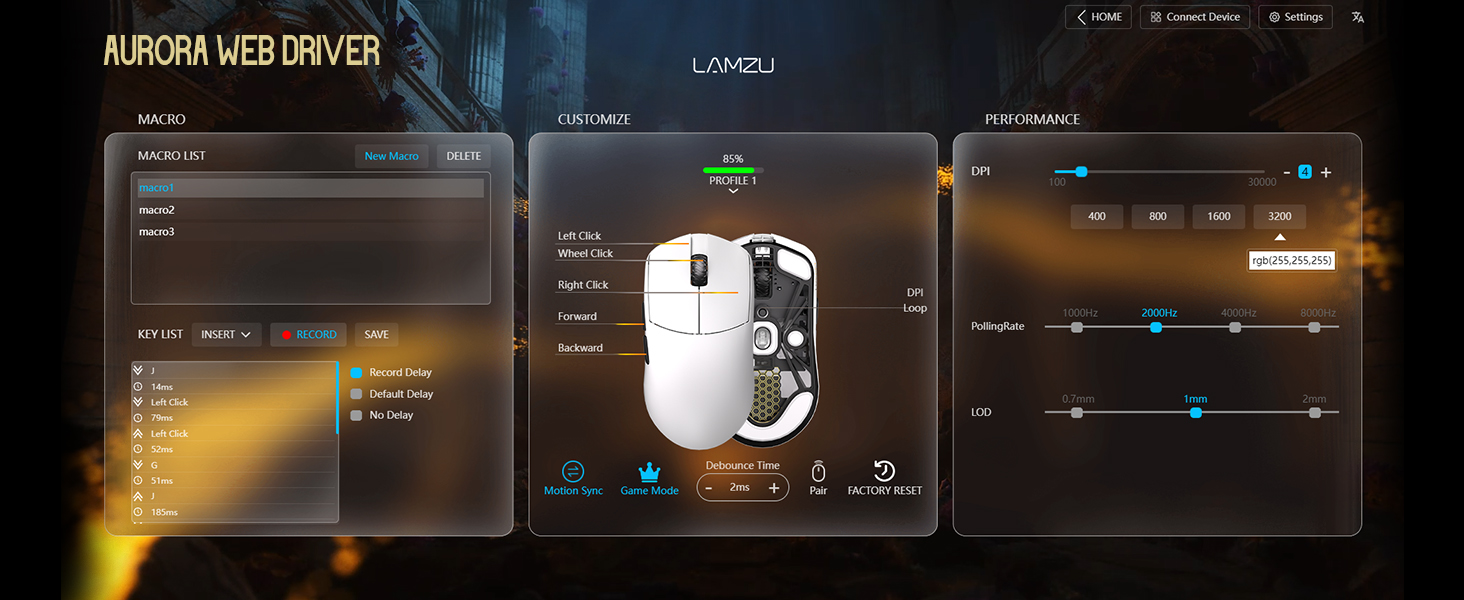
Imaxe 3.2.1: Screenshot of the Aurora Web Driver interface, displaying options for macro creation, button customization, DPI settings (up to 30000), polling rate selection (up to 8000Hz), and Lift-Off Distance (LOD).
4. Instrucións de funcionamento
4.1 Axuste de DPI
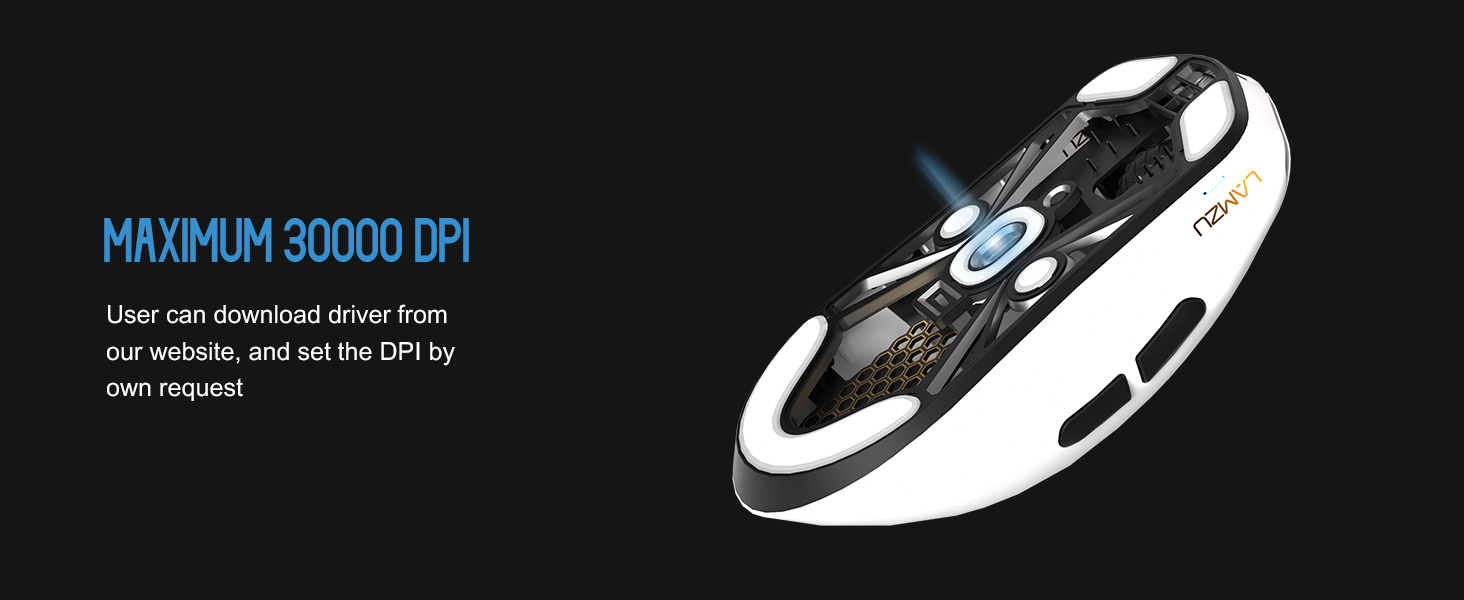
The DPI (Dots Per Inch) setting controls the mouse cursor's sensitivity. You can adjust the DPI using the dedicated DPI button on the mouse or through the Aurora Web Driver software. The Pixart PAW 3950 sensor supports up to 30,000 DPI.
Imaxe 4.1.1: Unha parte inferior view of the Lamzu Maya X mouse, emphasizing its optical sensor and the capability to reach a maximum of 30,000 DPI, configurable via software.
4.2 Taxa de sondaxe
The polling rate determines how often the mouse reports its position to the computer. The Maya X supports up to 8,000 Hz polling rate when using the included 8K dongle. Higher polling rates result in smoother cursor movement and reduced input lag.
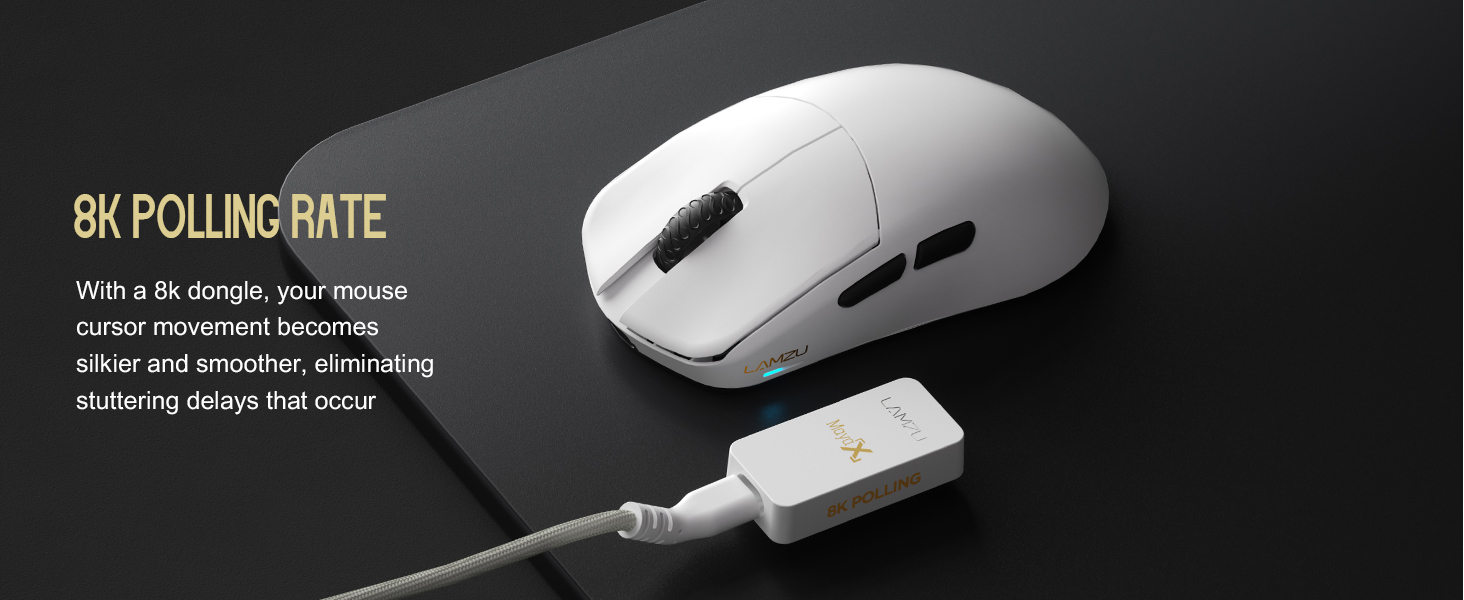
Imaxe 4.2.1: The Lamzu Maya X mouse positioned next to its 8K polling rate dongle, highlighting the benefit of smoother and more responsive cursor movement provided by high polling rates.
4.3 Estilos de agarre
The symmetrical design of the Maya X mouse is engineered to accommodate various common grip styles:
- Agarre na palma da man: The entire palm rests on the mouse.
- Agarre de garra: Fingers are arched, and the palm rests on the back of the mouse.
- Fingertip Grip: Only the fingertips make contact with the mouse.
Imaxe 4.3.1: A visual guide demonstrating the three primary mouse grip styles—Palm Grip, Claw Grip, and Fingertip Grip—and how the Maya X mouse is designed to be compatible with each.
4.4 Wired and Wireless Modes
The Maya X mouse supports both 2.4G wireless and wired (USB Type-C) connectivity. You can switch between modes by connecting or disconnecting the Type-C cable. In wired mode, the mouse operates at a 1K polling rate, while wireless mode with the 8K dongle supports up to 8K polling.
5. Mantemento
5.1 Limpeza
- Asegúrate de que o rato estea apagado antes de limpalo.
- Use un pano suave e sen pelusa dampEnxágüe con auga ou unha solución de limpeza suave para limpar a superficie do rato.
- Evite o uso de produtos químicos agresivos, abrasivos ou solventes.
- Use aire comprimido para limpar o po das fendas e arredor dos botóns.
- Para o sensor óptico, use un hisopo de algodón lixeiramente drenado.ampened with isopropyl alcohol to gently clean the lens.
5.2 Coidado coa batería
- Para prolongar a duración da batería, evite descargar completamente o rato con frecuencia.
- Garde o rato a temperatura ambiente cando non o use durante períodos prolongados.
- If storing for a long time, charge the battery to approximately 50% before storage.
6 Solución de problemas
- O rato non responde:
- Asegúrese de que o rato estea acendido.
- Comprobe o nivel da batería e cárguea se é necesario.
- Verify the wireless dongle is securely plugged into a USB port.
- Tenta conectar o rato con fíos para confirmar a súa funcionalidade.
- Reinicia o teu ordenador.
- Conectividade intermitente:
- Asegúrate de que o dongle sen fíos non estea obstruído e que estea preto do rato.
- Evite colocar o dongle preto doutros dispositivos sen fíos que poidan causar interferencias.
- Update mouse firmware via the Aurora Web Chofer.
- Cursor Jumps or Lag:
- Clean the optical sensor (refer to Section 5.1).
- Ensure the mousepad surface is clean and uniform.
- Adjust the polling rate in the software.
- Check for any background applications consuming excessive system resources.
- Os botóns non funcionan:
- Check button assignments in the Aurora Web Chofer.
- Asegúrate de que non haxa obstáculos físicos que impidan premer botóns.
7. Especificacións
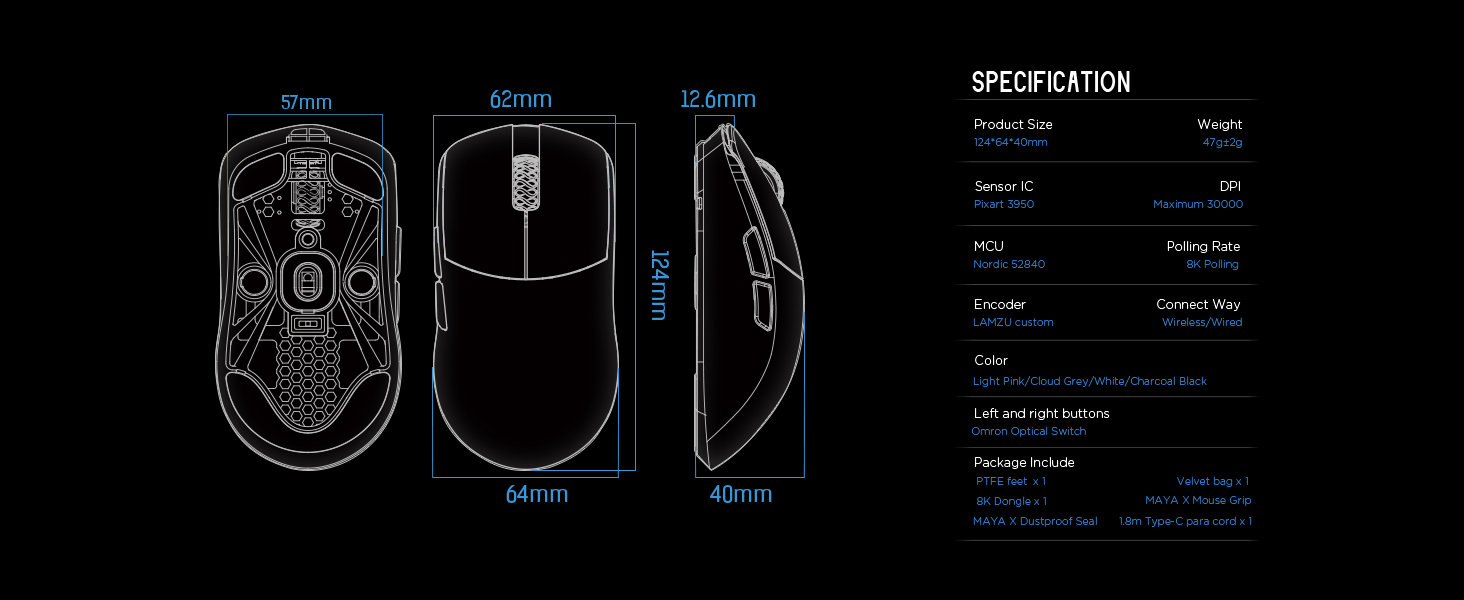
| Dimensións do produto | 4.88 x 2.52 x 0.04 polgadas (124 x 64 x 40 mm) |
| Peso do elemento | 1.66 onzas (47 g) |
| Sensor IC | Pixart PAW 3950 |
| DPI máximo | 30,000 |
| MCU | 52840 nórdico |
| Taxa de votación | Up to 8,000 Hz (with 8K dongle) |
| Tecnoloxía de conectividade | 2.4G Wireless, USB Type-C Wired |
| Interruptores | Optical Switches (Left/Right buttons) |
| Codificador | Dust-Proof Encoder |
| Batería | 1 batería de iones de litio (incluída) |
| Fabricante | Lamzu |

Imaxe 7.1.1: A technical diagram detailing the dimensions (length, width, height) of the Lamzu Maya X mouse and a summary of its key specifications, including weight, sensor, MCU, DPI, and polling rate.
8. Garantía e soporte
For warranty information and technical support, please refer to the official Lamzu website or contact their customer service directly. Details regarding product registration, warranty claims, and frequently asked questions can typically be found in the support section of the websitio.
Oficial Websitio: www.lamzu.com