
Lamzu Maya X
Manual do usuario do rato para xogos sen fíos Lamzu Maya X
Model: Maya X
Introdución
The Lamzu Maya X is an ultra-lightweight wireless gaming mouse designed for high-performance gaming. Featuring a symmetrical shape, optical switches, and a high-precision PAW3950 sensor, it offers exceptional responsiveness and comfort for various grip styles. This manual provides detailed instructions for setting up, operating, maintaining, and troubleshooting your Lamzu Maya X mouse.

Figure 1: Lamzu Maya X Wireless Gaming Mouse and 8K Polling Dongle.
Contido do paquete
Antes de comezar, asegúrate de que todos os elementos estean presentes no paquete:
- Lamzu Maya X Wireless Gaming Mouse
- 8K Polling Dongle
- 1.8m Type-C Paracord Cable (for wired connection and charging)
- PTFE Feet (extra set)
- Bolsa de veludo
- MAYA X Mouse Grip Tape
Configuración
1. Cargar o rato
The Lamzu Maya X mouse comes with a built-in Lithium Ion battery. For optimal performance, it is recommended to fully charge the mouse before first use.
- Connect the supplied 1.8m Type-C paracord cable to the USB-C port on the front of the mouse.
- Conecta o outro extremo do cable a un porto USB dispoñible do teu ordenador ou a un adaptador de parede USB.
- The mouse's indicator light will show charging status. Once fully charged, the light will change or turn off.
The mouse can be used in wired mode while charging.
2. Conectando o rato
The Lamzu Maya X supports both 2.4G wireless and wired connectivity.
Wireless Connection (2.4G with 8K Polling Dongle)
- Locate the 8K Polling Dongle.
- Plug the 8K Polling Dongle into an available USB port on your computer. For best performance, use a USB port on the front of your computer or a USB hub placed close to the mouse to minimize interference.
- Acenda o rato usando o interruptor de acendido/apagado situado na parte inferior do rato.
- The mouse should automatically connect to the dongle. If connection is not established, refer to the troubleshooting section.

Figure 2: Wireless Connection with 8K Polling Dongle.
Conexión por cable
- Connect the supplied 1.8m Type-C paracord cable to the USB-C port on the front of the mouse.
- Conecte o outro extremo do cable a un porto USB dispoñible no seu ordenador.
- The mouse will automatically switch to wired mode. In wired mode, the polling rate is 1000 Hz.

Figure 3: Dual Mode Connectivity (2.4G Wireless and Wired).
3. Instalación de controladores e software
The Lamzu Maya X mouse is plug-and-play for basic functionality. For advanced customization, including DPI settings, button remapping, macros, and polling rate adjustments, you can download the official Lamzu Aurora Web Driver from the Lamzu websitio. Isto web-based software eliminates the need for local installation.
- Visit the official Lamzu websitio (www.lamzu.com) to access the Aurora Web Chofer.
- Follow the on-screen instructions to connect your device and customize settings.
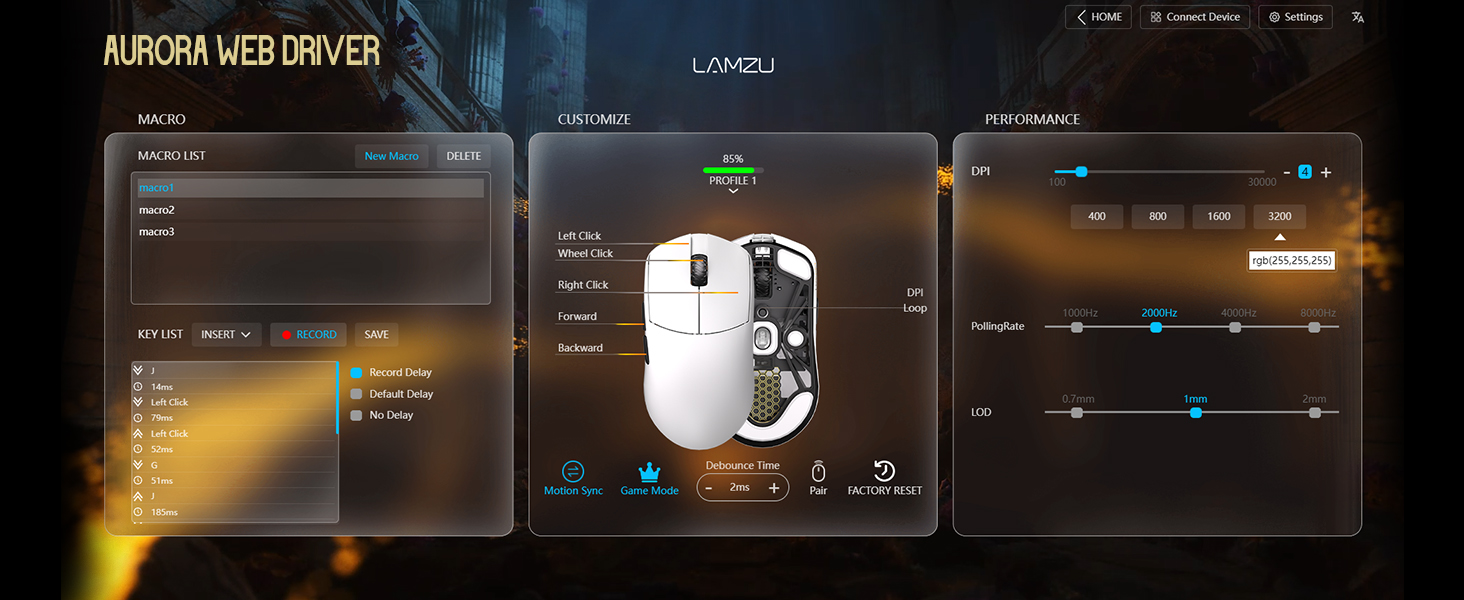
Figure 4: Lamzu Aurora Web Driver Interface.
Manexo do rato
Funcións dos botóns
The Lamzu Maya X is a 6-button gaming mouse. The default functions are as follows:
| Botón | Función predeterminada |
|---|---|
| Fai clic esquerdo | Función de clic principal |
| Fai clic co botón dereito | Función de clic secundario |
| Scroll Wheel (Click) | Middle click / Universal scroll |
| Scroll Wheel (Up/Down) | Scroll content up/down |
| DPI Button (Bottom) | Cycle through preset DPI levels |
| Botón lateral adiante | Navigate forward in web browsers/applications |
| Botón lateral traseiro | Navigate backward in web browsers/applications |
| Interruptor de acendido/apagado (parte inferior) | Power on/off the mouse |
All buttons, except the On/Off switch, can be remapped using the Aurora Web Driver software.

Figure 5: Lamzu Maya X Button Layout.
Adjusting DPI (Dots Per Inch)
The Lamzu Maya X features a Pixart PAW 3950 sensor, supporting up to 30,000 DPI. You can adjust the DPI sensitivity to match your preference and gaming style.
- On-the-fly Adjustment: Press the DPI button located on the bottom of the mouse to cycle through pre-configured DPI stages. The LED indicator on the mouse may change color to indicate the current DPI stage.
- Axuste do software: For precise control and custom DPI stages, use the Lamzu Aurora Web Driver. You can set specific DPI values and assign them to different profiles.
Taxa de votación
The polling rate determines how often the mouse reports its position to the computer. A higher polling rate results in smoother and more responsive cursor movement.
- Sen fíos (2.4G): The Maya X supports up to 8,000 Hz polling rate when using the included 8K Polling Dongle. This can be configured via the Aurora Web Chofer.
- Con cable (USB-C): In wired mode, the mouse operates at a 1,000 Hz polling rate.
Grip Styles
The symmetrical shape of the Lamzu Maya X is designed to accommodate various grip styles, providing comfort and control for different hand sizes and preferences.
- Agarre na palma da man: The entire palm rests on the mouse, offering maximum stability.
- Agarre de garra: Fingers are arched, and the palm makes minimal contact with the rear of the mouse, allowing for quick, precise movements.
- Fingertip Grip: Only the fingertips touch the mouse, providing the highest degree of maneuverability.

Figure 6: Supported Grip Styles.
Mantemento
Proper maintenance ensures the longevity and optimal performance of your Lamzu Maya X mouse.
- Limpeza: Usa un pano suave e seco para limpar a superficie do rato. Para a sucidade persistente, limpa lixeiramente.amp Pódese usar un pano, pero asegúrese de que non entre humidade no rato. Evite produtos químicos agresivos ou materiais abrasivos.
- Coidados do sensor: Manteña o sensor óptico da parte inferior do rato limpo e libre de po ou residuos. Use un hisopo de algodón ou aire comprimido se é necesario.
- Mouse Feet (PTFE Skates): The PTFE feet are designed for smooth gliding. If they become worn or damaged, replace them with the extra set provided in the package.
- Almacenamento: When not in use for extended periods, store the mouse in a cool, dry place, ideally in the provided velvet bag to protect it from dust and scratches.
- Coidado da batería: Avoid fully discharging the battery frequently. For long-term storage, charge the mouse to about 50% to preserve battery health.
Resolución de problemas
If you encounter issues with your Lamzu Maya X mouse, refer to the following common problems and solutions:
| Problema | Posible causa/solución |
|---|---|
| O rato non responde (sen fíos) |
|
| O rato non responde (con cable) |
|
| O movemento do cursor é errático ou brusco |
|
| Os botóns non responden ou fan dobre clic |
|
| A batería esgotarase rapidamente |
|
Especificacións
| Característica | Detalle |
|---|---|
| Modelo | Maya X |
| Dimensións (L x W x H) | 4.88 x 2.52 x 0.04 polgadas (124 x 64 x 40 mm) |
| Peso | 1.66 onzas (aprox. 47 g) |
| Sensor | Pixart PAW 3950 Optical Sensor |
| DPI máximo | 30,000 DPI |
| MCU | 52840 nórdico |
| Taxa de votación | Up to 8,000 Hz (Wireless with 8K dongle), 1,000 Hz (Wired) |
| Interruptores | Omron Optical Switches (Left/Right buttons) |
| Codificador | Dust-Proof Encoder with 30-grid roller |
| Conectividade | 2.4G Wireless, USB-C Wired |
| Tipo de batería | 1 batería de iones de litio (incluída) |
| Cor | Black (as per product variant) |
| País de Orixe | China |
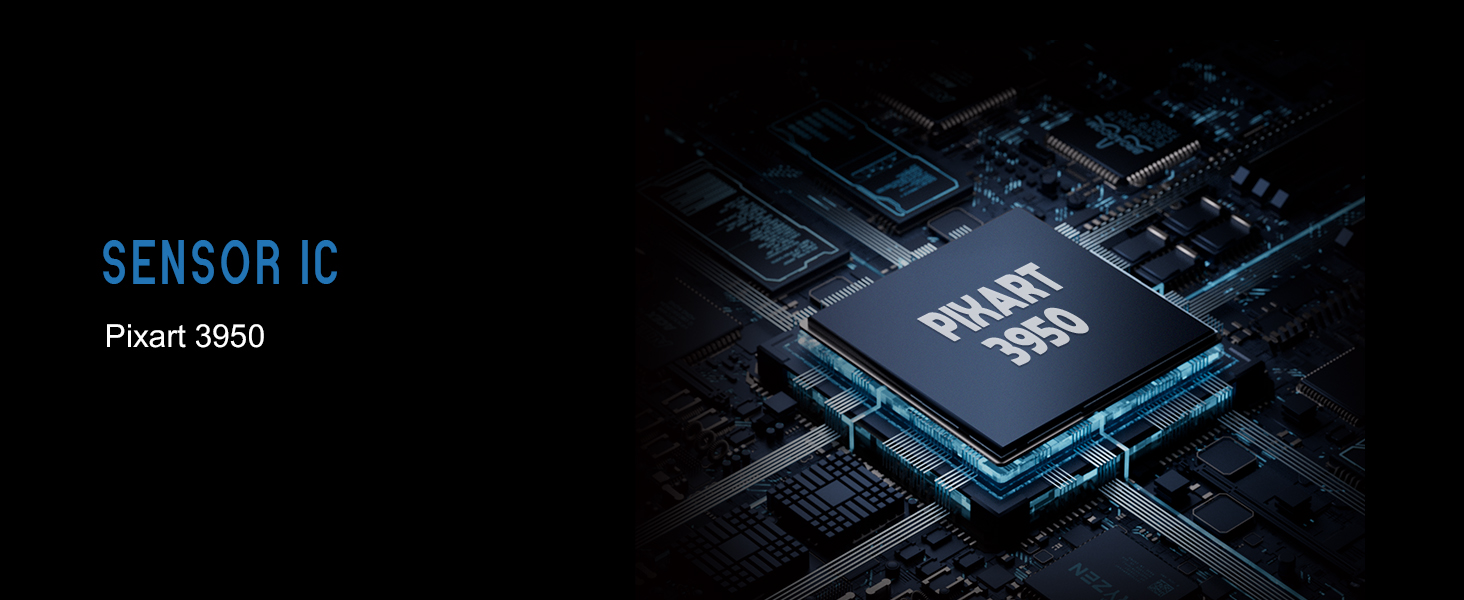
Figure 7: Lamzu Maya X Detailed Specifications.
Garantía e Soporte
Lamzu products are manufactured to the highest quality standards. For information regarding warranty coverage, technical support, or service inquiries, please visit the official Lamzu websitio ou póñase en contacto co seu departamento de atención ao cliente.
- Oficial Websitio: www.lamzu.com
- Atención ao cliente: Consulte a información de contacto proporcionada na páxina oficial websitio.
Conserve o comprobante de compra para reclamacións de garantía.
Ask a question about this manual
Ask about setup, troubleshooting, compatibility, parts, safety, or missing instructions. Manuals+ will review the question and use this page’s manual context to help answer it.