
SABLUTE B0DHG83QYC
SABLUTE Large Print Backlit Wired USB Keyboard Instruction Manual
Model: B0DHG83QYC
1. Introdución
Thank you for choosing the SABLUTE Large Print Backlit Wired USB Keyboard. This keyboard is designed to provide a comfortable and efficient typing experience with its oversized characters, 7-color backlighting, integrated wrist rest, and convenient phone holder. This manual will guide you through the setup, operation, and maintenance of your new keyboard.
2. Que hai na caixa
- SABLUTE Large Print Backlit Wired USB Keyboard
3. Instrucións de configuración
- Descomprimir o teclado: Retire con coidado o teclado da súa embalaxe.
- Conéctate ao teu ordenador: Locate an available USB-A port on your computer (desktop, laptop, or compatible device). Insert the USB connector of the keyboard firmly into the USB-A port.
- Instalación de controladores: The keyboard is plug-and-play. Your operating system (Windows, macOS, Linux) will automatically detect and install the necessary drivers. No additional software is required.
- Verificar a conexión: Once connected, the keyboard should be ready for use. Test by typing in a text editor or browser.
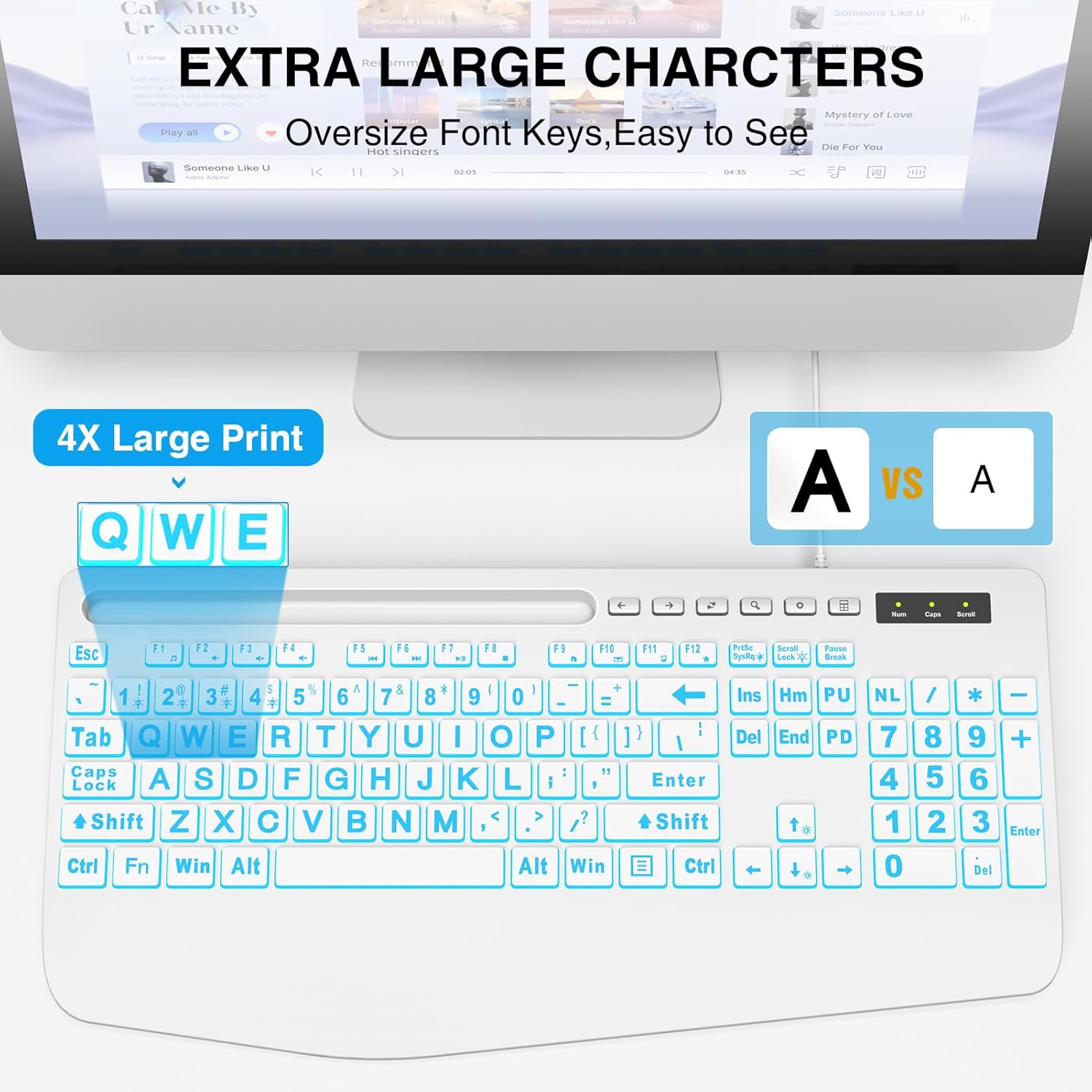
This image illustrates the large print keys on the SABLUTE keyboard, designed for enhanced visibility and reduced eye strain. A comparison highlights the increased character size compared to standard keyboards.
4. Instrucións de funcionamento
Control de retroiluminación 4.1
The keyboard features a 7-color backlight with adjustable brightness and multiple modes. Use the following key combinations to control the backlighting:
- Axustar o brillo: Preme Fn + Páxina arriba para aumentar o brillo. Prema Fn + Abaixo páxina to decrease brightness. There are 7 levels of brightness.
- Activar/desactivar a retroiluminación: Preme Fn + Bloqueo de desprazamento para activar ou desactivar a retroiluminación.
- Toggle Backlight Color: Preme Fn + 1 to cycle through the 7 available backlight colors.
- Keep One Backlight Color: Preme Fn + 2 to select and maintain a single backlight color.
- Backlighting While Typing Mode: Preme Fn + 3 to activate a reactive mode where keys illuminate upon typing.
- Backlight Color Changes Back and Forth Mode: Preme Fn + 4 to activate a dynamic mode where colors transition back and forth.
This image displays the keyboard with its keys illuminated in various colors, demonstrating the 7-color backlight feature.

This diagram illustrates how to adjust the backlight brightness of the keyboard using the 'Fn' key combined with the brightness up/down keys.

This diagram demonstrates how to cycle through the available backlight colors by pressing the 'Fn' key simultaneously with the '1' key.

This diagram explains how to select and maintain a single backlight color by pressing the 'Fn' key along with the '2' key.

This diagram illustrates the reactive backlighting mode, where keys illuminate upon typing, activated by pressing 'Fn' + '3'.

This diagram demonstrates the dynamic backlight mode where colors transition back and forth, activated by pressing 'Fn' + '4'.
4.2 Integrated Phone/Tablet Holder
The keyboard features a built-in slot at the top, designed to hold your smartphone or tablet. This allows for convenient viewing of videos, video conferencing, or reading materials while using your computer. Please note that this holder does not provide charging functionality.

This image shows a smartphone securely placed in the keyboard's built-in holder, illustrating its convenience for multitasking.
4.3 Apoio ergonómico para o pulso
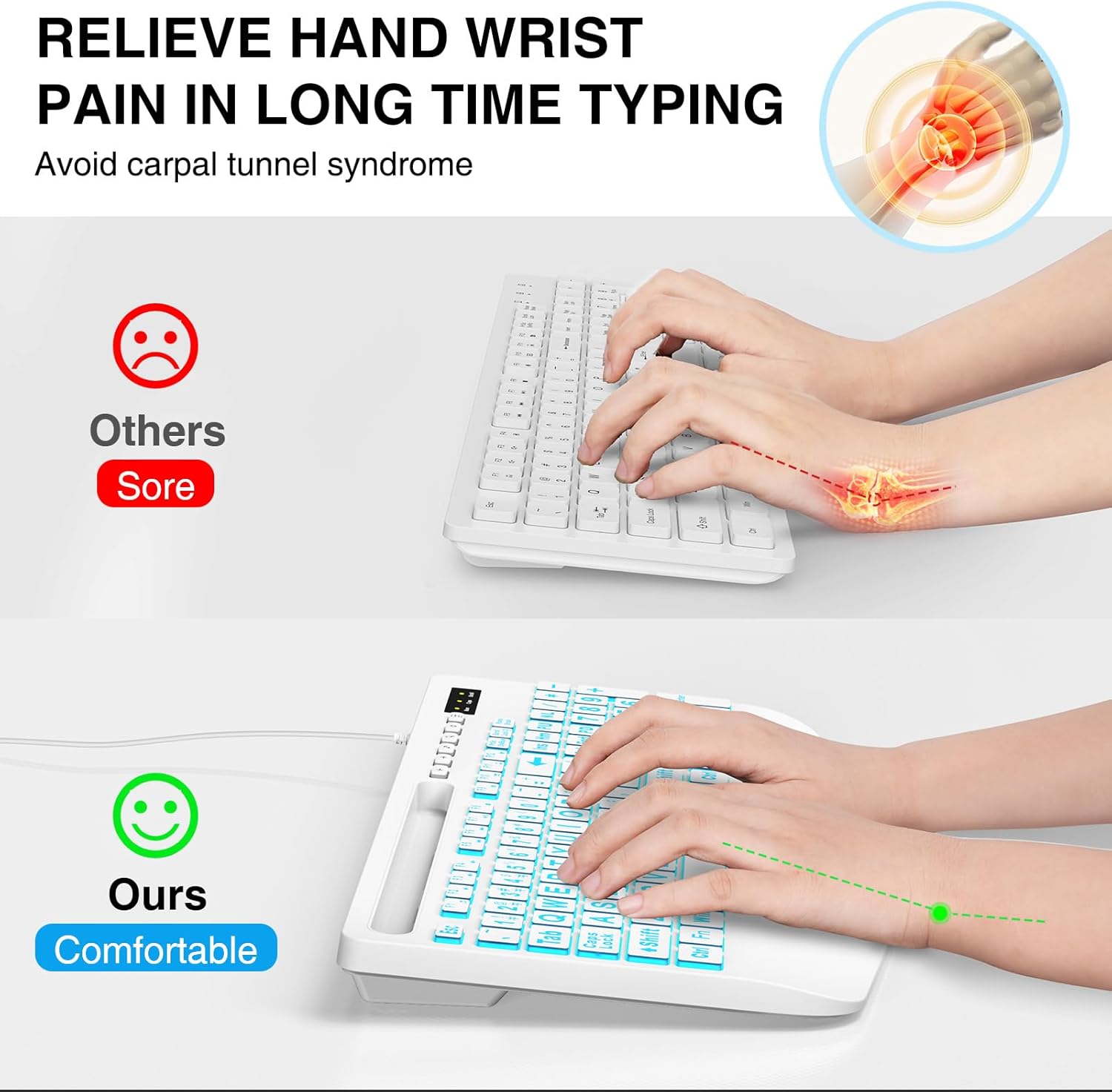
The keyboard is designed with an integrated palm rest to provide ergonomic support. This feature helps reduce wrist fatigue and discomfort during prolonged typing sessions, promoting a more natural hand position.
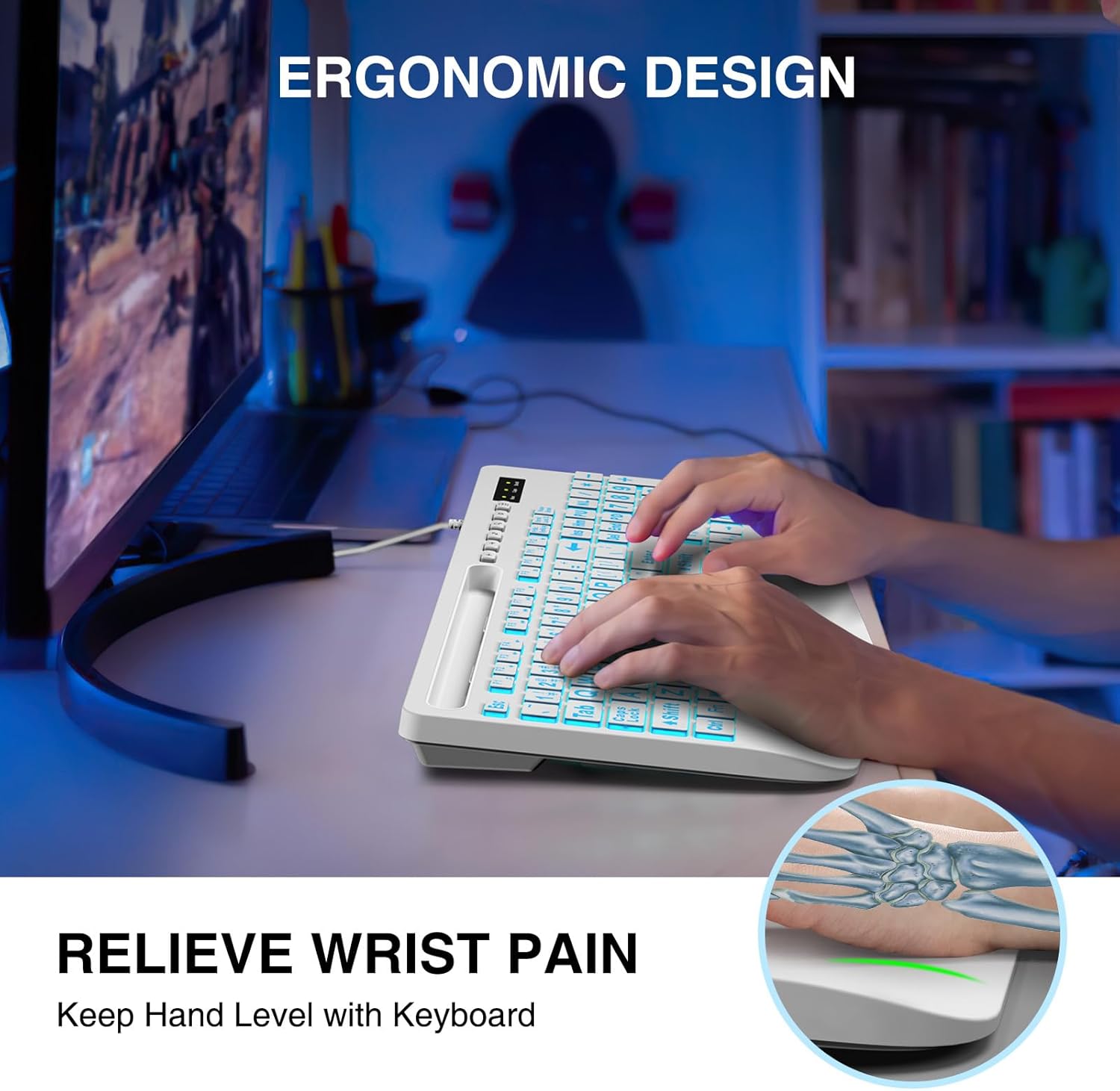
This image shows a user typing on the keyboard, emphasizing the integrated wrist rest designed to provide support and reduce discomfort during extended use.
4.4 Teclas de función multimedia
The keyboard includes dedicated function keys (F1-F12) that, when pressed with the Fn key, provide quick access to multimedia controls and other system functions. Refer to the key legends for specific functions such as volume control, media playback, and launching applications.
5. Mantemento
- Limpeza: Para limpar o teclado, desconécteo do ordenador. Use un pano suave eamp cloth to wipe the surface. For stubborn dirt, a mild cleaning solution can be applied to the cloth (not directly to the keyboard). Avoid excessive moisture.
- Eliminación de po: Usa aire comprimido para eliminar o po e os residuos que hai entre as teclas.
- Almacenamento: Garda o teclado nun lugar seco e fresco, lonxe da luz solar directa e de temperaturas extremas.
6 Solución de problemas
- O teclado non responde:
- Asegúrate de que o cable USB estea conectado correctamente tanto ao teclado como ao ordenador.
- Tenta conectar o teclado a un porto USB diferente do teu ordenador.
- Reinicia o teu ordenador.
- Proba o teclado noutro ordenador para determinar se o problema é do teclado ou do ordenador.
- A luz de fondo non funciona:
- Ensure the backlight is turned on by pressing Fn + Bloqueo de desprazamento.
- Axusta o brillo usando Fn + Páxina arriba / Abaixo páxina.
- Keys Are Sticky or Unresponsive:
- Clean the keyboard as described in the Maintenance section to remove any debris that might be affecting key presses.
7. Especificacións
| Marca | SABLUTE |
| Modelo | B0DHG83QYC |
| Tecnoloxía de conectividade | USB-A (con cable) |
| Dispositivos compatibles | Mac, PC, Windows |
| Descrición do teclado | Backlit, Wired, Large print keyboard with wrist rest |
| Características especiais | Large print keys, Phone/Tablet Holder, Wrist Rest, 7-Color Backlight |
| Soporte de cores de retroiluminación do teclado | RGB (7 cores) |
| Dimensións do produto | 17" de longo x 8.5" de ancho x 1.25" de alto (43.18 cm x 21.59 cm x 3.18 cm) |
| Peso do elemento | 1.9 libras (0.86 kg) |
8. Información da garantía
SABLUTE products are manufactured to high-quality standards. For specific warranty details, please refer to the warranty card included with your purchase or contact SABLUTE customer support. Keep your proof of purchase for warranty claims.
9. Apoio
If you encounter any issues or have questions not covered in this manual, please contact SABLUTE customer support. Contact information can typically be found on the product packaging or the official SABLUTE websitio.
Ask a question about this manual
Ask about setup, troubleshooting, compatibility, parts, safety, or missing instructions. Manuals+ will review the question and use this page’s manual context to help answer it.