
1. Produto rematadoview
The WisFox 2.4G Wireless Mouse is designed for comfortable and efficient use with laptops, desktops, PCs, and MacBooks. It features an ergonomic design, adjustable DPI settings, and a stable wireless connection.

Image: The WisFox 2.4G Wireless Mouse in mint green, shown alongside its USB receiver and Type-C adapter.
Contido do paquete:
- WisFox 2.4G Wireless Mouse
- Receptor USB (almacenado dentro do rato)
- Adaptador tipo C
- Manual de usuario (este documento)
2. Guía de configuración
2.1 Instalación da batería
- Localiza o compartimento da batería na parte inferior do rato.
- Abra a tapa da batería.
- Insira unha (1) pila AA, asegurándose de manter a polaridade correcta (+/-).
- Pecha a tapa da batería de forma segura.

Image: The bottom of the mouse, illustrating the battery slot and the dedicated storage for the USB receiver.
2.2 Conexión do receptor
- Remove the USB receiver from its storage slot within the battery compartment of the mouse.
- For standard USB-A ports: Plug the USB receiver directly into an available USB-A port on your computer.
- For Type-C ports: Attach the Type-C adapter to the USB receiver, then plug the combined unit into an available Type-C port on your computer.
- Acenda o rato usando o interruptor ON/OFF situado na parte inferior.
- The mouse should automatically connect to your computer. No additional drivers are typically required.
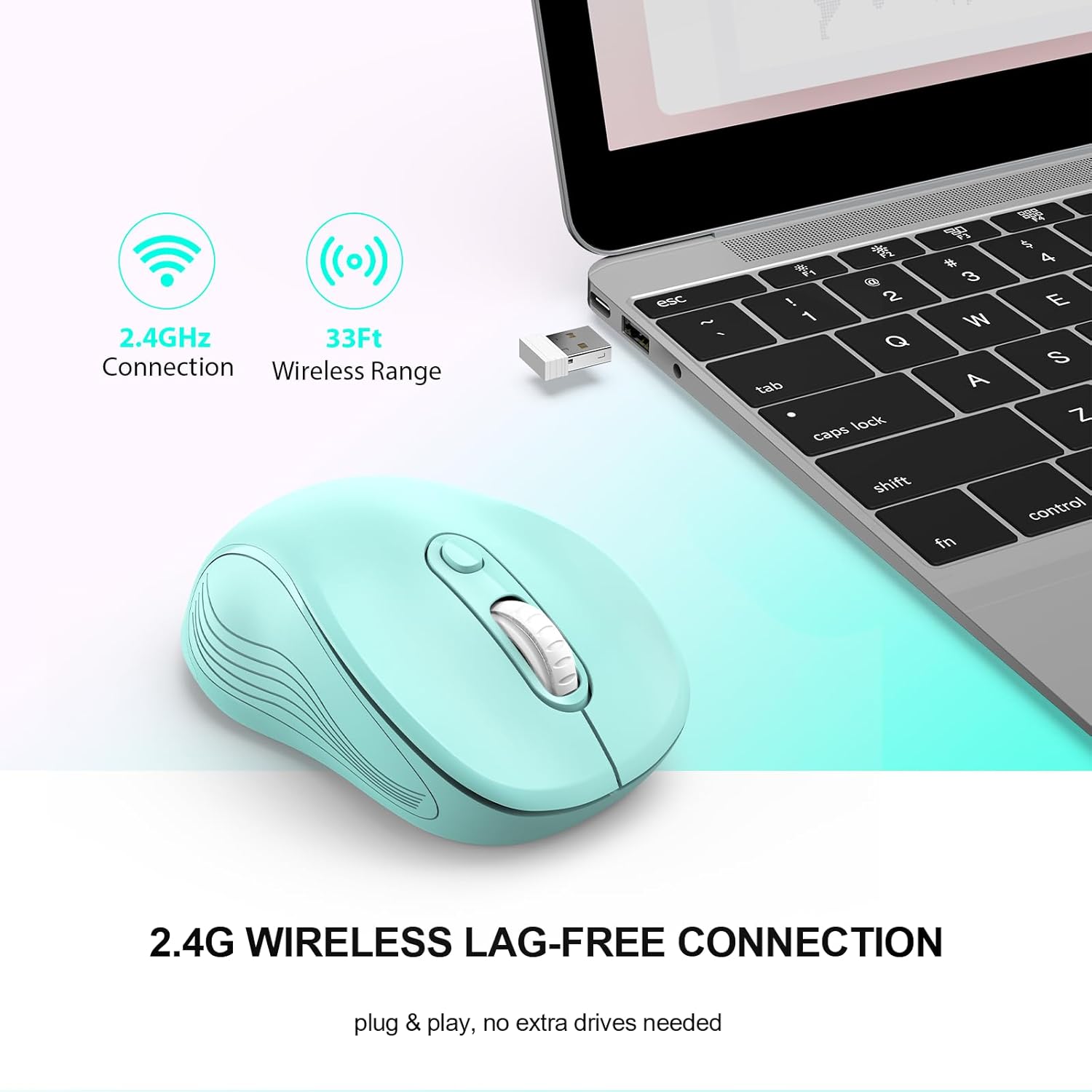
Image: The mouse in use with a laptop, demonstrating the 2.4GHz wireless connection and 33ft wireless range.
3. Instrucións de funcionamento
3.1 Funcións básicas
- Botón esquerdo: Función de clic principal.
- Botón dereito: Secondary click function, typically for context menus.
- Roda de desprazamento: Desprácese cara arriba ou cara abaixo polos documentos e web páxinas. Tamén se pode facer clic para a funcionalidade de clic central.
- Page Up/Page Down Buttons: Located on the side, these buttons facilitate quick navigation in documents or web navegadores.
Image: A detailed diagram highlighting the six buttons of the WisFox wireless mouse, including the DPI switch, scroll wheel, and side buttons.
3.2 Axuste de DPI (sensibilidade)
The mouse features 3 adjustable DPI levels to control cursor speed and precision.
- Preme o Botón de conmutación DPI (located below the scroll wheel) to cycle through the available DPI settings: 800, 1200 (default), and 1600.
- Select the DPI level that best suits your task, whether for precise work or fast navigation.

Image: A visual representation of the three adjustable DPI settings (800, 1200, 1600) and how to change them using the DPI button.
3.3 Deseño ergonómico
The contoured shape and sweat-resistant coating are designed for maximum hand comfort during extended use, reducing strain and fatigue.

Image: A hand comfortably gripping the WisFox wireless mouse, highlighting its ergonomic design for prolonged use.
4. Mantemento
4.1 Limpeza do rato
- To clean the mouse, gently wipe its surface with a soft, damp pano.
- Avoid using harsh chemicals or abrasive materials, as these can damage the surface.
- Asegúrate de que o rato estea apagado antes de limpalo.
4.2 Substitución da batería
Replace the AA battery when the mouse performance degrades or it stops responding. Refer to Section 2.1 for battery installation steps.
4.3 Modo de suspensión automática
The mouse is designed with an energy-saving feature. It will enter auto power-saving mode after 1 minute of idling and a deeper sleep mode after 8 minutes of idling. To wake the mouse, simply double-click any button.

Image: A graphic explaining the low power consumption feature, indicating the mouse enters sleep mode after 10 minutes of inactivity.
5 Solución de problemas
| Problema | Causa posible | Solución |
|---|---|---|
| O rato non responde | Low battery; Receiver not connected; Mouse is off; Mouse in sleep mode. | Replace battery; Ensure receiver is firmly plugged in; Turn mouse ON; Double-click to wake mouse. |
| Conexión intermitente ou con atraso | Too far from receiver; Wireless interference. | Move mouse closer to receiver (within 33 feet); Avoid placing receiver near other wireless devices. |
| Cursor movement is too fast/slow | DPI setting is not optimal. | Press the DPI Switch Button to adjust sensitivity (800/1200/1600 DPI). |
| Os botóns laterais non funcionan | Software conflict or specific application does not support. | Ensure the application supports forward/backward navigation; Check for any conflicting mouse software. |
6. Especificacións
- Marca: WisFox
- Modelo: B0DKDVB4D2
- Cor: Verde menta
- Tecnoloxía de conectividade: 2.4Ghz RF Wireless Technology
- Tecnoloxía de detección de movemento: Óptica
- Niveis de DPI: 800, 1200, 1600 (axustable)
- Botóns: 6 (Left, Right, Scroll Wheel, DPI Switch, Page Up, Page Down)
- Tipo de batería: 1 pila AA (non incluída)
- Peso do artigo: 2.4 onzas
- Dimensións do paquete: 7.17 x 2.68 x 1.73 polgadas
- Característica especial: Soundless clicks, Auto Sleep Mode
- Compatibilidade: Windows 7/8/10/11/XP, Vista 7/8, Linux, Mac OS (V10.4 or higher)

Image: A graphic illustrating the wide compatibility of the WisFox wireless mouse with various operating systems, including Windows, Mac, and Linux.
7. Garantía e soporte
WisFox products are manufactured to high quality standards. For specific warranty information, please refer to the product packaging or contact the seller directly through your purchase platform.
If you encounter any issues or have questions regarding your WisFox 2.4G Wireless Mouse, please contact WisFox customer support for assistance. Contact details can typically be found on the product packaging or the official WisFox websitio.