
1. Introdución
Thank you for choosing the LOFREE Zero ARTZ Mechanical Keyboard and Terrazzo Mouse combo. This manual provides essential information for setting up, operating, and maintaining your new devices. The Zero ARTZ keyboard features a 75% layout, hot-swappable switches, and versatile connectivity options including Bluetooth, 2.4GHz wireless, and USB-C. The accompanying Terrazzo Mouse offers dual-mode connectivity and adjustable DPI settings for enhanced productivity.

Image: The LOFREE Terrazzo Mouse, featuring its unique speckled design.
2. Contido do paquete
Asegúrate de que todos os artigos estean presentes no teu paquete:
- LOFREE Zero ARTZ Mechanical Keyboard
- LOFREE Terrazzo Mouse
- Cable USB-C a USB-A
- Receptor sen fíos a 2.4 GHz
- Extractor de teclas (para interruptores intercambiables en quente)
- Extractor de interruptores (para interruptores intercambiables en quente)
- Manual de usuario (este documento)
3. Configuración
3.1 Carga dos dispositivos
Both the keyboard and mouse are equipped with rechargeable batteries. Before first use, it is recommended to fully charge both devices.
- Connect the provided USB-C cable to the charging port on the keyboard and mouse.
- Conecta o outro extremo do cable USB-C a un adaptador de corrente USB (non incluído) ou a un porto USB dun ordenador.
- A luz indicadora de carga acenderase durante a carga e apagarase ou cambiará de cor cando estea completamente cargada.
3.2 Keyboard Connectivity
The Zero ARTZ keyboard supports three connection modes: Bluetooth, 2.4GHz Wireless, and USB-C wired.
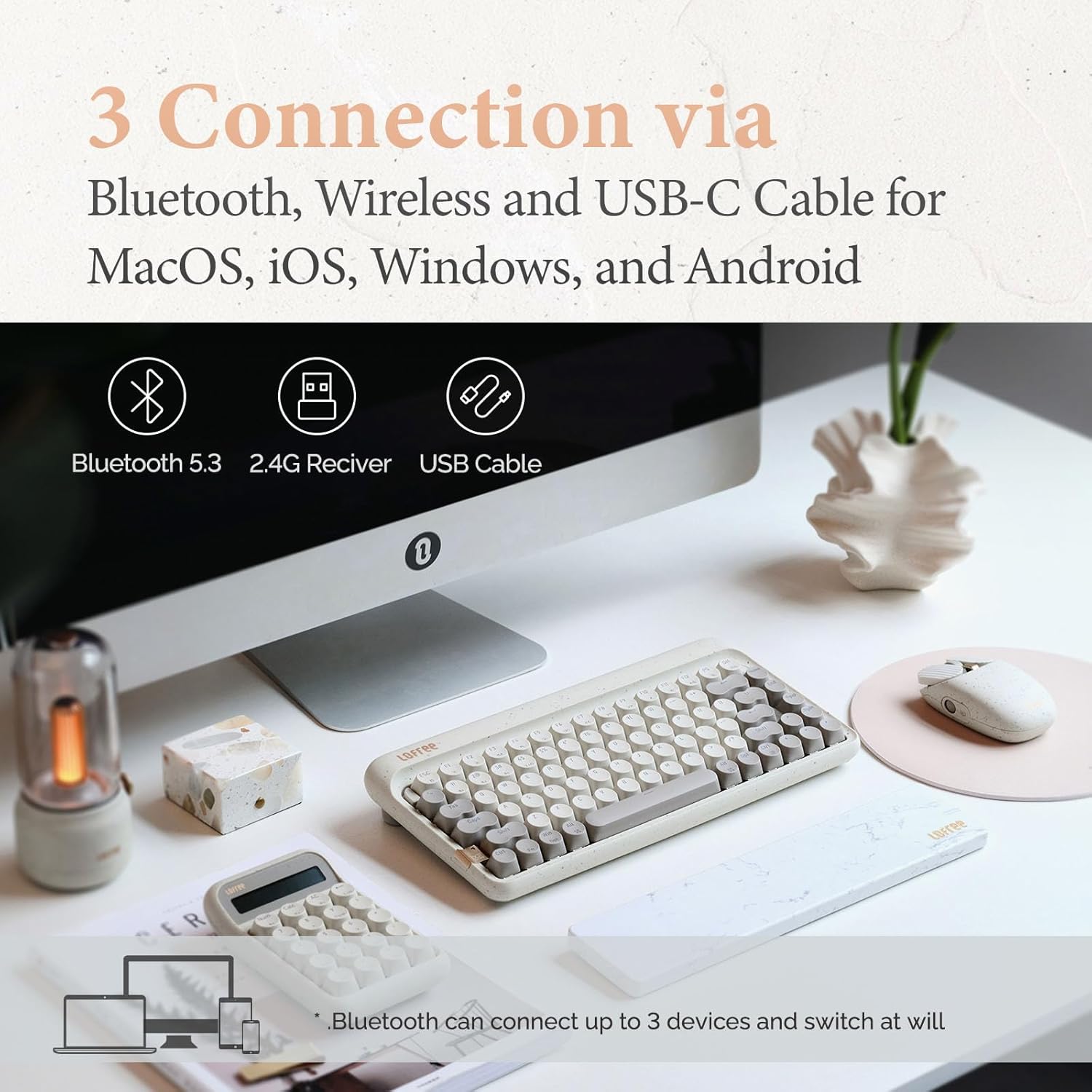
Image: Illustration showing the three connection methods: Bluetooth 5.3, 2.4G Receiver, and USB Cable, compatible with MacOS, iOS, Windows, and Android.
3.2.1 Conexión Bluetooth
- Locate the mode switch on the keyboard and set it to 'BT' (Bluetooth).
- Mantén premido fn+1, fn+2, ou fn+3 for 3-5 seconds until the indicator light flashes rapidly, indicating pairing mode. The keyboard can store up to three Bluetooth devices.
- On your device (computer, tablet, smartphone), enable Bluetooth and search for 'LOFREE Zero ARTZ'.
- Selecciona o teclado que queres emparellar. A luz indicadora deixará de parpadear unha vez conectado.
- Para cambiar entre dispositivos Bluetooth emparellados, prema fn+1, fn+2, ou fn+3 brevemente.
Conexión sen fíos de 3.2.2 a 2.4 GHz
- Locate the mode switch on the keyboard and set it to '2.4G'.
- Insert the 2.4GHz wireless receiver into an available USB port on your computer.
- O teclado debería conectarse automaticamente. Se non, preme fn+4 para iniciar o emparellamento.
3.2.3 Conexión con cable USB-C
- Locate the mode switch on the keyboard and set it to 'USB'.
- Conecta o cable USB-C fornecido do teclado ao porto USB do teu ordenador.
- The keyboard will be recognized as a standard USB device and is ready for use.
3.3 Mouse Connectivity
The Terrazzo Mouse supports dual-mode connection: Bluetooth and 2.4GHz Wireless.
3.3.1 Conexión Bluetooth
- Locate the mode switch on the bottom of the mouse and set it to 'BT'.
- Press and hold the Bluetooth pairing button (usually near the mode switch) for 3-5 seconds until the indicator light flashes.
- On your device, enable Bluetooth and search for 'LOFREE Terrazzo Mouse'.
- Select the mouse to pair. The indicator light will stop flashing once connected.
- The mouse can connect to 2 devices simultaneously. Use the pairing button to switch between them.
Conexión sen fíos de 3.3.2 a 2.4 GHz
- Locate the mode switch on the bottom of the mouse and set it to '2.4G'.
- Insert the 2.4GHz wireless receiver into an available USB port on your computer.
- O rato debería conectarse automaticamente.
4. Instrucións de funcionamento
4.1 Funcións do teclado
The Zero ARTZ keyboard is designed for optimal typing experience with a gasket mount structure and 1000Hz polling rate.

Imaxe: Explosión view of the LOFREE keyboard showing the Gasket Mount, Keycaps, Switches, Gasket Pad, Poron, PCBA IXPE Foam, EVA Foam, EVA Pad, Upper Case, and Bottom Case layers.
4.1.1 Combinacións de teclas de función (Fn)
Usa o Fn key in combination with other keys to access special functions:
- Fn + 1/2/3: Switch between Bluetooth devices.
- fn+4: Activate 2.4GHz wireless pairing.
- Fn + Q/W/E/R: (Specific to some models) Switch between operating system layouts (e.g., Mac/Windows). Refer to the keycap legends for specific OS modes.
- Fn+F1-F12: Multimedia and system control keys (e.g., volume, playback, screen brightness). The specific functions are indicated by icons on the keycaps.
4.1.2 Compatibilidade do sistema operativo
The keyboard is compatible with MacOS, iOS, Windows, and Android. Ensure the correct operating system mode is selected if available, typically via a switch or Fn key combination, to ensure proper key mapping.

Image: A user typing on the LOFREE keyboard, highlighting the 1000Hz Polling Rate for responsive input.
4.2 Funcións do rato
The Terrazzo Mouse features an ergonomic design and adjustable sensitivity.

Image: A hand comfortably resting on the LOFREE Terrazzo Mouse, demonstrating its ergonomic design.
4.2.1 Axuste de DPI
The mouse offers 5 adjustable DPI levels to suit different preferences and tasks. Press the DPI button (usually located on the top or bottom of the mouse) to cycle through the available DPI settings. The indicator light may change color or flash to indicate the current DPI level.
4.2.2 Thumb Wheel and Button
The mouse includes a thumb wheel and an additional button for multi-gesture use, enhancing navigation and productivity. Refer to your operating system's mouse settings for customization options.
5. Mantemento
5.1 Limpeza
Para manter a aparencia e a funcionalidade dos seus dispositivos:
- Use un pano suave, seco e sen fiapos para limpar as superficies do teclado e do rato.
- Para a sucidade persistente, d lixeiramenteampEnxágüe o pano con auga ou un limpador suave e non abrasivo. Evite a humidade excesiva.
- Para limpar entre as tapas das teclas, use aire comprimido ou un cepillo pequeno.
5.2 Interruptores intercambiables en quente
The Zero ARTZ keyboard features hot-swappable switches, allowing for easy replacement without soldering.
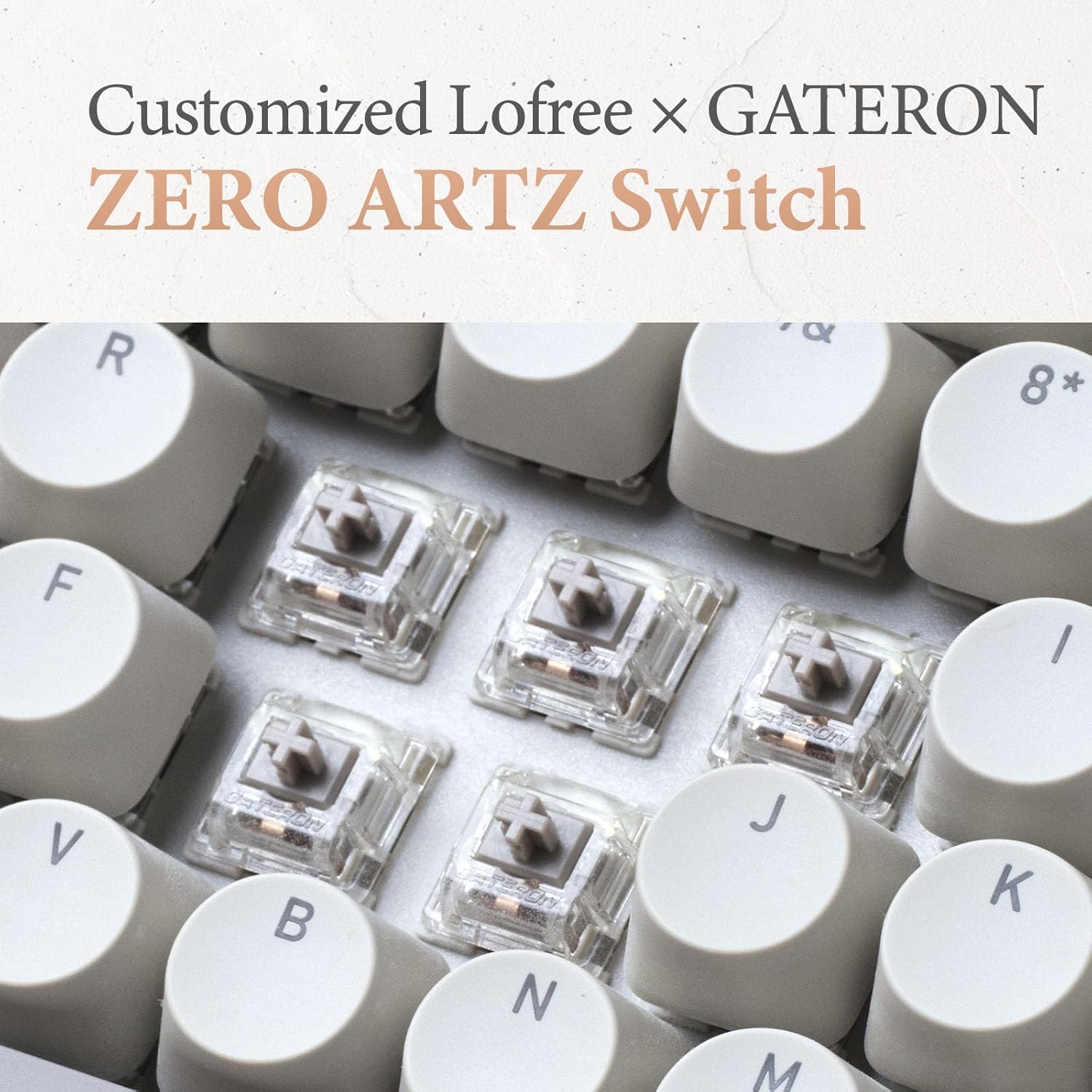
Image: Close-up of the customized LOFREE x GATERON ZERO ARTZ switches installed in the keyboard.
- Usa o extractor de teclas fornecido para retirar con coidado a tecla desexada.
- Use the provided switch puller to gently grip the switch from its top and bottom clips, then pull it straight up to remove.
- Align the pins of the new switch with the holes on the PCB and press it down firmly until it clicks into place. Ensure the pins are not bent.
- Substitúa a tapa das teclas.
5.3 Coidado coa batería
Para prolongar a duración da batería:
- Evite descargar completamente a batería con frecuencia.
- Store the devices in a cool, dry place when not in use for extended periods.
- Recharge the devices when the low battery indicator appears. The mouse has an approximate 50-day battery life on a single charge, depending on usage.
6 Solución de problemas
6.1 Problemas de conectividade
- O dispositivo non se conecta por Bluetooth: Ensure the keyboard/mouse is in pairing mode. Check your device's Bluetooth settings and try re-pairing. Ensure no other devices are interfering.
- 2.4GHz wireless not working: Ensure the 2.4GHz receiver is securely plugged into a USB port. Try a different USB port. Ensure the keyboard/mouse is set to 2.4G mode.
- Wired connection issues: Ensure the USB-C cable is properly connected to both the keyboard and the computer. Try a different USB-C cable or port.
6.2 Keyboard/Mouse Not Responding
- Comprobe os niveis da batería e cárguea se é necesario.
- Ensure the correct connection mode (Bluetooth, 2.4G, USB) is selected on the device.
- Reinicia o teu ordenador ou dispositivo.
- For the keyboard, ensure the correct operating system mode (Mac/Windows) is selected.
6.3 DPI Adjustment Not Working (Mouse)
- Asegúrate de que o rato estea acendido e conectado.
- Press the DPI button firmly. If there's no visual indicator, try moving the mouse after each press to feel the change in sensitivity.
7. Especificacións
| Característica | Detalle |
|---|---|
| Marca | LOFREE |
| Modelo | Zero ARTZ |
| Disposición do teclado | 75 % QWERTY |
| Tecnoloxía de conectividade | Bluetooth 5.3, sen fíos de 2.4 GHz, USB-C con cable |
| Dispositivos compatibles | Laptop, Personal Computer, Smartphone, Tablet (Windows, Mac OS, iOS, Android) |
| Fonte de enerxía | Alimentado por batería (recargable) |
| Keyboard Polling Rate | 1000 Hz |
| Interruptores de teclado | Customized LOFREE x GATERON ZERO ARTZ (Linear) |
| Teclas do teclado | Dual Color PBT |
| Niveis de DPI do rato | 5 niveis axustables |
| Duración da batería do rato | Approx. 50 days (depending on usage) |
| ASIN | B0DKJB48FR |
| Data de primeira dispoñibilidade | 22 de outubro de 2024 |
8. Garantía e soporte
LOFREE products are covered by a limited warranty. For detailed warranty information, please refer to the warranty card included with your product or visit the official LOFREE website. If you encounter any issues or require technical assistance, please contact LOFREE customer support through their official channels.
- Official LOFREE Websitio: www.lofree.co
- Correo electrónico de atención ao cliente: Consulte a embalaxe do produto ou websitio para obter información de contacto actual.