
SUPVAN E11
Manual do usuario da máquina de etiquetas Bluetooth SUPVAN E11
Introdución
This manual provides detailed instructions for the setup, operation, maintenance, and troubleshooting of your SUPVAN E11 Bluetooth Label Maker Machine. Please read this manual thoroughly before using the device to ensure proper function and longevity.
Información de seguridade
- Manteña o dispositivo lonxe da auga e da humidade elevada.
- Non expoña o dispositivo a temperaturas extremas nin á luz solar directa.
- Use only SUPVAN approved label tapes to prevent damage to the print head.
- Non intente desmontar ou reparar o dispositivo vostede mesmo. Póñase en contacto co servizo de atención ao cliente para obter asistencia.
- Manter fóra do alcance dos nenos.
Contido do paquete
Verifica que todos os elementos estean presentes no teu paquete:
- Etiquetadora E11
- Manual de usuario
- Cable USB-C
- 2 Rolls White Continuous Label Tape (15 mm x 6 m)
- 2 Rolls White Die-cut Label Tape (12 mm x 40 mm)

Image: Contents of the SUPVAN E11 Label Maker package, including the label maker, USB-C cable, user manual, and four rolls of label tape.
Produto rematadoview
The SUPVAN E11 is a portable thermal label maker designed for various labeling needs. It features a QWERTY keyboard for direct input and Bluetooth connectivity for app-based design and printing.
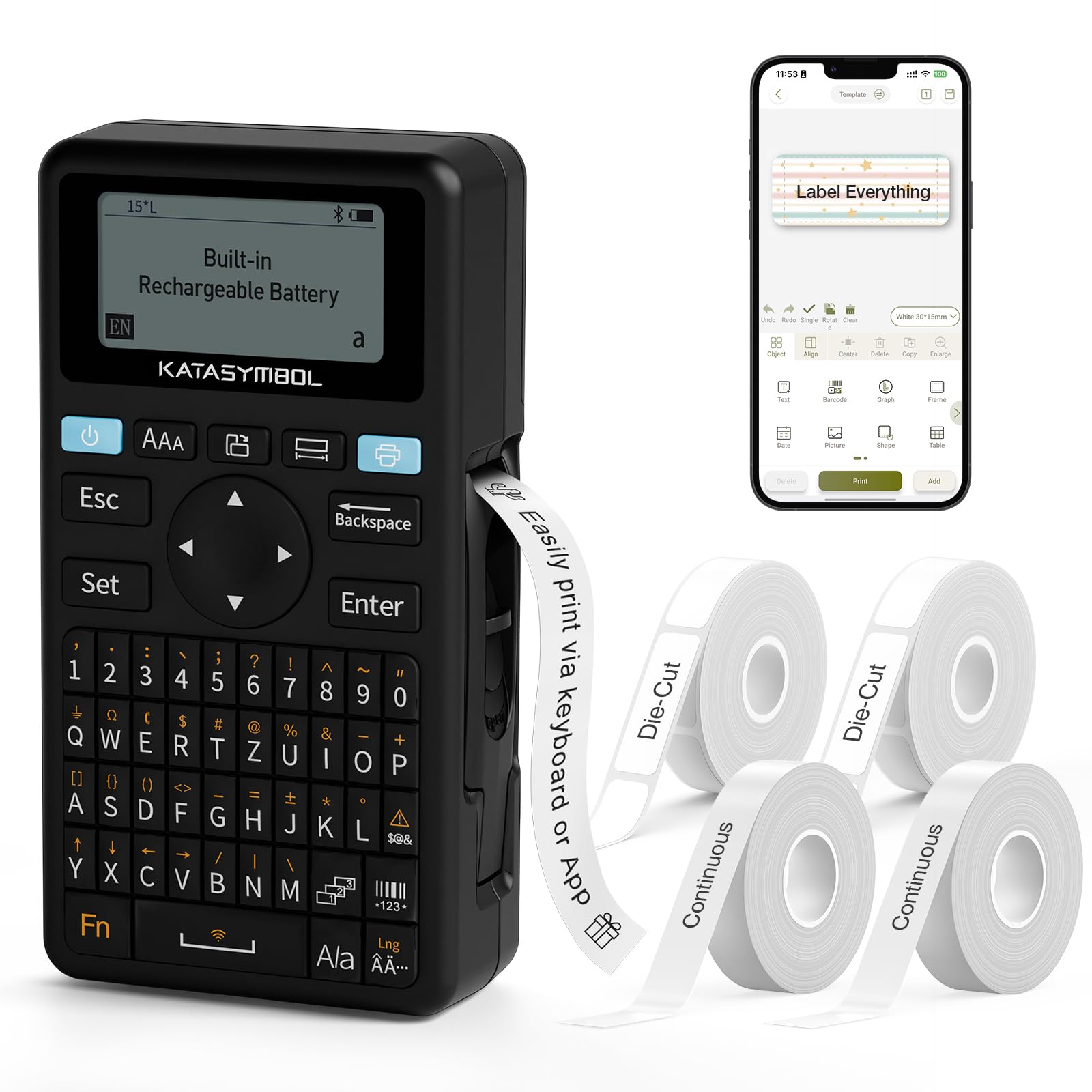
Imaxe: Fronte view of the SUPVAN E11 Label Maker, showing the QWERTY keyboard and display screen.
Configuración
1. Cargando o dispositivo
The SUPVAN E11 features a built-in 1200 mAh rechargeable battery. Before initial use, fully charge the device using the provided USB-C cable.
- Connect the USB-C cable to the charging port on the label maker.
- Conecta o outro extremo do cable a un adaptador de corrente USB (non incluído) ou a un porto USB do ordenador.
- O indicador de carga do dispositivo mostrará o estado de carga.

Image: The SUPVAN E11 Label Maker demonstrating that it uses thermal paper and requires no ink or toner.
2. Instalación da cinta adhesiva
The E11 label maker uses thermal label rolls. Follow these steps to install a new roll:
- Abra a tapa do compartimento das etiquetas que se atopa no lateral do dispositivo.
- Insert the label roll into the compartment, ensuring the label tape feeds out from the bottom and through the guide slot.
- Pecha a tapa do compartimento de forma segura.

Image: A hand demonstrating how to install a label tape roll into the SUPVAN E11 Label Maker.
3. Connecting via Bluetooth (App)
For advanced customization and printing, connect your label maker to the companion app:
- Download the official SUPVAN app from your device's app store.
- Turn on the label maker and ensure Bluetooth is enabled on your smartphone.
- Open the SUPVAN app and follow the on-screen instructions to pair with your E11 device.

Image: A visual guide showing the step-by-step process of connecting the label maker to the mobile app via Bluetooth.
Operación
1. Keyboard Printing
For quick and frequent labeling, use the integrated QWERTY keyboard:
- Acenda a etiquetadora.
- Type your desired text using the keyboard. The text will appear on the LCD display.
- Press the 'Print' button to print the label.
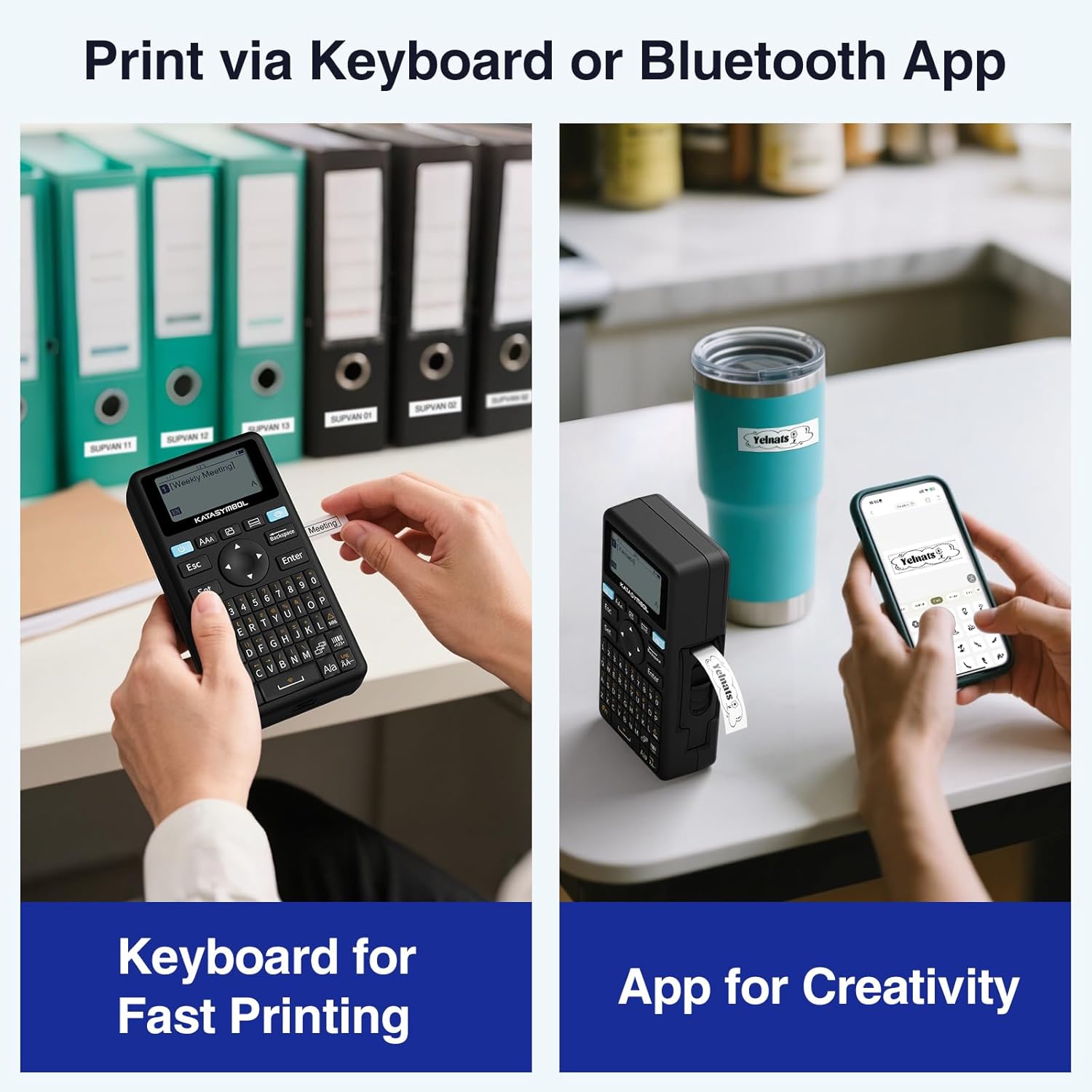
Image: A person using the SUPVAN E11 Label Maker's keyboard to type and print a label.
2. App Printing and Customization
The SUPVAN app offers extensive customization options:
- Ensure your device is connected to the app via Bluetooth.
- Open the app and select your label design.
- Usa as funcións da aplicación para personalizar a túa etiqueta:
- Tipos de letra: Choose from over 30 fonts.
- Cadros: Apply from over 50 frames.
- Iconas: Select from over 660 icons.
- Códigos QR e códigos de barras: Xera e imprime códigos QR e varios tipos de códigos de barras.
- Modelos: Create and save your own label templates.
- Once your design is complete, tap the 'Print' button in the app.
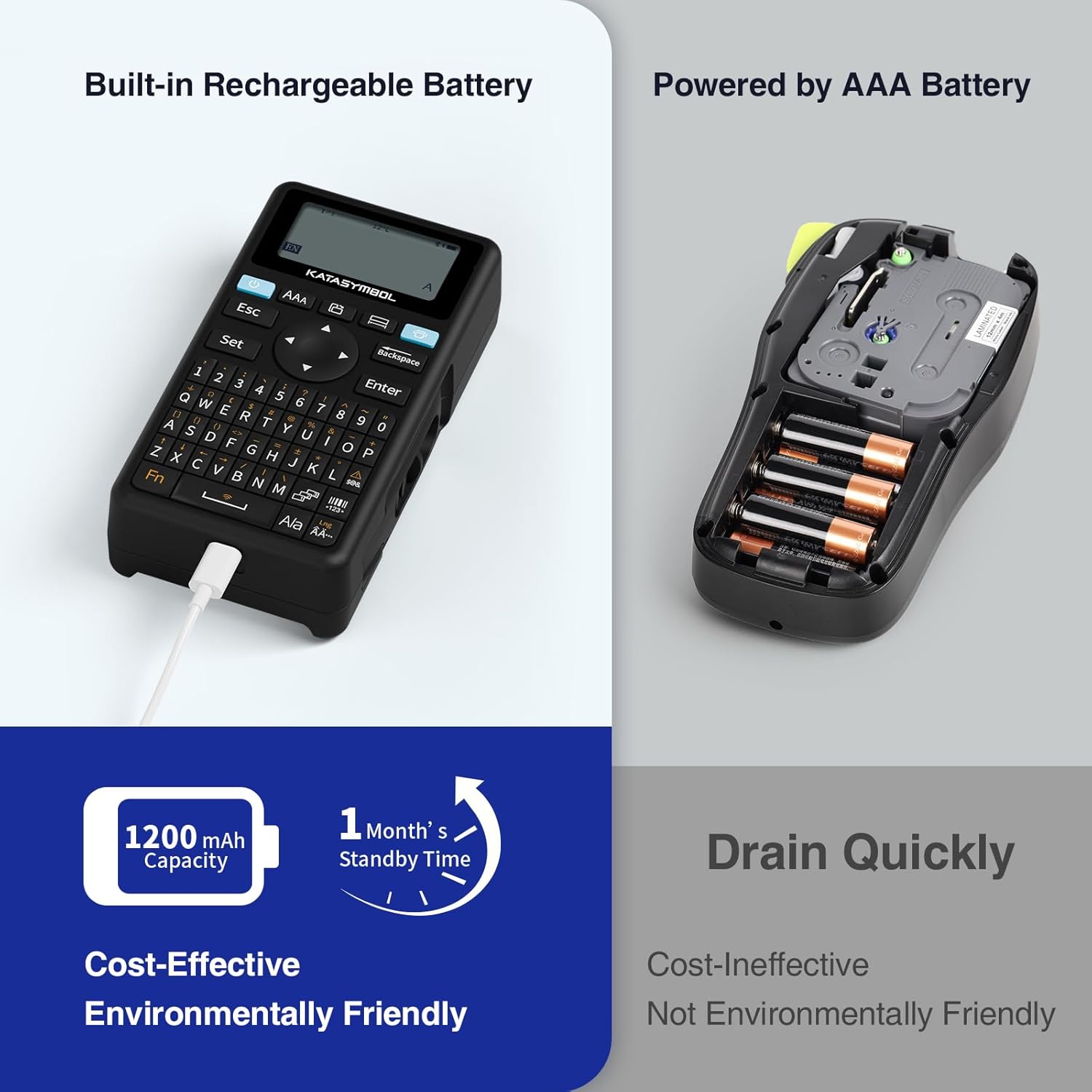
Image: A person using the SUPVAN E11 Label Maker in conjunction with the mobile app to design and print a customized label.

Image: A visual representation of the SUPVAN Label App's features, including a wide selection of fonts, frames, icons, and options for QR codes and barcodes.
Adjusting Label Font Size in the App
Video: This video demonstrates how to adjust the font size of your label text within the SUPVAN mobile application.
Adjusting Font Styles in the App
Video: This video illustrates the process of changing font styles and applying various formatting options to your labels using the SUPVAN mobile application.
3. Label Types and Minimal Margin Printing
The E11 supports both continuous and die-cut labels, offering flexibility for different applications. It also features minimal margin printing, reducing label waste.
- Etiquetas continuas: Ideal for long text or custom lengths.
- Etiquetas troqueladas: Pre-sized labels for specific items or standard applications.
- Minimal Margin: The E11 prints with only a 0.2-inch margin, significantly less than many other label makers, saving tape.

Imaxe: Examples of die-cut and continuous labels printed by the SUPVAN E11, showcasing its versatility for different label types.
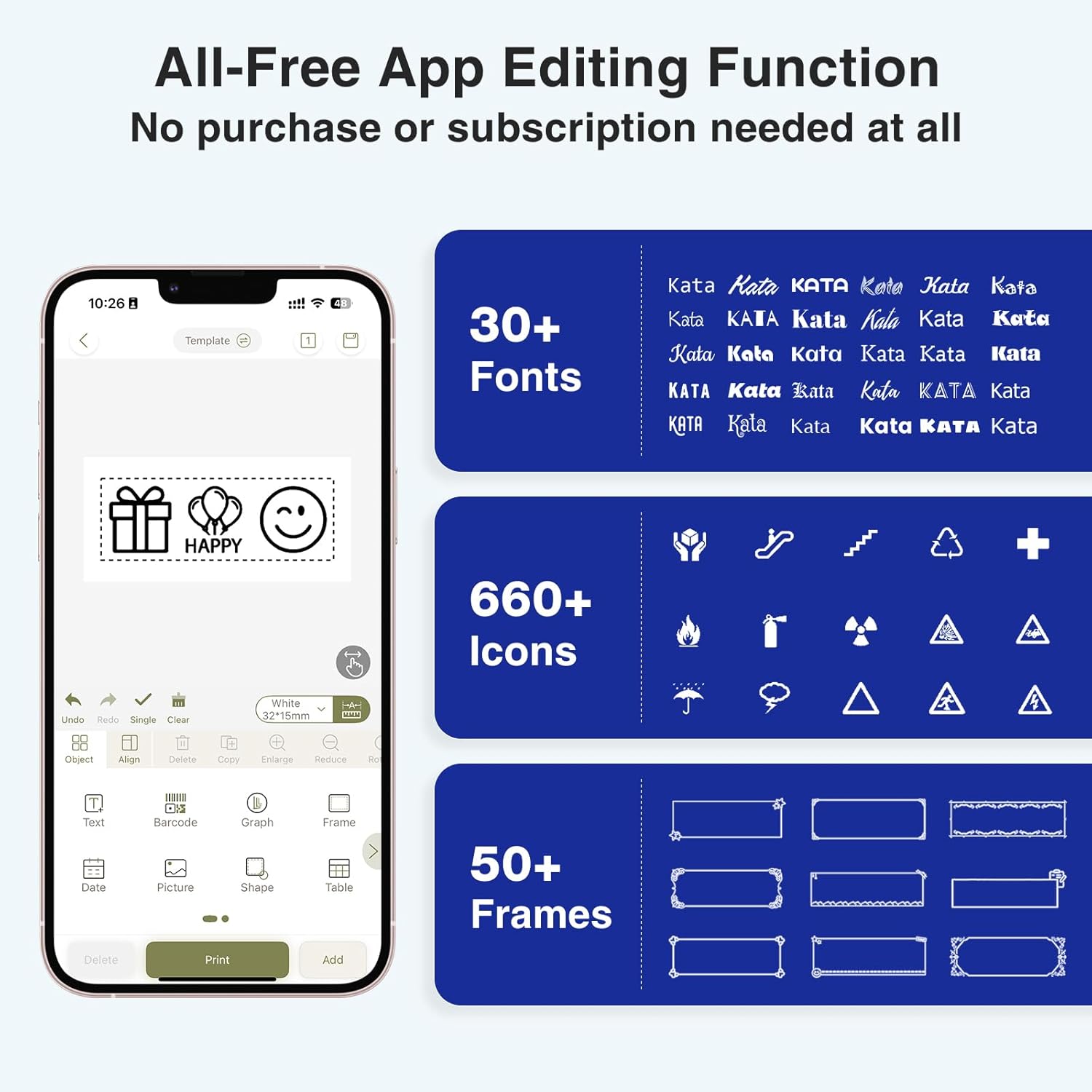
Image: A visual comparison highlighting the minimal 0.2-inch margin of SUPVAN labels versus the larger 1-inch margin of other label makers, demonstrating material efficiency.
4. Wide Applications
The SUPVAN E11 is suitable for various organizational tasks in different environments:
- Casa: Organizing pantry items, storage bins, and personal belongings.
- Cociña: Labeling food containers, spices, and expiry dates.
- Oficina: Categorizing files, folders, and office supplies.
- Escola: Labeling school supplies, books, and projects.
- Garage/Workshop: Organizing tools and parts.

Image: A collage showing various applications of labels created with the SUPVAN E11, including labeling bottles, file folders, and storage containers.
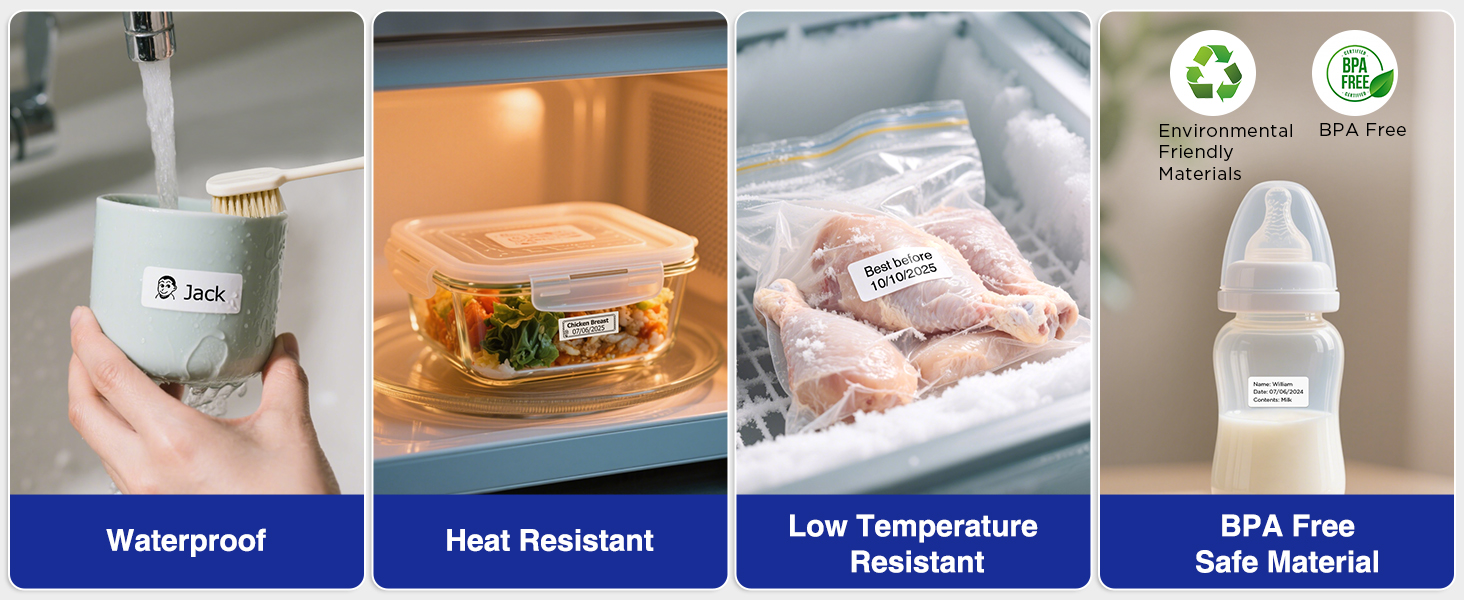
Image: A display illustrating the durability of SUPVAN laminated labels, highlighting their waterproof, heat-resistant, low-temperature resistant, and BPA-free characteristics.
Mantemento
1. Limpeza do cabezal de impresión
To ensure optimal print quality, regularly clean the print head:
- Turn off the label maker and open the label compartment.
- Limpe suavemente o cabezal de impresión cun pano suave e sen fiaposampcon alcohol isopropílico.
- Allow the print head to dry completely before closing the compartment and using the device.
2. Coidado da batería
Para prolongar a duración da batería:
- Evite descargar completamente a batería con frecuencia.
- Cargue o dispositivo regularmente, mesmo se non o está a usar, para manter a batería en bo estado.
- Garde o dispositivo nun lugar fresco e seco cando non o use durante períodos prolongados.
Resolución de problemas
| Problema | Causa posible | Solución |
|---|---|---|
| Device does not turn on or turns off unexpectedly. | Low battery; device overload during long prints. | Ensure the device is fully charged. For long prints, try breaking the text into shorter segments. |
| Poor print quality (faint, streaky, or blank labels). | Print head is dirty; incorrect label tape installation; faulty label tape. | Clean the print head as described in the Maintenance section. Reinstall the label tape correctly. Try a new roll of label tape. |
| Problemas de conexión Bluetooth. | Bluetooth is off; device not paired; app issues. | Ensure Bluetooth is enabled on both devices. Re-pair the label maker through the app. Restart the app and the label maker. |
| Labels are not feeding correctly or jamming. | Improper tape installation; foreign object in the feed path. | Open the compartment and re-install the tape, ensuring it is aligned. Check for any obstructions and carefully remove them. |
Especificacións
| Característica | Detalle |
|---|---|
| Marca | SUPVAN |
| Nome do modelo | E11 |
| Tecnoloxía de conectividade | Bluetooth |
| Tecnoloxía de impresión | Térmica |
| Saída da impresora | Monocromo |
| Velocidade máxima de impresión monocromática | 40 mm/s |
| Resolución | 203 ppp |
| Peso do elemento | 0.5 libras (aprox. 227 g) |
| Dimensións do produto (P x A x A) | 5.8" x 3.1" x 1.5" (aprox. 14.7 cm x 7.9 cm x 3.8 cm) |
| Capacidade da batería | 1200 mAh |
| Interfaz de carga | USB tipo C |
| Tipo de visualización | LCD |
| Método de control | Aplicación, botón pulsador |
| Tamaño máximo do soporte | 15 mm x 6 m |
Información da garantía
The SUPVAN E11 Label Maker comes with a 2 ano de garantía do fabricanteEsta garantía cobre defectos de materiais e fabricación en condicións normais de uso. Conserve o comprobante de compra para reclamacións de garantía.
For detailed warranty terms and conditions, please refer to the official SUPVAN websitio ou póñase en contacto co servizo de atención ao cliente.
Atención ao cliente
If you encounter any issues or have questions not covered in this manual, please contact SUPVAN customer support:
- Websitio: Visit the official SUPVAN websitio web con preguntas frecuentes e recursos de asistencia.
- Correo electrónico: Consulte a embalaxe do produto ou a ficha oficial websitio web para enderezos de correo electrónico de atención ao cliente.
Ask a question about this manual
Ask about setup, troubleshooting, compatibility, parts, safety, or missing instructions. Manuals+ will review the question and use this page’s manual context to help answer it.