
Introdución
Thank you for choosing the TECKNET TK-MS017 Ergonomic Wireless Vertical Mouse. This manual provides detailed instructions for setting up, operating, maintaining, and troubleshooting your new mouse. Designed for comfort and efficiency, this vertical mouse helps reduce wrist strain during prolonged use.

The TECKNET Ergonomic Vertical Mouse, designed for comfortable use.
Características do produto
- Deseño vertical ergonómico: Mimics a natural handshake posture to reduce wrist and arm pressure, preventing discomfort from prolonged use.
- DPI axustable: 5 levels of DPI (800/1600/2400/3200/4800) for precise tracking and adaptable sensitivity.
- Clics silenciosos: 99% noise reduction for a quiet working environment. (Forward/Backward buttons are not silent).
- 6 Botóns: Includes standard left/right click, scroll wheel, DPI switch, and convenient forward/backward buttons for web navegación.
- Stable 2.4G Wireless Connection: Provides a reliable connection up to 10 meters with a plug-and-play USB receiver.
- Batería de longa duración: Features an independent power switch and automatic sleep function to conserve battery, offering up to 24 months of use.
- Ampla compatibilidade: Supports Windows 11/10/8/7/XP, Mac OS X10.4, Chrome OS, and Linux.

Comparison of vertical ergonomic grip and traditional mouse grip, highlighting reduced wrist tension with the vertical design.
Instrucións de configuración
- Instalar baterías:
Locate the battery compartment on the underside of the mouse. Open the cover and insert two AA batteries (not included), ensuring correct polarity. Close the battery cover securely.

The underside of the mouse, illustrating the battery compartment and the storage slot for the USB receiver.
- Conectar o receptor USB:
Remove the USB receiver from its storage slot next to the battery compartment. Plug the receiver into an available USB port on your computer (PC, laptop, Mac, Chromebook, or tablet).
- Encendido:
Flip the ON/OFF switch on the bottom of the mouse to the "ON" position. The mouse should automatically connect to your device. No additional drivers are typically required for most operating systems.
Instrucións de funcionamento
Funcións dos botóns
- Clic esquerdo: Selección e activación estándar.
- Clic dereito: Abre menús contextuais.
- Roda de desprazamento: Pergamiña documentos e web páxinas verticalmente. Tamén se pode premer para a funcionalidade de clic central.
- Botón de cambio de DPI: Located near the scroll wheel. Press to cycle through DPI settings (800/1600/2400/3200/4800). The red indicator light will flash to confirm the change.
- Botón de avance: Navega cara adiante web navegadores ou file explorers. (Not supported on Mac OS).
- Botón de retroceso: Navega cara atrás en web navegadores ou file explorers. (Not supported on Mac OS).
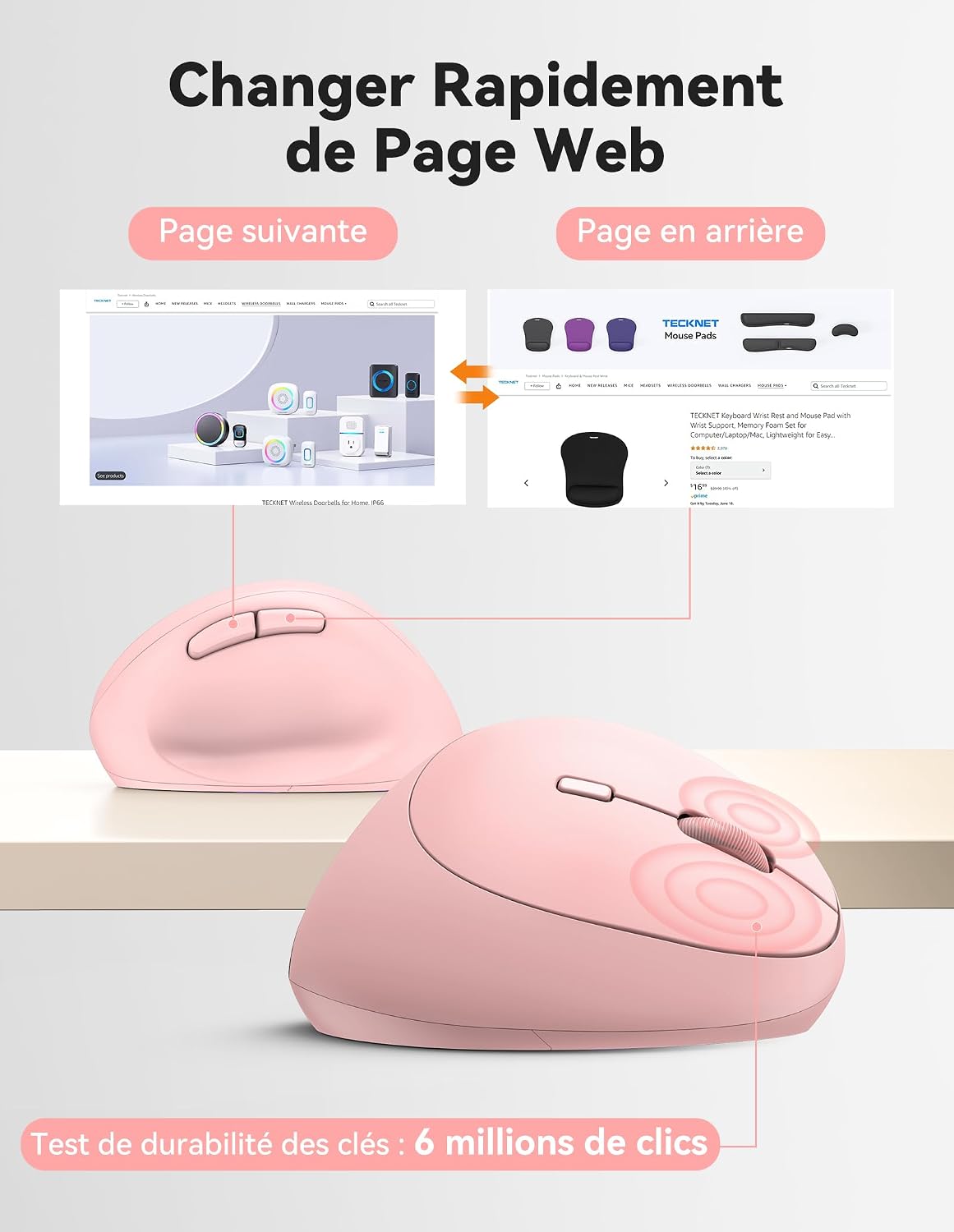
Diagram illustrating the location and function of each button on the TECKNET vertical mouse.
Axuste de DPI
The mouse offers 5 adjustable DPI levels to suit various tasks and preferences. Press the DPI switch button to change the cursor speed. The red indicator light will flash a corresponding number of times to indicate the current DPI setting:
- Flash X1: 800 DPI (Web Navigation)
- Flash X2: 1600 DPI (Excel Editing)
- Flash X3: 2400 DPI (Video Editing)
- Flash X4: 3200 DPI (Photoshop)
- Flash X5: 4800 DPI (Gaming Track)

Visual representation of the 5 adjustable DPI levels for different usage scenarios.
Modo de aforro de enerxía
To conserve battery life, the mouse will automatically enter sleep mode after 8 minutes of inactivity. To wake it up, simply move the mouse or click any button.
Mantemento
- Limpeza: Usa un pano suave e seco para limpar o rato. Evita o uso de produtos químicos agresivos ou materiais abrasivos.
- Substitución da batería: When the mouse performance degrades or the cursor becomes erratic, it's time to replace the batteries. Ensure you use fresh AA batteries and dispose of old batteries responsibly.
- Almacenamento: When not in use for extended periods, turn off the mouse using the ON/OFF switch to further conserve battery life. Store the USB receiver inside the mouse's battery compartment to prevent loss.
Resolución de problemas
- O rato non responde:
- Asegúrate de que o rato estea acendido.
- Comprobe se as baterías están instaladas correctamente e teñen a carga suficiente. Substitúaas se é necesario.
- Asegúrate de que o receptor USB estea conectado correctamente a un porto USB que funcione. Proba cun porto USB diferente.
- Achega o rato ao receptor USB para descartar problemas de alcance.
- Reinicia o teu ordenador.
- Movemento errático do cursor:
- Limpa o sensor óptico da parte inferior do rato.
- Ensure you are using the mouse on a suitable surface. The mouse is designed to track on various surfaces like resin, wood, fabric, paper, and metal. Avoid highly reflective or transparent surfaces.
- Adjust the DPI setting to a lower level if the cursor is too sensitive.
- Forward/Backward buttons not working on Mac:
These side buttons are not supported by Mac OS. This is a system limitation, not a mouse malfunction.
Especificacións
| Marca | TECNET |
| Número de modelo | TK-MS017 |
| Tecnoloxía de conectividade | 2.4G Wireless (Radio-frequency) |
| Tecnoloxía de detección de movemento | Óptica |
| Niveis de DPI | 800, 1600, 2400, 3200, 4800 |
| Número de botóns | 6 |
| Orientación das mans | Certo |
| Dimensións do produto | 10.5 cm de longo x 6.5 cm de ancho |
| distancia wireless | Ata 10 metros |
| Fonte de enerxía | 2 pilas AA (non incluídas) |
| Duración media da batería | Ata 24 meses |
| Sistemas operativos compatibles | Windows 11/10/8/7/XP, macOS X10.4+, Chrome OS, Linux |
Garantía e Soporte
TECKNET provides a 36-month support period for registered products. If you encounter any issues during the use of this product, please contact the professional TECKNET customer service team for assistance.
For more information and support, please visit the official TECKNET websitio web ou póñase en contacto directamente co servizo de atención ao cliente.
Websitio: Tenda TECKNET en Amazon