
1. Introdución
Thank you for choosing the MEETION BTM011 Ergonomic Wireless Bluetooth Vertical Mouse. This device is designed to provide a comfortable and efficient computing experience by promoting a natural hand position, reducing wrist strain. It offers versatile connectivity options for multiple devices and adjustable precision to suit various tasks.

The ergonomic design of the MEETION vertical mouse helps maintain a natural hand and wrist posture, reducing discomfort compared to traditional mice.
2. Contido do paquete
- MEETION BTM011 Ergonomic Wireless Bluetooth Vertical Mouse
- USB 2.4G Receiver (stored in the mouse battery compartment)
- Adaptador USB-A a USB-C
- Manual de usuario
3. Produto rematadoview
Familiarize yourself with the various components and buttons of your MEETION BTM011 mouse.

Detallado view of the mouse components, including the Mode Switching Button, Power Switch (ON/OFF), Low Battery Indicator, Charging Indicator, DPI Speed Switch Button, 2.4G Connection Indicator, Bluetooth 1 Connection Indicator, and Bluetooth 2 Connection Indicator.
- Botón esquerdo: Función estándar do clic esquerdo.
- Botón dereito: Función estándar do clic dereito.
- Roda de desprazamento: For scrolling up and down.
- Botón de avance: Navega cara adiante web navegadores ou file exploradores.
- Botón Atrás: Navega cara atrás en web navegadores ou file exploradores.
- Botón de cambio de DPI: Axusta a sensibilidade do cursor.
- Botón de cambio de modo: Switches between 2.4G, Bluetooth 1, and Bluetooth 2 modes.
- Interruptor de alimentación (aceso/apagado): Activa ou desactiva o rato.
- Compartimento de batería: Located at the bottom, for 1x AA battery and USB receiver storage.
4. Instrucións de configuración
4.1 Instalación da batería
The mouse requires one AA battery (not included).
- Locate the battery compartment cover on the bottom of the mouse.
- Deslice a tapa para abrir.
- Insira unha pila AA, asegurándose de manter a polaridade correcta (+/-).
- Pecha a tapa do compartimento da batería de forma segura.

Insert one AA battery into the compartment. The USB receiver is also stored here.
4.2 Encendido/apagado
Slide the power switch located on the bottom of the mouse to the "ON" position to turn it on. Slide to "OFF" to conserve battery when not in use.
4.3 Modos de conectividade
The MEETION BTM011 mouse supports three connection modes: 2.4GHz wireless (via USB receiver) and two independent Bluetooth 5.3 channels (BT1 and BT2). You can connect to up to three devices simultaneously and switch between them.

The mouse supports 2.4G wireless and two Bluetooth 5.3 connections for seamless switching between devices.
4.4 2.4GHz USB Connection
- Take out the USB receiver from the battery compartment of the mouse.
- Insert the USB receiver into an available USB-A port on your computer. If your computer only has USB-C ports, use the provided USB-A to USB-C adapter.
- Acende o rato usando o interruptor de acendido.
- Press the Mode Switching Button until the 2.4G Connection Indicator (green light) lights up. The mouse should now be connected.
4.5 Conexión Bluetooth (BT1 / BT2)
- Acende o rato usando o interruptor de acendido.
- Press the Mode Switching Button to select either Bluetooth 1 (BT1) or Bluetooth 2 (BT2). The corresponding blue indicator light will blink, indicating pairing mode.
- No teu dispositivo (ordenador, portátil, tableta, teléfono intelixente), vai á configuración de Bluetooth.
- Busca new devices. You should find "Meetion_MS_BT1" or "Meetion_MS_BT2".
- Select the device to pair. Once paired, the blue indicator light will stop blinking and remain solid for a few seconds.

Visual guide for connecting the mouse via 2.4G USB receiver and Bluetooth modes.
5. Instrucións de funcionamento
5.1 Axuste de DPI
The mouse features 4 adjustable DPI levels: 1200, 1600, 2400, and 3200. Press the DPI Switch Button (located behind the scroll wheel) to cycle through these settings. Each press changes the cursor speed, allowing you to select the precision suitable for your task.
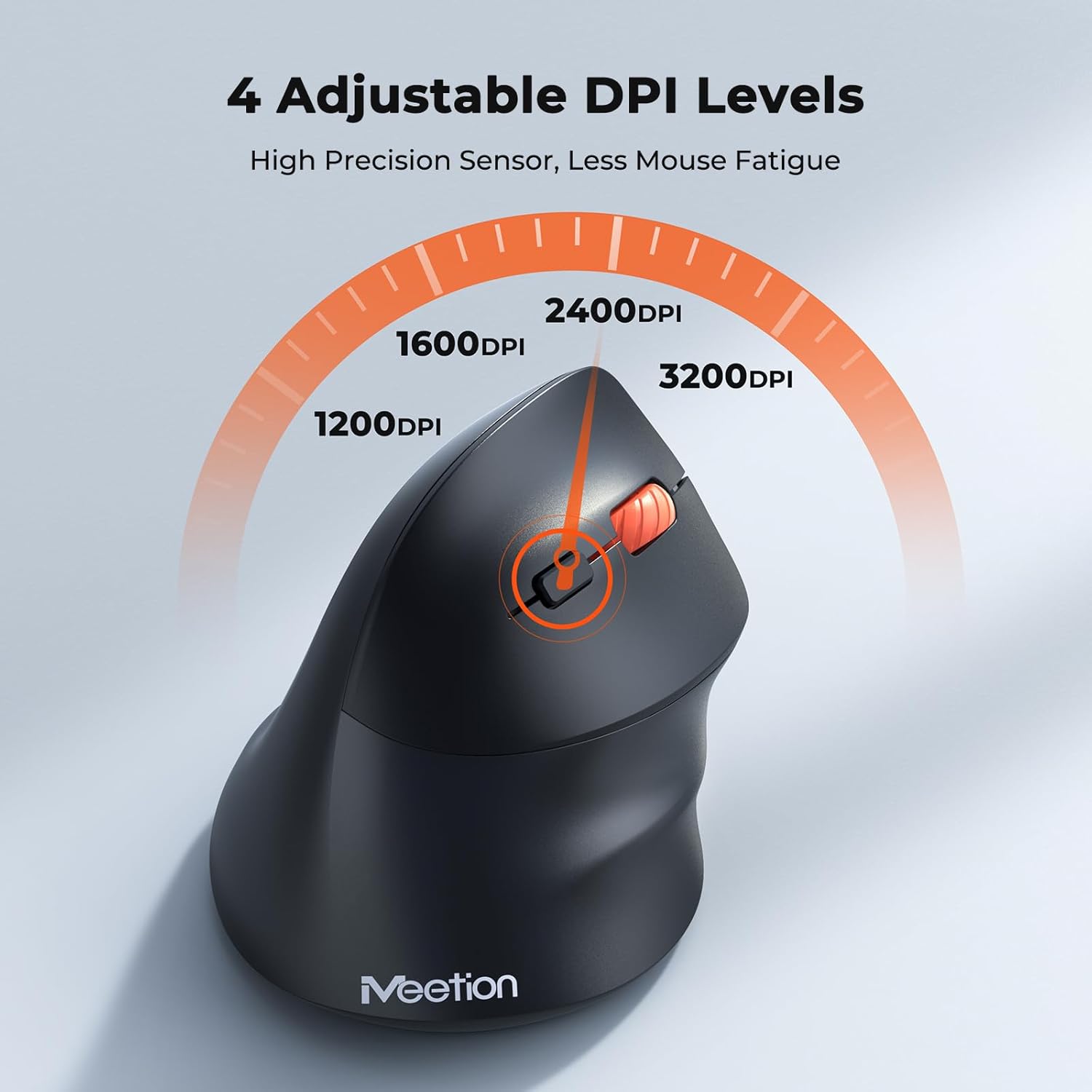
Adjust the DPI to match your preference for cursor speed and precision.
5.2 Conmutación multidispositivo
To switch between connected devices, simply press the Mode Switching Button located on the bottom of the mouse. The corresponding indicator light (green for 2.4G, blue for BT1/BT2) will illuminate to show the active connection.
5.3 Botóns Adiante/Atrás
Use the Forward and Back buttons, conveniently located on the side of the mouse, for quick navigation in web browsers, file explorers, and other applications that support these functions.
6. Xestión de enerxía
6.1 Auto-Sleep Mode
To conserve battery life, the mouse will automatically enter sleep mode after 20 minutes of inactivity. This intelligent feature helps extend the battery's operational time.
6.2 Waking the Mouse
To wake the mouse from sleep mode, simply press any button. It will instantly reconnect to the last active device.
6.3 Duración da batería
With typical usage, a single AA battery can power the mouse for up to 3 months. Actual battery life may vary based on usage patterns and battery quality.
7. Mantemento
Para garantir un rendemento óptimo e unha maior duración do rato, siga estas pautas de mantemento:
- Limpeza: Usa un pano suave e seco para limpar a superficie do rato. Para a sucidade persistente, limpa lixeiramente.amp Pódese usar un pano, pero asegúrese de que non entre humidade no dispositivo. Evite produtos químicos agresivos ou produtos de limpeza abrasivos.
- Substitución da batería: Replace the AA battery when the low battery indicator lights up or when mouse performance degrades. Always dispose of used batteries responsibly.
- Almacenamento: When not in use for extended periods, turn off the mouse and store it in a dry, cool place.
8 Solución de problemas
If you encounter issues with your MEETION BTM011 mouse, refer to the following solutions:
| Problema | Solución |
|---|---|
| O rato non responde |
|
| O movemento do cursor é errático ou lento |
|
| Non se pode conectar a través de Bluetooth |
|
| Forward/Back buttons not working |
|
9. Especificacións
| Característica | Detalle |
|---|---|
| Modelo | BTM011 |
| Conectividade | 2.4GHz Wireless, Bluetooth 5.3 (BT1, BT2) |
| Niveis de DPI | 1200 / 1600 / 2400 / 3200 |
| Botóns | 7 (Left, Right, Scroll Wheel, Forward, Back, DPI Switch, Mode Switch) |
| Fonte de enerxía | 1 pila AA (non incluída) |
| Auto-sono | Despois de 20 minutos de inactividade |
| Compatibilidade | Windows, Mac OS, Linux, Android, iOS (for iPad/iPhone) |
| Material | Plástico |
| Dimensións (aprox.) | 4.4 x 3.29 x 2.74 polgadas (11.18 x 8.36 x 6.96 cm) |
10. Garantía e soporte
10.1 Información da garantía
MEETION products are designed and manufactured to the highest quality standards. This product is covered by a limited warranty against defects in materials and workmanship. Please retain your proof of purchase for warranty claims. Specific warranty terms may vary by region; refer to your local retailer or the official MEETION websitio para máis detalles.
10.2 Atención ao cliente
For technical assistance, troubleshooting, or general inquiries, please contact MEETION customer support:
- Correo electrónico: service@meetion.com
- Websitio: Visit the official MEETION websitio web con preguntas frecuentes e recursos adicionais.