
1. Produto rematadoview
The MOFII Wireless Keyboard and Mouse Combo offers a full-size keyboard with a retro typewriter design and a matching wireless mouse. This 2.4GHz wireless set is designed for comfortable and efficient use across various operating systems and devices.
- Deseño retro: Features round keycaps inspired by classic typewriters, providing a unique aesthetic.
- Comodidade ergonómica: Includes an ergonomic foldable stand and anti-slip pads for comfortable typing during extended use.
- Conexión sen fíos de 2.4 GHz: Utilizes a single 2-in-1 nano USB receiver for both the keyboard and mouse, offering a working range of up to 35 feet (10 meters).
- Produtividade mellorada: The keyboard includes a spacious numeric keypad, 3 indicator lights, and 12 multimedia shortcut keys for efficient control of media and common functions.
- Eficiencia energética: Both the keyboard and mouse operate on 1 AA battery each and feature an automatic sleep mode after 5 minutes of inactivity to conserve battery life.
- Compatibilidade ampla: Compatible with Windows 7/8/10/11/XP/Vista/Server, Chrome OS, and Linux. Suitable for desktops, Chromebooks, PCs, laptops, and other computers.
2. Guía de configuración
Follow these steps to set up your MOFII Wireless Keyboard and Mouse Combo:
2.1. Instalación da batería
- Para o rato:
Locate the battery compartment on the underside of the mouse. Open the cover and insert one AA battery, ensuring correct polarity (+/-). Close the battery cover.

Image: The underside of the wireless mouse, illustrating the battery compartment and the slot for the USB receiver.
- Para o teclado:
Locate the battery compartment on the underside of the keyboard. Open the cover and insert one AA battery, ensuring correct polarity (+/-). Close the battery cover.

Image: The underside of the wireless keyboard, showing the battery compartment and the adjustable foldable stand.
2.2. Conexión do receptor USB
- The 2-in-1 nano USB receiver is typically stored in the battery compartment of the mouse. Carefully remove it.
- Plug the USB receiver into an available USB port on your computer (PC, laptop, desktop, Chromebook, etc.).
- O teu ordenador debería detectar e instalar automaticamente os controladores necesarios. Non se require instalación de software adicional.
- Unha vez conectado o receptor, o teclado e o rato deberían estar listos para o seu uso.
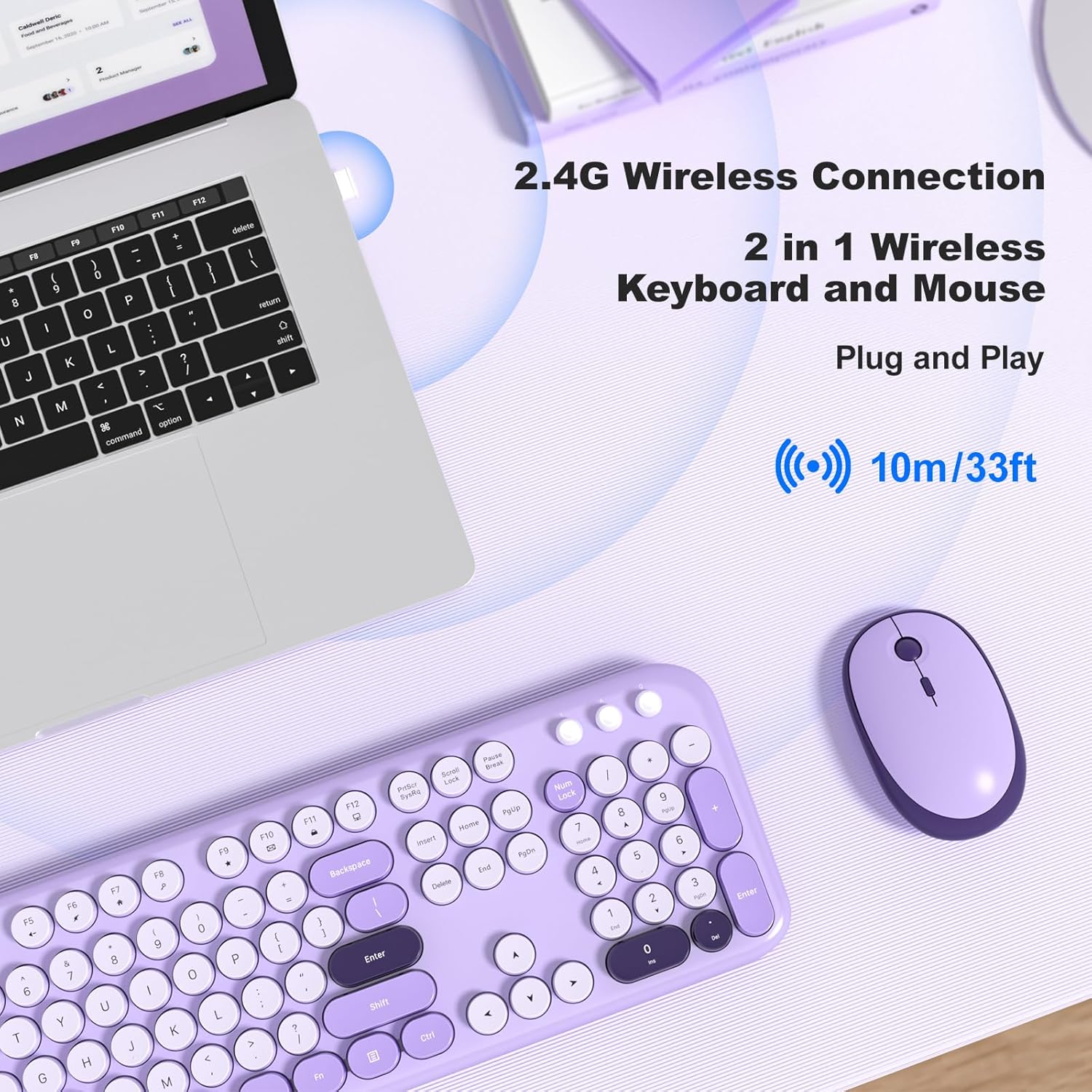
Image: A MOFII wireless keyboard and mouse in violet, shown connected to a laptop via a single 2.4G wireless USB receiver.
3. Instrucións de funcionamento
3.1. Funcións básicas do teclado
The keyboard features a standard QWERTY layout with a full numeric keypad. Simply type as you would with any standard keyboard.

Imaxe: Primeiro plano view of the MOFII wireless keyboard, highlighting its round, retro-style keycaps and full-size layout.
3.2. Multimedia Shortcut Keys
The keyboard includes 12 multimedia shortcut keys (F1-F12) that can be accessed by pressing the Fn key simultaneously with the desired function key. These keys allow for quick control of various computer functions:
- Fn+F1: Reproductor multimedia
- Fn+F2: Baixar o volume
- Fn+F3: Subir volume
- Fn+F4: Silenciar
- Fn+F5: Pista anterior
- Fn+F6: Próxima pista
- Fn+F7: Reproducir/Pausa
- Fn+F8: Pare
- Fn+F9: Páxina de inicio
- Fn+F10: Correo electrónico
- Fn+F11: O meu ordenador
- Fn+F12: Calculadora

Image: A visual representation of the keyboard's multimedia hotkeys (F1-F12) and their functions.
3.3. Axuste de DPI do rato
The wireless mouse features adjustable DPI settings to control cursor sensitivity. You can cycle through different DPI levels (800, 1200, 1600) by pressing the DPI button located on the top of the mouse, usually behind the scroll wheel.
Image: The wireless mouse, highlighting its adjustable DPI settings (800/1200/1600) and silent click feature.
3.4. Modo de repouso automático
To conserve battery life, both the keyboard and mouse will automatically enter sleep mode after approximately 5 minutes of inactivity. To wake them up:
- Teclado: Preme calquera tecla.
- Rato: Click any button or move the mouse.

Image: A visual guide demonstrating how the keyboard and mouse enter auto-sleep mode and how to wake them up.
4. Mantemento
Proper maintenance ensures the longevity and optimal performance of your MOFII Wireless Keyboard and Mouse Combo:
- Limpeza: Usa un pano suave e seco para limpar as superficies do teclado e do rato. Para a sucidade persistente, usa un pano lixeiramente seco.amp Pódese usar un pano con xabón suave, garantindo que non entre líquido no dispositivo.
- Limpeza das tapas das teclas: The keycaps are removable for easier cleaning. Gently pull them off to clean underneath, then carefully press them back into place.
- Substitución da batería: Replace AA batteries in both the keyboard and mouse when performance degrades or the indicator lights suggest low power. Always use fresh, high-quality batteries.
- Almacenamento: When not in use for extended periods, remove the batteries to prevent leakage and store the devices in a cool, dry place.

Image: The MOFII wireless keyboard with several keycaps removed, demonstrating the removable keycap feature for maintenance.
5 Solución de problemas
If you encounter issues with your keyboard and mouse combo, refer to the following common solutions:
| Problema | Causa posible | Solución |
|---|---|---|
| O teclado/rato non responde | Low battery, USB receiver disconnected, incorrect pairing. | Replace batteries. Ensure USB receiver is securely plugged into a working USB port. Re-plug the receiver. |
| Conexión intermitente ou con atraso | Interferencia, distancia do receptor, batería baixa. | Move closer to the receiver (within 35 feet). Ensure no large metal objects are between the devices and receiver. Replace batteries. |
| O cursor do rato é errático ou non se move con suavidade | Dirty sensor, unsuitable surface, incorrect DPI setting. | Clean the mouse sensor with a soft cloth. Use the mouse on a clean, non-reflective surface or a mouse pad. Adjust DPI settings using the DPI button. |
| As teclas multimedia non funcionan | Combinación de teclas incorrecta, conflito de software. | Asegúrate de premer o botón Fn key simultaneously with the desired function key. Check your operating system's settings for media key conflicts. |
6. Especificacións
| Característica | Detalle |
|---|---|
| Marca | MOFII |
| Modelo (ASIN) | B0DN63S2D9 |
| Cor | Violeta |
| Tecnoloxía de conectividade | Sen fíos de 2.4 GHz (receptor USB) |
| Característica especial | Round Keycaps, Ergonomic Design |
| Dispositivos compatibles | Ordenador portátil, ordenador persoal, tableta |
| Sistema Operativo | Chrome OS, Linux, Windows 7/8/10/11/XP/Vista/Server |
| Pilas necesarias | Yes (1x AA for keyboard, 1x AA for mouse) |
| Número de teclas (teclado) | 104 |
| Disposición do teclado | QWERTY |
| Descrición do teclado | Membrana |
| Configuración de DPI do rato | 800 / 1200 / 1600 |

Image: A diagram illustrating the precise dimensions of both the MOFII wireless keyboard and mouse.
7. Garantía e soporte
The MOFII Wireless Keyboard and Mouse Combo comes with a 12-month (1 year) warranty from the date of purchase. This warranty covers manufacturing defects and ensures product quality.
For any questions, technical assistance, or warranty claims, please contact MOFII customer support through the retailer where the product was purchased or refer to the official MOFII websitio para información de contacto.
Garde o comprobante de compra para validar a garantía.