
Introdución
The Ergodriven Om Handshake Vertical Mouse is designed to provide a comfortable and natural hand position, reducing tension and fatigue associated with traditional mouse use. This manual provides comprehensive instructions for setting up, operating, maintaining, and troubleshooting your device to ensure optimal performance and ergonomic benefits.

Image: The Ergodriven Om Handshake Vertical Mouse, showcasing its unique vertical design for a natural grip.
Why a Vertical Mouse?
Traditional flat mice often force the wrist into an unnatural, pronated position, leading to internal shoulder rotation, tense wrists, and pressure on the palm. The Ergodriven Om Vertical Mouse promotes a neutral, handshake grip, aligning the wrist and forearm in a more relaxed, externally rotated shoulder position. This design aims to alleviate stress and discomfort during prolonged computer use.

Image: Visual comparison of hand and arm posture using a flat mouse versus the Ergodriven Om Vertical Mouse, illustrating the healthier, neutral wrist position.
Clave Advantages of the Ergodriven Om
- Forma ergonómica: Designed for the most natural hand position, reducing tension and fatigue.
- Silent Click Micro-Force Switches: Minimize clicking effort and noise, further reducing strain.
- Batería recargable: Ultra-long life Li-ion battery for extended use without frequent charging.
- Pantalla OLED: Onboard display for easy adjustment of DPI settings and custom button functions.
- Botóns personalizables: Five programmable buttons for enhanced productivity without software installation.
- Conectividade dual: Seamless wireless connection via 2.4GHz dongle or Bluetooth.
Vídeo: Un overview of the Ergodriven Om Vertical Handshake Ergonomic Mouse, highlighting its design and benefits.
Configuración
1. Cargar o rato
The Ergodriven Om mouse comes with at least a 50% battery charge. For initial use or when the battery is low, connect the mouse to a USB power source using the provided USB-C cable. The OLED screen will indicate the charging status.
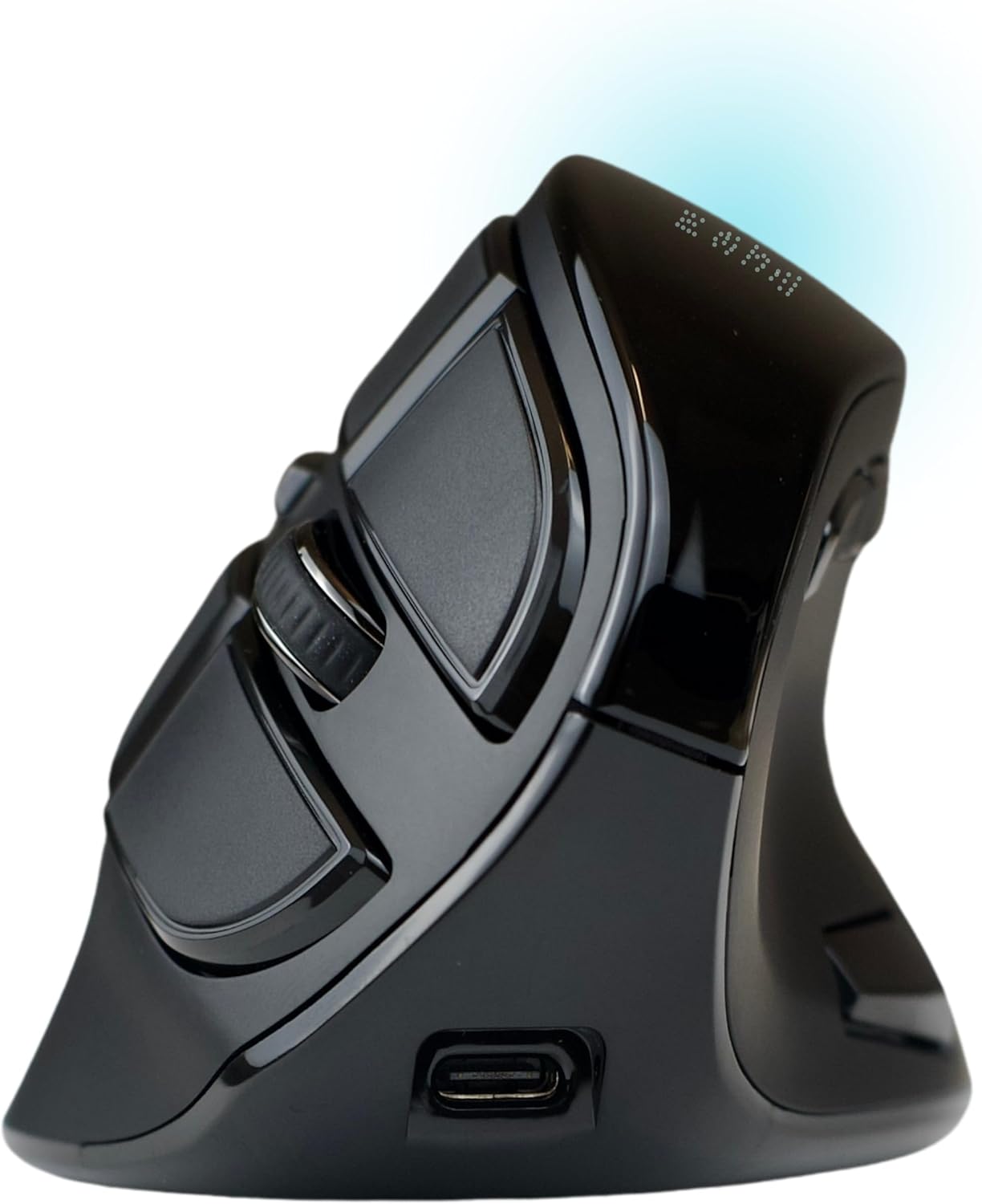
Image: The side of the Ergodriven Om mouse, featuring the USB-C charging port for convenient power replenishment.
2. Conectando ao teu dispositivo
The mouse offers two wireless connectivity options: 2.4GHz via a USB dongle or Bluetooth. The switch for selecting the connection mode is located on the bottom of the mouse.

Image: The underside of the Ergodriven Om mouse, displaying the connectivity switch and the integrated storage slot for the 2.4GHz USB dongle.
- Conexión sen fíos de 2.4 GHz:
- Locate the USB dongle stored in the compartment on the bottom of the mouse.
- Conecte o dongle a un porto USB dispoñible no seu ordenador.
- Desliza o interruptor da parte inferior do rato á posición "2.4G".
- O rato debería conectarse automaticamente.
- Conexión Bluetooth:
- Deslice o interruptor da parte inferior do rato á posición "BT".
- Press the "Connect" button (usually a small blue button near the switch) to enter pairing mode.
- On your computer, navigate to Bluetooth settings and select "Ergodriven Om" from the list of available devices to pair.
- The OLED screen will display "Bluetooth Mode Connected" upon successful pairing.
Instrucións de funcionamento
Funcións básicas
The Ergodriven Om mouse features standard left and right click buttons, a scroll wheel, and additional customizable buttons. The primary click buttons are designed with silent, micro-force switches for reduced effort.

Image: Detail of the Ergodriven Om mouse, emphasizing the micro-force buttons designed for light and silent clicks.
Configuración de DPI
The mouse offers four adjustable DPI (Dots Per Inch) settings: 1200, 1600, 2000, and 2400. These settings control the sensitivity of the mouse cursor. You can cycle through DPI settings using the dedicated DPI/Program button, and the current DPI will be displayed on the OLED screen.
Personalización de botóns
The Ergodriven Om mouse allows for easy customization of five buttons directly on the device, without requiring any software installation. This feature enhances productivity by assigning frequently used functions.

Image: A visual guide to the fixed and customizable buttons on the Ergodriven Om mouse, indicating their default and programmable functions.
- Press and hold the DPI/Program button until the OLED screen displays "Custom Function Setting".
- Press the button you wish to customize.
- Use the scroll wheel to navigate through the list of available functions (e.g., Copy, Paste, Forward, Back, Mute, etc.).
- Once the desired function is highlighted, press the chosen button again to confirm the assignment. The screen will display "Success!".
- To exit customization mode, press and hold the DPI/Program button again, or wait for the screen to time out.
Video: Demonstration on how to assign custom functions to the buttons of the Ergodriven Om Ergonomic Mouse using its onboard screen.
Mantemento
Limpeza
To maintain optimal performance, regularly clean your mouse. Use a soft, dry cloth to wipe the exterior. For stubborn dirt, a slightly damp cloth can be used, ensuring no moisture enters the device. Avoid harsh chemicals or abrasive materials.
Coidado da batería
The integrated Li-ion battery is designed for long life. To prolong battery health, avoid fully discharging the mouse frequently. Recharge when the OLED screen indicates a low battery level. Store the mouse in a cool, dry place when not in use for extended periods.
Resolución de problemas
| Problema | Posible Solución |
|---|---|
| O rato non responde |
|
| O movemento do cursor é errático ou lento |
|
| Custom button function not working |
|
Especificacións
- Dimensións do produto: 4.25 x 3 x 0.1 polgadas
- Peso do artigo: 5.6 onzas
- Número de modelo: 14001
- Tecnoloxía de conectividade: Bluetooth, USB de 2.4 GHz
- Tecnoloxía de detección de movemento: Óptica
- Características especiais: Ergonomic Design, OLED Screen, Rechargeable, Silent Click, Vertical Mouse
- Cor: Negro
- Fabricante: Ergodriven
Garantía e Soporte
The Ergodriven Om Handshake Vertical Mouse comes with a 2 anos de garantía do fabricante. This warranty covers defects in materials and workmanship under normal use. For warranty claims or technical support, please visit the official Ergodriven websitio ou póñase en contacto co seu servizo de atención ao cliente.
For additional resources and frequently asked questions, please refer to the Ergodriven support page.