
Introdución
Thank you for choosing the KODAK 7-Inch Wooden Digital Photo Frame. This manual provides essential information for setting up, operating, and maintaining your digital photo frame. Please read these instructions carefully before use to ensure proper functionality and to maximize your enjoyment of the product. This frame is designed to display your cherished photos, videos, and music with its high-quality 1024x600 IPS HD display.
Contido do paquete
Comprobe se o paquete contén os seguintes elementos:
- KODAK 7-Inch Wooden Digital Photo Frame
- Adaptador de alimentación
- Control remoto
- Manual de usuario
Produto rematadoview
The KODAK 7-Inch Wooden Digital Photo Frame features a 1024x600 IPS HD display, supporting various multimedia formats including photos, videos, and music. It includes an auto-rotate feature for flexible placement and is controlled via a remote.
Fronte View e Control Remoto
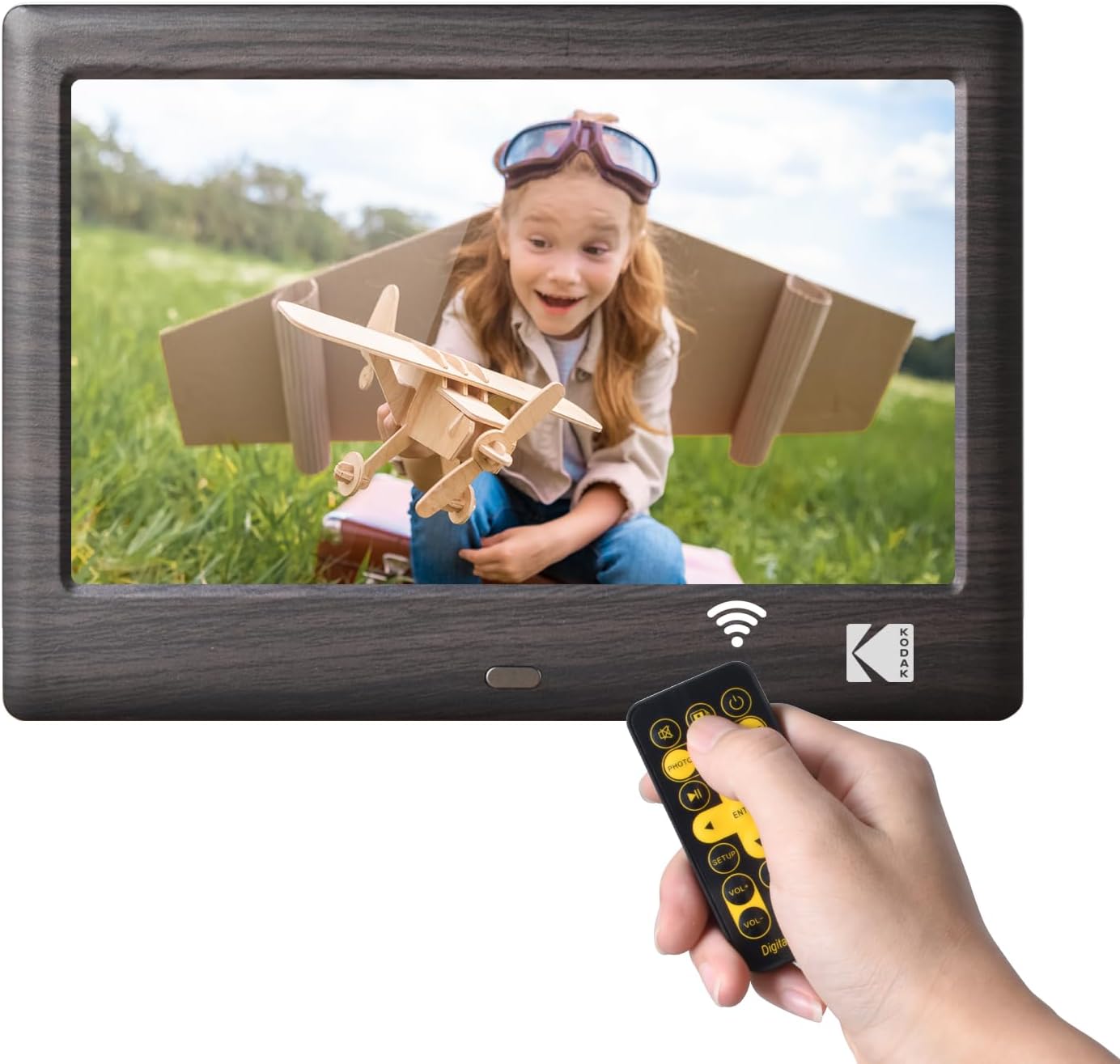
This image shows the front of the KODAK 7-Inch Wooden Digital Photo Frame displaying a picture of a child. A hand is holding the included remote control, highlighting the frame's primary control method.
Traseira View and Connectivity Ports

A parte traseira view of the digital photo frame illustrates the USB port and SD card slot, where external storage devices can be inserted to load media files. A USB drive is shown being inserted into the USB 3.1 port, and an SD card is visible in its slot.
Configuración
- Conexión de alimentación: Connect the provided power adapter to the DC IN port on the back of the frame and then plug it into a standard electrical outlet.
- Insert Storage Device: Insert a USB flash drive or an SD/SDHC memory card (up to 32GB, not included) into the corresponding slot on the back of the frame. Ensure the card or drive is inserted correctly.
- Encendido: The frame will typically power on automatically once connected to power. If not, press the power button located on the back or side of the frame.
- Configuración inicial: Siga as instrucións na pantalla para seleccionar o idioma que prefira e configurar a data e a hora.
Instrucións de funcionamento
Usando o mando a distancia
The included remote control allows for easy navigation and control of the frame's functions. Point the remote directly at the frame's IR receiver.
- Botón de encendido: Activa ou desactiva o cadro.
- Botón de menú: Accesses the main menu or returns to the previous menu.
- Botóns de navegación (Arriba/Abaixo/Esquerda/Dereita): Úsase para navegar polos menús e seleccionar opcións.
- Botón Intro: Confirma unha selección.
- Botóns de volume: Adjusts the volume for videos and music.
- Playback Controls (Play/Pause, Previous, Next): Controla a reprodución multimedia.
- Mode Buttons (Photo, Video, Music, Calendar): Switches directly to the respective media mode.
Reprodución multimedia
- Selecting Media Source: From the main menu, select the desired media type (Photo, Music, Video) or use the dedicated buttons on the remote.
- Navegando Files: Navega polo teu files and folders using the remote's navigation buttons.
- Starting Playback: Seleccione a file and press the Enter button to start playback. For photos, a slideshow will typically begin automatically.
Configuración
Access the settings menu to customize your frame's behavior:
- Configuración da presentación de diapositivas: Adjust transition effects, display time, and playback order for photos.
- Configuración do sistema: Configure language, time, date, auto-rotate function, and brightness.
- Modo calendario: Display a calendar with your photos in the background.
Mantemento
- Limpeza da pantalla: Use a soft, dry, lint-free cloth to gently wipe the screen. For stubborn smudges, slightly dampEnxágüe o pano con auga ou cun limpador de pantallas deseñado para dispositivos electrónicos. Evite produtos químicos agresivos.
- Limpeza do cadro: Wipe the wooden frame with a soft, dry cloth.
- Almacenamento: When not in use for extended periods, disconnect the power adapter and store the frame in a cool, dry place away from direct sunlight.
- Evitar líquidos: Do not expose the frame to water or other liquids.
Resolución de problemas
- O marco non se acende:
- Ensure the power adapter is securely connected to both the frame and a working electrical outlet.
- Try a different outlet. - No image or video displayed:
- Verify that a USB drive or SD card with compatible media files is inserted correctly.
- Comproba o file formats. The frame supports common photo (JPEG), video (MP4, AVI), and music (MP3) formats.
- Ensure the correct media source is selected. - O control remoto non funciona:
- Check the battery in the remote control and replace if necessary.
- Ensure there are no obstructions between the remote and the frame's IR receiver.
- Make sure you are pointing the remote directly at the frame. - Images are distorted or blurry:
- Ensure the resolution of your images is suitable for the frame's 1024x600 display.
- Clean the screen if there are smudges.
Especificacións
| Característica | Especificación |
|---|---|
| Marca | KODAK |
| Número de modelo | RCF1012WDB |
| Tamaño da pantalla | 7 polgadas |
| Resolución de visualización | Pantalla HD IPS de 1024 x 600 |
| Relación de aspecto | 16:9 |
| Tecnoloxía de conectividade | USB |
| Fonte de enerxía | Eléctrico con cable |
| Método de control | Mando a distancia |
| Dispositivos compatibles | Personal Computer, Smartphone, Tablet (for media transfer) |
| Dimensións do artigo L x W | 7.09" de longo x 4.69" de ancho |
Garantía e Soporte
This KODAK Digital Photo Frame comes with a 1 ano de garantía desde a data de compra. Conserve o comprobante de compra para reclamacións de garantía.
For technical support, troubleshooting assistance beyond this manual, or warranty inquiries, please contact KODAK customer service. Refer to the contact information provided on the product packaging or the official KODAK websitio.