
1. Introdución
This manual provides detailed instructions for the setup, operation, maintenance, and troubleshooting of your Transformers TF-Crystal 85 Keys Mechanical Keyboard. Please read this manual thoroughly before using the product to ensure proper functionality and longevity.
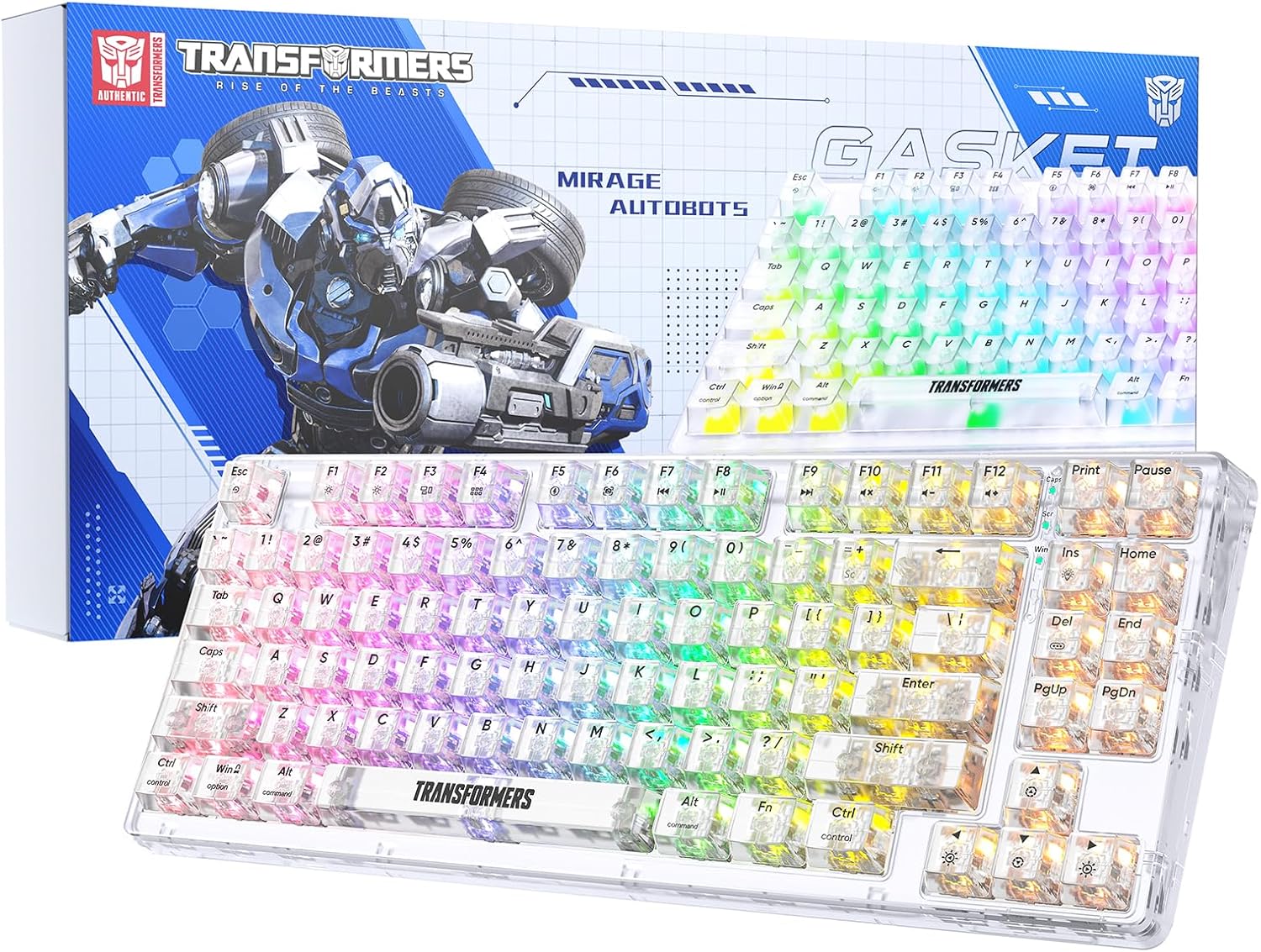
Image 1.1: Transformers TF-Crystal 85 Keys Mechanical Keyboard with its packaging, showcasing the transparent design and RGB lighting.
2. Produto rematadoview
2.1 Características principais
- Disposición de 85 teclas: Compact 75% design retaining essential functions, arrow, and navigation keys.
- Conectividade trimodo: Admite conexións Bluetooth 5.0, sen fíos de 2.4 GHz e con cable USB-C.
- PCB intercambiable en quente: Compatible with most 3-pin and 5-pin mechanical switches, allowing for easy customization and replacement.
- Linear Switches: Pre-lubricated switches with a 50 million keystroke lifespan for durability and smooth operation.
- Estrutura da xunta: Incorporates high-quality gasket materials and a silicone pad to absorb vibrations and reduce typing noise.
- Retroiluminación RGB personalizable: Features 20 built-in backlight modes, 16.8 million color options, and dynamic music rhythm effects.
- Programmable Driver: Enables macro customization, key function remapping, and advanced lighting control.
- Batería de longa duración: Equipped with a 4000mAh battery, providing up to 240 hours of continuous use in 2.4GHz mode without backlighting.
- Ampla compatibilidade: Supports Mac, Windows, iOS, Android, PC, Laptop, Smartphone, Tablet, Switch, Xbox, and PlayStation.
- Deseño transparente: Features transparent keycaps and base for enhanced aesthetic appeal.
3. Configuración
3.1 Carga do teclado
Before initial use, fully charge the keyboard. Connect the provided USB-C cable to the keyboard's USB-C port and the other end to a powered USB port (e.g., computer, wall adapter). The charging indicator will show the charging status.
3.2 Conexión mediante o modo sen fíos de 2.4 GHz
- Localiza o receptor USB de 2.4 GHz, que normalmente se garda nun compartimento do teclado.
- Conecte o receptor USB a un porto USB dispoñible no seu ordenador.
- Toggle the mode switch on the keyboard to the 2.4G posición.
- The keyboard will automatically connect to your device.
3.3 Connecting via Bluetooth 5.0 Mode
- Toggle the mode switch on the keyboard to the BT posición.
- Mantén premido fn+1 (ou fn+2, fn+3) for 3-5 seconds until the indicator light flashes rapidly, indicating pairing mode.
- No teu dispositivo (ordenador, tableta, teléfono intelixente), activa o Bluetooth e busca novos dispositivos.
- Select "TF-Crystal 85" from the list of available devices to pair.
- Once paired, the indicator light will stop flashing and remain solid. You can pair up to three Bluetooth devices using fn+1, fn+2, e fn+3.
3.4 Conexión mediante o modo con cable USB-C
- Conecta o cable USB-C fornecido ao porto USB-C do teclado.
- Conecta o outro extremo do cable USB-C a un porto USB dispoñible do teu ordenador.
- The keyboard will automatically switch to wired mode and function without battery power.

Image 3.1: Diagram illustrating the three connection modes: Bluetooth 5.0, 2.4GHz wireless, and USB-C wired, compatible with various devices.
4. Instrucións de funcionamento
4.1 Cambio entre modos
Use the physical switch located on the keyboard to select between BT (Bluetooth), 2.4G (2.4GHz wireless), and USB-C (wired) modes.
Control de retroiluminación RGB 4.2
The keyboard features customizable RGB backlighting. Use the following key combinations to adjust:
- Fn + Ins: Cycle through 20 different backlight effects.
- Fn + Supr: Switch backlight colors within certain modes.
- Fn + ↑ / ↓: Axusta o brillo da retroiluminación (5 niveis).
- Fn + ← / →: Adjust backlight effect speed (5 levels).
- Fn + Esc (hold for 3s): Reset backlight settings to default.

Image 4.1: Visual guide for controlling RGB backlight effects, brightness, and speed using Fn key combinations.
4.3 Programmable Driver Usage
The keyboard includes a programmable driver for advanced customization. This driver allows you to:
- Edición de macros: Record and edit complex key sequences.
- Key Redefinition: Customize the function of individual keys.
- RGB Effect Customization: Fine-tune lighting modes, colors, and speeds, including music rhythm lighting effects.
Refer to the software's dedicated user interface for detailed instructions on using these features.

Image 4.2: Screenshot of the programmable driver interface, showing options for macro editing, RGB effects, and key redefinition.
4.4 Interruptores de intercambio en quente
The TF-Crystal 85 keyboard features a hot-swappable PCB, allowing you to change mechanical switches without soldering. This supports most 3-pin and 5-pin mechanical switches.
- Apaga o teclado ou desconéctao do dispositivo.
- Usa o extractor de teclas fornecido para retirar con coidado a tecla desexada.
- Use the provided switch puller to gently grip the switch from its top and bottom clips, then pull it straight up to remove it.
- Aliña os pines do novo interruptor cos orificios da placa de circuíto impreso. Asegúrate de que os pines estean rectos.
- Gently press the new switch into place until it clicks securely. Do not force it.
- Substitúa a tapa das teclas.

Image 4.3: Illustration of the hot-swappable feature, showing how to remove and insert 3-pin/5-pin switches and the linear switch specifications.
5. Mantemento
5.1 Limpeza do teclado
- Desconecte o teclado de todas as fontes de alimentación antes de limpalo.
- Use un pano suave e sen pelusa lixeiramente dampEnxágüe con auga ou unha solución de limpeza suave para limpar as teclas e o chasis.
- Para o po e os residuos entre as teclas, use aire comprimido ou un cepillo pequeno.
- Avoid using harsh chemicals or abrasive materials that could damage the keyboard's surface.
5.2 Coidado coa batería
- Evite descargar completamente a batería con frecuencia.
- Garde o teclado nun lugar fresco e seco cando non o use durante períodos prolongados.
- Se non vai usar o teclado durante moito tempo, cárgueo ao 50 % aproximadamente antes de gardalo.
6 Solución de problemas
| Problema | Causa posible | Solución |
|---|---|---|
| O teclado non responde no modo sen fíos. | Low battery, incorrect mode selected, receiver not connected, Bluetooth not paired. | Charge the keyboard. Ensure the mode switch is set correctly (2.4G or BT). Re-insert the 2.4G receiver. Re-pair Bluetooth. |
| As chaves non se rexistran ou se escriben dúas veces. | Interruptor defectuoso, residuos debaixo da tapa das teclas, problema de software. | Clean under the keycap. Try hot-swapping the switch with a known working one. Restart your computer. |
| RGB backlight not working or incorrect. | Backlight turned off, incorrect settings, software conflict. | Axusta o brillo usando Fn + ↑. Cycle modes with Fn + Ins. Reset backlight with Fn + Esc (hold 3s). Check programmable driver settings. |
| O teclado non carga. | Faulty USB-C cable, power source issue, keyboard port damage. | Try a different USB-C cable. Use a different USB port or power adapter. Ensure the cable is fully inserted. |
7. Especificacións
| Característica | Detalle |
|---|---|
| Número de modelo | TF-Crystal 85 |
| Disposición de teclas | 85 Keys (75% Compact) |
| Conectividade | Bluetooth 5.0, sen fíos de 2.4 GHz, USB-C con cable |
| Tipo de cambio | Pre-lubricated Linear Mechanical Switches |
| Cambiar a vida útil | 50 millóns de pulsacións |
| Cambiable en quente | Si (compatible con 3/5 pines) |
| Retroiluminación | RGB (20 modos, 16.8 millóns de cores) |
| Capacidade da batería | 4000 mAh |
| Battery Life (2.4G, no light) | Ata 240 horas |
| Duración da batería (retroiluminación activada) | Aproximadamente 22 horas |
| Dimensións (L x W x H) | 34.7 cm x 14 cm x 4.5 cm |
| Compatibilidade | Mac, Windows, iOS, Android, PC, Laptop, Smartphone, Tablet, Switch, Xbox, PlayStation |

Image 7.1: Visual representation of the keyboard's battery life: 240 hours with backlight off, 22 hours with backlight on, powered by a 4000mAh battery.
8. Garantía e soporte
Transformers is committed to providing exceptional customer service. If you encounter any problems with your TF-Crystal 85 Keys Mechanical Keyboard, our after-sales support team is available to assist you. This includes technical support, exchanges, or installation guidance.
Please contact our customer service for assistance. We guarantee a hassle-free service experience.