Introdución
This manual provides essential information for the setup, operation, maintenance, and troubleshooting of your Onn 22 inch 1080P 100 Hz FHD LED Monitor. Please read this guide thoroughly before using the product to ensure optimal performance and safety.
The Onn 22 inch FHD LED Monitor is designed for a variety of applications, offering a vivid 1920x1080 resolution, a 100Hz refresh rate, and a 6.5ms response time for efficient performance. Its slim profile and T-shaped base are ideal for saving desk space.
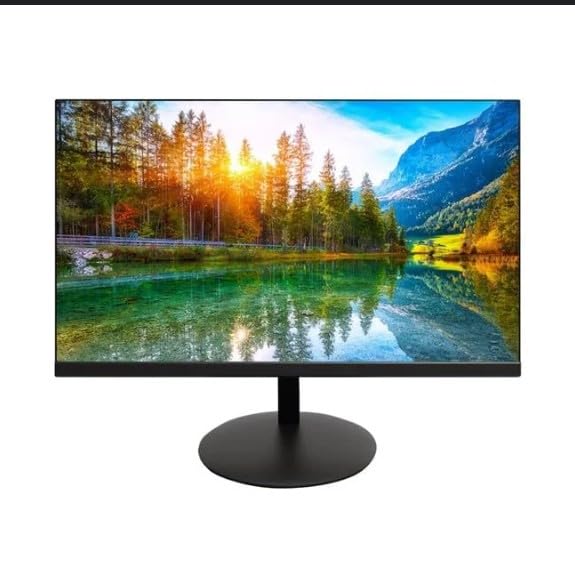
The image shows the Onn 22 inch FHD LED Monitor, highlighting its 100Hz refresh rate and 1080p resolution. The monitor features a slim design and a T-shaped base.
Instrucións de configuración
- Desembalaxe: Carefully remove the monitor and all accessories from the packaging. Ensure all components are present: monitor, T-shaped base, HDMI cable, and power adapter.
- Montaxe do stand: Attach the T-shaped base to the monitor. The design is screw-less for easy assembly. Ensure it is securely fastened.
- Conectando a un dispositivo:
The monitor supports both HDMI and VGA inputs. Connect the provided HDMI cable from your computer's HDMI output to the HDMI IN port on the monitor. Alternatively, use a VGA cable for VGA input.

This image displays the rear panel of the Onn monitor, illustrating the available input ports: HDMI IN, VGA IN, and the DC 12V power input. These ports are essential for connecting the monitor to a computer or other devices.
- Conexión de alimentación: Connect the power adapter to the DC 12V input port on the monitor, then plug the adapter into a power outlet.
- Axuste do monitor: The monitor is capable of swivel, tilt, rotation, and height adjustment. Adjust the screen to your preferred viewángulo de inclinación para un confort ergonómico.
- Configuración de monitor dual: This monitor is suitable for a fully functioning dual monitor setup. Connect a second monitor using the appropriate cables and configure your operating system's display settings.
Instrucións de funcionamento
- Encendido/apagado: Press the power button, usually located on the bottom or back of the monitor, to turn it on or off.
- Selección de entrada: If the monitor does not automatically detect the input source, use the On-Screen Display (OSD) menu buttons to manually select between HDMI and VGA inputs.
- Navegación do menú OSD: Use the physical buttons on the monitor (typically on the back or bottom edge) to navigate the OSD menu. This allows you to adjust settings such as brightness, contrast, color temperature, and input source.
- Resolución e taxa de actualización: The monitor supports a native resolution of 1920x1080 at a 100Hz refresh rate. Ensure your computer's display settings are configured to these specifications for the best visual experience.
- Sincronización adaptativa: The monitor features Adaptive Sync for gaming, which helps to reduce screen tearing and stuttering. Ensure this feature is enabled in your graphics card settings if supported.
Mantemento
- Limpeza da pantalla: Limpe a pantalla con suavidade cun pano suave e sen pelusa. Para marcas difíciles, d suavementeampen the cloth with water or a non-abrasive, monitor-specific cleaning solution. Avoid spraying liquids directly onto the screen.
- Limpeza do Casing: Use un pano suave e seco para limpar o monitor casing. Do not use strong detergents or solvents, as they may damage the finish.
- Ventilación: Asegúrate de que as aberturas de ventilación do monitor non estean bloqueadas para evitar o sobrequecemento.
- Almacenamento: Cando non o use durante períodos prolongados, garde o monitor nun lugar fresco e seco, lonxe da luz solar directa e de temperaturas extremas.
Resolución de problemas
- Sen enerxía:
- Comprobe se o cable de alimentación está conectado de forma segura tanto ao monitor como á toma de corrente.
- Verifique que a toma de corrente funciona correctamente.
- Sen sinal:
- Ensure the video cable (HDMI or VGA) is firmly connected to both the monitor and the computer.
- Seleccione a fonte de entrada correcta usando o menú OSD do monitor.
- Comprobe se o seu ordenador está acendido e non está en modo de suspensión.
- Flickering Screen or Poor Image Quality:
- Comprobe se o cable de vídeo está danado ou conexións soltas.
- Adjust the resolution and refresh rate settings on your computer to match the monitor's specifications (1920x1080, 100Hz).
- Restablecer a configuración do monitor aos valores predeterminados de fábrica a través do menú OSD.
- Botóns que non responden:
- Unplug the monitor from the power outlet, wait for 30 seconds, and then plug it back in.
If problems persist, please refer to the support information provided in the "Support and Warranty" section.
Especificacións
| Marca | Onn |
| Número de modelo | 100140681 |
| Nome do modelo | OTTO |
| Tamaño da pantalla | 21.5 polgadas |
| Tipo de visualización | LED, LCD |
| Resolución | 1920 x 1080 (FHD 1080p) |
| Taxa de actualización | 100 Hz |
| Tempo de resposta | 6.5 milisegundos |
| Interface de hardware | HDMI, VGA |
| Características especiais | Axuste de altura |
| Viewángulo ing | 160 graos |
| Relación de aspecto | 16:9 |
| Dimensións do produto | 49.2 x 20 x 37.2 cm; 3.24 kg |
Soporte e Garantía
For technical support, product inquiries, or warranty information, please visit the official Onn support websitio ou póñase en contacto co seu servizo de atención ao cliente.
- Soporte Oficial Websitio: onnsupport.ca
- Garantía: Specific warranty details may vary by region and purchase date. Please refer to the documentation included with your product or visit the support websitio web para obter a información máis actualizada sobre a garantía.