
1. Introdución
Thank you for choosing the SEUNKWANG EWEADN TK100 Wired Mechanical Keyboard. This keyboard combines a retro typewriter aesthetic with modern mechanical performance, designed for both office and gaming use. It features 104 keys, white backlighting, anti-ghosting technology, and durable blue mechanical switches for a tactile and clicky typing experience.

Image: The SEUNKWANG EWEADN TK100 keyboard showcasing its punk typewriter mechanical design and backlighting.
2. Información de seguridade
- Manteña o teclado lonxe de líquidos e humidade excesiva para evitar danos.
- Evite expoñer o teclado a temperaturas extremas ou á luz solar directa.
- Non intente desmontar nin modificar o teclado, xa que isto podería anular a garantía e causar danos.
- Use só o cable USB fornecido para a conexión.
3. Contido do paquete
- SEUNKWANG EWEADN TK100 Wired Mechanical Keyboard
- USB-A Connection Cable
- Manual de usuario (este documento)
4. Configuración
4.1 Conexión do teclado
- Locate an available USB-A port on your computer (PC, Mac, laptop, tablet, or desktop).
- Plug the USB-A connector of the keyboard cable into the USB-A port on your device.
- The keyboard is plug-and-play and does not require additional drivers or software installation. It should be recognized automatically by your operating system.
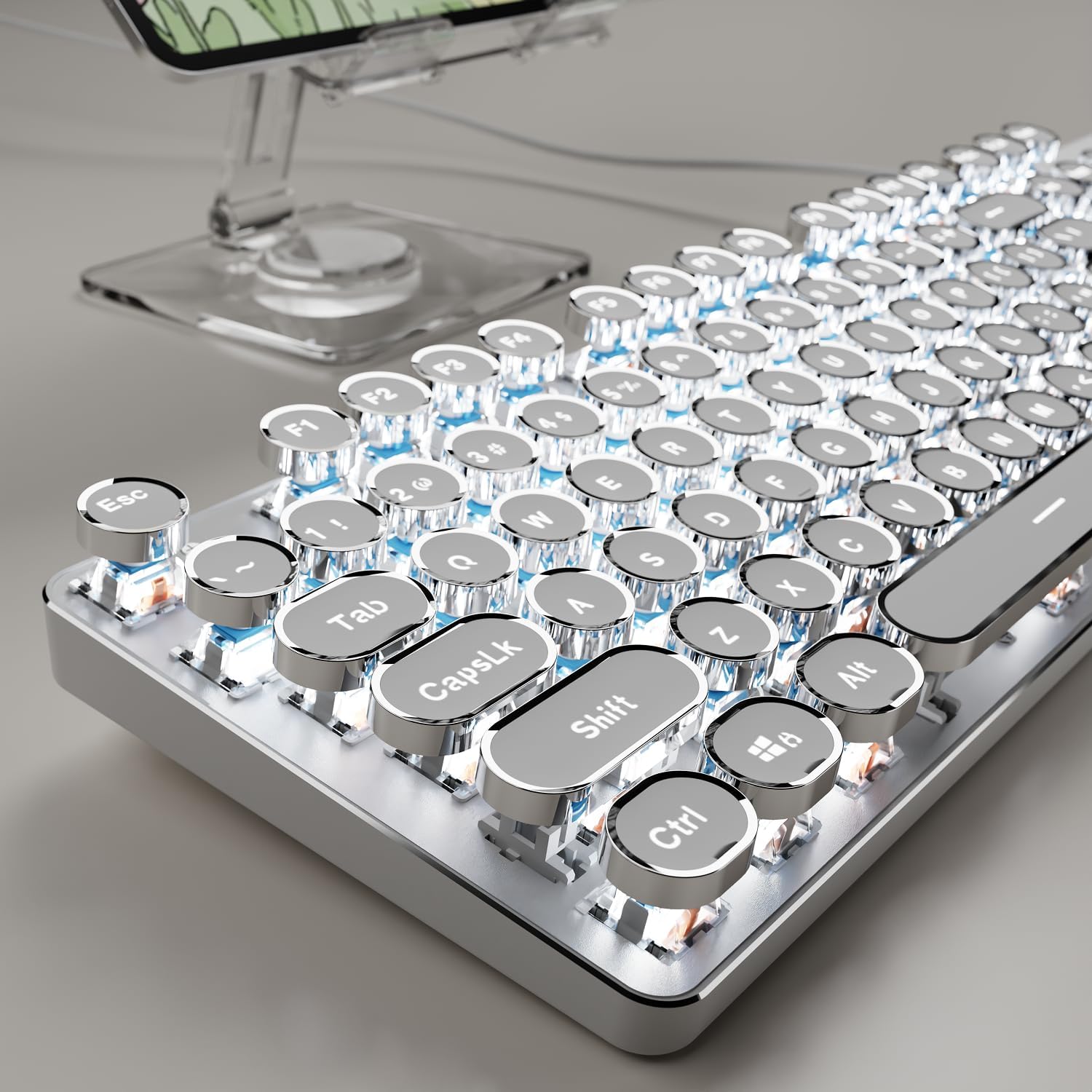
Image: The TK100 keyboard ready for use, highlighting its wired connection for reliable performance.
4.2 Adjusting Ergonomic Foot Support
The keyboard features adjustable feet on the underside to customize the typing angle for improved comfort and reduced fatigue during long sessions.

Image: The TK100 keyboard's two-level adjustable feet, designed for ergonomic typing.
Video: Demonstrates the ergonomic foot support of the TK100 keyboard, showing how it can be adjusted for a more comfortable typing experience.
5. Instrucións de funcionamento
Control de retroiluminación 5.1
The TK100 keyboard features a unique white backlight with 19 preset light effects and 5 brightness levels. You can also adjust the breathing speed of the backlight.
- Cambiar efectos de luz: Preme FN + INS to cycle through 19 basic lighting effects.
- Game Lighting Effects: Preme FN + 6/7/8/9/0 to activate 4 specific game lighting effects.
- Axustar brillo/velocidade: Preme FN + Teclas de frecha arriba/abaixo to adjust the backlight brightness (5 levels) or breathing speed.
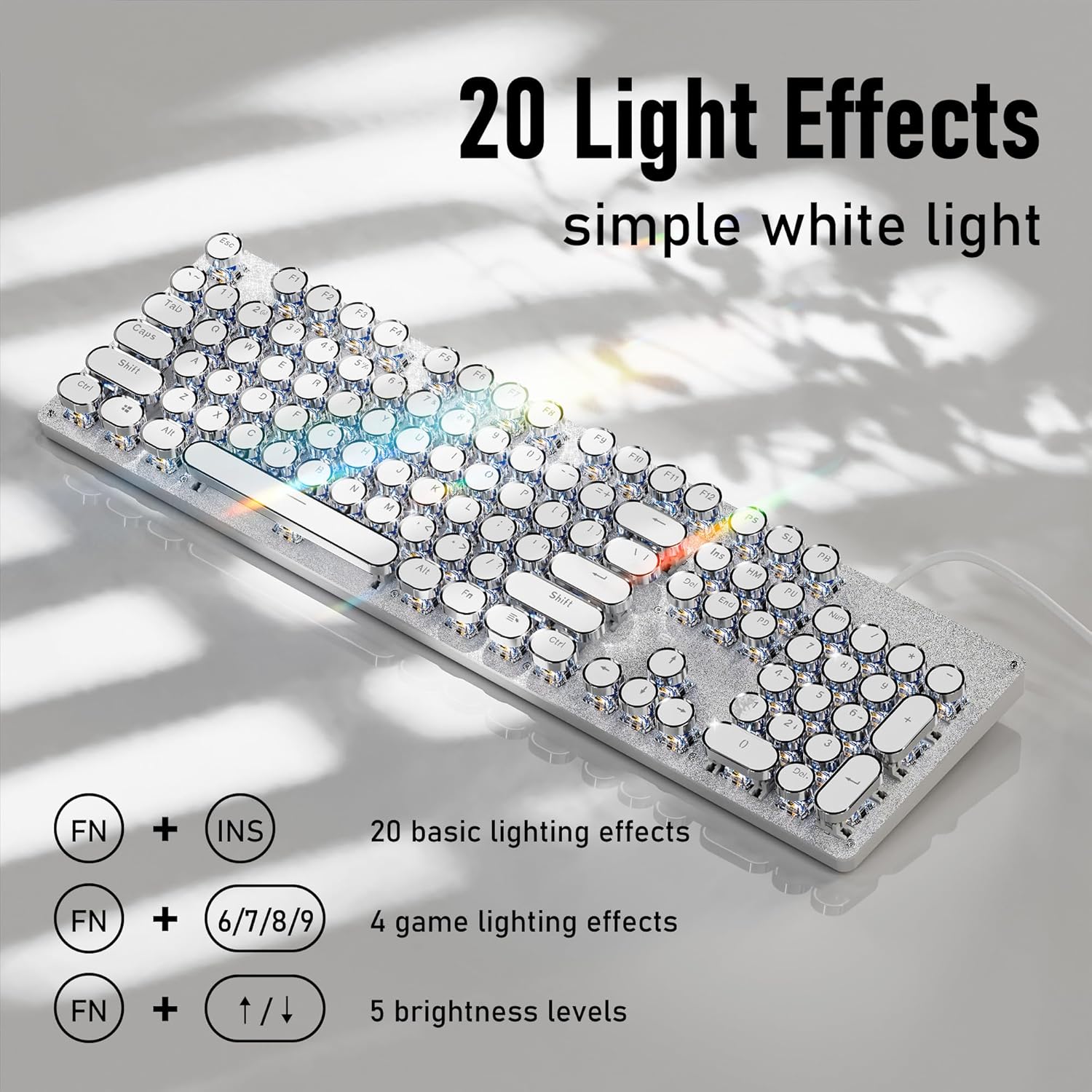
Image: Visual guide for controlling the 20 light effects, brightness, and speed of the white backlight.
Video: Shows the TK100 keyboard's metal panel and various white backlight effects in action.
5.2 Multimedia & Anti-Ghosting Features
The TK100 keyboard includes dedicated quick-access buttons for media control and features anti-ghosting technology for precise input.
- Control multimedia: Use the dedicated buttons for volume adjustment, play/pause, and track switching.
- Antighosting de 104 teclas: Every keystroke is accurately registered, even during high-speed, multi-key commands, making it ideal for gaming and fast typing.

Image: The keyboard highlighting its full key rollover feature, ensuring smooth and conflict-free simultaneous key presses.
Video: Illustrates the 104-key anti-ghosting feature of the TK100 keyboard, ensuring all key presses are registered accurately.
6. Mantemento
- Limpeza: Use a soft, dry cloth to wipe the keyboard surface. For deeper cleaning, use a can of compressed air to remove dust and debris from between the keys.
- Eliminación da tapa das teclas: The retro round keycaps are designed for durability. If necessary, they can be carefully removed for cleaning or replacement using a keycap puller (not included).
- Almacenamento: Garde o teclado nun lugar fresco e seco cando non o use.
7 Solución de problemas
- O teclado non responde: Ensure the USB cable is securely plugged into both the keyboard and the computer. Try plugging it into a different USB port.
- Backlight Not Working/Changing: Verify that the backlight is turned on using the FN key combinations. If issues persist, refer to the backlight control section or contact support.
- Chaves sen rexistro: Check for any physical obstructions under the keycaps. If the issue is with specific keys, contact customer support.
8. Especificacións
| Característica | Detalle |
|---|---|
| Número de modelo | TK100 |
| Disposición de teclas | 104 chaves |
| Tipo de cambio | Interruptores mecánicos azuis |
| Estilo de tecla | Retro Typewriter Style Round Keycaps (Double-shot injection) |
| Retroiluminación | White Backlit (19 preset effects, 5 brightness levels, adjustable breathing speed) |
| Anti-Ghosting | Full 104-Key Anti-Ghosting |
| Conectividade | USB-A con cable |
| Material do panel | Liga de aluminio de alta calidade |
| Ergonomía | Soporte ergonómico do pé |
| Dimensións | 17.91 x 6.38 x 1.81 polgadas |
| Peso do elemento | 1.85 libras |

Image: Detailed specifications of the blue mechanical switches, including operating force, trigger travel, and key strokes durability.
9. Garantía e soporte
The SEUNKWANG EWEADN TK100 keyboard comes with 48-month brand support. For any inquiries, technical assistance, or warranty claims, please contact our expert team via email:

Imaxe: Máis deview of available after-sales support services.