
Introdución
This manual provides comprehensive instructions for the XBG B15 Tri-Mode Wireless Mouse. It covers setup, operation, maintenance, and troubleshooting to ensure optimal performance and user experience. Please read this manual thoroughly before using the device.

Imaxe: De arriba abaixo view of the XBG B15 Tri-Mode Wireless Mouse, showcasing its ergonomic design and central DPI button.
Contido do paquete
Verifica que todos os elementos estean presentes no paquete:
- 1 x XBG B15 Tri-Mode Wireless Mouse
- 1 x cable de carga USB
- 1 x Manual de usuario (este documento)
Produto rematadoview
Familiarize yourself with the components of your XBG B15 Wireless Mouse.

Image: Diagram illustrating the various parts of the XBG B15 mouse, including the left button, right button, scroll wheel, forward button, backward button, DPI button, ON/OFF switch, mode switch, and USB receiver.
The mouse features an ergonomic design that conforms to the natural curvature of the human palm, providing a comfortable grip for extended use. Its soft, durable, skin-like surface resists fingerprints.

Imaxe: Primeiro plano view of the XBG B15 mouse highlighting its ergonomic shape and textured grip for comfortable handling.
The mouse is compatible with various desktop surfaces, including resin, wood, fabric, paper, and metal.
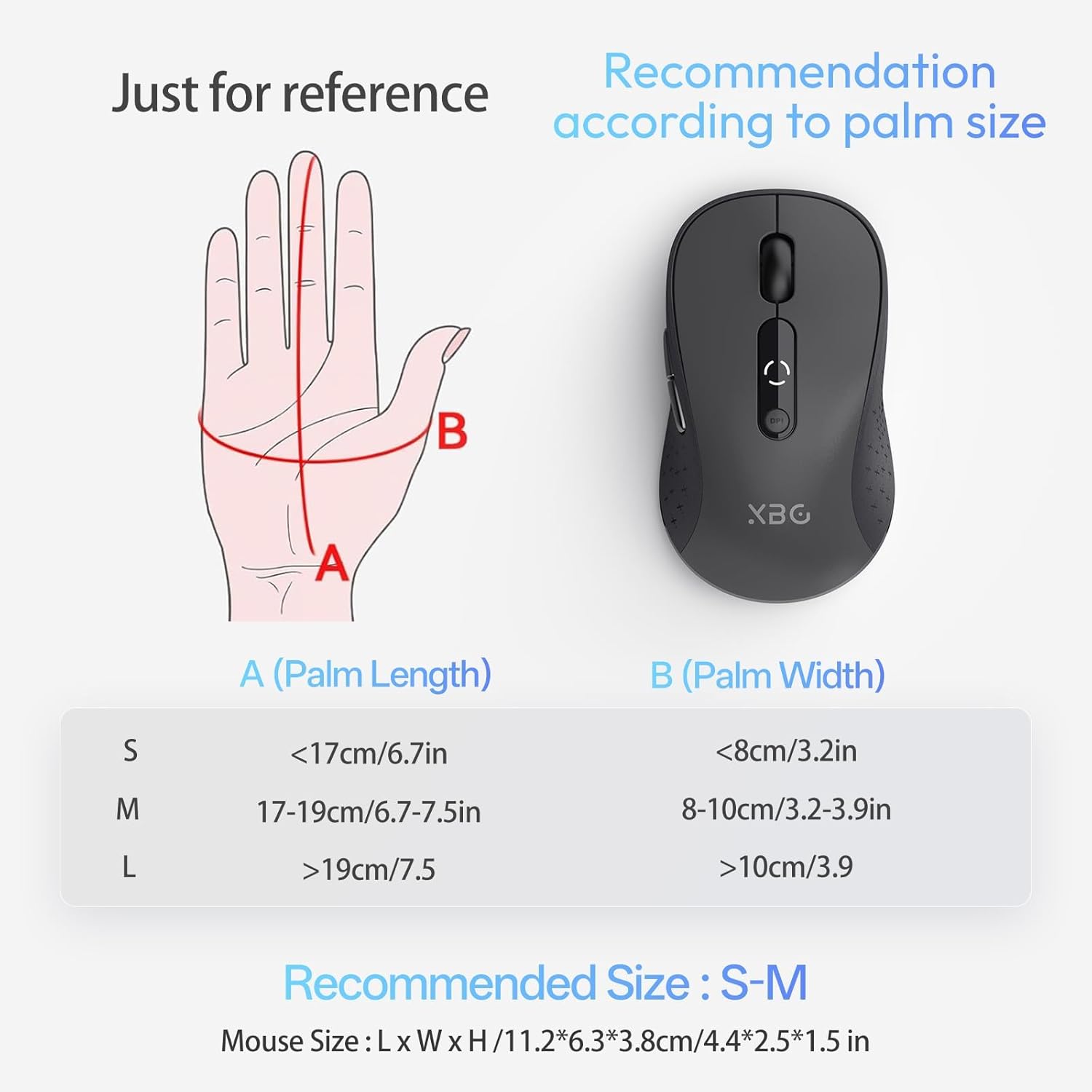
Image: The XBG B15 mouse shown on different surface types (resin, wood, fabric, paper, metal) to demonstrate its versatility.
Configuración
The XBG B15 mouse offers three connection modes: 2.4GHz Wireless, Bluetooth 5.0, and Bluetooth 4.0. You can switch between these modes using the 'Mode Switch' button located on the underside of the mouse.

Image: Illustration showing the XBG B15 mouse connecting to a desktop PC via 2.4G wireless and to a laptop and tablet via Bluetooth (BT1 and BT2), indicating its tri-mode capability.
A mode switch indicator light on the bottom of the mouse will show the current connection mode:
- Luz vermella: Modo sen fíos 2.4G
- Luz azul: Bluetooth 1 (BT1) Mode
- Luz verde: Bluetooth 2 (BT2) Mode

Image: Close-up of the underside of the XBG B15 mouse, showing the mode switch and the corresponding indicator lights (Red for 2.4G, Blue for BT1, Green for BT2).
Conexión sen fíos a 2.4 GHz
- Turn on the mouse using the ON/OFF switch on the bottom.
- Switch the mode to 2.4G (Red Light).
- Insira o receptor USB nun porto USB dispoñible no seu ordenador.
- O ordenador debería detectar e instalar o rato automaticamente.
Bluetooth Connection (BT1/BT2)
- Turn on the mouse using the ON/OFF switch on the bottom.
- Switch the mode to either BT1 (Blue Light) or BT2 (Green Light).
- Press and hold the 'Mode Switch' button for 3-5 seconds until the indicator light starts flashing rapidly. This indicates the mouse is in pairing mode.
- No teu dispositivo (portátil, tableta, PC), vai á configuración de Bluetooth.
- Busca new devices and select "XBG B15" from the list.
- Unha vez emparellado, a luz indicadora deixará de parpadear e permanecerá fixa durante uns segundos antes de apagarse.
- To connect to a second Bluetooth device, switch to the other Bluetooth mode (BT2 if you used BT1, or vice versa) and repeat steps 3-6.
Instrucións de funcionamento
Axuste de DPI
The mouse features 5 adjustable DPI levels (800/1000/1200/1600/2400) to suit various tasks such as office work, graphic design, or gaming. Press the DPI button located below the scroll wheel to cycle through the DPI settings. The current DPI level will be displayed on the mouse's built-in indicator.
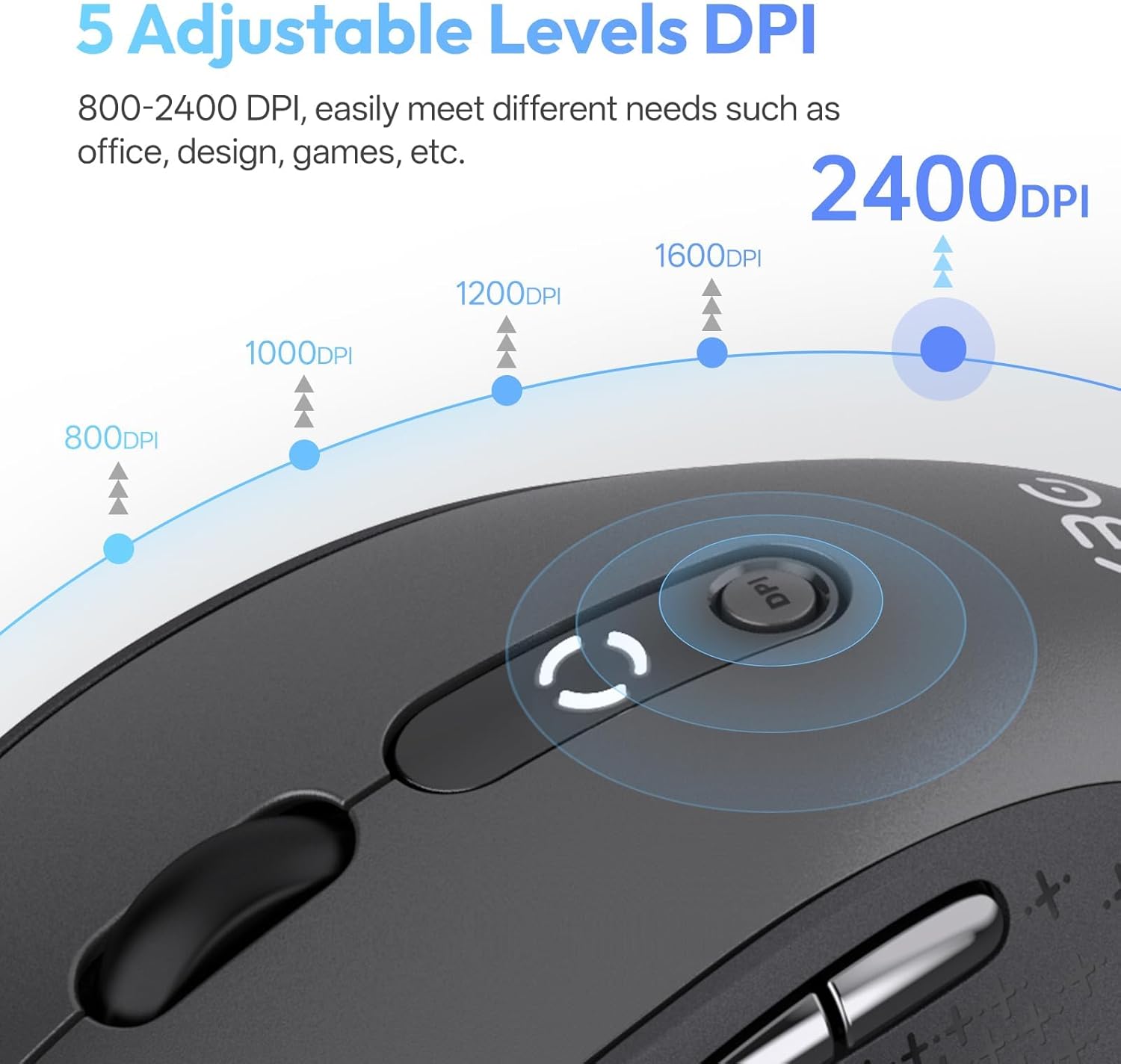
Image: Diagram illustrating the 5 adjustable DPI levels (800, 1000, 1200, 1600, 2400) and how to change them using the DPI button on the XBG B15 mouse.
Función de clic silencioso
The XBG B15 mouse is designed with silent buttons, providing a tactile click feel without producing audible noise. This feature is beneficial in quiet environments such as libraries, offices, or during late-night use.

Image: A person using the XBG B15 mouse silently in an office environment, with a baby sleeping in the background, demonstrating the noiseless click feature.
Modo de suspensión automática
To conserve battery life, the mouse will automatically enter sleep mode after 5 minutes of inactivity. To wake the mouse, simply move it or click any button.
Mantemento
Cargando o rato
The XBG B15 mouse is equipped with a built-in 500 mAh rechargeable battery and a Type-C charging port. Connect the provided USB charging cable to the mouse's Type-C port and to a USB power source (e.g., computer USB port, wall adapter). A full charge takes approximately 2 hours and can provide months of use.

Image: The XBG B15 mouse connected to a charging cable via its Type-C port, illustrating the recharging process and highlighting its 500mAh battery capacity.
Indicador de batería
The mouse features a 3-level battery indicator to monitor the remaining power:
- 3 luces acesas: Batería 100%-75%
- 2 luces acesas: Batería 75%-50%
- 1 luz acesa: Batería por debaixo do 50%

Image: Close-up of the XBG B15 mouse's display, showing the 3-level battery indicator and its corresponding battery percentagintervalos e.
Limpeza
To clean the mouse, gently wipe its surface with a soft, damp cloth. Avoid using harsh chemicals or abrasive materials, as these may damage the finish.
Resolución de problemas
- O rato non responde:
- Asegúrese de que o rato estea acendido.
- Comprobe o nivel da batería e cárguela se é necesario.
- For 2.4G connection, ensure the USB receiver is securely plugged into the computer. Try a different USB port.
- For Bluetooth connection, ensure the mouse is in the correct Bluetooth mode (BT1 or BT2) and is paired with your device. Re-pair if necessary.
- Tenta reiniciar o teu computador ou dispositivo.
- Conexión intermitente:
- Move the mouse closer to the receiver or Bluetooth-enabled device.
- Avoid using the mouse on metal surfaces, which can interfere with wireless signals.
- Asegúrate de que non haxa outras fontes fortes de interferencia sen fíos nas proximidades.
- A configuración de DPI non cambia:
- Ensure you are pressing the dedicated DPI button.
- Check if the mouse is fully charged.
Especificacións
| Característica | Detalle |
|---|---|
| Modelo | B15-Black |
| Tecnoloxía de conectividade | Bluetooth 5.0/4.0, 2.4GHz Wireless (USB) |
| Niveis de DPI | 800, 1000, 1200, 1600, 2400 (axustable) |
| Tipo de batería | Polímero de litio recargable |
| Capacidade da batería | 500 mAh |
| Porto de carga | Tipo-C |
| Dimensións do produto | 4.4 x 2.5 x 0.04 polgadas |
| Peso do elemento | 2.65 onzas |
| Características especiais | Ergonomic Design, Portable, Silent Click, 3-Level Battery Indicator, Automatic Sleep |
| Compatibilidade | Windows, Mac, Linux, Android |
Garantía e Soporte
The XBG B15 Tri-Mode Wireless Mouse comes with a manufacturer's warranty. For specific warranty details, please refer to the documentation included with your purchase or contact XBG customer support. If you encounter any issues not covered in this manual, please reach out to our support team for assistance.
Para obter máis axuda, visite o XBG Store on Amazon.