
1. Produto rematadoview
The QRD Junior E5 Wireless Controller is a compact and versatile gaming controller designed for a wide range of platforms, including Nintendo Switch, Switch Lite, Switch OLED, PC (Windows), Mac, iOS, and Android devices. Its ergonomic design and advanced features provide an enhanced gaming experience.

Imaxe 1.1: Fronte view of two QRD Junior E5 Wireless Controllers.

Image 1.2: Back and front views of the QRD Junior E5 Wireless Controller, highlighting its design.
2. Contido do paquete
- QRD Junior E5 Wireless Controller (2 units for this package)
- Cable de carga USB-C
- Manual de usuario (este documento)
3. Configuración e conexión
3.1 Carga do controlador
Before first use, fully charge the controller. Connect the provided USB-C cable to the controller's charging port and the other end to a USB power source (e.g., console, PC, or USB wall adapter). The indicator lights will show charging status and turn off when fully charged.
3.2 Conexión a Nintendo Switch
- No menú INICIO de Nintendo Switch, selecciona Controladores > Cambiar Grip/Orden.
- Manteña premido o Botón de inicio on the QRD Junior E5 controller for 3-5 seconds until the indicator lights start flashing rapidly.
- Unha vez conectado, a(s) luz(es) indicadora(s) do reprodutor correspondente(s) no controlador permanecerán acesas.
3.3 Connecting to PC (Windows/Mac)
The controller supports both wireless Bluetooth and wired USB-C connections for PC and Mac.
3.3.1 Wireless Bluetooth Connection
- Ensure your PC/Mac has Bluetooth enabled.
- On your PC/Mac, go to Bluetooth settings and search for new devices.
- Manteña premido o Botón de inicio on the QRD Junior E5 controller for 3-5 seconds until the indicator lights start flashing rapidly.
- Select "QRD Controller" or similar from the list of available devices to pair.
- The controller supports Entrada X. for PC games.
Conexión USB-C con cable 3.3.2
Connect the controller to your PC/Mac using the provided USB-C cable. The controller will be automatically recognized, and no driver installation is required.
3.4 Connecting to iOS/Android Devices
- Enable Bluetooth on your iOS/Android device.
- Manteña premido o Botón de inicio on the QRD Junior E5 controller for 3-5 seconds until the indicator lights start flashing rapidly.
- Busca "QRD Controller" or similar in your device's Bluetooth settings and pair.
4. Instrucións de funcionamento e características
4.1 Controis básicos
The QRD Junior E5 controller features standard button layouts including A/B/X/Y buttons, D-pad, Left/Right joysticks, L/R/ZL/ZR triggers, Home button, and +/- buttons.
4.2 Función TURBO
The TURBO function allows for continuous or automatic rapid firing of buttons. This feature can be customized for different games and play styles.
- To set TURBO: Press and hold the desired action button (e.g., A) and then press the Botón TURBO once. The button will now continuously fire when held.
- To set Auto-TURBO: Press and hold the desired action button and then press the Botón TURBO a second time. The button will automatically fire without being held.
- To clear TURBO: Press and hold the desired action button and then press the Botón TURBO unha terceira vez.
- Adjusting TURBO Speed: Preme o Botón TURBO e o Up/Down D-pad simultaneously to cycle through speeds: 8 times/sec, 15 times/sec, 25 times/sec.

Image 4.1: Illustration of the Turbo function for rapid actions in games.
4.3 6-Axis Gyro Motion Sensor
The controller is equipped with an advanced 6-axis gyro motion sensor, allowing for precise viewpoint and tilt operations in compatible games. Tilt, turn, and twist the controller to interact with game environments dynamically.

Image 4.2: Demonstrating the 6-Axis Gyro motion sensor capability.
4.4 Retroalimentación de vibración axustable
Dual vibration motors provide immersive haptic feedback. The vibration intensity can be adjusted to suit personal preference and game requirements.
- Vibration modes: 0% (no vibration), 30% (weak), 70% (medium), and 100% (strong).
- To adjust vibration: Press the Botón de vibración (if present, or a combination like TURBO + Left/Right joystick click) to cycle through intensity levels. Refer to the quick start guide for specific button combinations.

Image 4.3: Visual representation of the adjustable vibration feature.
5. Mantemento e coidados
- Manteña o controlador seco e lonxe de temperaturas extremas.
- Limpa o controlador cun pano suave e seco. Non empregues produtos químicos agresivos nin materiais abrasivos.
- Evite deixar caer o controlador nin someterlo a impactos fortes.
- Garde o controlador nun lugar seguro cando non o use para evitar danos.
6 Solución de problemas
6.1 O controlador non se conecta
- Asegúrate de que o controlador estea completamente cargado.
- Verify Bluetooth is enabled on your device (Switch, PC, Mac, iOS, Android).
- Asegúrate de que o controlador estea no modo de emparellamento (as luces indicadoras parpadean rapidamente).
- Tenta reiniciar tanto o controlador como o dispositivo ao que estás tentando conectarte.
- If connecting to Switch, ensure you are on the "Change Grip/Order" screen.
- For PC/Mac, try a wired USB-C connection to rule out Bluetooth issues.
6.2 Input Lag or Unresponsive Buttons
- Asegúrate de que o controlador estea dentro do alcance do dispositivo conectado.
- Comprobe se hai interferencias doutros dispositivos sen fíos.
- Confirm the controller is fully charged. Low battery can affect performance.
- Restart the controller and the game/device.
6.3 Vibration Not Working or Incorrect
- Check the vibration settings on the controller (refer to section 4.4) to ensure it's not set to 0%.
- Verifica que o xogo ao que estás a xogar admite a retroalimentación por vibración.
- Asegúrate de que o firmware do controlador estea actualizado (se é o caso, comproba o firmware do fabricante websitio).
7. Especificacións
| Modelo | Junior E5 |
| Marca | QRD |
| Conectividade | Wireless Bluetooth, Wired USB-C |
| Compatibilidade | Nintendo Switch, Switch Lite, Switch OLED, PC (Windows), Mac, iOS, Android |
| Modos de entrada | X-input (PC), Switch-input (Nintendo Switch) |
| Características especiais | 6-Axis Gyro Motion Sensor, Adjustable Vibration, TURBO Function |
| Dimensións (aprox.) | 5 x 3.31 x 2.13 polgadas (12.7 x 8.4 x 5.4 cm) |
| Peso (aprox.) | 1.06 libras (0.48 kg) |
| Batería | 2 Nonstandard Battery batteries required (internal, rechargeable) |

Image 7.1: Physical dimensions of the QRD Junior E5 Wireless Controller.
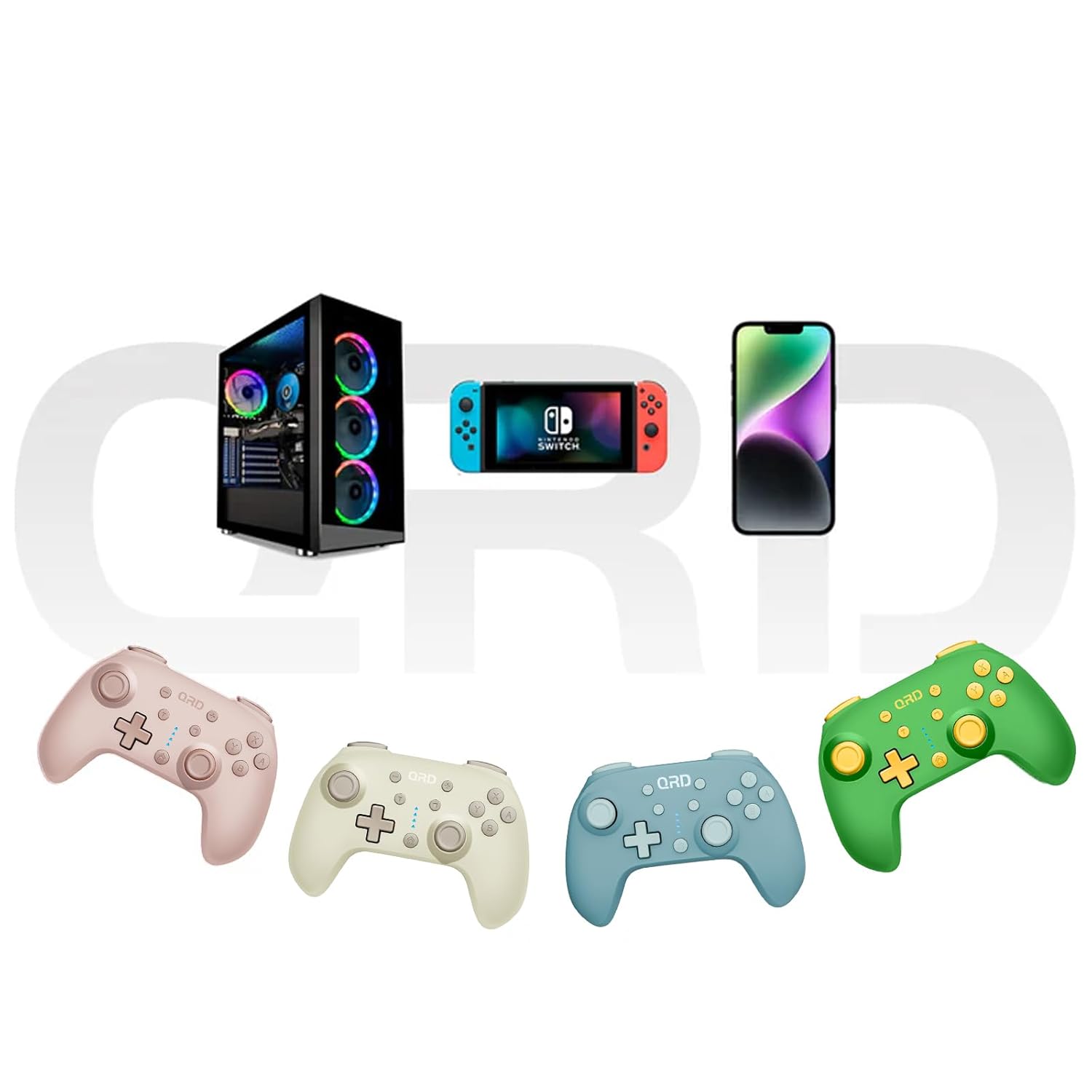
Image 7.2: Multi-platform compatibility of the QRD Junior E5 Wireless Controller.
8. Garantía e soporte
QRD products are designed for reliability and performance. For warranty information, technical support, or service inquiries, please refer to the contact information provided with your purchase or visit the official QRD websitio. Garde o comprobante de compra para reclamacións de garantía.
Para obter máis axuda, pode visitar o QRD Store on Amazon.