
Introdución
This manual provides instructions for the setup, operation, maintenance, and troubleshooting of your JeDEL WD131P Wireless and Bluetooth Rechargeable Mouse. Please read this manual carefully before using the product to ensure proper function and longevity.
The JeDEL WD131P mouse offers dual-mode connectivity (2.4GHz wireless and Bluetooth), adjustable DPI settings, and a rechargeable battery, designed for versatile use across various devices and operating systems.
Contido do paquete
- JeDEL WD131P Wireless & Bluetooth Mouse
- Cable de carga USB-C
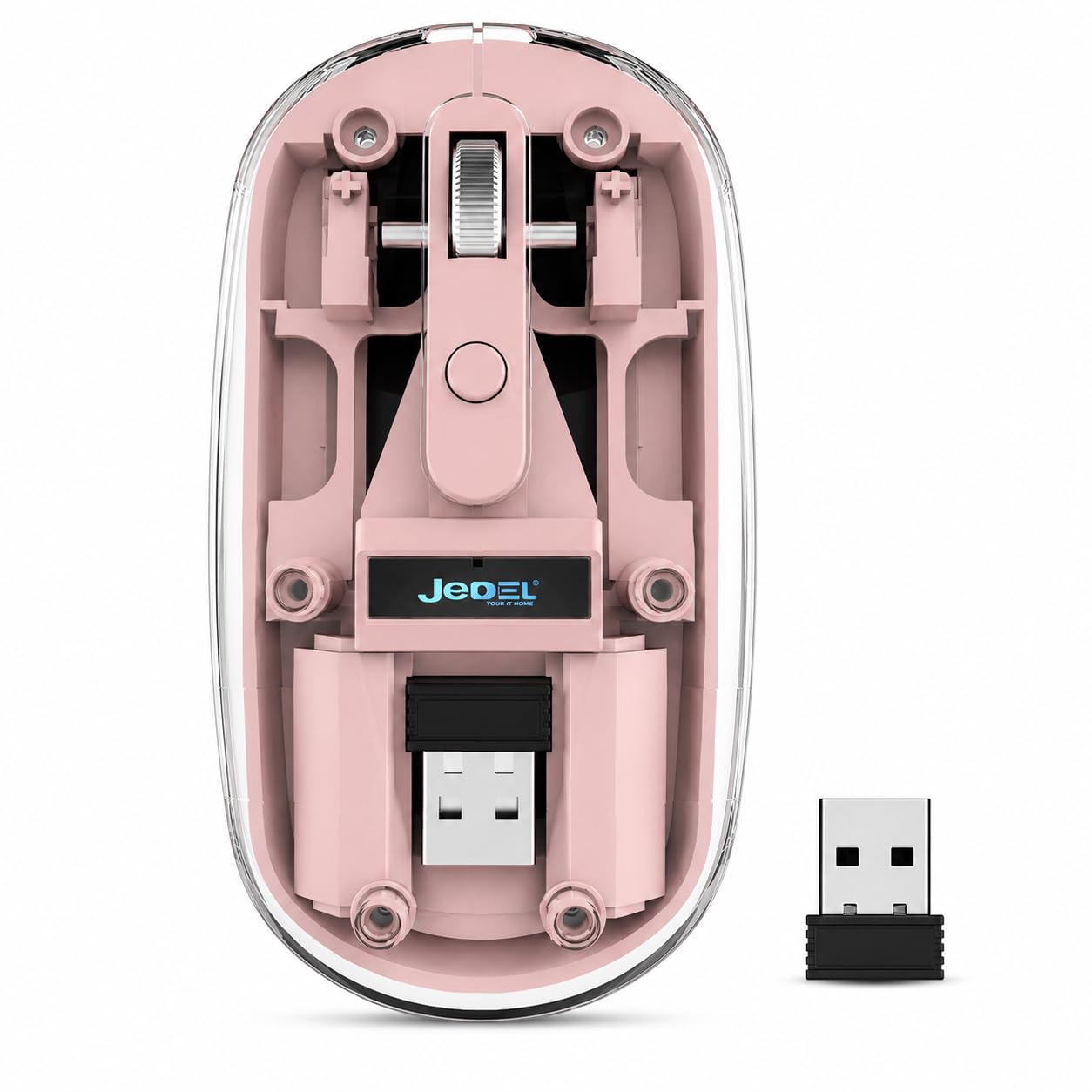
- USB 2.4GHz Receiver (stored inside the mouse)
- Manual de usuario (este documento)
Configuración
1. Cargar o rato
Before initial use, fully charge the mouse. Connect the provided USB-C charging cable to the mouse's charging port and the other end to a USB power source (e.g., computer USB port, USB wall adapter).

Imaxe: The USB-C charging port is located at the front of the mouse. A full charge ensures optimal battery life.
The LED indicator will show charging status (specific behavior not detailed in product info, assume standard charging light).
2. Conectando o rato
The JeDEL WD131P supports two connection modes: 2.4GHz Wireless and Bluetooth.
2.1. Modo sen fíos de 2.4 GHz
- Locate the USB 2.4GHz receiver. It is typically stored in a compartment on the underside of the mouse.
- Insira o receptor USB nun porto USB dispoñible do seu ordenador ou dispositivo.
- Acenda o rato usando o interruptor de alimentación que se atopa na parte inferior.
- The mouse should connect automatically. No additional drivers are usually required for plug-and-play functionality.
Imaxe: The USB 2.4GHz receiver is conveniently stored within the mouse body for portability and to prevent loss.
2.2. Modo Bluetooth
- Asegúrate de que o teu dispositivo teña o Bluetooth activado.
- Acende o rato usando o interruptor de acendido.
- Switch the mouse to Bluetooth mode (refer to the switch on the underside of the mouse, if present, or a mode button).
- No teu dispositivo, vai á configuración de Bluetooth e busca novos dispositivos.
- Select "JeDEL WD131P" (or similar name) from the list of available devices to pair.
- Unha vez emparellado, o rato está listo para usar.
Imaxe: The mouse supports both Bluetooth and 2.4GHz wireless connections, offering wide compatibility with various operating systems and devices.
Instrucións de funcionamento
1. Axuste de DPI
The JeDEL WD131P mouse features adjustable DPI settings (800/1200/1600 DPI) to suit your preference for cursor speed and precision. The default setting is 1200 DPI.
To change the DPI, press the DPI button (usually located near the scroll wheel). Each press cycles through the available DPI settings.
2. Funcións dos botóns
The mouse has 4 buttons:
- Clic esquerdo: Standard selection and interaction.
- Clic dereito: Acceso ao menú contextual.
- Scroll Wheel (Middle Click): Scrolling and middle-click function.
- Botón DPI: Adjusts cursor sensitivity (DPI).

Imaxe: The scroll wheel provides smooth and precise navigation for documents and web páxinas.
3. Indicador LED
The LED indicator provides visual feedback on the mouse's status, such as connectivity and battery level (specific LED behaviors are not detailed in the product information, refer to general mouse behavior).
4. Deseño ergonómico
The mouse is designed with an ergonomic contour to fit comfortably in your hand, reducing fatigue during extended use. This promotes a natural wrist position.

Imaxe: The ergonomic design of the mouse supports a natural hand position, contributing to comfort and reducing strain.
5. Magnetic Cover Plate
The mouse features a magnetic cover plate, allowing easy access to the internal compartment where the USB receiver is stored. This design ensures the receiver is securely held and easily retrievable.

Imaxe: The magnetic cover plate provides convenient access to the USB receiver and internal structure of the mouse.
Mantemento
1. Limpeza
- Use un pano suave e seco para limpar a superficie do rato.
- Para a sucidade persistente, d lixeiramenteampEnxágüe o pano con auga ou unha solución de limpeza suave e logo séqueo inmediatamente.
- Evite o uso de produtos químicos agresivos, abrasivos ou solventes.
- Non mergulles o rato en auga nin en ningún líquido.
2. Coidado da batería
- Para prolongar a duración da batería, evite descargar completamente o rato con frecuencia.
- Cargue o rato cando o indicador de batería indique que ten pouca enerxía.
- Se garda o rato durante un período prolongado, cárgueo aproximadamente ao 50 % antes de gardalo.
- Usa só o cable USB-C fornecido ou un equivalente certificado para cargar.
Resolución de problemas
O rato non responde
- Comprobar a batería: Ensure the mouse is charged. Connect it to the USB-C cable and allow it to charge for a few minutes.
- Interruptor de alimentación: Comprobe que o rato estea acendido.
- Modo de conexión: Ensure the mouse is in the correct mode (2.4GHz or Bluetooth) for your connection type.
- Conexión 2.4 GHz:
- Tenta conectar o receptor USB a un porto USB diferente do teu dispositivo.
- Ensure the receiver is not too far from the mouse (within 10 meters).
- Conexión Bluetooth:
- Unpair and re-pair the mouse in your device's Bluetooth settings.
- Asegúrate de que o Bluetooth do teu dispositivo estea activado e funcione correctamente.
- Reiniciar o dispositivo: Sometimes, restarting your computer or device can resolve connectivity issues.
Cursor Movement is Erratic or Inaccurate
- Superficie: Usa o rato sobre unha superficie limpa, non reflectante e uniforme. Evita o vidro ou as superficies moi reflectantes.
- Configuración DPI: Adjust the DPI setting to a level that feels more comfortable and accurate for your use.
- Limpeza do sensor: Check the optical sensor on the underside of the mouse for any dust or debris and clean it gently.
Especificacións
| Nome do modelo | WD131P |
| Tecnoloxía de conectividade | 2.4 GHz sen fíos, Bluetooth |
| Configuración de DPI | 800/1200 (predeterminado)/1600 DPI |
| Número de botóns | 4 |
| Tipo de batería | Rechargeable (3.7V 300mAh) |
| Porto de carga | USB-C |
| Distancia de traballo | Ata 10 metros (33 pés) |
| Dispositivos compatibles | Ordenador persoal, teléfono intelixente, tableta |
| Plataformas compatibles | Windows, macOS, iOS, Android |
| Dimensións (L x W x H) | 109 x 60 x 32 mm |
| Peso | 69 ± 5g (without battery) |
| Fabricante | JeDEL |
Información de seguridade
- Do not attempt to disassemble or modify the mouse. This may void the warranty and cause damage.
- Keep the mouse away from water, moisture, and extreme temperatures.
- Evite soltar ou someter o rato a fortes impactos.
- Desfágase da batería segundo a normativa local. Non a tire co lixo doméstico.
Garantía e Soporte
Este produto inclúe unha garantía estándar do fabricante. Para coñecer os termos e condicións específicos da garantía, consulte a documentación proporcionada no momento da compra ou póñase en contacto co seu vendedor.
For technical support or further assistance, please contact the manufacturer or your point of purchase.