
1. Introdución
The JeDEL WD142 is a versatile wireless mouse designed for various computing tasks. It features dual-mode connectivity, allowing connection via 2.4GHz wireless or Bluetooth, and offers adjustable DPI settings for precise control. This mouse is rechargeable, providing convenience and extended use. This manual provides instructions for setting up, operating, maintaining, and troubleshooting your WD142 mouse.
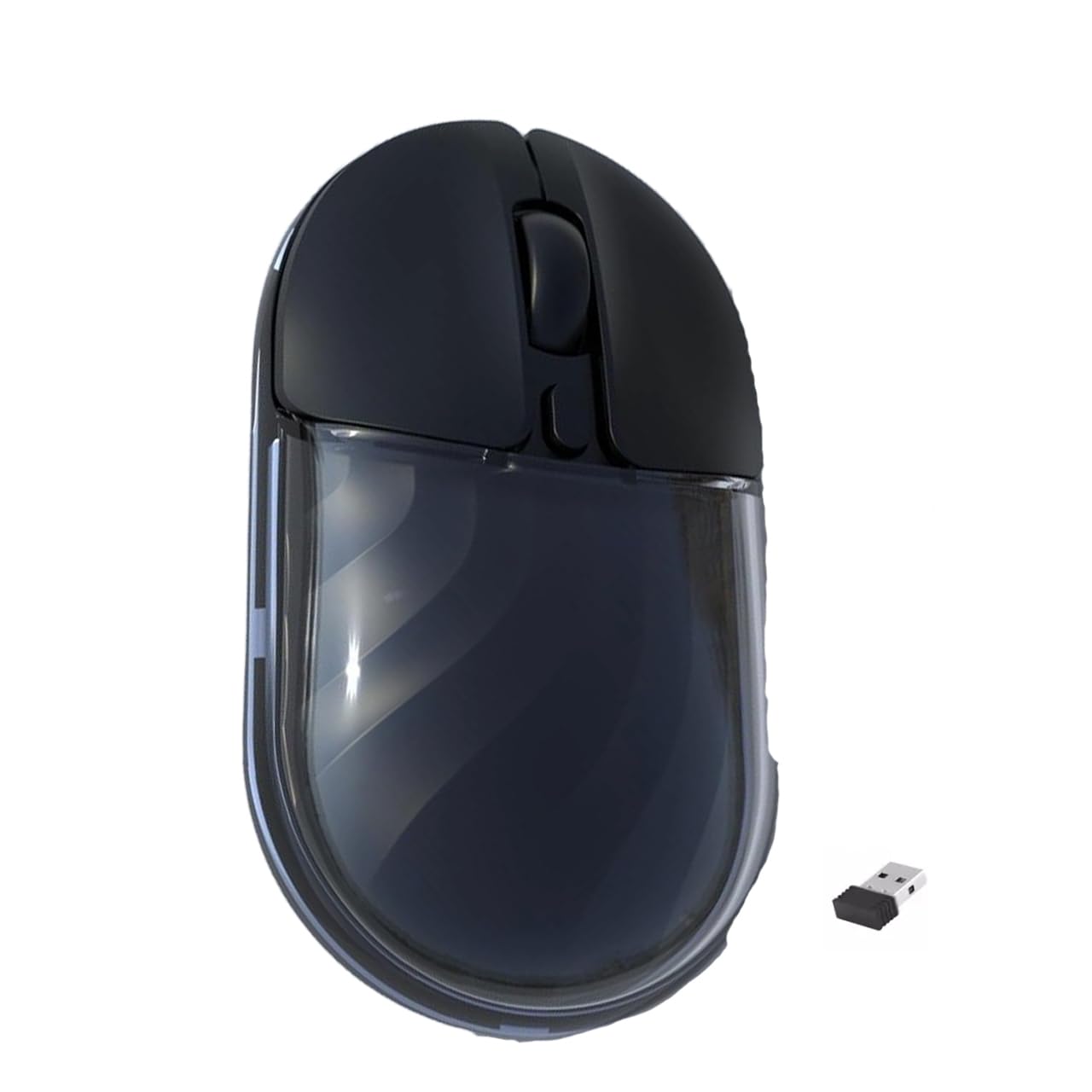
Figura 1: Arriba view of the JeDEL WD142 Wireless Bluetooth Rechargeable Mouse.
2. Configuración
2.1 Cargar o rato
Before first use, or when the battery is low, charge the mouse using the provided Type-C charging cable. Connect the Type-C end to the mouse's charging port and the USB-A end to a power source (e.g., computer USB port, USB wall adapter). The charging indicator light will illuminate during charging and turn off when fully charged. A full charge typically takes approximately 1.5 hours.
Conexión sen fíos de 2.2 a 2.4 GHz
- Locate the USB 2.4GHz receiver, usually stored in a compartment on the underside of the mouse.
- Insira o receptor USB nun porto USB dispoñible no seu ordenador.
- Acende o rato usando o interruptor de acendido situado na parte inferior.
- Switch the mouse to 2.4GHz mode using the mode switch button (if available, typically on the underside). The mouse should connect automatically.
2.3 Conexión Bluetooth
- Acende o rato usando o interruptor de acendido.
- Switch the mouse to Bluetooth mode using the mode switch button. The indicator light will typically blink, indicating it is in pairing mode.
- On your device (computer, smartphone, tablet), go to Bluetooth settings.
- Busca new devices. The mouse should appear as "JeDEL WD142" or similar.
- Select the mouse to pair. Once paired, the indicator light on the mouse will stop blinking.
The JeDEL WD142 is compatible with iOS, macOS, Android, and Windows systems.
3. Instrucións de funcionamento
3.1 Funcións básicas
- Clic esquerdo: Selección e activación primarias.
- Clic dereito: Accede aos menús contextuais.
- Roda de desprazamento: Scrolls content up or down. Can also be clicked for middle-click functionality.
3.2 Axuste de DPI
The mouse features adjustable DPI (Dots Per Inch) settings, allowing you to change cursor sensitivity. Press the DPI button (usually located behind the scroll wheel) to cycle through available DPI levels: 800, 1200 (default), and 1600. Each press will change the sensitivity, indicated by a brief flash of the indicator light.
3.3 Cambio de modo
Use the mode switch button on the underside of the mouse to toggle between 2.4GHz wireless mode and Bluetooth mode as needed for different devices.
Iluminación RGB de 3.4
The mouse features dynamic RGB lighting. Specific controls for RGB lighting (e.g., on/off, mode change) may be available via a dedicated button or software, if applicable. Refer to the product packaging or manufacturer's website for detailed RGB control instructions.
4. Mantemento
4.1 Limpeza
To clean the mouse, gently wipe its surface with a soft, damp cloth. Avoid using harsh chemicals, abrasive cleaners, or excessive moisture, as these can damage the mouse. Ensure no liquid enters the mouse's internal components.
4.2 Coidado coa batería
- Evite descargar completamente a batería con frecuencia para prolongar a súa vida útil.
- Charge the mouse regularly, especially if it will not be used for an extended period.
- Do not expose the mouse to extreme temperatures, as this can affect battery performance.
4.3 Almacenamento
When not in use, store the mouse in a cool, dry place away from direct sunlight and extreme temperatures. If storing for a long period, ensure the mouse is partially charged.
5 Solución de problemas
- O rato non responde:
- Asegúrate de que o rato estea acendido.
- Check battery level and charge if necessary.
- Verify the correct connection mode (2.4GHz or Bluetooth) is selected.
- For 2.4GHz, ensure the USB receiver is securely plugged into the computer.
- For Bluetooth, ensure the mouse is paired correctly and your device's Bluetooth is enabled. - O movemento do cursor é errático ou lento:
- Clean the optical sensor on the underside of the mouse.
- Ensure you are using the mouse on a suitable surface (non-reflective, uniform color).
- Adjust the DPI setting to a higher value if movement is too slow. - O rato non carga:
- Ensure the Type-C charging cable is properly connected to both the mouse and the power source.
- Try a different USB port or power adapter.
- Comprobe se o cable de carga está danado. - Problemas de emparellamento por Bluetooth:
- Ensure the mouse is in Bluetooth pairing mode (indicator light blinking).
- Remove the mouse from your device's Bluetooth list and attempt to re-pair.
- Restart your device's Bluetooth function or the device itself.
6. Especificacións
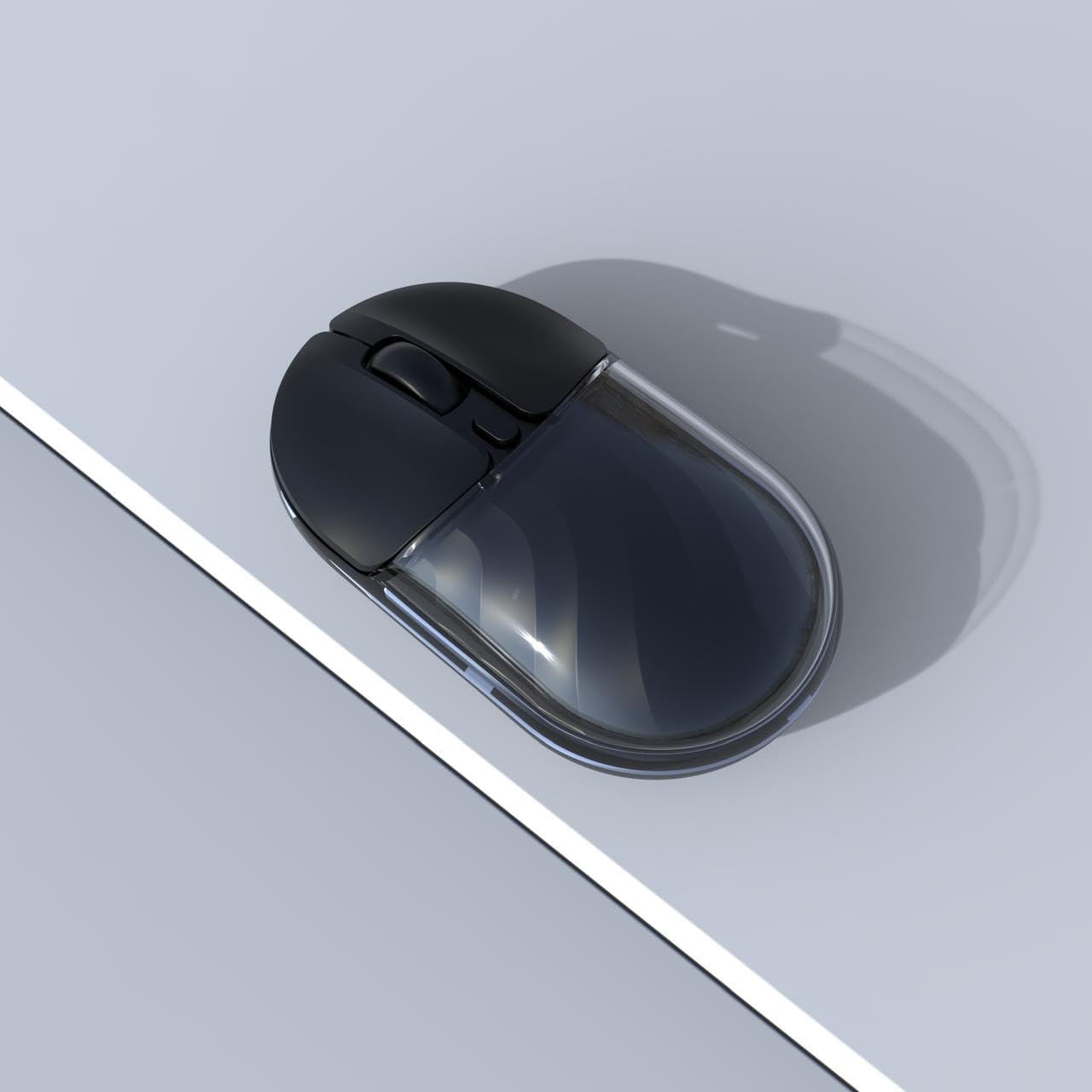
Figura 2: Lateral view of the JeDEL WD142 Wireless Bluetooth Rechargeable Mouse.
| Característica | Especificación |
|---|---|
| Nome do modelo | WD142 |
| Tecnoloxía de conectividade | 2.4 GHz sen fíos, Bluetooth |
| Configuración de DPI | 800/1200 (predeterminado)/1600 |
| Número de botóns | 4 (Left, Right, Scroll Wheel, DPI) |
| Tipo de batería | Batería de litio recargable |
| Capacidade da batería | 3.7 V 300 mAh |
| Porto de carga | Tipo-C |
| Distancia de traballo | Ata 10 metros (33 pés) |
| Silent Switch Life | Aproximadamente 3 millóns de clics |
| Orientación das mans | Certo |
| Dispositivos compatibles | Ordenador persoal, teléfono intelixente, tableta |
| Plataforma de hardware | Mac, PC |
| Peso | 69 ± 5g (without battery) |
| Dimensións (L x W x H) | 109 x 60 x 32 mm |
| Duración da batería | Up to 180 hours (standby), 75 hours (working) |
7. Garantía e soporte
For warranty information and technical support, please refer to the documentation included with your purchase or contact the retailer/manufacturer directly. Specific warranty terms may vary by region and retailer.