
Introdución
Grazas pola compraasing the Jedel GM691 RGB Gaming Mouse. This manual provides essential information for the proper use and maintenance of your device. Please read it carefully before use and retain it for future reference.
Información de seguridade
- Avoid exposing the mouse to liquids or excessive moisture.
- Non desmonte o dispositivo. As reparacións só deben ser realizadas por persoal cualificado.
- Manteña o rato lonxe de temperaturas extremas e da luz solar directa.
- Use only with compatible devices and power sources.
Contido do paquete
O paquete debe conter os seguintes elementos:
- Jedel GM691 RGB Gaming Mouse (1 unit)
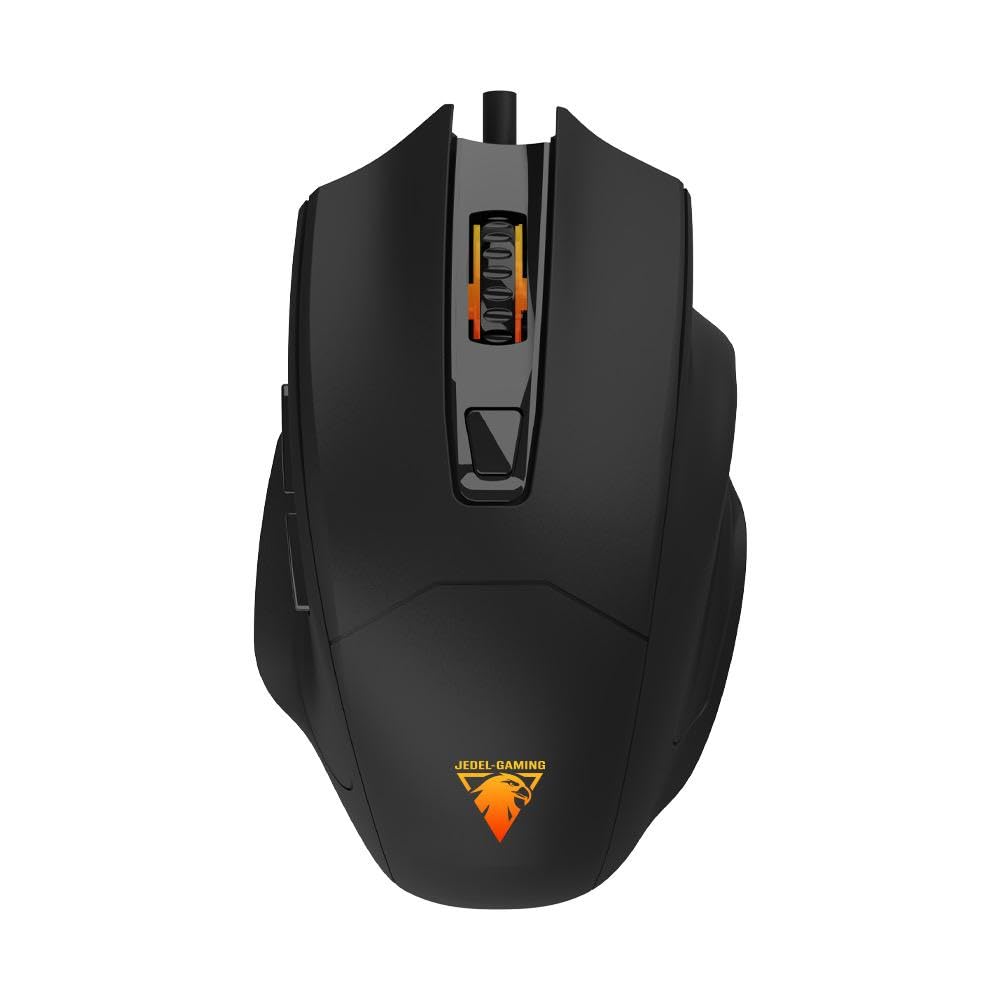
Image: Jedel GM691 RGB Gaming Mouse in its retail packaging.
Produto rematadoview
The Jedel GM691 is a wired gaming mouse featuring 6 programmable buttons and RGB lighting. Its ergonomic design ensures comfortable use during extended gaming sessions.
Características principais:
- Optical Sensor with up to 3600 DPI sensitivity.
- 6-button design for enhanced control.
- High polling rate for responsive performance.
- RGB "breathing" lighting effects.
- Durable and lightweight construction.
- 1.5-meter braided cable for durability and tangle resistance.
Funcións do botón:
- Botón esquerdo para premer: Standard primary function.
- Botón dereito do rato: Standard secondary function.
- Roda de desprazamento: Desprácese cara arriba/abaixo e prema co botón central.
- Botón de cambio de DPI: Adjusts the mouse sensitivity (DPI) on the fly.
- Tecla de reenvío: Navega cara adiante web navegadores ou aplicacións.
- Botón Atrás: Navega cara atrás en web navegadores ou aplicacións.
Instrucións de configuración
- Conecta o rato: Plug the USB connector of the Jedel GM691 mouse into an available USB port on your computer or compatible device.
- Instalación de controladores: The mouse is plug-and-play. Your operating system (Windows, Mac, Linux) should automatically detect and install the necessary drivers. No additional software installation is typically required.
- Proba inicial: Once connected, move the mouse and click the buttons to ensure it is functioning correctly. The RGB lighting should illuminate.
Instrucións de funcionamento
Axuste de DPI:
Preme o Botón de conmutación DPI (located behind the scroll wheel) to cycle through different sensitivity levels. Each press will change the DPI setting, allowing you to adjust cursor speed to your preference or game requirements. The mouse supports up to 3600 DPI.
Using Side Buttons:
O Chave de reenvío e Botón Atrás on the side of the mouse are typically used for navigation in web navegadores e file explorers. Their functionality may vary depending on the application or game you are using.
Iluminación RGB:
The mouse features an RGB "breathing" lighting effect that activates automatically when connected. There are no user-configurable settings for the lighting effects directly on the mouse.
Mantemento
- Limpeza: Use a soft, dry cloth to clean the surface of the mouse. For optical sensor cleaning, use a cotton swab lightly dampened with isopropyl alcohol. Ensure the mouse is disconnected before cleaning.
- Almacenamento: Cando non o use, garde o rato nun lugar limpo e seco, lonxe da luz solar directa e de temperaturas extremas.
- Coidado do cable: Evite curvas bruscas ou tirar demasiado do cable trenzado para evitar danos.
Resolución de problemas
| Problema | Solución |
|---|---|
| O rato non responde. |
|
| O movemento do cursor é errático ou irregular. |
|
| A iluminación RGB non funciona. |
|
| O botón DPI non cambia a sensibilidade. |
|
Especificacións
| Nome do modelo | GM691 |
| Número de peza | GW-113 |
| Marca | Jedel |
| Cor | Negro |
| Tecnoloxía de conectividade | Con cable |
| Tecnoloxía de detección de movemento | Óptica |
| Max Sensitivity (DPI) | 3600 DPI |
| Número de botóns | 6 |
| Lonxitude do cable | 1.5 meters (Braided) |
| Peso aproximado | 97 gramos |
| Dimensións (L x W x H) | 120 mm x 74 mm x 40 mm |
| Fonte de enerxía | Eléctrico con cable (USB) |
| Sistemas operativos compatibles | Windows 11, Mac OS 14 Sonoma, Linux (Ubuntu 24.04 Noble Numbat) |
| Dispositivos compatibles | Personal Computer, Laptop, Tablet, Smartphone |
| Material | Plástico |
| Características especiais | Lightweight, RGB Breathing Lighting |
Garantía e Soporte
The Jedel GM691 RGB Gaming Mouse comes with a Garantía de 30 días desde a data de compra. Esta garantía cobre defectos de fabricación en condicións de uso normal.
For warranty claims or technical support, please contact your retailer or the manufacturer directly. Please have your proof of purchase and the product model number (GM691) ready when contacting support.
Nota: A garantía non cobre os danos causados por mal uso, accidentes, modificacións non autorizadas ou desgaste normal.