
Imagebon W60N-JP
Portable 11.3-inch Android Car Display with CarPlay & Android Auto User Manual
Brand: Imagebon | Model: W60N-JP
1. Introdución
Grazas pola compraasing the Imagebon Portable 11.3-inch Android Car Display. This advanced multimedia system is designed to enhance your driving experience by providing seamless access to navigation, entertainment, and communication features directly from your dashboard. With its powerful Android system, large display, and versatile connectivity options, it transforms your vehicle into a smart hub.

Figure 1.1: The Imagebon Portable 11.3-inch Android Car Display, showcasing its sleek design and large screen.
2. Características do produto
- Powerful Android System: Equipped with an 8-core CPU, 4GB RAM, and 64GB ROM, allowing for smooth operation and installation of various apps via Wi-Fi connection.
- Large 11.3-inch HD Touchscreen: Provides a clear and immersive visual experience for navigation, videos, and apps, designed to not obstruct the driver's view.
- CarPlay sen fíos e Android Auto: Seamlessly integrates with your smartphone for navigation, calls, and music with hands-free operation.
- Multimedia Entertainment: Supports popular streaming apps like YouTube, Netflix, and Prime Video for in-car entertainment.
- 1080P Rear Camera Included: Assists with safe parking by automatically displaying the rear view when in reverse gear, showing obstacles and blind spots.
- Multiple Audio Output Modes: Offers BT (Bluetooth), Native, FM, and AUX output options to suit various audio setups.
- OTA Update Support: Enables one-click over-the-air software updates for continuous improvement and bug fixes.
- Fácil instalación: Simple plug-and-play setup via the cigarette lighter socket, compatible with most car models.

Figure 2.1: Illustration of the powerful internal components, including the 8-core CPU, 4GB RAM, and 64GB ROM, ensuring smooth performance.
3. Contido do paquete
Verifique que todos os elementos estean presentes no seu paquete:
- Imagebon Portable 11.3-inch Android Car Display
- Cargador de coche
- Cámara traseira de 10 m
- Monte adhesivo
- Antena GPS
- Cable AUX
- Manual de usuario

Figura 3.1: Todos os compoñentes incluídos no paquete do produto.
4. Configuración
The Imagebon Portable Car Display is designed for easy installation in most vehicles.
- Montaxe: Attach the adhesive mount to a suitable, clean, and flat surface on your dashboard, ensuring it does not obstruct your view or interfere with airbags. Securely attach the display to the mount.
- Conexión de alimentación: Insert the car charger into your vehicle's cigarette lighter socket. Connect the other end of the car charger cable to the Type-C port on the display.
- GPS Antenna Connection: Connect the GPS antenna to the designated GPS port on the display. Position the antenna in a location with a clear view do ceo para unha recepción óptima do sinal.
- Conexión da cámara traseira (opcional): If using the rear camera, connect its cable to the AV IN port on the display. Route the cable carefully to the rear of your vehicle and install the camera according to its specific instructions.
- AUX Connection (Optional): If you wish to output audio to your car's stereo system via AUX, connect the provided AUX cable from the display's AUX output to your car's AUX input.

Figure 4.1: The portable display installed on a car dashboard, showing its placement and integration.
5. Instrucións de funcionamento
Once powered on, the display will boot into the Android home screen. You can navigate the interface using the touchscreen.
- Pantalla de inicio: The home screen provides quick access to essential functions like time, date, audio output settings, and frequently used applications.
- Acceso á aplicación: Tap on app icons to launch applications such as YouTube, Netflix, Spotify, TikTok, and Maps. You can download more apps from the Google Play Store when connected to Wi-Fi.
- Reprodución multimedia: Use dedicated media apps to play music or videos. Adjust volume using the on-screen controls or your car's audio system if connected via AUX/FM.
- Navegación: Utilize pre-installed navigation apps or those accessed via CarPlay/Android Auto for turn-by-turn directions.
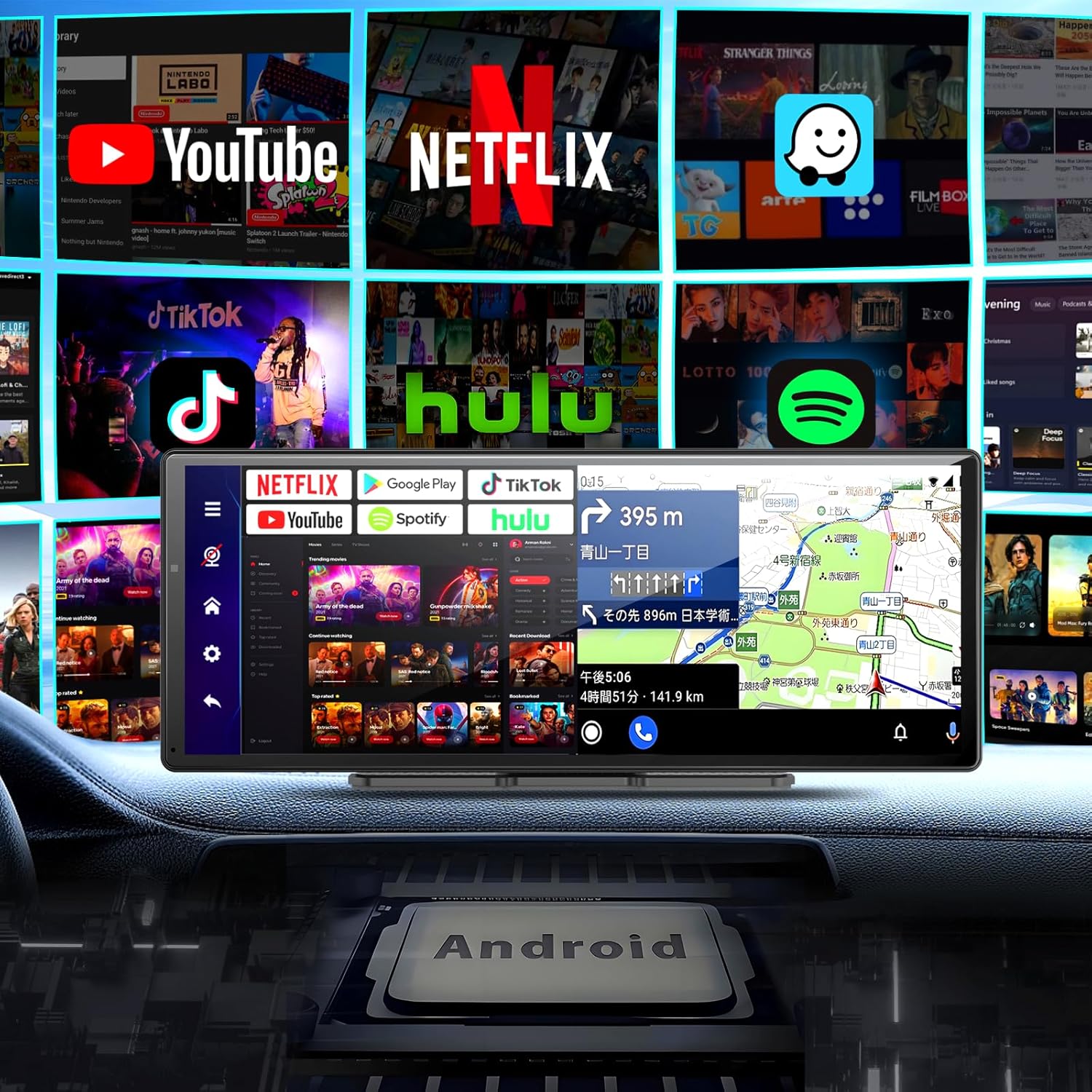
Figure 5.1: The display interface showcasing various pre-installed and downloadable applications for entertainment and navigation.
6. Conectividade
The display offers multiple ways to connect and interact with your devices.
6.1. Wireless Apple CarPlay & Android Auto
Connect your smartphone wirelessly for a streamlined in-car experience.
- Asegúrate de que Bluetooth e Wi-Fi estean activados no teu smartphone.
- On the display, select the CarPlay or Android Auto icon.
- Follow the on-screen prompts to pair your phone. Once connected, you can access navigation, make calls, send messages, and play music hands-free.
6.2. Bluetooth 5.0
For general audio streaming and hands-free calling.
- Go to the Bluetooth settings on the display.
- Activa o Bluetooth e fai que o dispositivo sexa detectable.
- On your smartphone, search for the display's Bluetooth name (e.g., "Imagebon W60N-JP") and pair.
- Once paired, you can stream audio and manage calls directly from the display.
6.3. MirrorLink
Mirror your smartphone screen directly onto the display.
- Select the MirrorLink option on the display.
- Follow the specific instructions for your smartphone model to enable screen mirroring.

Figure 6.1: Wireless connectivity for Apple CarPlay and Android Auto, enabling voice control and seamless smartphone integration.
7. Parking Assist (Rear Camera)
The included 1080P rear camera provides a clear view of the area behind your vehicle, making parking safer and easier.
- Activación automática: When the rear camera is properly connected and you shift your vehicle into reverse gear, the display will automatically switch to the rear camera view.
- Pautas de estacionamento: The screen will show dynamic parking guidelines to help you accurately judge distances to obstacles and navigate tight spaces.
- Visibilidade mellorada: The 1080P resolution ensures a clear and detailed image, reducing blind spots and preventing accidental scrapes or collisions.

Figure 7.1: The parking assist feature in action, displaying the rear camera feed with guiding lines for precise parking.
8. Actualizacións OTA
The device supports Over-The-Air (OTA) updates, allowing you to easily keep your system software up-to-date without complex procedures.
- Asegúrate de que o dispositivo estea conectado a unha rede Wi-Fi estable.
- Navigate to the system settings on the display.
- Look for the "About device" or "System Update" option.
- Click to check for updates. If an update is available, follow the on-screen prompts to download and install it.
- The device will automatically restart after the update is complete.

Figure 8.1: Visual guide for performing an OTA software update on the device.
9. Mantemento
To ensure the longevity and optimal performance of your Imagebon display, follow these maintenance guidelines:
- Limpeza: Usa un pano suave e sen pelusa para limpar a pantalla e o exterior. Para manchas difíciles, lixeiramenteampLimpe o pano con auga ou cun limpador de pantallas. Evite materiais abrasivos ou produtos químicos agresivos.
- Temperatura: Non expoñas o dispositivo a temperaturas extremas (calor ou frío) durante períodos prolongados.
- Almacenamento: When not in use for a long time, disconnect the device from power and store it in a cool, dry place. The easy plug-and-play design allows for convenient removal and storage.
- Xestión de cables Ensure all cables are neatly routed and not pinched or tangled to prevent damage.
10 Solución de problemas
If you encounter issues with your Imagebon display, refer to the following common problems and solutions:
| Problema | Causa posible | Solución |
|---|---|---|
| O dispositivo non se acende. | No power, loose connection, faulty cigarette lighter socket. | Check if the car charger is securely plugged into both the display and the cigarette lighter. Test the cigarette lighter with another device. Ensure the car's ignition is on. |
| Power drops after a short period (e.g., 15 minutes). | Insufficient power supply, overheating, internal fault. | Ensure the car charger is providing stable power. Check for overheating (ensure vents are not blocked). If the issue persists, contact customer support. |
| CarPlay/Android Auto non se conecta. | Bluetooth/Wi-Fi off, incorrect pairing, phone compatibility. | Ensure Bluetooth and Wi-Fi are enabled on your phone. Forget the device on your phone and re-pair. Restart both the display and your phone. Verify your phone's compatibility with CarPlay/Android Auto. |
| Sen saída de audio. | Incorrect audio output mode, volume too low, loose AUX/FM connection. | Check the display's audio output settings (BT, Native, FM, AUX). Increase volume on both the display and your car stereo. Ensure AUX cable is fully inserted. If using FM, tune your car radio to the correct frequency. |
| A cámara traseira non se mostra. | Camera not connected, faulty camera, car not in reverse. | Ensure the rear camera cable is securely connected to the AV IN port. Verify the car is in reverse gear. Check the camera for any visible damage. |
| As aplicacións van lentas ou fallan. | Insufficient storage, too many apps running, outdated software. | Periodically clear unnecessary apps and data to free up storage. Close background apps. Perform an OTA update to ensure the latest software is installed. |
11. Especificacións
| Característica | Especificación |
|---|---|
| Tamaño da pantalla | 11.3 polgadas |
| Sistema Operativo | Android |
| CPU | 8 núcleos |
| RAM | 4 GB |
| ROM | 64 GB |
| Conectividade | Bluetooth, USB, Wi-Fi |
| Versión Bluetooth | 5.0 |
| Dispositivos compatibles | Teléfonos intelixentes (Android, iOS) |
| Características especiais | Android Auto, Apple CarPlay, Built-in Bluetooth, Hands-free calling, MirrorLink, OTA Updates |
| Resolución da cámara traseira | 1080P (Included) |
| Modos de saída de audio | BT, Native, FM, AUX |
| Peso do produto | 0.95 quilogramos |
| Dimensións do paquete | 31 x 14.9 x 11.2 cm |
| Número de modelo | W60N-JP |
| ASIN | B0DWXGSY31 |
12. Garantía e soporte
Imagebon is committed to providing high-quality products and customer satisfaction. While specific warranty details are not provided in this manual, please retain your proof of purchase for any warranty claims.
If you encounter any issues or have questions regarding your Imagebon Portable 11.3-inch Android Car Display, please contact our customer support team immediately. Our team is ready to assist you with troubleshooting, technical support, and any other inquiries you may have.
For support, please refer to the contact information provided on the product packaging or the official Imagebon websitio.
Documentos relacionados - W60N-JP
 |
Imagebon E50 11.3" 3-in-1 Car Stereo User Manual: Android, CarPlay, Android Auto Comprehensive user manual for the Imagebon E50 11.3-inch 3-in-1 car stereo. Learn about its features, system configurations, software functions, installation, and troubleshooting for Android, Apple CarPlay, and Android Auto. |
 |
Imagebon W60 Dash Cam User Manual Comprehensive user manual for the Imagebon W60 Dash Cam, detailing features, installation, and operation for the 11.3'' 8 Core Android 14 6+128GB model with Wireless CarPlay and Android Auto. |
 |
Imagebon H70 Plus 11.4-inch 4K ADAS In-cell Display - User Guide & Specifications Detailed information on the Imagebon H70 Plus, an 11.4-inch 4K in-cell display with ADAS features, including specifications, construction, CarPlay/Android Auto setup, audio options, and important usage guidelines. |
 |
Manual do usuario do estéreo portátil para coche Imagebon de 9.3 polgadas con cámara de salpicadero 4K e sistema de asistencia a distancia Manual de usuario detallado para o estéreo portátil para coche Imagebon de 9.3 polgadas. Abarca a instalación, funcións como a cámara de salpicadero 4K, ADAS, CarPlay/Android Auto sen fíos, duplicación de pantalla, opcións de son e resolución de problemas. |
 |
Imagebon 6.86-inch Car Multimedia System with CarPlay, Android Auto, and Bluetooth User Manual Comprehensive user manual for the Imagebon 6.86-inch car multimedia system, detailing features like CarPlay, Android Auto, Bluetooth connectivity, navigation, audio playback, and installation instructions. |
 |
Estéreo portátil para coche Imagebon de 9.3" con cámara de salpicadero ADAS 4K - Manual do usuario Unha guía de usuario completa para o estéreo portátil para coche Imagebon de 9.3 polgadas, que detalla funcións como a cámara de salpicadero ADAS 4K, Apple CarPlay e Android Auto sen fíos, navegación GPS, control por FM/AUX/altofalante/voz e funcionalidade de cámara de marcha atrás de 1080p. |
Ask a question about this manual
Ask about setup, troubleshooting, compatibility, parts, safety, or missing instructions. Manuals+ will review the question and use this page’s manual context to help answer it.