
Rimoody 6180C
Rimoody Single Din Wireless Carplay Car Stereo User Manual
Modelo: 6180C
Produto rematadoview
The Rimoody Single Din Wireless Carplay Car Stereo is a versatile in-car entertainment and communication system designed to enhance your driving experience. Featuring a 5.9-inch touch screen, it integrates seamlessly with your smartphone via Wireless Carplay and Android Auto, offering access to navigation, music, calls, and more. It also supports Mirror Link, Bluetooth connectivity, FM radio, and includes multi-function USB and Type-C ports for charging and media playback. A rear view camera is included for enhanced safety during reversing.

Figure 1: Rimoody Single Din Car Stereo with included backup camera, microphone, and Carplay/Android Auto icons.
Contido do paquete
Ao abrir o paquete, comproba que estean presentes todos os compoñentes:
- Single Din Car Stereo Unit (Model 6180C)
- Traseira View Cámara
- Cable de alimentación
- Horn Cable
- Soporte de montaxe
- D-BUS Cable
- Manual de usuario
- Micrófono
- Control remoto
- Control do volante

Figure 2: Product dimensions, wiring diagram, and a list of included accessories such as power cables, mounting brackets, user manual, microphone, camera, steering wheel control, and remote control.
Configuración e instalación
Proper installation is crucial for optimal performance. It is recommended to have this unit installed by a professional if you are unfamiliar with car audio wiring.
1. Comprobacións previas á instalación
- Ensure your vehicle has a single DIN slot (178x50mm).
- Disconnect the vehicle's battery before starting any wiring.
- Identify your vehicle's wiring harness for power, ground, speaker outputs, and accessory power.
2. Conexións de cableado
Refer to the wiring diagram provided in Figure 2 and the included user manual for detailed pin assignments. Key connections include:
- Cable de alimentación: Conectar a 12 V constantes, 12 V accesorios e terra.
- Horn Cable: For speaker outputs.
- Traseira View Cámara: Connect the camera's video output to the "CAMIN" input on the stereo and its power to the reverse light circuit.
- Control do volante (SWC): Connect SWC wires to your vehicle's steering wheel control interface (if applicable).
- USB/Type-C Ports: Para a reprodución e carga de contido multimedia.
- Audio Outputs (L-OUT, R-OUT): Para conectar externamente amplevantadores.
3. Montaxe da Unidade
Use the provided mounting bracket to secure the stereo firmly into the single DIN slot of your vehicle's dashboard.
Instrucións de funcionamento
1. Funcionamento básico
- Encendido/apagado: Prema o botón de acendido (normalmente o selector de volume) para acender ou apagar a unidade.
- Control de volume: Rotate the volume knob to adjust audio levels.
- Screen Flip: The 5.9-inch screen supports a 95° flip-out mechanism for optimal viewángulo de ing.
- Cores de retroiluminación: Customize the seven-color backlight in the setup menu.
2. Carplay sen fíos e Android Auto
This feature allows seamless integration with your smartphone for navigation, music, calls, and more. (Note: Not applicable to Huawei brand phones).
- Asegúrate de que Bluetooth e Wi-Fi estean activados no teu smartphone.
- On the car stereo, select the Carplay or Android Auto icon.
- Sigue as instrucións na pantalla para emparellar o teléfono.
- Once connected, your phone's compatible apps will be displayed on the stereo screen.
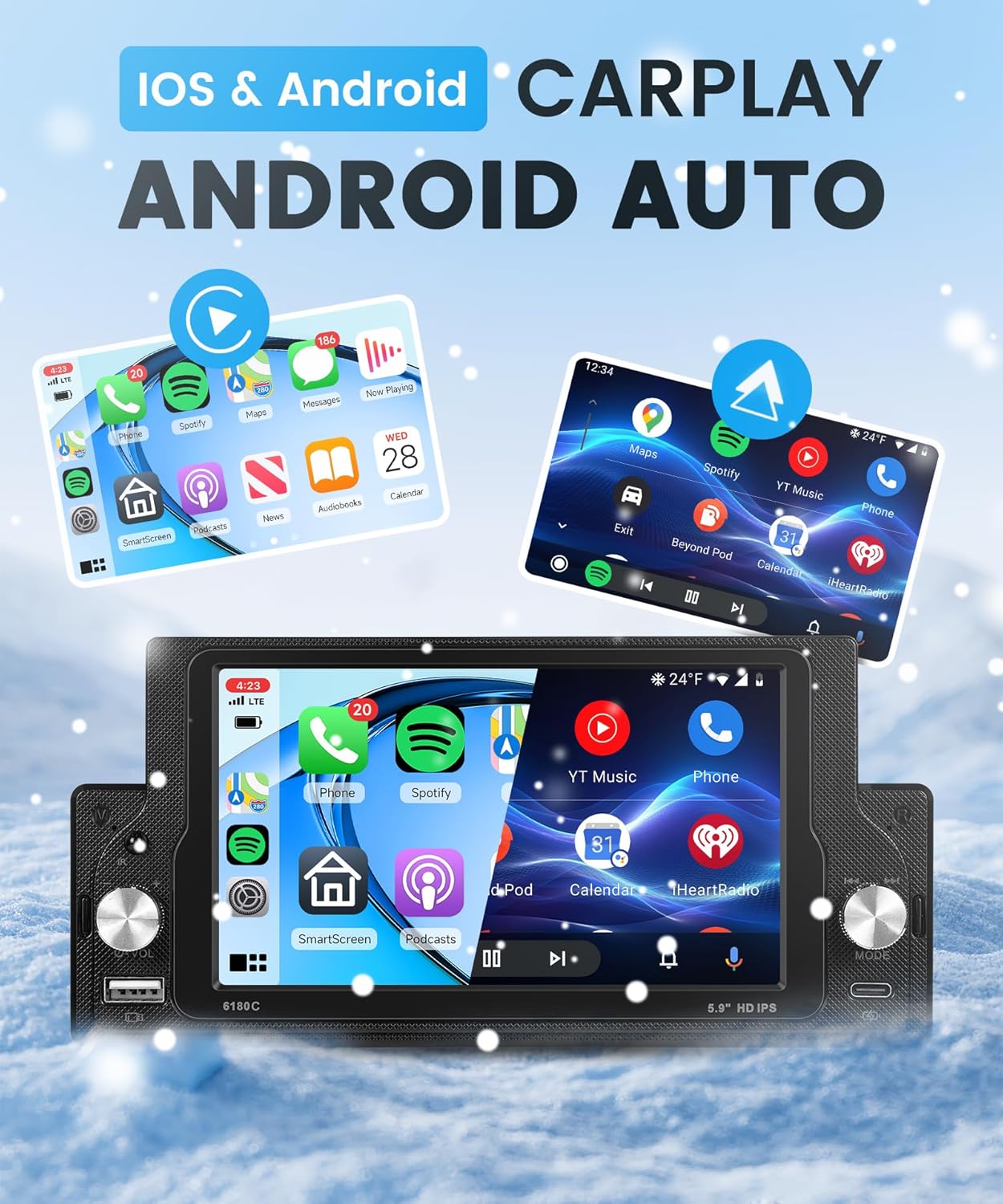
Figure 3: Demonstration of Wireless Carplay and Android Auto functionality, showing smartphone interfaces mirrored on the car stereo display.
3. Ligazón de espello
Mirror Link allows you to display your smartphone's screen directly onto the car stereo via a USB cable.
- Connect your iPhone or Android phone to the stereo using its original USB cable.
- Select the "Mirror Link" option on the stereo.
- Follow any prompts on your phone to allow screen mirroring.
Note: Some phone versions may require software updates for full compatibility.
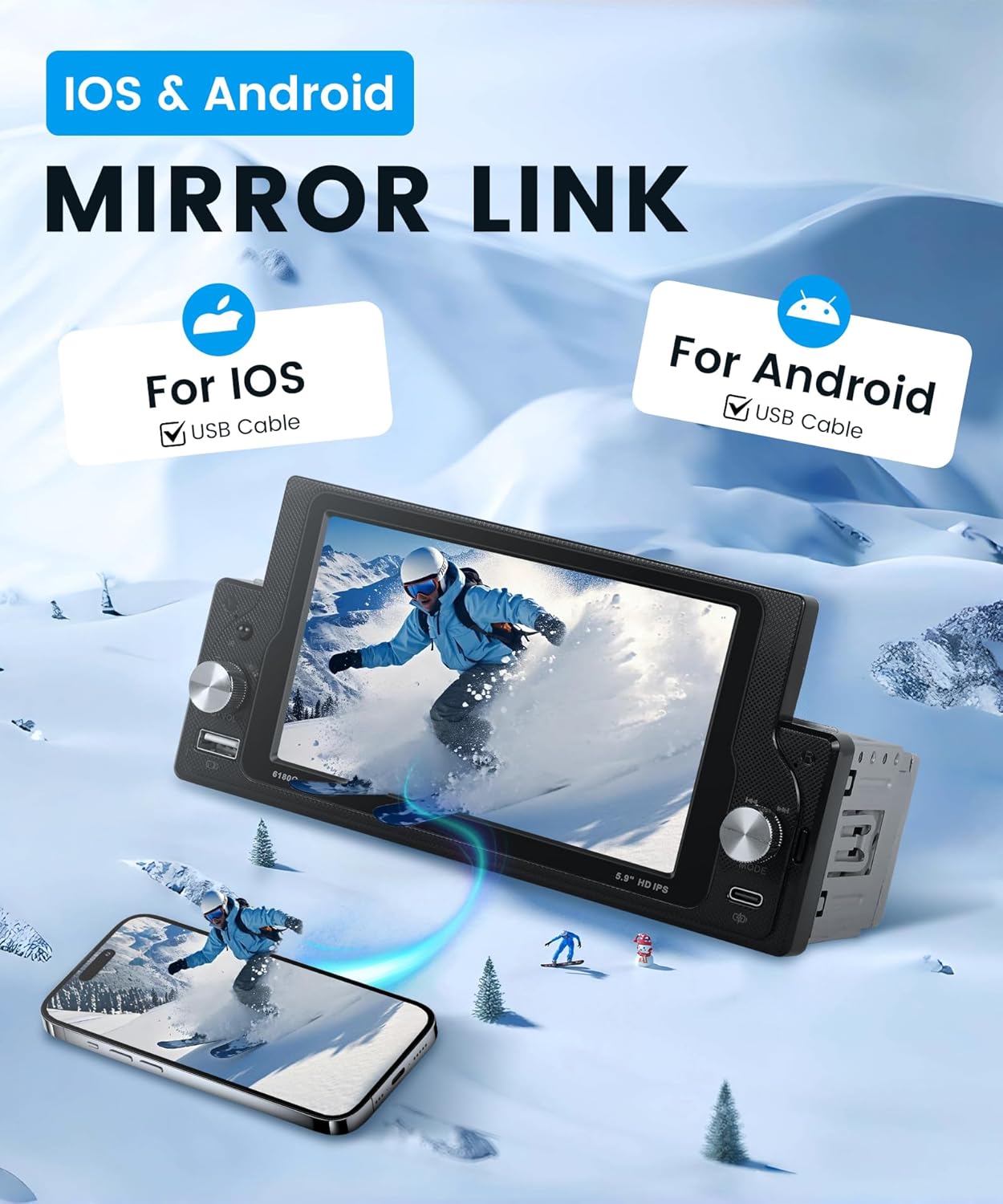
Figure 4: Visual representation of Mirror Link feature, enabling screen mirroring from both iOS and Android smartphones to the car stereo via USB cable.
4. Conectividade Bluetooth
Connect your phone via Bluetooth for hands-free calling and music playback.
- Vaia ao menú Bluetooth do estéreo.
- Activa o Bluetooth no teu teléfono e busca os dispositivos dispoñibles.
- Select "Rimoody" (or similar device name) from the list and pair.
- Unha vez conectado, podes facer/recibir chamadas e transmitir audio.
5. Radio FM
Access your favorite radio stations with high-quality stereo sound.
- Escaneo automático: Automatically scan and save available stations.
- Sintonización manual: Manually tune to specific frequencies.
- Presets: Save up to 18 radio presets for quick access.
6. Configuración do ecualizador
Adjust the audio equalizer settings to customize your sound experience.
- Access the EQ menu to select preset sound modes (e.g., Jazz, Classic, Pop, Rock) or create a custom profile.
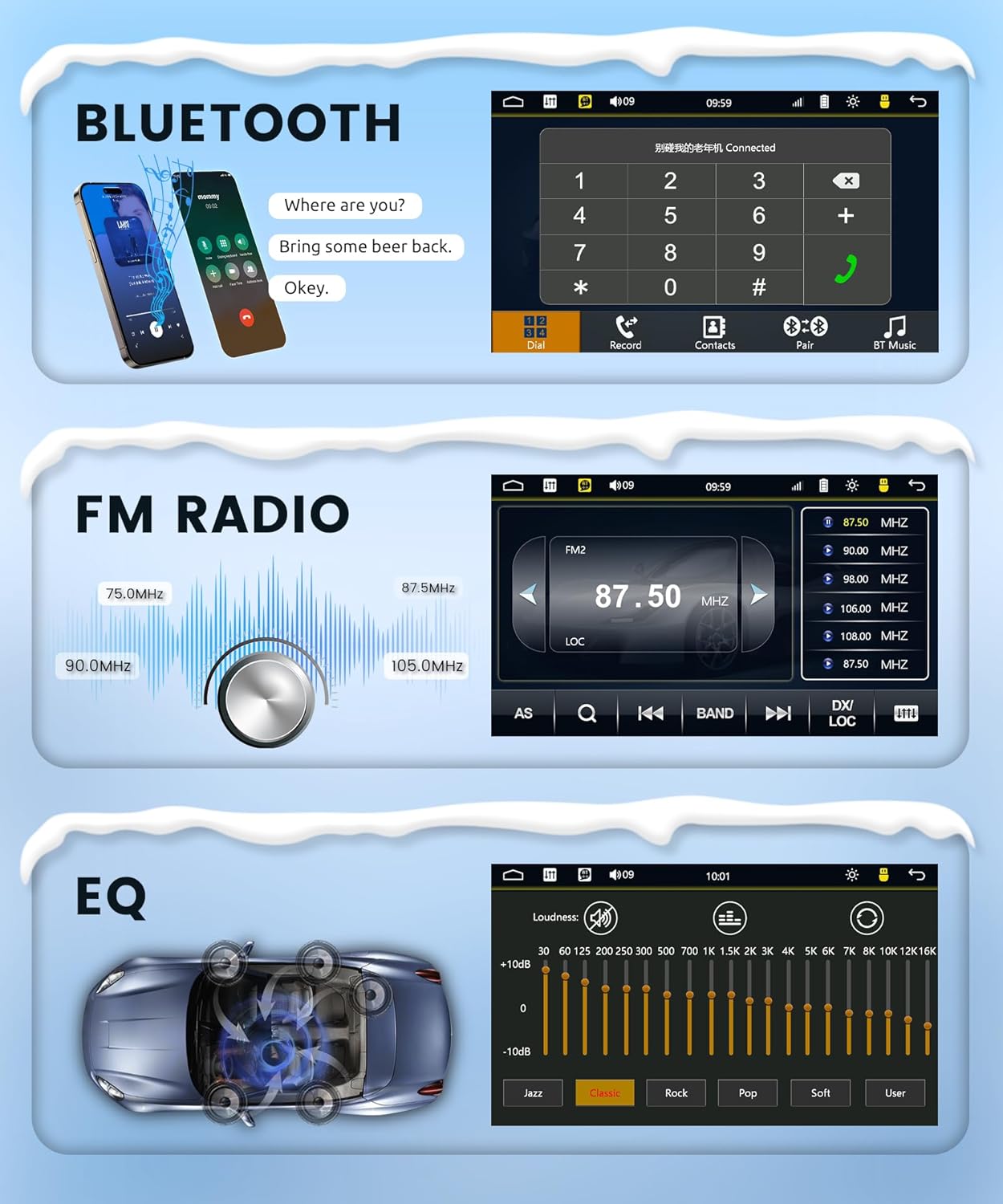
Figure 5: User interfaces for Bluetooth phone calls, FM radio tuning with frequency display, and graphic equalizer (EQ) settings for audio customization.
7. USB & Type-C Ports
These ports support various media formats for music, videos, and photos, and can also be used for charging your devices.
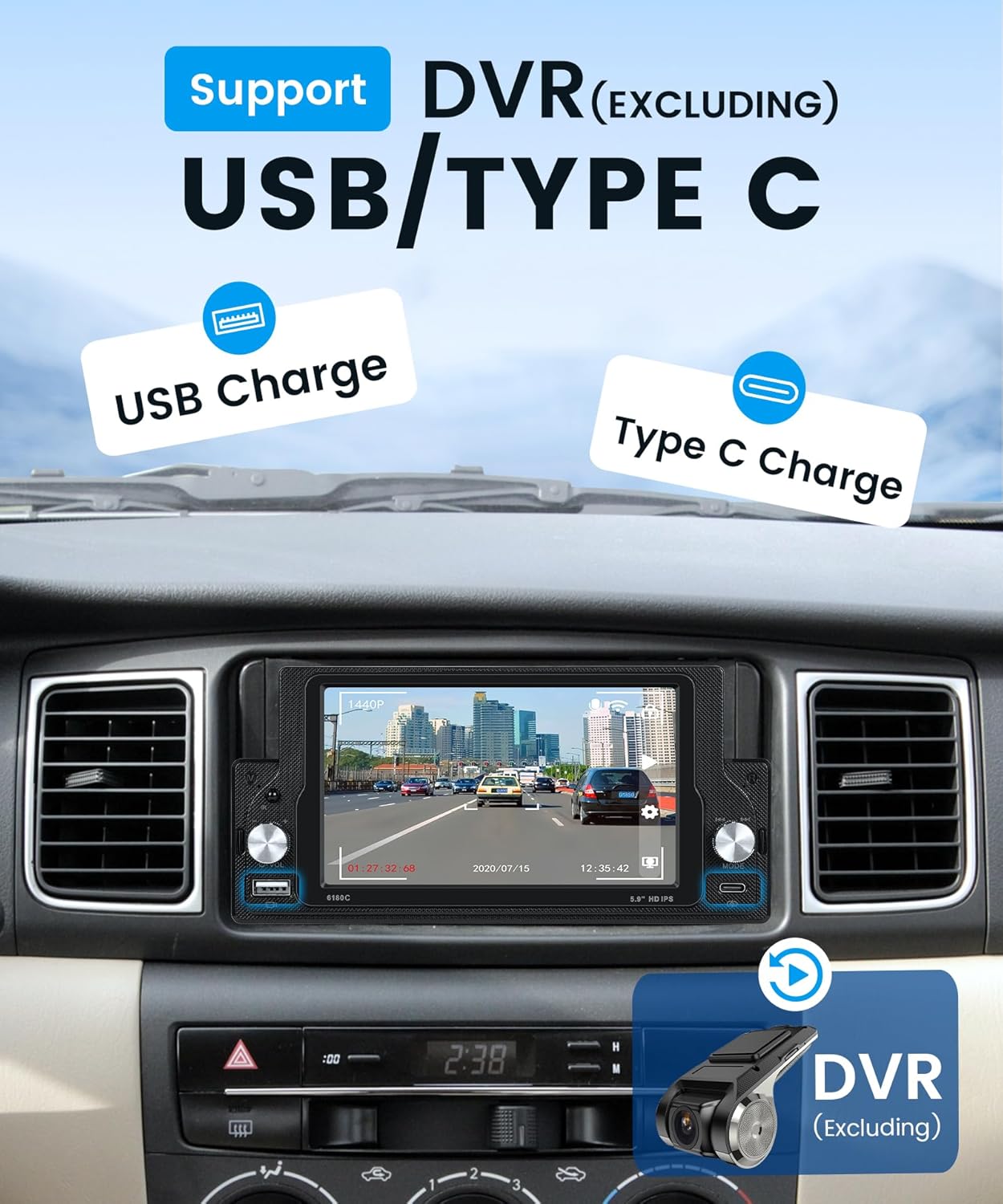
Imaxe 6: Primeiro plano view of the multi-function USB and Type-C ports on the car stereo, highlighting their capability for both data transfer and device charging.
8. Traseira View Camera & SWC
A parte traseira incluída view cámara ofrece unha clara view when reversing. Steering Wheel Control (SWC) allows for convenient operation.
- Traseira View Cámara: When the vehicle is shifted into reverse, the stereo screen will automatically display the camera feed (AHD 720P supported).
- Control do volante: Program your steering wheel buttons to control stereo functions like volume, track skip, and mode selection.
- Driving Recorder (DVR): The unit supports an external driving recorder (not included). Playback can be viewed on the stereo screen.

Figure 7: Illustration of the high-definition reversing camera view displayed on the car stereo, alongside the on-screen interface for steering wheel control settings.
Mantemento
To ensure the longevity and optimal performance of your Rimoody car stereo, follow these maintenance guidelines:
- Limpeza da pantalla: Usa un pano suave e sen fiapos para limpar con coidado a pantalla táctil. Evita produtos de limpeza abrasivos ou solventes.
- Eliminación de po: Periodically clean dust from the unit's vents and ports using compressed air or a soft brush.
- Actualizacións de software: Consulte o do fabricante websitio web para ver se hai actualizacións de firmware dispoñibles para garantir o mellor rendemento e compatibilidade.
- Conexións por cable: Asegúrese de que todos os cables estean conectados de forma segura e sen danos.
Resolución de problemas
Se tes problemas co equipo de son do teu coche, consulta os seguintes problemas e solucións comúns:
| Problema | Causa posible | Solución |
|---|---|---|
| Sen Poder | Conexión eléctrica solta, fusible fundido, cableado incorrecto. | Check power cables and fuses. Ensure correct wiring according to the manual. |
| Sen son | Volume demasiado baixo, silencio activado, problemas de cableado do altofalante, fonte de son incorrecta. | Increase volume. Check mute setting. Verify speaker connections. Select correct audio source. |
| Carplay/Android Auto Not Connecting | Bluetooth/Wi-Fi off, phone not compatible (Huawei), incorrect pairing, software issue. | Ensure Bluetooth/Wi-Fi are on. Re-pair device. Check phone compatibility. Update stereo firmware if available. |
| Mirror Link Not Working | Incorrect USB cable, phone settings, phone software version. | Use original USB cable. Check phone's USB debugging/mirroring settings. Update phone software. |
| Rear Camera No Display | Camera not powered, video cable loose, incorrect input selected. | Check camera power and video cable connection to "CAMIN". Ensure vehicle is in reverse. |
If the problem persists, please contact Rimoody customer support.
Especificacións
| Característica | Detalle |
|---|---|
| Modelo | 6180C |
| Tamaño da pantalla | 5.9 polgadas (15 cm diagonal visible) |
| Tamaño de instalación | 178 x 50 mm (Single DIN) |
| Conectividade | Wireless Carplay, Wireless Android Auto, Bluetooth, Mirror Link (USB), USB, Type-C, Aux-in |
| Radio | FM Radio (18 presets) |
| Modo de saída de audio | Estéreo |
| Características especiais | Touchscreen, 95° Flip-out Screen, Seven-color Backlight, EQ, SWC Support, AHD 720P Camera Input |
| Accesorios incluídos | Backup Camera, Microphone, Power Cable, Horn Cable, Mounting Bracket, D-BUS Cable, User Manual |
| Peso do elemento | 1.65 libras |
| Dimensións do paquete | 8.31 x 4.65 x 0.47 polgadas |
| Fabricante | Rimoody |
| País de Orixe | China |
Garantía e Soporte
Rimoody offers comprehensive support for its products:
- Garantía de devolución do diñeiro: 30-day money-back policy.
- Garantía de substitución: Garantía de substitución de 12 meses.
- Soporte técnico: Soporte técnico de por vida.
- Devolucións: 90 days free return for refund or exchange.
- Atención ao cliente: Quick response within 24 hours.
For any installation or usage queries, please contact Rimoody customer service via email. Professional installation guides and videos may also be available.

Figure 8: Summary of Rimoody's customer support, including 24-hour response, professional installation guidance, 90-day free returns, and lifetime technical support.
Ask a question about this manual
Ask about setup, troubleshooting, compatibility, parts, safety, or missing instructions. Manuals+ will review the question and use this page’s manual context to help answer it.