
1. Introdución
The MARVO KG955W Shogo 63 is a compact 60% mechanical gaming keyboard designed for versatility and performance. It features tri-mode connectivity (wired, 2.4GHz wireless, and Bluetooth), yellow linear pre-lubed switches, customizable RGB backlighting, and full-key anti-ghosting. This manual provides instructions for setting up, operating, and maintaining your keyboard.
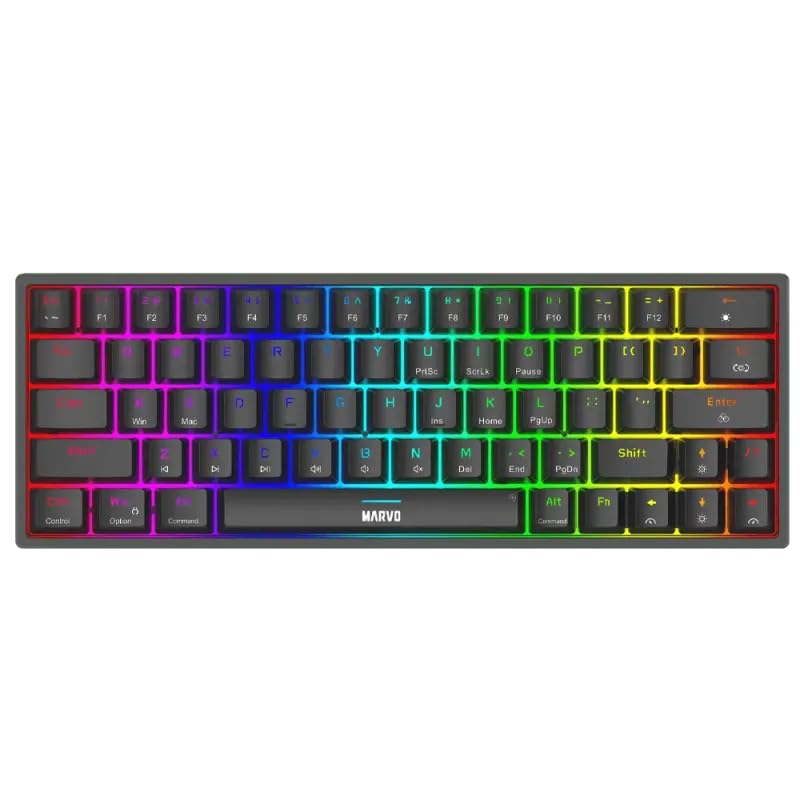
Imaxe 1.1: De arriba abaixo view of the MARVO KG955W keyboard showcasingrazas ao seu deseño compacto do 60 % e á súa vibrante retroiluminación RGB.
2. Contido do paquete
Comprobe se o paquete contén os seguintes elementos:
- MARVO KG955W Shogo 63 Wireless Mechanical Gaming Keyboard
- Detachable 1.6m braided Type-C USB Cable
- 2.4GHz Wireless Receiver (USB dongle)
- Manual de usuario (este documento)
3. Configuración e conectividade
The KG955W keyboard offers three connectivity modes: Wired, 2.4GHz Wireless, and Bluetooth.
3.1. Conexión por cable
- Connect the detachable Type-C USB cable to the keyboard's USB-C port.
- Conecte o outro extremo do cable USB a un porto USB dispoñible no seu ordenador.
- The keyboard will automatically be detected and ready for use. The keyboard will also charge in wired mode.
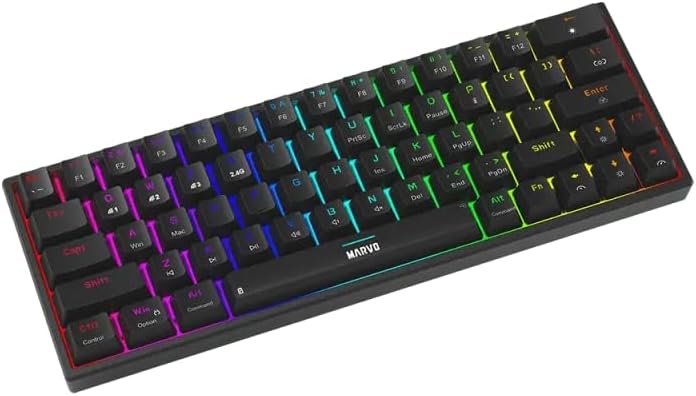
Imaxe 3.1: Lateral view of the keyboard showing the USB-C port for wired connection and charging.
Conexión sen fíos de 3.2 GHz
- Locate the 2.4GHz USB receiver (dongle) in the package.
- Conecta o receptor USB de 2.4 GHz a un porto USB dispoñible do teu ordenador.
- On the keyboard, switch the mode selector (usually on the back or side) to the 2.4G wireless mode.
- O teclado debería conectarse automaticamente. Se non, preme Fn + R para iniciar o emparellamento.
3.3. Conexión Bluetooth
- No teclado, cambia o selector de modo ao modo Bluetooth.
- Mantén premido Fn + Q, Fn + W, ou Fn + E durante 3-5 segundos para entrar no modo de emparellamento para o dispositivo Bluetooth 1, 2 ou 3 respectivamente. A luz indicadora parpadeará rapidamente.
- No teu ordenador ou dispositivo, activa o Bluetooth e busca novos dispositivos.
- Select "MARVO KG955W" (or similar name) from the list of available devices to pair.
- Unha vez emparellado, a luz indicadora do teclado deixará de parpadear e permanecerá fixa.
O teclado pode almacenar ata tres dispositivos Bluetoothfiles, allowing quick switching between devices using Fn + Q/W/E.
4. Instrucións de funcionamento
The KG955W is a 60% compact keyboard, meaning some functions are accessed via the Fn combinacións de teclas.
4.1. Function Key Combinations (Fn Key)
Manteña premida Fn key and press the corresponding key for secondary functions:
- Fn + 1-0, -, =: F1-F12 functions (check keycaps for specific mappings).
- Fn + P: Imprimir pantalla
- Fn + [ {: Casa
- Fn + ] }: Fin
- Fn + ; :: Páxina arriba
- Fn + ' ": Páxina abaixo
- Fn + Teclas de frecha: Media controls (e.g., volume up/down, play/pause, next/previous track). Refer to keycap legends.
- Fn+Win: Lock/Unlock Windows key.
4.2. Control da retroiluminación RGB
The keyboard features customizable RGB backlighting. Use the following combinations to control the lighting effects:
- Fn + \ |: Change lighting mode.
- Fn + ↑: Aumenta o brillo.
- Fn + ↓: Reducir o brillo.
- Fn + ←: Decrease lighting speed.
- Fn + →: Increase lighting speed.
- Fn + barra de espazo: Cambia a cor da retroiluminación (para os modos estáticos).
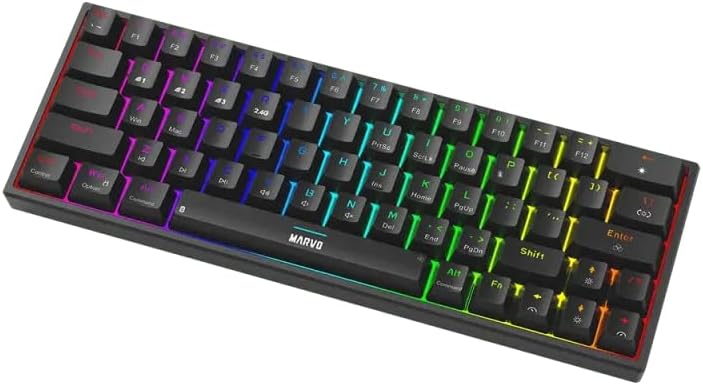
Image 4.1: The keyboard displaying its customizable RGB backlighting in a dynamic pattern.
4.3. Estado da batería
The keyboard has an integrated battery for wireless operation. An indicator light will typically show low battery status or charging status. Refer to the specific LED indicators on your keyboard for details.
5. Mantemento
Un mantemento axeitado garante a lonxevidade e o rendemento do teu teclado.
- Limpeza: Usa un pano suave e seco para limpar a superficie do teclado. Para unha limpeza máis profunda, usa aire comprimido para eliminar o po e os residuos que hai entre as tapas das teclas. Evita o uso de produtos químicos agresivos ou materiais abrasivos.
- Almacenamento: Garda o teclado nun lugar fresco e seco, lonxe da luz solar directa e de temperaturas extremas.
- Coidado do cable: Handle the detachable USB-C cable carefully. Avoid bending or twisting it excessively.

Image 5.1: Illustration of a hot-swappable switch, demonstrating the ease of maintenance and customization for individual key switches.
6 Solución de problemas
If you encounter issues with your MARVO KG955W keyboard, refer to the following common solutions:
| Problema | Solución |
|---|---|
| O teclado non responde (con cable) |
|
| O teclado non responde (sen fíos de 2.4 GHz) |
|
| O teclado non responde (Bluetooth) |
|
| A iluminación RGB non funciona ou é incorrecta |
|
| As chaves non se rexistran nin se escriben dúas veces |
|
7. Especificacións
| Característica | Detalle |
|---|---|
| Nome do modelo | MARVO KG955W Shogo 63 |
| Tipo de teclado | Mechanical, 60% TKL (Tenkeyless) |
| Interruptores | Yellow Linear, Pre-lubed, Hot-swappable |
| Conectividade | Wired (USB-C), 2.4GHz Wireless, Bluetooth (Tri-mode) |
| Anti-Ghosting | Full-key Anti-Ghosting |
| Retroiluminación | Customizable RGB |
| Cable | Detachable 1.6m braided Type-C USB |
| Material | Plástico |
| Peso | 460 gramos |
| OS compatible | Windows (also compatible with other systems via Bluetooth/2.4G) |
| Número de chaves | 63 |
8. Información da garantía
The MARVO KG955W Shogo 63 Wireless Mechanical Gaming Keyboard comes with a 6 meses de garantía from the date of purchase. This warranty covers manufacturing defects and malfunctions under normal use. It does not cover damage caused by misuse, accidents, unauthorized modifications, or normal wear and tear. Please retain your proof of purchase for warranty claims.
9. Apoio
For technical support, troubleshooting assistance beyond this manual, or warranty inquiries, please contact MARVO customer service through their official website or the retailer where the product was purchased. Please have your product model number (KG955W) and proof of purchase ready when contacting support.