
Introdución
This manual provides detailed instructions for the JOMAA 20-Key Macro Programmable Numeric Gaming Keyboard. It covers setup, operation, maintenance, troubleshooting, and product specifications to ensure optimal use of your device. Please read this manual thoroughly before using the keyboard.
Contido do paquete
- JOMAA 20-Key Macro Programmable Numeric Gaming Keyboard
- Cable USB Tipo-C
- Manual de usuario (este documento)
Instrucións de configuración
1. Conectando o teclado
- Locate the USB Type-C port on the back of the JOMAA 20-Key Keyboard.
- Connect one end of the provided USB Type-C cable to the keyboard's port.
- Connect the other end of the USB cable to an available USB port on your computer (PC, Laptop, or Gaming Console).
- The keyboard is plug-and-play for basic functionality.

This image highlights the detachable Type-C cable for easy portability and connectivity. It also shows the physical switch used to toggle between office and gaming modes.
2. Driver and Software Installation (Windows Only)
For advanced features such as macro programming and detailed RGB lighting customization, a dedicated driver and software are required. This software is compatible with Windows XP/Vista/7/8/10 systems only.
- Visit the official JOMAA support website to download the latest driver and software for your keyboard.
- Siga as instrucións en pantalla para completar a instalación.
- Nota: If you configure settings on a Windows system, the keyboard will save these memory settings and retain them when connected to other compatible devices (e.g., Mac systems), although the driver itself cannot run on non-Windows operating systems.

A visual representation of the macro programming software, which allows users to define custom functions and macros for the keyboard's 19 programmable keys.
Instrucións de funcionamento
1. Funcións básicas das teclas
The JOMAA 20-Key Keyboard functions as a standard numeric keypad or macro pad. Keys are pre-assigned with numeric and basic arithmetic functions by default.
2. Programación de macros
The keyboard supports macro definition for 19 keys. This feature allows you to assign complex sequences of commands or single key presses to a single key, enhancing efficiency in gaming or productivity tasks.
- Install the JOMAA software on a Windows PC.
- Launch the software and select the key you wish to program.
- Record or input the desired macro sequence.
- Save the changes to the keyboard. The programmed macros will be stored on the keyboard's internal memory.
3. Modos de iluminación RGB
The keyboard features 12 distinct RGB lighting modes. These modes can be cycled through using a dedicated key on the keyboard.
- Locate the 'Mode Switching Key' (often indicated by a gear or light icon).
- Press this key to cycle through the available lighting effects.
- Further customization of lighting effects may be available through the JOMAA software.
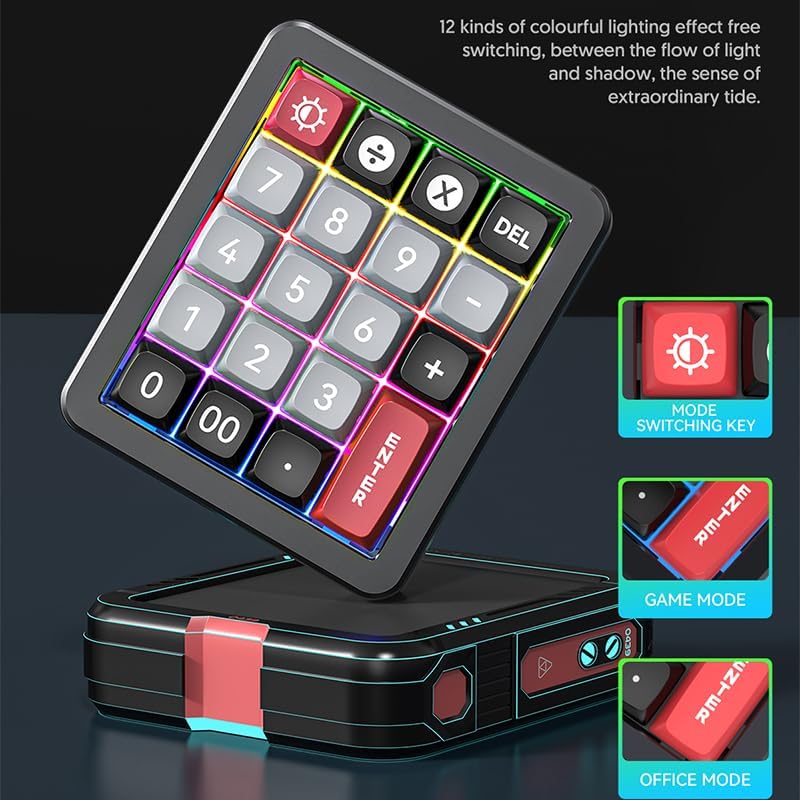
The keyboard features 12 distinct colorful lighting effects. The image also points out the dedicated mode switching key, allowing users to cycle through different lighting presets.
4. Hot-Swappable Keys
The JOMAA 20-Key Keyboard features hot-swappable switches, allowing users to replace individual key switches without soldering. This enables customization of typing feel and sound.
- Use a switch puller tool (not included) to carefully remove the keycap.
- Using the switch puller, gently grip the switch and pull it straight up to remove it from the PCB.
- Aliña os pines do novo interruptor cos orificios da placa de circuíto impreso e prémeo firmemente ata que encaixe no seu lugar.
- Substitúa a tapa das teclas.
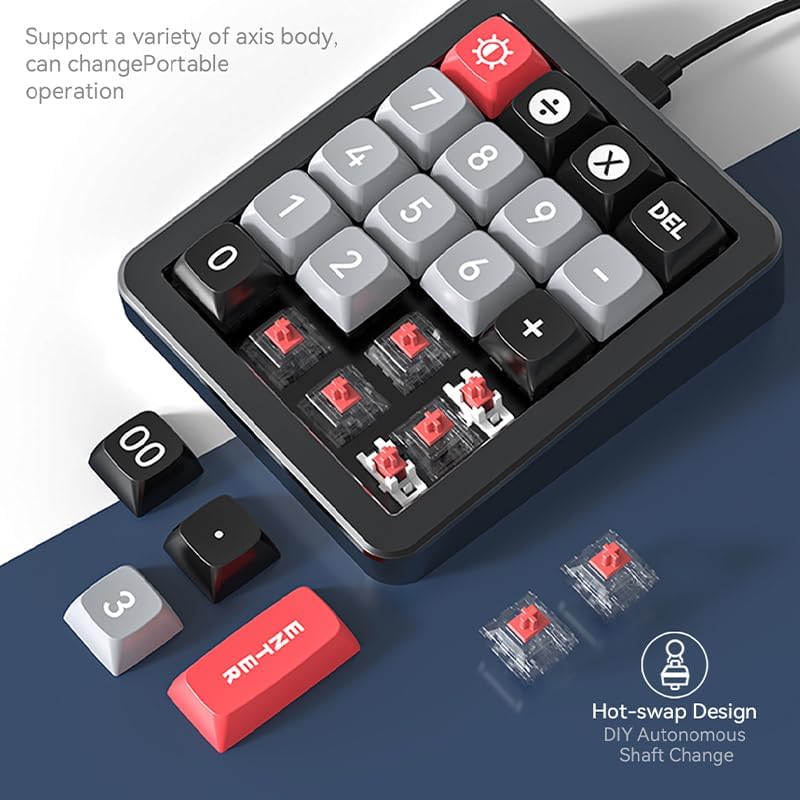
This image illustrates the hot-swappable design of the keyboard, showing how individual key switches can be easily removed and replaced without soldering, enabling customization.
5. Gasket Structure and Aluminum Alloy Body
The keyboard is constructed with an aluminum alloy body and features a gasket structure. The aluminum alloy provides durability and a stable base, while the gasket structure offers a cushioned typing experience, reducing impact noise and improving key feel.

The image emphasizes the keyboard's durable aluminum alloy construction, contributing to its premium feel and stability.

Un estoupou view diagram detailing the internal gasket structure of the keyboard, which provides a softer, more cushioned typing experience and reduces noise.
Mantemento
Limpeza do teclado
- Desconecte o teclado do ordenador antes de limpalo.
- Use un pano suave e sen pelusa lixeiramente dampenxugado con auga ou unha solución de limpeza suave para limpar a superficie do teclado.
- Para limpar entre as tapas das teclas, use aire comprimido para eliminar o po e os residuos.
- Evita usar produtos químicos agresivos, produtos de limpeza abrasivos ou pulverizar líquidos directamente sobre o teclado.
Atención Xeral
- Avoid exposing the keyboard to extreme temperatures, direct sunlight, or high humidity.
- Do not drop or subject the keyboard to strong impacts.
- Keep liquids away from the keyboard to prevent damage.
Resolución de problemas
O teclado non responde
- Asegúrate de que o cable USB tipo C estea conectado correctamente tanto ao teclado como ao ordenador.
- Tenta conectar o teclado a un porto USB diferente do teu ordenador.
- Proba o teclado noutro ordenador para descartar problemas específicos do sistema.
- Se usas un concentrador USB, proba a conectalo directamente ao ordenador.
Problemas de iluminación RGB
- Asegúrate de que o teclado estea correctamente alimentado.
- Press the 'Mode Switching Key' to cycle through different lighting effects.
- If using the software, verify that lighting settings are correctly applied and saved.
Macro Programming Difficulties
- Confirm that the JOMAA software is correctly installed on a Windows PC.
- Ensure you are following the software's instructions for macro recording and saving.
- Be aware that the software may be slow or clunky, requiring patience during configuration. Allow several seconds for changes to apply.
- If macros are not working on a non-Windows device, ensure they were programmed and saved on a Windows PC first, as the driver does not run on other operating systems.
Especificacións
| Característica | Detalle |
|---|---|
| Marca | XOMAA |
| Modelo | 20-Key Macro Programmable Numeric Gaming Keyboard |
| Tecnoloxía de conectividade | USB-C (Detachable Cable) |
| Tipo de chave | Hot-Swappable Mechanical Switches |
| Material do corpo | Aliaxe de aluminio |
| Estrutura | Estrutura de xuntas |
| Iluminación | RGB (12 modos) |
| Teclas programables | 19 keys for macro definition |
| Dispositivos compatibles | Consola de xogos, portátil, PC |
| Compatibilidade do sistema | Windows XP/Vista/7/8/10, Mac (driver for Windows only) |
| Peso do elemento | 15.5 onzas |
| Dimensións do paquete | 6.3 x 4.72 x 1.97 polgadas |
| Compoñentes incluídos | Cable USB |
Información da garantía
JOMAA products are typically covered by a manufacturer's warranty. For specific details regarding the warranty period and terms for your 20-Key Macro Programmable Numeric Gaming Keyboard, please refer to the warranty card included with your product or visit the official JOMAA websitio. Garda o comprobante de compra para reclamacións de garantía.
Atención ao cliente
If you encounter any issues or have questions not addressed in this manual, please contact JOMAA customer support. Contact information can typically be found on the official JOMAA websitio web ou na embalaxe do produto.