
1. Introdución
The Lamzu Inca Gaming Mouse is engineered for competitive gaming, featuring an ultra-lightweight design, high-precision sensor, and advanced connectivity options. This manual provides essential information for setting up, operating, maintaining, and troubleshooting your Lamzu Inca mouse to ensure optimal performance.
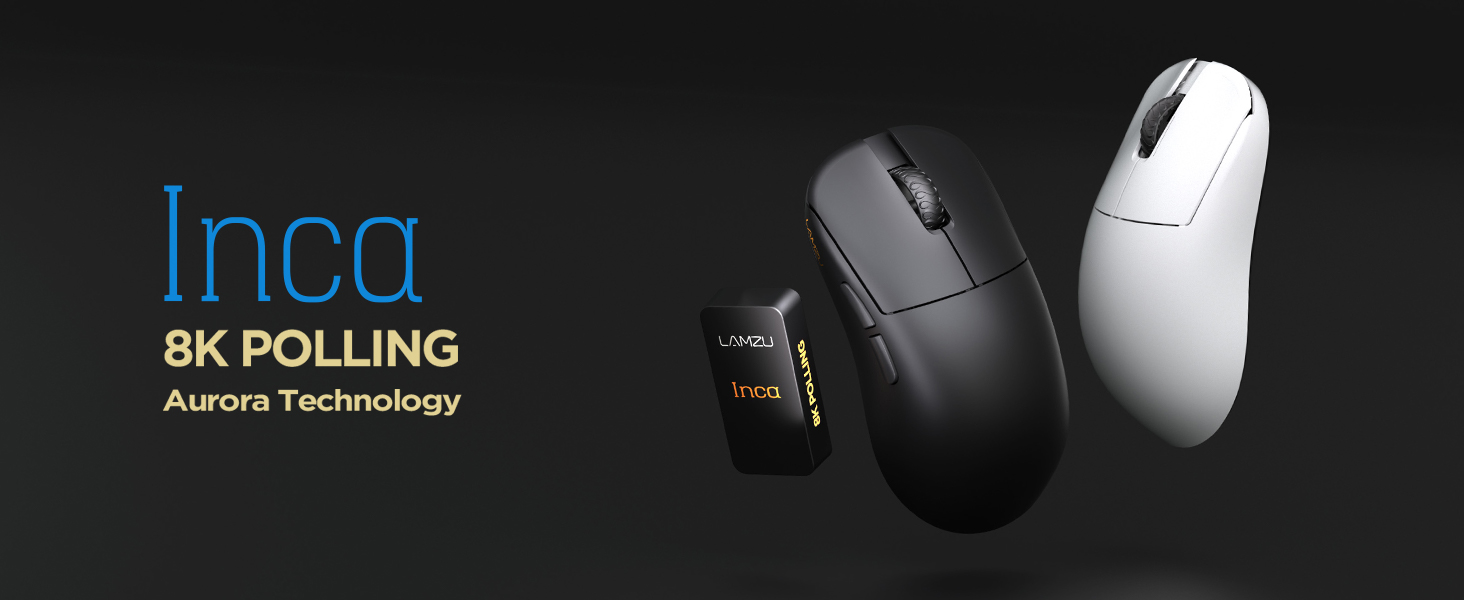
Image: The Lamzu Inca Gaming Mouse, highlighting its 8K Polling Rate and Aurora Technology.

Imaxe: Máis deview of key features including Pixart 3950 sensor, 40g weight, Aurora Technology, 8K Polling, Dual Mode connectivity, and Nordic 52840 MCU.
2. Contido do paquete
Asegúrate de que todos os elementos estean presentes no paquete:
- Lamzu Inca Gaming Mouse (Black)
- 8K Polling Rate Dongle
- Cable USB tipo C (1.8 m)
- PTFE Feet (x2 sets)
- Bolsa de veludo
- Cinta de agarre do rato
3. Configuración
3.1 Conexión do rato
The Lamzu Inca mouse supports both 2.4GHz wireless and wired connectivity.
Wireless Mode (2.4GHz)
- Locate the 8K Polling Rate Dongle included in your package.
- Plug the 8K dongle into an available USB port on your computer.
- Acenda o rato usando o interruptor de acendido/apagado situado na parte inferior do rato.
- The mouse should automatically connect to the dongle. If not, refer to the pairing instructions in the software section.

Image: The Lamzu Inca mouse with its 8K dongle, illustrating the bottom view of the mouse where the sensor and power switch are located.
Modo cableado
- Connect the provided USB Type-C cable to the front port of the Lamzu Inca mouse.
- Conecte o outro extremo do cable USB a un porto USB dispoñible no seu ordenador.
- O rato funcionará en modo con cable e tamén cargará a súa batería interna.

Imaxe: Fronte view of the Lamzu Inca mouse, clearly showing the USB-C port for wired connection and charging.

Image: Diagram illustrating the dual connectivity modes: 2.4G Wireless and Wired (Type-C).
3.2 Software Installation (LAMZU Aurora Driver)
To unlock the full customization potential of your Lamzu Inca mouse, download and install the LAMZU Aurora driver from the official Lamzu websitio.
- The software allows adjustments for DPI, polling rate, debounce time, macro settings, and more.
- Note for macOS users: To use the Aurora driver on macOS, you must first update the firmware to version 0.0.0.15 or later using a Windows system.

Image: Screenshot of the LAMZU Aurora driver interface, showing options for macro settings, button customization, DPI, polling rate, and debounce time.
4. Uso do rato
4.1 Funcións dos botóns
The Lamzu Inca is a 6-button gaming mouse:
- Clic esquerdo: Acción primaria.
- Clic dereito: Acción secundaria.
- Roda de desprazamento: Scroll up/down, Middle click.
- Botón DPI: Percorre ciclicamente os DPI predefinidostages (customizable via software).
- Botón de avance: Navigational forward.
- Botón Atrás: Navigational back.
- Interruptor On/Off: Located on the bottom of the mouse to power on or off.

Image: A detailed diagram labeling all buttons on the Lamzu Inca gaming mouse, including Left, Right, Scroll Wheel, DPI, Forward, Back, and On/Off switch.
4.2 Axuste de DPI
The Lamzu Inca features a PixArt PAW3950 sensor capable of up to 30,000 DPI. DPI settings can be customized and adjusted using the LAMZU Aurora driver. The dedicated DPI button on the mouse allows for quick cycling through your configured DPI profiles.

Imaxe: Parte inferior view of the Lamzu Inca mouse, emphasizing its maximum 30,000 DPI capability and the sensor area.
4.3 Taxa de sondaxe
The mouse supports an 8K polling rate, ensuring faster and more accurate responses, particularly beneficial in fast-paced games. The polling rate can be configured via the LAMZU Aurora driver.

Image: The Lamzu Inca mouse connected to its 8K dongle, demonstrating the smooth tracking achieved with an 8K polling rate.
4.4 Recommended Grip Style
The Lamzu Inca features a symmetrical high-back design, making it suitable for various grip styles. It is particularly recommended for claw-grip gamers.
- For hand length ≤ 18cm: Palm grip (extended), Claw grip (inward), Fingertip grip.
- For hand length ≥ 18cm: Fingertip grip, Claw grip (extended), Hybrid grip.
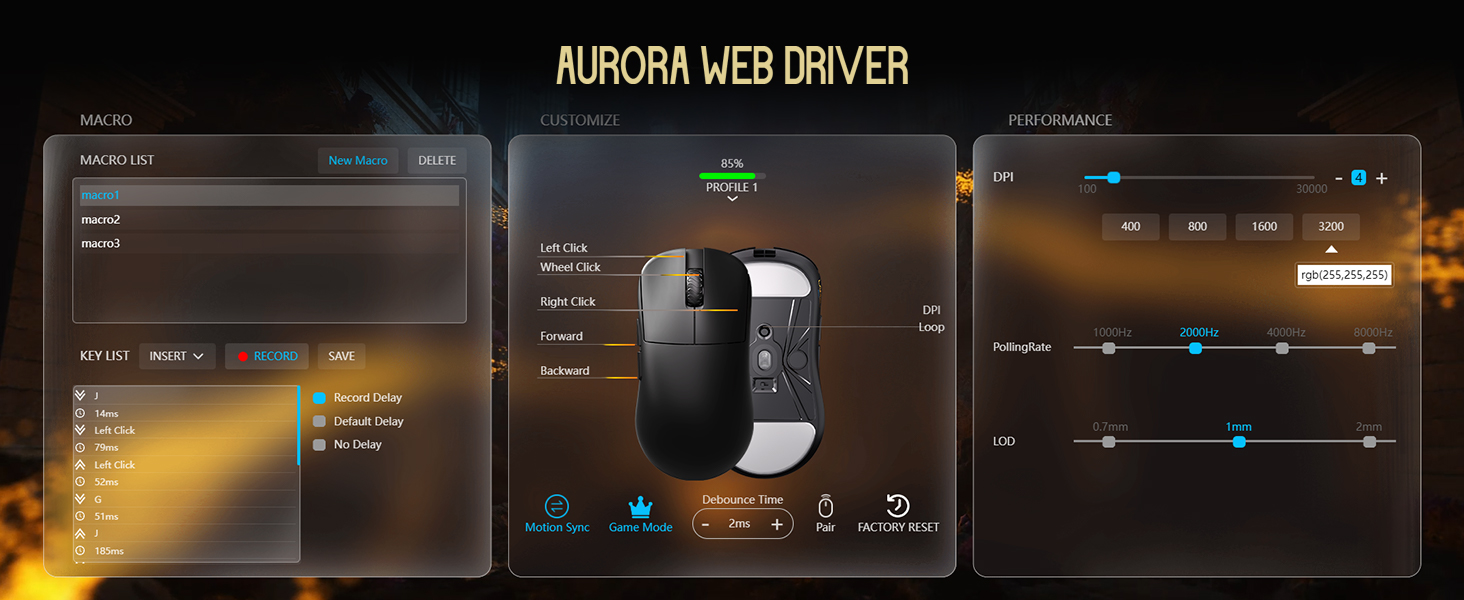
Image: Illustrations of common mouse grip methods (Palm Grip, Claw Grip, Fingertip Grip), indicating the Lamzu Inca's suitability for claw grip.
5. Mantemento
5.1 Limpeza
- Regularly clean the mouse surface with a soft, dry cloth.
- Para a sucidade persistente, d lixeiramenteampEnxágüe o pano con auga ou unha solución de limpeza suave e logo séqueo inmediatamente.
- Evita o uso de produtos químicos agresivos ou materiais abrasivos, xa que poden danar o acabado do rato.
- Clean the sensor area on the bottom of the mouse periodically to ensure accurate tracking.
5.2 Coidado coa batería
- The mouse uses a nonstandard battery (included).
- Cargue o rato co cable USB tipo C incluído.
- Evite descargar completamente a batería con frecuencia para prolongar a súa vida útil.
- Garde o rato nun lugar fresco e seco cando non o use durante períodos prolongados.
6 Solución de problemas
6.1 O rato non responde
- Comprobar a potencia: Ensure the mouse is turned on using the switch on the bottom.
- Comprobar a batería: If in wireless mode, ensure the battery is charged. Connect the USB-C cable to charge.
- Comproba a conectividade: For wireless, ensure the 8K dongle is securely plugged into a USB port. For wired, ensure the USB-C cable is firmly connected to both the mouse and the computer.
- Proba con diferentes portos USB: Plug the dongle or cable into a different USB port on your computer.
- Re-pair (Wireless): If connection is lost, use the LAMZU Aurora driver to re-pair the mouse with the dongle.
6.2 Sensor Stutter or Inaccurate Tracking
- Sensor limpo: Asegúrate de que o sensor óptico da parte inferior do rato estea limpo e libre de po ou residuos.
- Superficie da alfombrilla do rato: Use the mouse on a clean, uniform mouse pad surface. Avoid highly reflective or uneven surfaces.
- Polling Rate/DPI Settings: Adjust polling rate and DPI settings in the Aurora driver. Sometimes very high polling rates can cause issues on older systems or with certain USB controllers.
- Actualización de firmware: Ensure your mouse firmware is up to date via the LAMZU Aurora driver.
6.3 Software Not Detecting Mouse
- Reinstall Driver: Uninstall and reinstall the LAMZU Aurora driver.
- Comprobar a conexión USB: Ensure the mouse is connected directly to the computer, not through a USB hub.
- Reiniciar o ordenador: A system restart can often resolve software detection issues.
- macOS Firmware: If on macOS, ensure the firmware has been updated on a Windows system as required.
7. Especificacións
| Característica | Detalle |
|---|---|
| Modelo de produto | LA-INCA |
| Dimensións do produto | 122 × 63 × 40mm (4.8 x 2.48 x 0.1 inches) |
| Peso do elemento | 40 gramos (1.41 onzas) |
| Sensor IC | PixArt PAW3950 |
| DPI máximo | 30,000 DPI |
| MCU | 52840 nórdico |
| Taxa de votación | Ata 8K (8000 Hz) |
| Conectividade | 2.4GHz Wireless, USB Wired (Type-C) |
| Interruptores | Optical Switches (70 million clicks durability) |
| Codificador | TTC Gold Dustproof Encoder |
| Características especiais | Ultra-Lightweight, Symmetrical High-Hump Design |
| Batería | 1 batería non estándar (incluída) |
| Cor | Negro |

Image: Detailed diagram showing the dimensions of the Lamzu Inca mouse and a summary of its key specifications.
7.1 Component Highlights
- Pixart 3950 Sensor: High-precision optical sensor for accurate tracking.
- Nordic 52840 MCU: Advanced microcontroller for efficient performance and improved battery life.
- Optical Switches: Provide tactile feedback, ultra-fast actuation, and enhanced durability.
- TTC Encoder: Features a five-layer dustproof structure for improved longevity and scroll wheel reliability.

Imaxe: Primeiro plano view of the Pixart 3950 sensor IC, a core component for precise mouse tracking.

Imaxe: Primeiro plano view of the Nordic 52840 MCU, highlighting its role in advanced mouse functionality and 8K polling rate compatibility.

Image: Transparent view illustrating the internal mechanism of the optical switches, designed for optimized click feel and to prevent double clicks.

Imaxe: Primeiro plano view of the TTC Encoder, responsible for the scroll wheel's precise and durable operation.
8. Garantía e soporte
For warranty information, technical support, and frequently asked questions, please visit the official Lamzu website or contact Lamzu customer service directly. Keep your proof of purchase for warranty claims.
Fabricante: Lamzu
Data de primeira dispoñibilidade: 12 de marzo de 2025