
1. Introdución
The MEETION DirectorD-KB is a wireless ergonomic keyboard designed for comfortable and natural typing. It features a scientific wave key design and a built-in firm wrist rest to support your hands during extended use. This keyboard offers broad compatibility with Windows and macOS devices through a 2.4GHz wireless connection.

Image: The MEETION DirectorD-KB Wireless Ergonomic Keyboard positioned on a wooden desk, showcasing its wave-curved design and integrated wrist rest.
2. Contido do paquete
Asegúrate de que todos os elementos estean presentes no paquete:
- 1 x MEETION DirectorD-KB Wireless Ergonomic Keyboard
- 1 x Manual de usuario
- 1 x USB-A 2.4GHz Wireless Receiver
- 1 x Adaptador USB-C
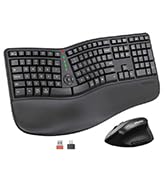
Image: Contents of the MEETION DirectorD-KB package, including the keyboard, user manual, USB-A receiver, and USB-C adapter.
3. Instrucións de configuración
3.1. Instalación da batería
- Localiza o compartimento da batería na parte inferior do teclado.
- Abra a tapa do compartimento da batería.
- Insira dúas pilas AAA (non incluídas) no compartimento, asegurándose de manter a polaridade correcta.
- Pecha a tapa do compartimento da batería de forma segura.

Image: The underside of the keyboard showing the battery compartment for two AAA batteries and details on power saving features.
3.2. Conectando o receptor
- Locate the USB-A 2.4GHz wireless receiver, typically found in the slot inside the keyboard's battery compartment or in the accessory pouch.
- For devices with a USB-A port: Plug the USB-A receiver directly into an available USB-A port on your computer.
- For devices with a USB-C port: Attach the provided USB-C adapter to the USB-A receiver, then plug the combined unit into an available USB-C port on your computer.
- The keyboard is plug-and-play and should connect automatically.
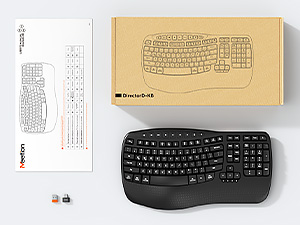
Image: Step-by-step guide on connecting the USB-A receiver with the USB-C adapter to a computer's USB-C port.
3.3. Acendido
After installing batteries and connecting the receiver, slide the power switch on the keyboard to the 'ON' position. The keyboard is now ready for use.
4. Instrucións de funcionamento
4.1. Ergonomic Design and Wrist Rest
The keyboard features a wave-shaped key layout and a firm, integrated wrist rest. This design guides your hands and wrists into a natural, relaxed typing position, reducing strain during long typing sessions.

Image: A user's hands resting comfortably on the integrated wrist rest while typing on the ergonomic keyboard.
4.2. Adjustable Tilt
Utilize the adjustable tilt legs on the underside of the keyboard to find your preferred typing angle. Different angles can further enhance comfort and reduce wrist fatigue.

Imaxe: Side profiles of the keyboard demonstrating three different adjustable tilt angles for personalized comfort.
4.3. Dual System Layout (Windows/macOS)
The keyboard supports both Windows and macOS layouts. To switch between operating systems:
- Preme FN + Q para o deseño de Windows.
- Preme FN + W for macOS layout.
4.4. Teclas multimedia
The keyboard includes dedicated and combined multimedia keys for quick access to functions like volume control, media playback, and more.
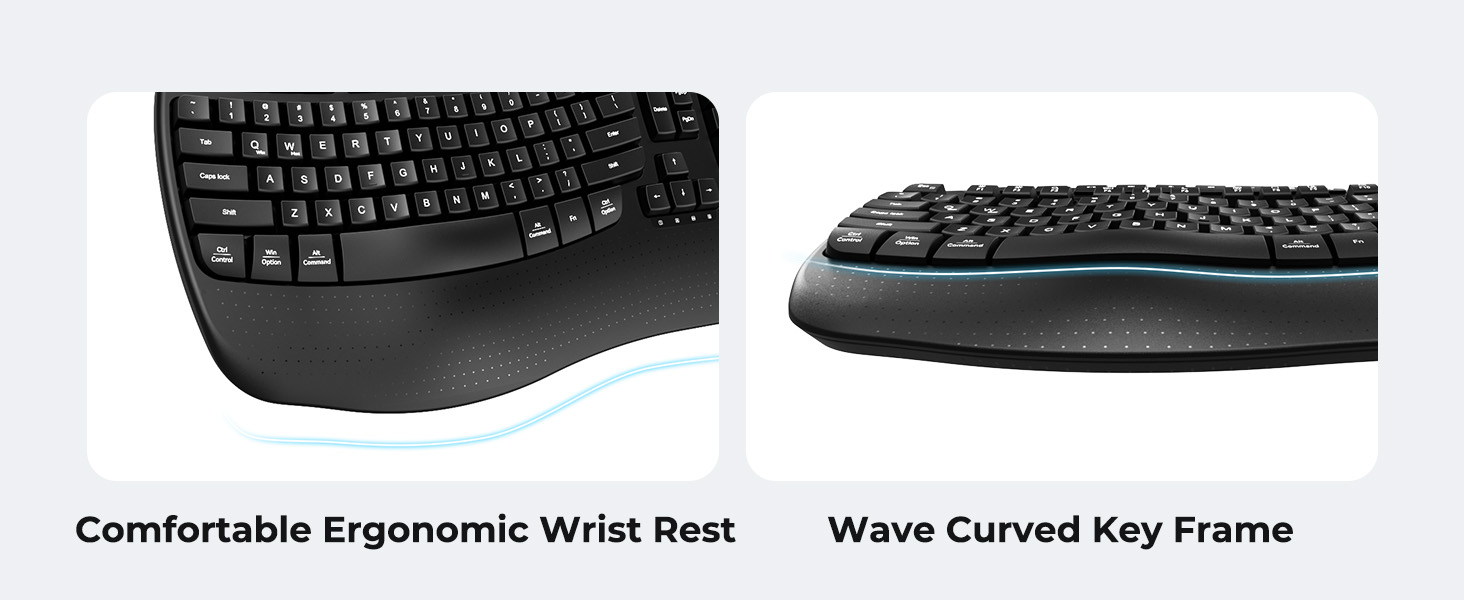
Image: A visual representation of the independent and combined multimedia keys available on the keyboard.
4.5. Intelligent Power Saving
The keyboard features an auto-sleep mode to conserve battery life. After 20 minutes of inactivity, it will enter hibernation. To wake it up, simply press any key.

Image: Close-up of the keyboard's indicator lights, showing status for Num Lock, Caps Lock, FN Lock, and low battery warning.
5. Mantemento
Para garantir a lonxevidade e o rendemento óptimo do teclado, siga estas pautas de mantemento:
- Limpeza: Usa un pano suave e seco para limpar a superficie do teclado. Para unha limpeza máis profunda, limpa lixeiramenteamp Pódese usar un pano con xabón suave, garantindo que non entre líquido nas teclas nin nos compoñentes internos.
- Evitar líquidos: Do not expose the keyboard to excessive moisture or spill liquids on it.
- Almacenamento: Garda o teclado nun lugar fresco e seco, lonxe da luz solar directa e de temperaturas extremas.
- Substitución da batería: Replace batteries promptly when the low battery indicator appears to maintain consistent performance.
6 Solución de problemas
If you encounter issues with your MEETION DirectorD-KB keyboard, refer to the following common solutions:
- O teclado non responde:
- Comprobe se o teclado está acendido.
- Ensure the batteries are correctly installed and not depleted. Replace if necessary.
- Verify that the USB receiver is securely plugged into your computer's USB port (or via the USB-C adapter).
- Tenta conectar o receptor a un porto USB diferente.
- Reinicia o teu ordenador.
- Conexión intermitente ou con atraso:
- Ensure the keyboard is within the effective range of the receiver (typically up to 10 meters).
- Minimize interference from other wireless devices by moving them further away.
- Avoid placing the receiver near large metal objects.
- As teclas non funcionan correctamente:
- Comprobe se hai algunha obstrución física debaixo das tapas das teclas.
- Ensure the correct operating system layout (Windows/macOS) is selected using FN+Q or FN+W.
7. Especificacións
| Característica | Detalle |
|---|---|
| Marca | REUNIÓN |
| Número de modelo | DirectorD-KB |
| Tecnoloxía de conectividade | 2.4G Wireless (USB-A, USB-C Adapter) |
| Dispositivos compatibles | Laptop, PC (Windows XP/7/8/10/11 & macOS X 10.6 or later) |
| Disposición do teclado | QWERTY |
| Número de chaves | 113 |
| Características especiais | Ergonomic, Hotkeys and Media Keys, Integrated Stand, Wave Keys, Wrist Rest |
| Dimensións do produto (L x W x H) | 17.39" x 9.43" x 1.81" |
| Material | Plástico |
| Fonte de enerxía | Alimentado por pilas (2 pilas AAA, non incluídas) |
8. Vídeo oficial do produto
Vídeo: Presentación oficial dun produto en vídeoasing the features and ergonomic design of the MEETION DirectorD-KB Wave Ergonomic Wireless Keyboard. (Duration: 0:39)
9. Garantía e soporte
This MEETION DirectorD-KB Wireless Ergonomic Keyboard comes with a 1-year manufacturer's warranty.
For further assistance, troubleshooting, or warranty claims, please visit the official MEETION store or contact customer support.
Official MEETION Store: MEETION Store on Amazon