
1. Introdución
Thank you for choosing the LEFFOT M1 Plus Android 14.0 TV Box. This device is designed to transform your television into a smart entertainment hub, offering stunning 4K UHD visuals, powerful performance, and a wide range of connectivity options. This manual provides detailed instructions for setting up, operating, and maintaining your TV box to ensure an optimal user experience.
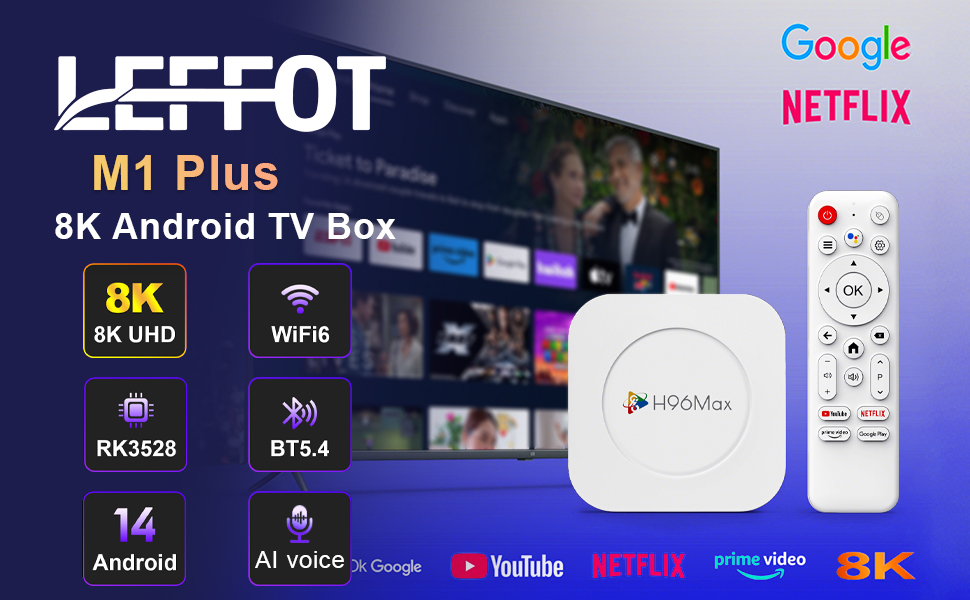
Imaxe 1.1: Acabadoview of the LEFFOT M1 Plus Android TV Box highlighting its core features like 8K UHD, WiFi 6, BT 5.4, Android 14, and AI voice control.
2. Información de seguridade
Lea atentamente todas as instrucións de seguridade antes de usar o dispositivo. O incumprimento destas instrucións pode provocar descargas eléctricas, incendios ou danos no dispositivo.
- Use só o adaptador de alimentación proporcionado.
- Non expoñas o dispositivo á auga, á humidade nin a temperaturas extremas.
- Asegúrese de ventilar adecuadamente o dispositivo para evitar o sobreenriquecido.
- Non intente desmontar nin reparar o dispositivo vostede mesmo. Póñase en contacto co persoal de servizo cualificado.
- Manteña o dispositivo lonxe da luz solar directa e fontes de calor.
3. Contido do paquete
Verifica que todos os elementos estean presentes no paquete:
- LEFFOT M1 Plus Android TV Box
- Control remoto
- Cable HDMI
- Adaptador de alimentación
- Manual de usuario (este documento)
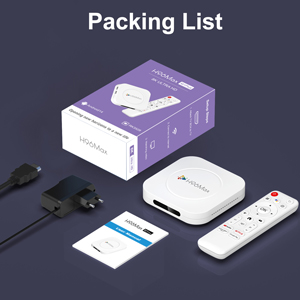
Image 3.1: The package contents including the TV box, remote control, power adapter, and HDMI cable.
4. Produto rematadoview
Familiarize yourself with the components and ports of your LEFFOT M1 Plus TV Box.
4.1. Device and Remote

Image 4.1: The LEFFOT M1 Plus TV Box (left) and its accompanying remote control (right).
4.2. Portos e interfaces
The TV box features various ports for connectivity:
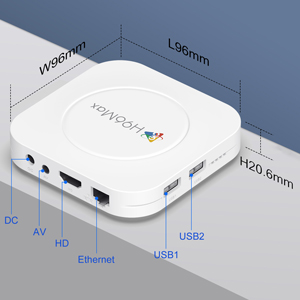
Imaxe 4.2: Detallada view of the TV box's ports: DC (power), AV (audio/video out), HD (HDMI), Ethernet, USB1, and USB2.
- DC: Porto de entrada de enerxía.
- DE: Analog audio/video output (for older TVs).
- HD: HDMI output for connecting to your TV.
- Ethernet: RJ-45 port for wired network connection.
- USB1 & USB2: USB ports for connecting external devices like USB drives, keyboards, or mice.
5. Configuración
Follow these steps to set up your LEFFOT M1 Plus TV Box:
- Conectar á televisión: Connect one end of the provided HDMI cable to the "HD" port on the TV box and the other end to an HDMI input port on your television. Note the HDMI input number (e.g., HDMI 1, HDMI 2) on your TV.
- Conectar enerxía: Plug the power adapter into the "DC" port on the TV box, then plug the adapter into a wall outlet.
- Encendido: The TV box should automatically power on. If not, press the power button on the remote control.
- Seleccionar entrada de TV: On your TV, use the remote control to select the corresponding HDMI input source you connected the TV box to.
- Asistente de configuración inicial: Siga as instrucións en pantalla para completar a configuración inicial, incluíndo a selección do idioma, a zona horaria e a conexión de rede.
6. Instrucións de funcionamento
Navigate and use your TV box effectively.
6.1. Navegación básica
- Use the directional (Arriba, Abaixo, Esquerda, Dereita) buttons on the remote to move between menu items and applications.
- Preme o OK button to select an item or confirm an action.
- Preme o De volta botón para volver á pantalla anterior.
- Preme o Casa button to return to the main home screen.
6.2. Acceso ás aplicacións
From the home screen, you can access pre-installed applications or download new ones from the Google Play Store. Navigate to the desired app icon and press OK para lanzala.

Image 6.1: The Android 14.0 TV Box home screen displaying popular streaming applications.
6.3. Control de voz
The LEFFOT M1 Plus supports voice control via Google Assistant. To use this feature:
- Ensure your remote control is paired and has working batteries.
- Preme o Asistente de voz button (often a microphone icon) on your remote.
- Speak clearly into the remote's microphone. You can ask to open apps, search for content, or control playback.

Image 6.2: Demonstrating the convenient voice control feature using the remote and Google Assistant.
6.4. Media Playback and Display Features
Enjoy high-quality media with advanced features:
- 8K UHD: The device supports up to 8K*4K@23fps and 4Kx2K@60fps resolution with HDR10 for vibrant and detailed visuals.
- Airplay, DLNA, WiFidisplay: Easily cast content from your mobile devices to your TV screen.

Image 6.3: Experience crystal-clear 8K resolution with the LEFFOT M1 Plus.

Image 6.4: The TV box supports various connectivity options and display technologies like Airplay, DLNA, and WiFidisplay.
6.5. Escenarios de uso
The LEFFOT M1 Plus TV Box is versatile for various uses:
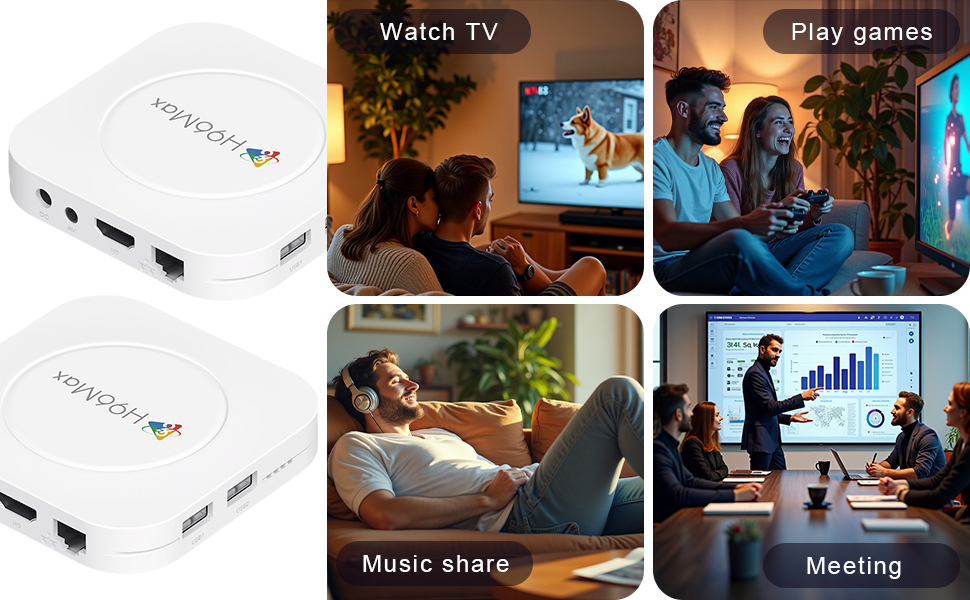
Image 6.5: The TV box can be used for watching TV, playing games, sharing music, and even for business presentations.
7. Conectividade
7.1. Conexión Wi-Fi
The device supports 2.4G & 5G dual-band Wi-Fi 6 for fast and stable wireless internet.
- Ir a Configuración > Rede e Internet.
- Acende Wi-Fi.
- Selecciona a túa rede Wi-Fi da lista.
- Enter the password if prompted and select Conectar.

Image 7.1: The TV box features advanced Wi-Fi 6 technology for faster and more reliable connections.
7.2. Conexión Ethernet
For a wired connection, plug an Ethernet cable into the "Ethernet" port on the TV box and the other end into your router/modem.
7.3. Conexión Bluetooth
The device supports Bluetooth 5.4 for connecting peripherals like headphones, game controllers, or speakers.
- Ir a Configuración > Dispositivos conectados > Vincular novo dispositivo.
- Pon o dispositivo Bluetooth no modo de sincronización.
- Select your device from the list and follow the on-screen prompts to pair.
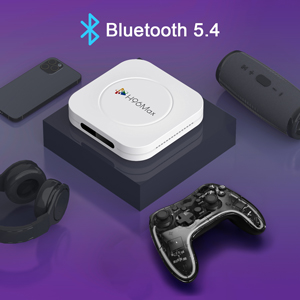
Image 7.2: The TV box supports Bluetooth 5.4 for seamless connection with various external devices.
8 Solución de problemas
Consulta esta sección para ver os problemas comúns e as súas solucións.
| Problema | Causa posible | Solución |
|---|---|---|
| Sen poder | O adaptador de corrente non está conectado ou está avariado. | Ensure power adapter is securely connected to the device and a working power outlet. Try a different outlet. |
| Sen sinal na televisión | Incorrect HDMI input selected on TV; HDMI cable loose or faulty. | Verify TV input matches the HDMI port used. Check HDMI cable connections. Try a different HDMI cable or port. |
| Problemas de conexión wifi | Incorrect password; router too far; interference. | Re-enter Wi-Fi password. Move device closer to router. Restart router and TV box. |
| O control remoto non responde | Pilas baixas; mando a distancia non emparellado. | Replace batteries. Re-pair the remote control if it's a Bluetooth remote (refer to device settings). |
| As aplicacións fallan ou o rendemento é lento | Demasiadas aplicacións executándose; pouco almacenamento; erro de software. | Close background apps. Clear app caches. Restart the TV box. Consider a factory reset if issues persist (data will be lost). |
9. Especificacións
Key technical specifications of the LEFFOT M1 Plus Android TV Box:
- Sistema operativo: Android 14.0
- CPU: RK3528 Quad Core ARM Cortex-A53
- GPU: Mali-450 MP2
- RAM: 4 GB
- ROM: 32 GB
- Saída de vídeo: Supports 4Kx2K@60fps, 8K*4K@23fps, HDR10
- Wi-Fi: 2.4G & 5G Dual-band Wi-Fi 6
- Ethernet: 100 M
- Bluetooth: BT 5.4
- Portos: HDMI, USB (x2), DC, AV, Ethernet
- Características especiais: Airplay, DLNA, WiFidisplay, Voice Control
- Dimensións: 3.78 x 3.78 x 0.81 polgadas (96 x 96 x 20.6 mm)
- Peso: 4.3 onzas (aprox. 122 g)
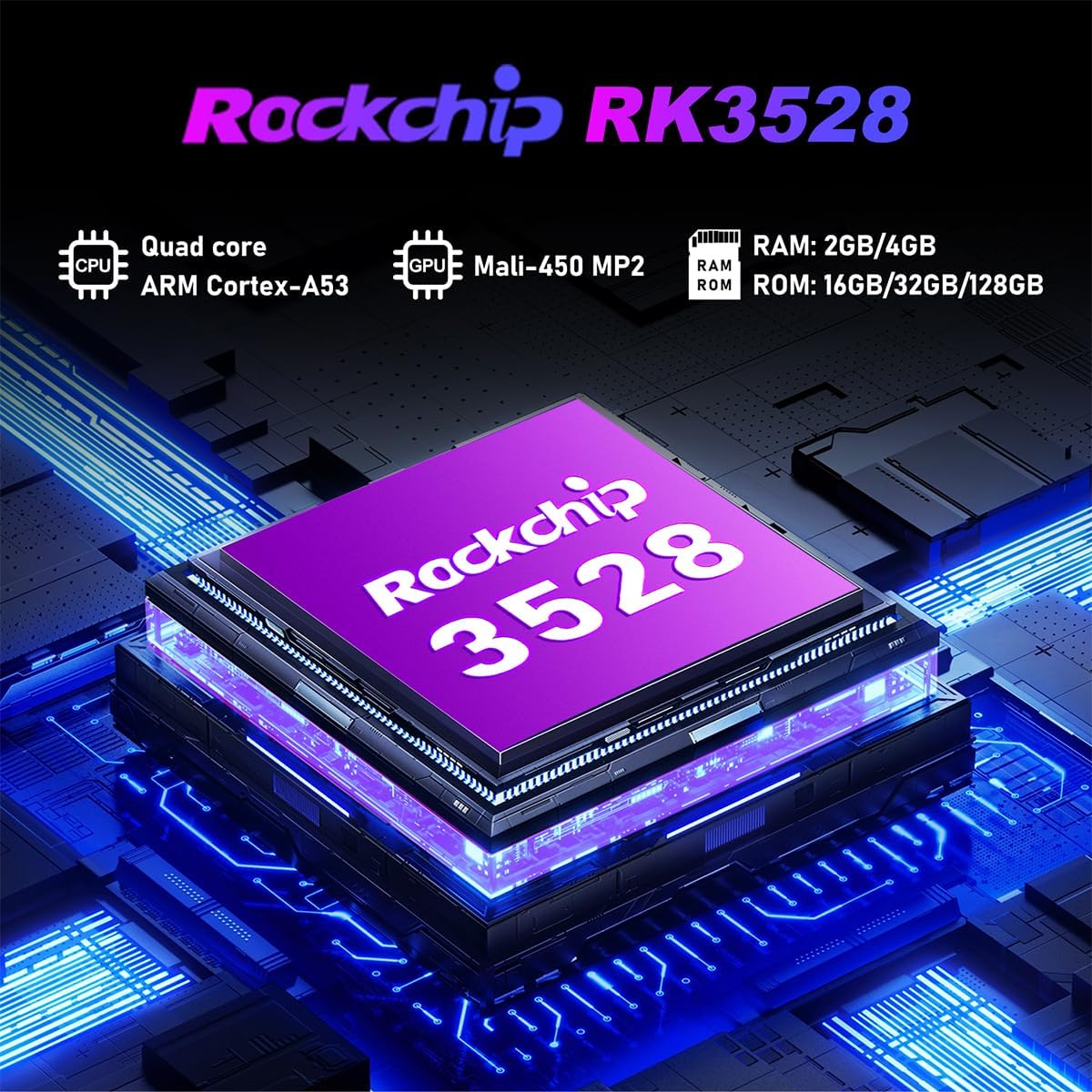
Imaxe 9.1: Detallada view of the Rockchip RK3528 processor, highlighting its quad-core CPU, Mali-450 MP2 GPU, and memory configurations.
10. Mantemento
To ensure the longevity and optimal performance of your TV box:
- Limpeza: Usa un pano suave e seco para limpar o exterior do dispositivo. Non empregues produtos de limpeza líquidos nin aerosois.
- Ventilación: Ensure the ventilation holes are not blocked. Do not place the device on soft surfaces that may obstruct airflow.
- Almacenamento: Cando non o use durante períodos prolongados, desconecte o adaptador de corrente e garde o dispositivo nun lugar fresco e seco.
11. Garantía e soporte
LEFFOT products are designed for reliability and performance. This product comes with a standard manufacturer's warranty. Please refer to the warranty card included in your package for specific terms and conditions.
For technical support, troubleshooting assistance, or warranty claims, please contact LEFFOT customer service through the retailer where you purchased the product or visit the official LEFFOT websitio para información de contacto.
Conserve o comprobante de compra para efectos da garantía.