
SIMO SGO24
Manual do usuario do banco de enerxía WiFi para punto de acceso móbil SIMO Solis Go 4G
Model: SGO24 | Brand: SIMO
1. Introdución
This manual provides essential instructions for setting up, operating, and maintaining your SIMO Solis Go 4G Mobile Hotspot WiFi Power Bank. The Solis Go is designed to provide reliable internet connectivity in over 140 countries and also functions as a portable power bank for your devices. Please read this manual thoroughly before using the device to ensure optimal performance and safety.
2. Contido do paquete
Verifica que todos os elementos estean presentes no teu paquete:
- SIMO Solis Go Device
- Charging Cable (built-in)
- Guía de inicio rápido

The image above displays the SIMO Solis Go device, a compact black unit with orange accents, alongside two cards indicating "10GB Data Included" and "Lifetime Data 12GB Per Year". The device features built-in charging cables.
3. Produto rematadoview
The SIMO Solis Go combines a 4G mobile hotspot with a power bank, offering versatile connectivity and charging capabilities. It features a virtual SIM (vSIM) technology, eliminating the need for physical SIM cards and contracts.
Características principais:
- Conectividade global: Access to 4G LTE in over 140 countries via multiple carriers.
- Banco de enerxía incorporado: 8,000mAh capacity to charge external devices.
- Cables incorporados: Integrated USB-A, USB-C, and Lightning cables for convenience.
- SignalScan™ Technology: Automatically connects to the strongest available 4G network.
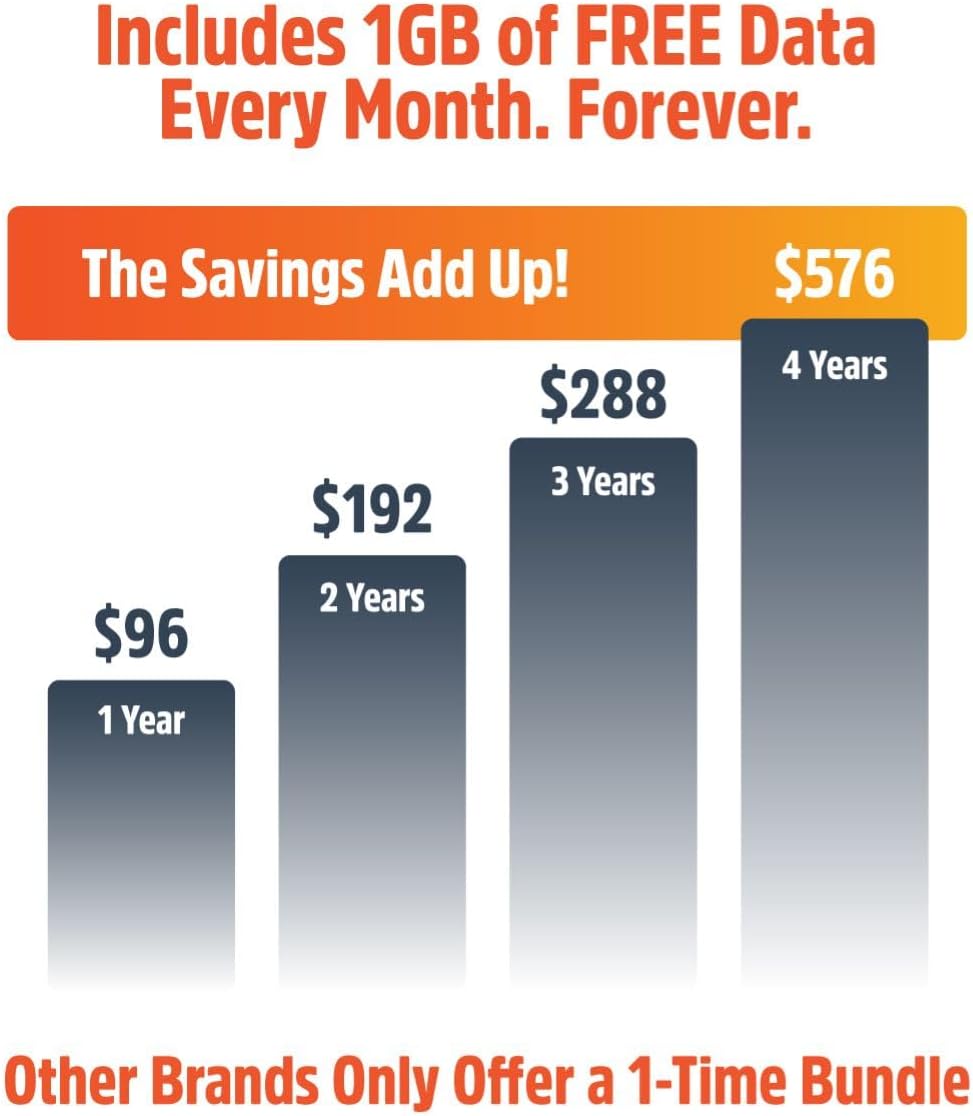
- Lifetime Data: Includes 1GB of global data per month for the life of the device.
- Compartir dispositivos: Connect up to 16 devices simultaneously.

This image displays six icons representing key features: SignalScan™ Technology for automatic best carrier connection, Private, Secure Data for personal encrypted networks, Built-in Charging Cables (USB-A, USB-C, Lightning), Global WiFi in 140+ countries, 16+ Hours of Battery Life, and the ability to Share with 10 Devices.
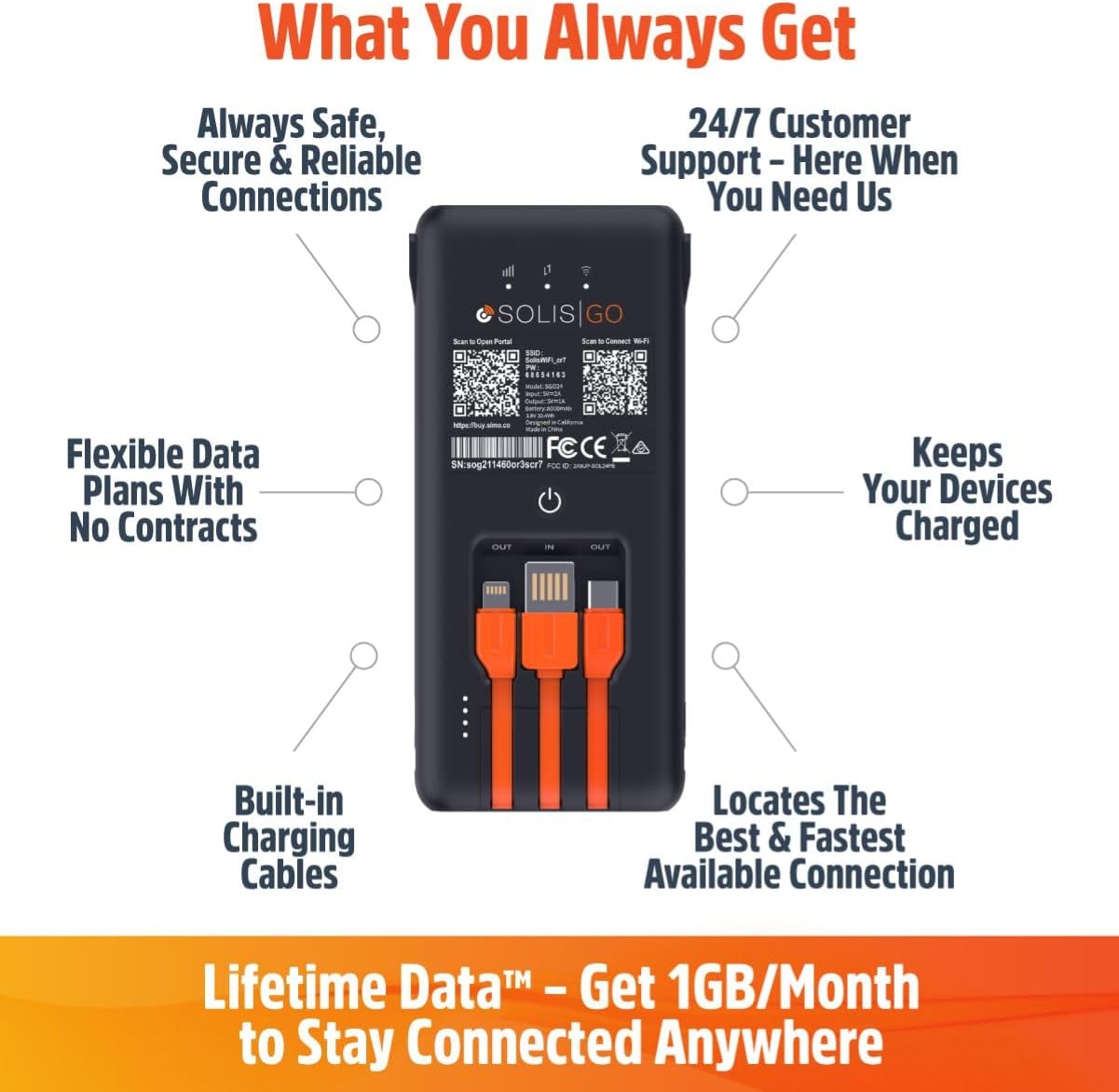
This image shows the back of the Solis Go device, detailing its various features such as built-in charging cables, the power button, and indicators for signal strength and battery. Labels point to "Always Safe, Secure & Reliable Connections", "24/7 Customer Support", "Flexible Data Plans With No Contracts", "Keeps Your Devices Charged", "Built-in Charging Cables", and "Locates The Best & Fastest Available Connection".
4. Configuración
Follow these steps to set up your SIMO Solis Go:
- Cargar o dispositivo: Before first use, fully charge your Solis Go using the built-in charging cable and a compatible USB power adapter (not included).
- Download the Solis App: Busca "Solis" in your device's app store (iOS or Android) and download the official Solis app.
- Rexistra o teu dispositivo: Open the Solis app and follow the on-screen instructions to create an account and register your Solis Go device. You will typically need to scan a QR code or enter a serial number found on the device.
- Activate Data Plan: Once registered, your included 1GB/month Lifetime Data plan will be active. You can view your data usage and purchase additional data plans through the app.
- Encendido: Press and hold the power button on the Solis Go until the indicator lights illuminate.
- Conectar a WiFi: On your smartphone, tablet, or laptop, search for available WiFi networks. Select the network name (SSID) broadcast by your Solis Go (e.g., "Solis_XXXX") and enter the password. The default SSID and password can be found on a sticker on the device or in the Quick Start Guide.

This diagram illustrates the three main steps for using the Solis Go: 1) Grab a Solis Global Hotspot, 2) Register Your Hotspot & Choose Your WiFi Plan (via a smartphone app), and 3) Enjoy WiFi Anywhere (showing multiple devices connected wirelessly).
5. Instrucións de funcionamento
5.1 Acendido/Apagado
- Para acender: Press and hold the power button for approximately 3 seconds until the indicator lights activate.
- Para apagar: Manteña premido o botón de acendido durante aproximadamente 3 segundos ata que as luces indicadoras se apaguen.
5.2 Conexión de dispositivos
The Solis Go can connect up to 16 devices simultaneously. Ensure your device's WiFi is enabled and select the Solis Go network from the list of available networks. Enter the WiFi password when prompted.
5.3 Uso como batería externa
The Solis Go features built-in USB-A, USB-C, and Lightning cables. To charge an external device:
- Pull out the appropriate built-in cable from the Solis Go.
- Connect the cable to your external device.
- The Solis Go will automatically begin charging the connected device.
This image shows a hand holding the Solis Go device, with its integrated USB-A, USB-C, and Lightning cables clearly visible and ready for use, highlighting its function as a power bank.
5.4 Global Coverage and Network Selection
The Solis Go utilizes SignalScan™ technology to automatically detect and connect to the strongest available 4G network in over 140 countries. This ensures optimal connectivity without manual network selection or SIM card swapping.

This image displays a world map with various national flags and signal strength indicators, emphasizing the Solis Go's global coverage in over 140 countries with no locked-in contract or SIM card required.
6. Data Plans and Management
Your Solis Go comes with a Lifetime Data plan, providing 1GB of global data per month. Additional data can be purchased as needed through the Solis app.
- Lifetime Data: Enjoy 1GB of global data every month, automatically refreshed.
- Datos adicionais: Purchase one-time data packages (e.g., 10GB Global Data) or monthly plans directly from the Solis app.
- Monitorización de uso: The Solis app allows you to monitor your current data usage and plan status.
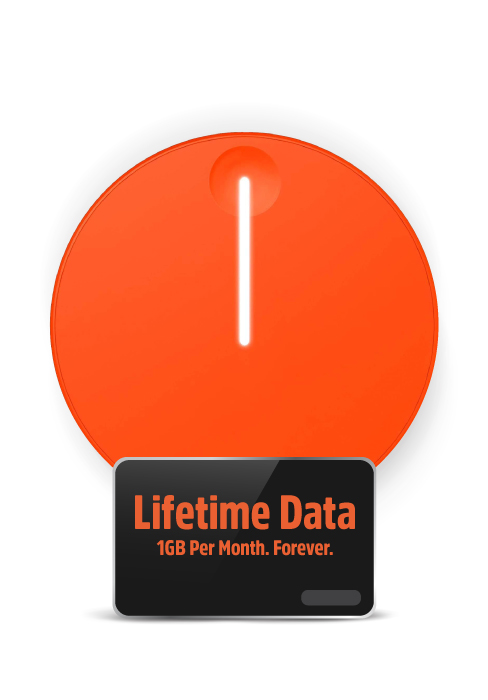
This image highlights the "Lifetime Data" feature, offering "1GB Per Month. Forever." for continuous connectivity.
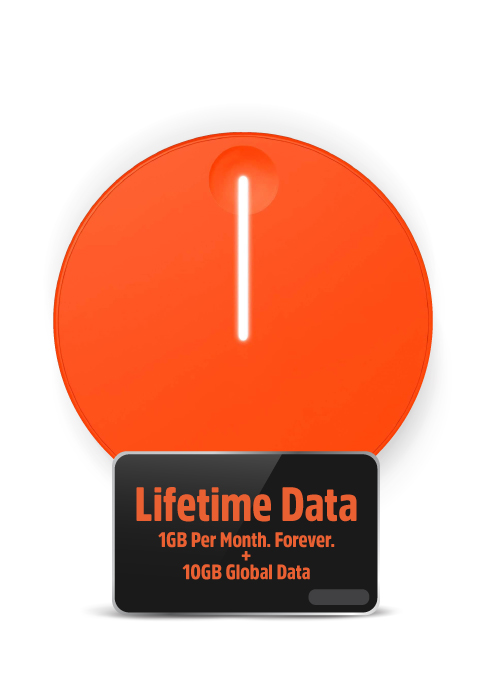
This image shows the "Lifetime Data" plan, which includes "1GB Per Month. Forever." along with an additional "10GB Global Data" bundle.
7 Solución de problemas
If you encounter issues with your Solis Go, try the following steps:
- Sen conexión a Internet:
- Ensure the Solis Go is powered on and fully charged.
- Check the signal strength indicators on the device.
- Verify that your connected device is properly linked to the Solis Go's WiFi network.
- Restart the Solis Go device.
- Open the Solis app to check your data plan status and ensure you have available data.
- If in a new location, allow a few minutes for the device to connect to the local network via SignalScan™.
- Velocidade de conexión lenta:
- Móvete a unha zona con mellor sinal móbil.
- Reducir o número de dispositivos conectados.
- Pecha as aplicacións que requiren moito ancho de banda nos dispositivos conectados.
- Restart the Solis Go.
- O dispositivo non se carga:
- Ensure the built-in charging cable is securely connected to a working USB power source.
- Proba cun adaptador de alimentación USB ou un porto diferente.
- If using the Solis Go to charge another device, ensure the Solis Go itself has sufficient battery charge.
- Problemas da aplicación:
- Ensure your Solis app is updated to the latest version.
- Reinicia a aplicación ou o teu teléfono intelixente.
If problems persist, please contact SIMO customer support for further assistance.
8. Especificacións
| Característica | Detalle |
|---|---|
| Número de modelo | SGO24 |
| Tecnoloxía de conectividade | Wi-Fi, 4G LTE |
| Estándar de comunicación sen fíos | 802.11a, 802.11ac, 802.11b |
| Clase de banda de frecuencia | Dobre banda |
| Dispositivos compatibles | Smart Phones, Tablets, Laptops, Wi-Fi Compatible Devices |
| Característica especial | Access Point Mode, Built-in Power Bank, Built-in Cables |
| Batería | 1 Lithium Ion battery required (built-in) |
| Peso do elemento | 14.9 onzas |
| Dimensións do paquete | 7.83 x 4.29 x 2.05 polgadas |
| Fabricante | SIMO Holdings Inc. |
9. Información de seguridade
Ten en conta as seguintes precaucións de seguridade para evitar danos no teu dispositivo ou lesións a ti mesmo/a:
- Non expoñas o dispositivo a temperaturas extremas, luz solar directa nin humidade elevada.
- Evite deixar caer o dispositivo nin someterlo a impactos fortes.
- Non intente desmontar, reparar nin modificar o dispositivo. Isto anulará a garantía.
- Manteña o dispositivo lonxe da auga e doutros líquidos.
- Use só accesorios de carga homologados.
- Desfágase do dispositivo e da súa batería de forma responsable segundo a normativa local.
10. Garantía e soporte
The SIMO Solis Go is manufactured by SIMO Holdings Inc. For detailed warranty information, product support, or to contact customer service, please visit the official SIMO websitio web ou consulte a tarxeta de garantía incluída coa súa compra.
Fabricante: SIMO Holdings Inc.
Para obter os recursos de asistencia máis actualizados, visite: www.soliswifi.co
Ask a question about this manual
Ask about setup, troubleshooting, compatibility, parts, safety, or missing instructions. Manuals+ will review the question and use this page’s manual context to help answer it.