
Nillkin DZD3JCWZG01CA
Nillkin Foldable Wireless Keyboard with Touchpad and Numeric Pad User Manual
Model: DZD3JCWZG01CA
Produto rematadoview
The Nillkin Foldable Wireless Keyboard is a portable, full-size keyboard designed for productivity on the go. It features an integrated touchpad and a convertible numeric pad, offering a comprehensive input solution for various devices. Its compact, foldable design ensures easy transport, while robust construction provides durability.

Image: The Nillkin Foldable Wireless Keyboard, showcasing o seu deseño compacto.
Guía de configuración
1. Cargar o teclado
Before initial use, fully charge the keyboard using the provided USB-C cable. Connect the cable to the keyboard's charging port and a compatible USB power source. The charging indicator light will show the charging status. A full charge provides up to 30 hours of typing or 140 days of standby time.

Image: The keyboard connected to a power source, illustrating its long battery life and USB-C charging port.
2. Acendido/apagado
To power on the keyboard, unfold it completely. The keyboard will automatically power on. To power off, fold the keyboard. It will automatically enter sleep mode when folded.
3. Emparellamento Bluetooth
The Nillkin keyboard can connect to up to three devices simultaneously via Bluetooth 5.0.
- Despregar o teclado para acendelo.
- Activa o Bluetooth on your device (PC, laptop, tablet, smartphone).
- Mantén premido one of the Bluetooth channel keys (BT1, BT2, or BT3) for 3-5 seconds until the indicator light flashes, indicating pairing mode.
- On your device, search for Bluetooth devices and select "Nillkin Keyboard" (or similar name) from the list.
- Siga as instrucións que aparecen na pantalla para completar o proceso de emparellamento. A luz indicadora do teclado deixará de parpadear unha vez que o emparellamento se realice correctamente.
- To switch between paired devices, simply press the corresponding Bluetooth channel key (BT1, BT2, or BT3) once. The keyboard will automatically reconnect to the selected device.

Image: The keyboard connected to multiple devices, highlighting its Bluetooth 5.0 multi-device pairing capability.
Instrucións de funcionamento
1. Experiencia de mecanografía
The keyboard features a standard QWERTY layout with well-spaced, scissor-structured keys for a comfortable and efficient typing experience. A full row of function keys provides quick access to common commands.

Imaxe: Detallada view of the keyboard layout, emphasizing key structure and function keys.
2. Funcionalidade do panel táctil
The integrated sensitive multi-touch touchpad allows for precise navigation and clicking. It supports various multi-touch gestures for enhanced efficiency, including scrolling, swiping, zooming, and application switching. The touchpad also features automatic palm rejection to prevent accidental input during typing.
- Toque cun só dedo: Faga clic co botón esquerdo
- Toque con dous dedos: Fai clic co botón dereito
- Desprazamento de dous dedos: Desprazarse cara arriba/abaixo ou á esquerda/dereita
- Zoom para pellizcar: Achegar ou diminuír
- Note: Specific multi-touch gestures may vary or not be fully supported on iOS and macOS.

Image: A user interacting with the touchpad, illustrating its multi-touch capabilities.
3. Numeric Keypad Mode
The touchpad can be quickly switched to a numeric keypad for efficient data entry. To activate the numeric keypad, press the dedicated numeric keypad toggle key (usually indicated by a calculator icon or "Num Lock" function). Press it again to revert to touchpad mode.

Image: The touchpad transformed into a numeric keypad, ready for number input.
4. Compatibilidade do sistema
The keyboard is compatible with a wide range of operating systems, including Android, Windows, iPadOS, macOS, iOS, and Chrome OS. It automatically recognizes the operating system of the connected device for optimal functionality.
5. Portable Workstation Setup
The Nillkin Foldable Wireless Keyboard is designed to create a portable workstation anywhere. Its compact size when folded allows it to be easily carried, and when unfolded, it provides a full-size typing and navigation experience, making it suitable for various environments such as travel, business trips, or cafes.
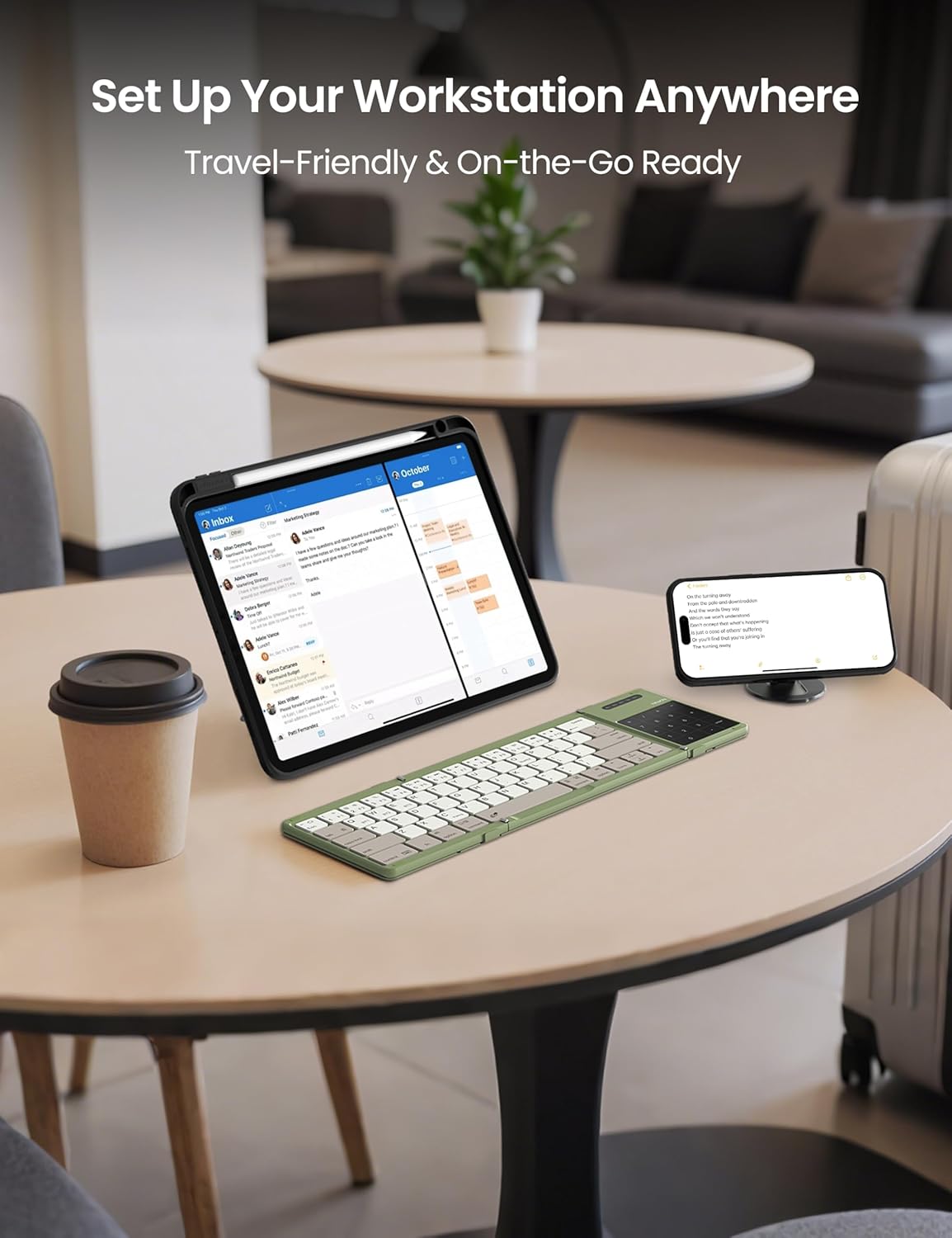
Image: The keyboard in use with multiple devices, illustrating its role in a portable workstation setup.
Mantemento
1. Limpeza
Para limpar o teclado, use un pano suave eamp cloth. For the silicone leather back, a mild cleaning solution can be used if necessary. Avoid harsh chemicals or abrasive materials that could damage the surface. Ensure the keyboard is powered off and disconnected from any power source before cleaning.
2. Almacenamento
When not in use, fold the keyboard to protect the keys and touchpad. The strong magnetic attraction ensures the keyboard remains securely folded. Store it in the provided storage bag to prevent scratches and dust accumulation.
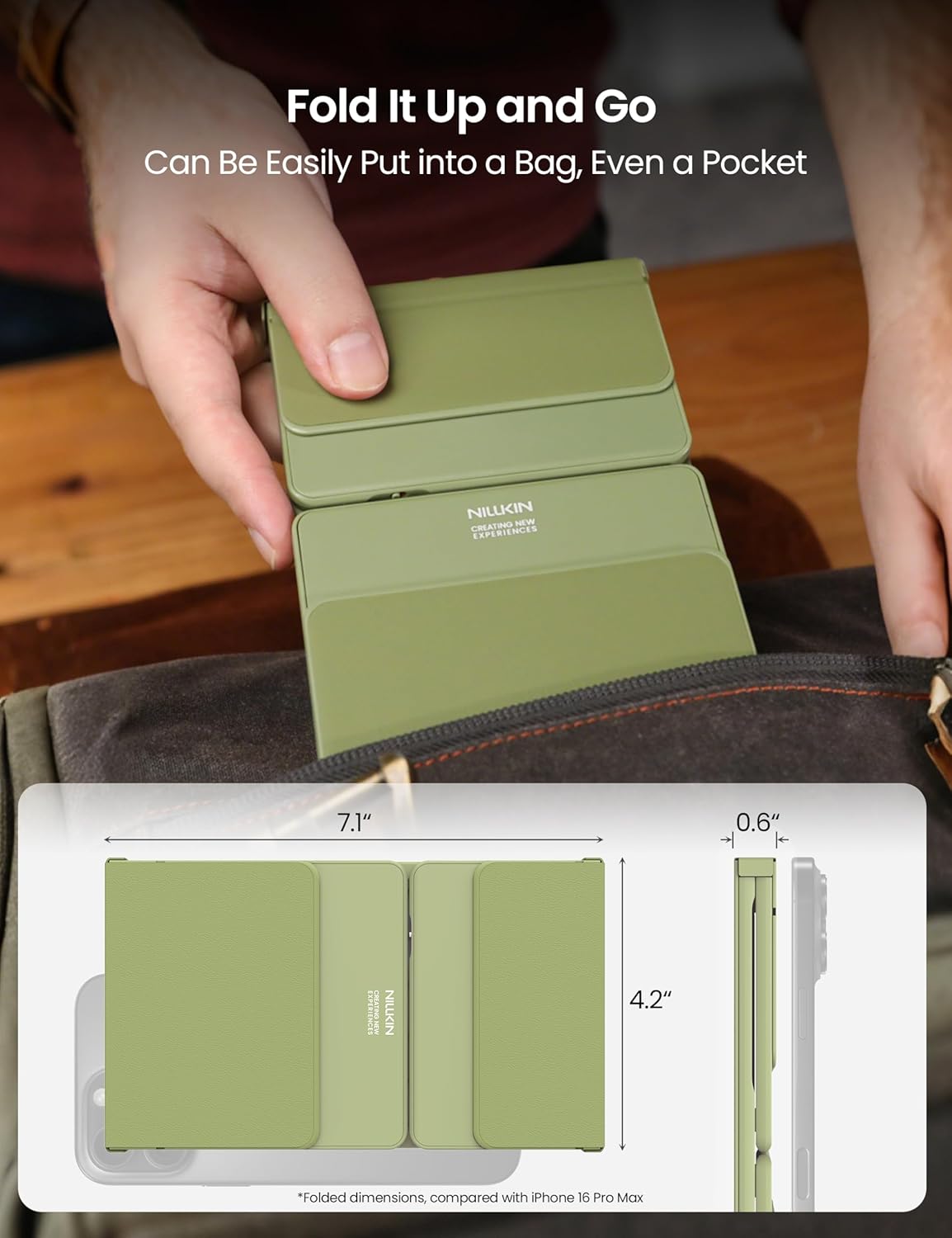
Image: The keyboard folded and ready for storage or transport, demonstrating its portability.
3. Durabilidade
The keyboard is constructed with a premium silicone leather back, offering superior resistance to wear, scratches, and stains compared to synthetic leather. The robust metal hinge is designed to withstand over 50,000 opening and closing cycles, ensuring long-term reliability.

Imaxe: Detallada view of the keyboard's durable silicone leather material and sturdy metal hinge.
Resolución de problemas
O teclado non se conecta por Bluetooth
- Ensure Keyboard is Charged: A low battery can prevent successful pairing. Charge the keyboard fully.
- Check Pairing Mode: Make sure the keyboard is in pairing mode (indicator light flashing) by pressing and holding a BT channel key.
- Device Bluetooth On: Verifica que o Bluetooth estea activado no teu dispositivo anfitrión.
- Esquecer o dispositivo: If previously paired, try "forgetting" or "removing" the keyboard from your device's Bluetooth settings and then re-pair.
- Distancia: Ensure the keyboard is within the 10-meter (33 feet) Bluetooth range of your device.
- Interferencia: Afastese doutros dispositivos sen fíos que poidan causar interferencias.
Touchpad Not Responding or Gestures Not Working
- Check Numeric Pad Mode: Ensure the touchpad is not in numeric keypad mode. Toggle it back to touchpad mode if necessary.
- Limpar o panel táctil: Asegúrate de que a superficie do panel táctil estea limpa e libre de residuos.
- OS Limitations: Remember that some multi-touch gestures may not be fully supported on iOS and macOS.
- Reiniciar: Try powering off and on both the keyboard and your host device.
As chaves non responden
- Comprobar a conexión: Asegúrate de que o teclado estea conectado correctamente mediante Bluetooth.
- Recarga: A very low battery might cause intermittent key response.
- Reiniciar: Power cycle the keyboard and the connected device.
Especificacións
| Marca | Nillkin |
| Número de modelo | DZD3JCWZG01CA |
| Tecnoloxía de conectividade | Bluetooth 5.0 |
| Dispositivos compatibles | Laptop, PC, Smartphone, Tablet, Smart TV (Android, Windows, iPadOS, macOS, iOS, Chrome OS) |
| Disposición do teclado | QWERTY |
| Número de chaves | 64 |
| Características especiais | Numeric Pad, Touchpad, Foldable, Rechargeable, Silent Keys |
| Dimensións dobradas (L x W x H) | 18 x 10.7 x 1.5 cm (7.1 x 4.2 x 0.6 polgadas) |
| Dimensións despregadas (L x A x H) | 34 x 10.7 x 0.8 cm |
| Peso | 0.2 kg |
| Duración da batería | Up to 30 hours typing, 140 days standby |
| Material | Silicone Leather, ABS |
| Hinge Durability | Máis de 50,000 ciclos |
| Maximum Connection Range | 10 metros (33 pés) |
| Fonte de enerxía | Alimentado por batería |
| O que hai na caixa | Foldable Wireless Keyboard, USB Cable, Storage Bag, User Manual |
Información da garantía
Specific warranty details for the Nillkin Foldable Wireless Keyboard are typically provided with the product packaging or on the official Nillkin websitio. Consulta estas fontes para obter os termos e condicións de garantía máis precisos e actualizados.
Atención ao cliente
For any questions, technical assistance, or issues not covered in this manual, please contact Nillkin customer service. Contact information can usually be found on the product packaging, the official Nillkin websitio web ou a través do seu vendedor.
Nillkin is committed to providing satisfactory customer service and support for their products.
Ask a question about this manual
Ask about setup, troubleshooting, compatibility, parts, safety, or missing instructions. Manuals+ will review the question and use this page’s manual context to help answer it.