
1. Introdución
This manual provides essential information for the safe and efficient use of your BOOX Go 7 ePaper Tablet. Please read it thoroughly before operating the device and retain it for future reference.

Figure 1.1: BOOX Go 7 ePaper Tablet
2. Información de seguridade
- Non expoñas o dispositivo a temperaturas extremas, luz solar directa nin humidade elevada.
- Evite deixar caer ou someter o dispositivo a fortes impactos.
- Use só o cable USB proporcionado para cargar.
- Keep the device away from water and liquids, despite its water-repellent features.
- Non intente desmontar nin reparar o dispositivo vostede mesmo. Póñase en contacto co persoal de servizo autorizado.
3. Contido do paquete
Verifica que todos os elementos estean presentes no paquete:
- BOOX Go 7 ePaper Tablet
- Cable USB
- Guía de inicio rápido (pode variar segundo a rexión)

Figure 3.1: BOOX Go 7 Package Contents
4. Dispositivo rematadoview
4.1 Compoñentes físicos
Familiarize yourself with the main components of your BOOX Go 7 tablet:
- E Ink Screen: 7-inch monochrome display with 300 ppi resolution.
- Luz frontal: Adjustable illumination for reading in various lighting conditions.
- Page-Turn Buttons: Ergonomically designed buttons for easy navigation.
- Porto USB-C: Para carga e transferencia de datos.
- Botón de encendido: Located on the top edge.
- Micrófono incorporado: Para entrada de audio.
- Altofalantes duplos integrados: Para saída de audio.

Figure 4.1: Page-Turn Buttons and Water-Repellent Protection
5. Configuración
5.1 Carga inicial
Before first use, fully charge your BOOX Go 7 tablet. Connect the provided USB-C cable to the device and a compatible power adapter (not included) or a computer's USB port. The charging indicator will show the charging status.
5.2 Encendido/apagado
- Para acender: Press and hold the Power button until the BOOX logo appears.
- Para apagar: Manteña premido o botón de acendido e, a seguir, seleccione "Apagar" entre as opcións que aparecen na pantalla.
- Para durmir/espertar: Preme brevemente o botón de acendido.
5.3 Conexión de rede (Wi-Fi)
- From the home screen, swipe down from the top to access the Quick Settings panel.
- Toca a icona Wi-Fi para activar o Wi-Fi.
- Tap and hold the Wi-Fi icon to open Wi-Fi settings.
- Selecciona a rede desexada da lista e introduce o contrasinal se se che solicita.
- Once connected, the Wi-Fi icon will indicate a successful connection.
6. Instrucións de funcionamento
6.1 Navegación básica
- Pantalla táctil: Tap, swipe, and pinch to navigate menus, open applications, and interact with content.
- Page-Turn Buttons: Use the physical buttons on the side to turn pages in documents and books.
6.2 Reading Documents and Books
The BOOX Go 7 supports various document formats. Open your desired file from the library. Use the page-turn buttons or swipe gestures to navigate through pages. Adjust font size, contrast, and frontlight settings for optimal reading comfort.
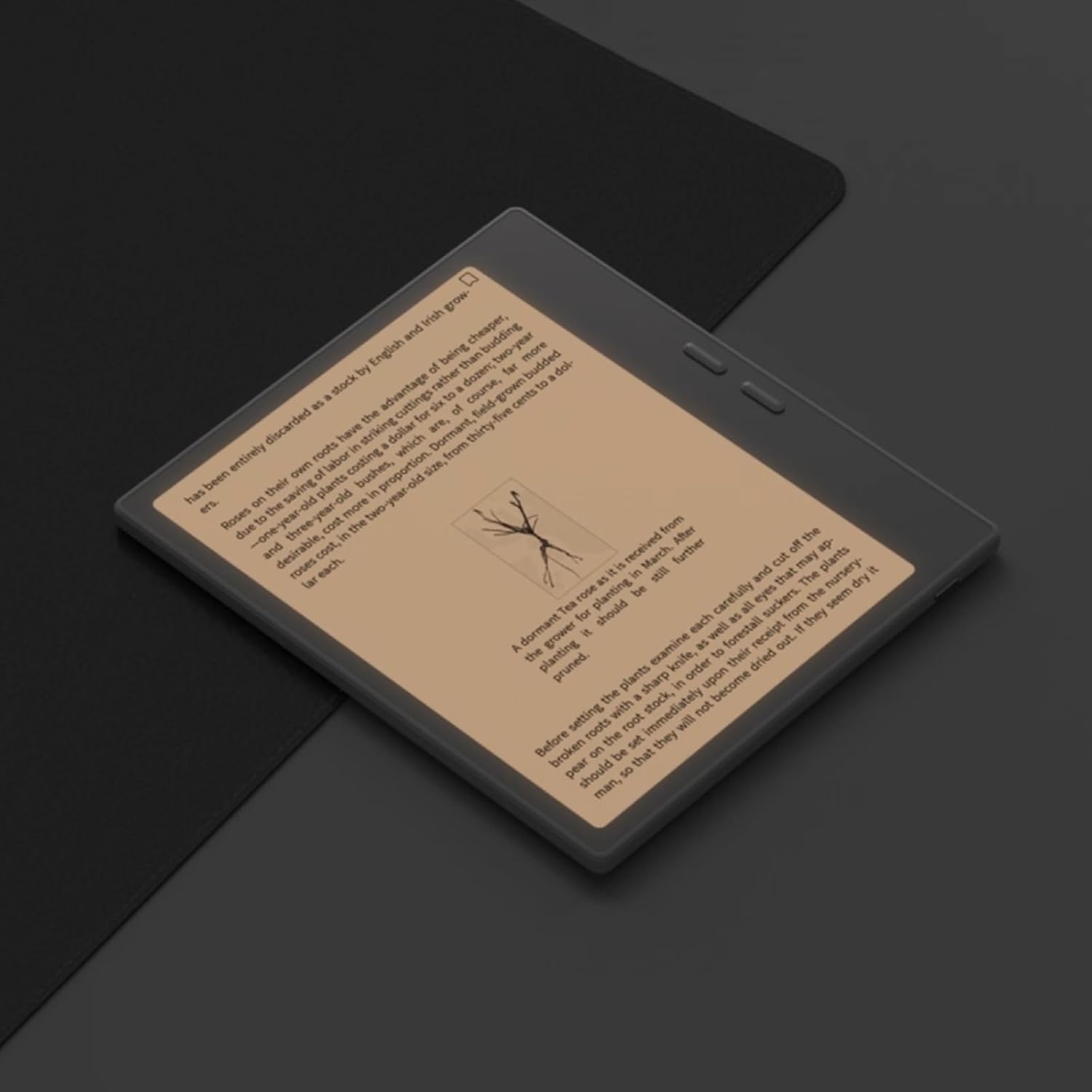
Figure 6.1: Reading with Frontlight
6.3 Using Android Applications
As an Android 13 device, the BOOX Go 7 allows installation of various applications from the Google Play Store. Navigate to the App Store, search for your desired application, and install it. Note that some applications may not be fully optimized for ePaper displays.

Figure 6.2: Various Android Applications on BOOX Go 7
6.4 Note-Taking and Drawing
Utilize the stylus (if included or purchased separately) for note-taking, sketching, and annotating documents. The device offers various templates and tools for creative and organizational tasks.

Figure 6.3: Stylus Use for Note-Taking

Figure 6.4: Handwriting to Text Conversion
7. Mantemento
7.1 Limpeza do dispositivo
Use a soft, lint-free cloth to gently wipe the screen and body of the device. Do not use harsh chemicals, abrasive cleaners, or excessive moisture.
7.2 Actualizacións de software
Regularly check for and install software updates to ensure optimal performance and access to new features. Connect to Wi-Fi and navigate to Configuración > Sistema > Actualización do sistema para comprobar se hai actualizacións dispoñibles.
8 Solución de problemas
- O dispositivo non se acende: Ensure the device is charged. Connect it to a power source and try again.
- A pantalla non responde: Perform a soft reset by holding the Power button for 10-15 seconds.
- Problemas de conexión wifi: Verify your Wi-Fi password and router settings. Try restarting your router and the device.
- Fallos das aplicacións: Ensure applications are updated to their latest versions. Clear the app's cache or reinstall if issues persist.
9. Especificacións
| Marca | BOX |
| Nome do modelo | Vaia 7 |
| Capacidade de almacenamento | 64 GB |
| Tamaño da pantalla | 7 polgadas |
| Resolución máxima da pantalla | 300 Pixels per inch |
| Sistema Operativo | Android 13 |
| Cor | Noir (Black) |
| Tamaño da RAM instalada | 4 GB |
| Características especiais | USB OTG support, Expandable storage, Stylus support |
| Ano modelo | 2025 |
| Tipo de batería | Ion de litio |
| contido de enerxía da batería | 8.8 vatios-hora |
| Marca de procesador | Qualcomm |
| Descrición do procesador | Qualcomm Snapdragon |
| Cámara | Sen cámara |
| Tipo de sensor | Xiroscopio |
| Item Dimensions (LxWxT) | 15.6L x 0.6W x 13.7T centimeters |
| Método de entrada | Touchscreen with stylus |
| Descrición da tarxeta gráfica | Integrado |
| Dispositivos compatibles | Stylus |
| Tipo de visualización | Tinta electrónica |
| Resolución de pantalla | 1280 x 800 píxeles |
| Relación de aspecto | 16:10 |
| Conectividade de hardware | USB |
| Tecnoloxía sen fíos | Bluetooth, Wi-Fi (802.11ax) |
| Total de portos USB | 1 |

Figure 9.1: BOOX Go 7 Energy Label (Ligazón EPREL)
10. Información da garantía
The BOOX Go 7 ePaper Tablet comes with a 2 ano de garantía limitada. This warranty covers manufacturing defects under normal use. For specific terms and conditions, please refer to the warranty card included in your package or contact customer support.
The standard return policy allows for returns within 30 days of purchase for refund or replacement.
11. Apoio
For technical assistance, troubleshooting, or warranty claims, please contact BOOX customer service. You can find support resources and submit inquiries through the official BOOX help center.
- Actualizacións de firmware: BOOX commits to at least 3 years of firmware updates for each product.
- Almacenamento na nube: 10 GB of free cloud storage is provided for each user.
- Tempo de resposta: As consultas dos clientes adoitan responderse en 24 horas.
Para máis información, visite o BOOX Brand Store on Amazon.