
1. Introdución
This manual provides detailed instructions for the MCHOSE V9 PRO Wireless Gaming Headset and the MCHOSE G98 PRO Wireless Mechanical Keyboard. Please read this guide thoroughly to ensure proper setup, operation, and maintenance of your devices. This combo product offers a complete gaming and productivity solution with advanced features for an enhanced user experience.
2. Contido do paquete
Verifica que todos os elementos estean presentes no teu paquete:
- Auriculares de xogos sen fíos MCHOSE V9 PRO
- MCHOSE G98 PRO Wireless Mechanical Keyboard
- USB Wireless Receiver (for both devices)
- Cable de carga USB-C
- Detachable Microphone (for headset)
- Keycap Puller (for keyboard)
- Switch Puller (for keyboard)
- Manual de usuario (este documento)
3. MCHOSE V9 PRO Wireless Gaming Headset
3.1. Configuración
The V9 PRO headset supports Tri-Mode connection: 2.4GHz wireless, Bluetooth, and wired USB.
- Conexión sen fíos de 2.4 GHz:
- Insert the USB wireless receiver into an available USB port on your computer or console.
- Power on the headset. It will automatically attempt to connect to the receiver.
- A solid indicator light on the headset confirms a successful connection.
- Conexión Bluetooth:
- With the headset powered on, press and hold the Bluetooth pairing button until the indicator light flashes rapidly.
- On your device (phone, tablet, computer), search for Bluetooth devices and select "MCHOSE V9 PRO".
- The indicator light will become solid once paired.
- Conexión USB con cable:
- Connect the USB-C charging cable to the headset and to a USB port on your device.
- The headset will function as a wired audio device and charge simultaneously.
- Microphone Attachment:
- Align the detachable microphone with the port on the left earcup and insert it firmly.
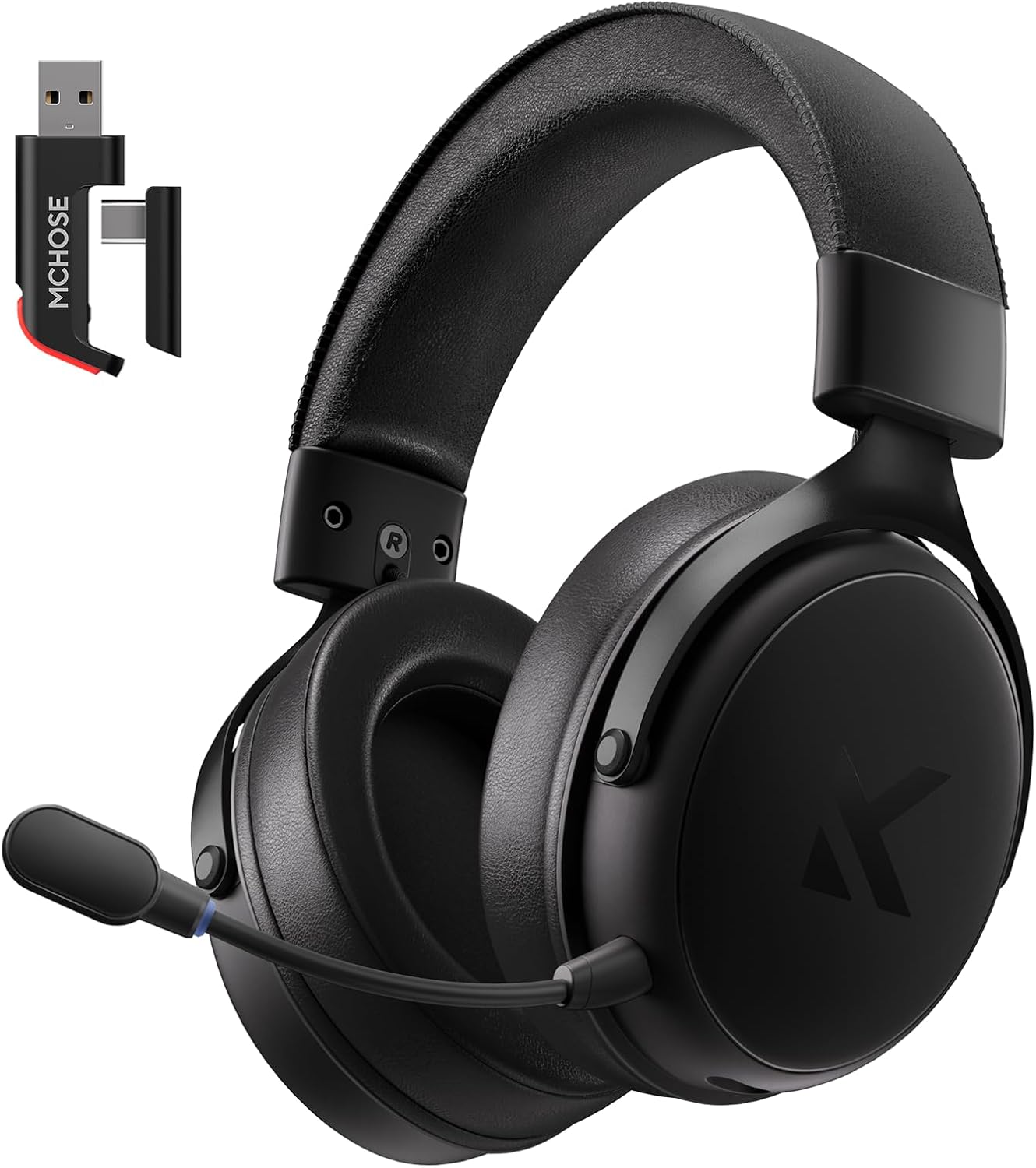
Image: MCHOSE V9 PRO Wireless Gaming Headset with its USB wireless receiver. The headset features large earcups and a detachable microphone.
3.2. En funcionamento
- Encendido/apagado: Manteña premido o botón de acendido durante 3 segundos.
- Control de volume: Use the volume roller on the earcup to adjust audio output.
- Silenciar o micrófono: Press the microphone mute button to toggle mute on/off.
- Son envolvente 7.1: Activate 7.1 surround sound via the MCHOSE HUB software for immersive audio. This feature enhances spatial awareness in games.
- AI Noise-Canceling Microphone: The integrated AI technology automatically filters background noise for clear communication. Ensure the microphone is positioned correctly near your mouth.
- Audio Equalizer Customization: Download and install the MCHOSE HUB software from the official MCHOSE website. Use the software to customize equalizer settings to your preference, allowing for fine-tuning of audio profiles para diferentes aplicacións.
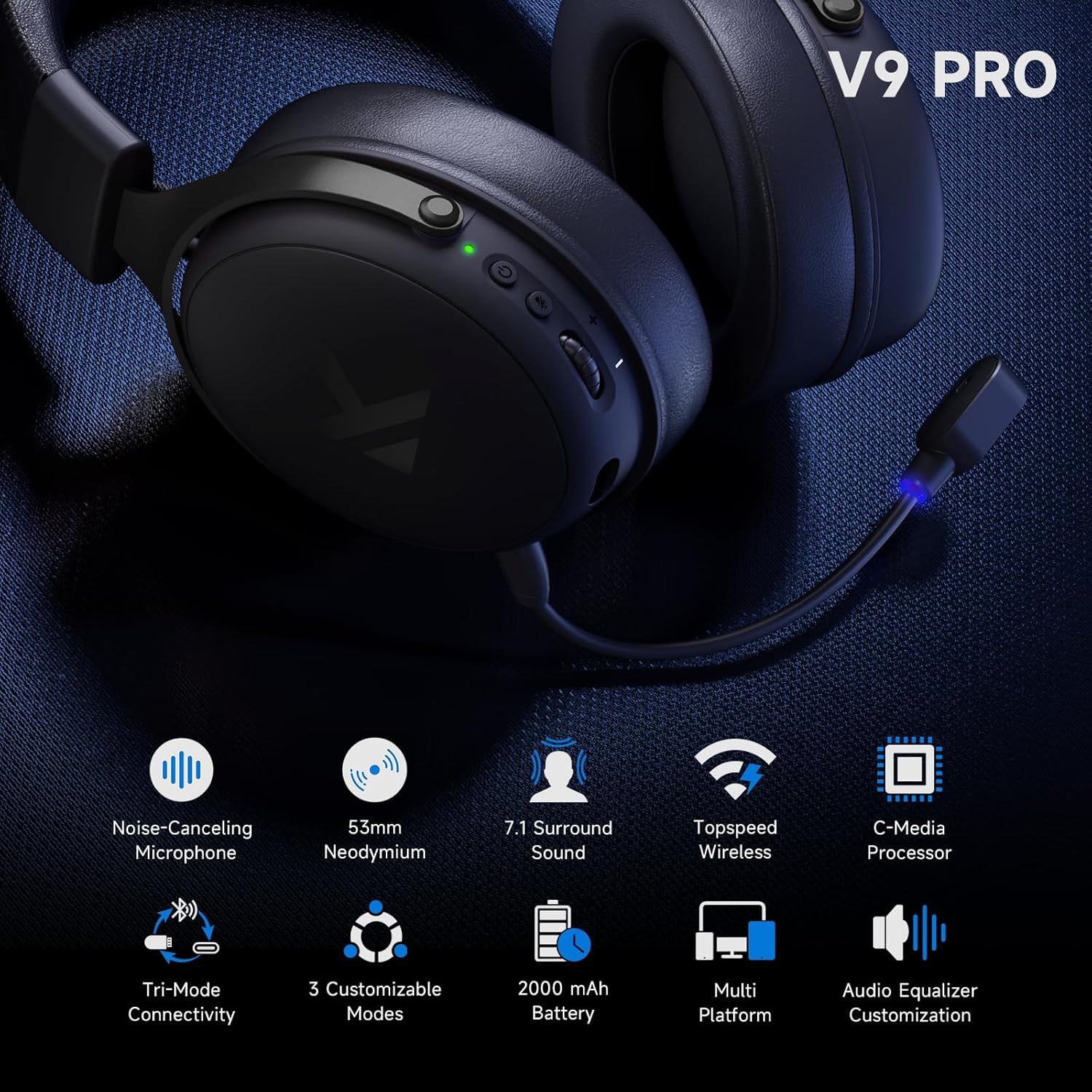
Image: Close-up of the MCHOSE V9 PRO headset highlighting key features such as the noise-canceling microphone, 53mm neodymium drivers, 7.1 surround sound capability, and tri-mode connectivity options.
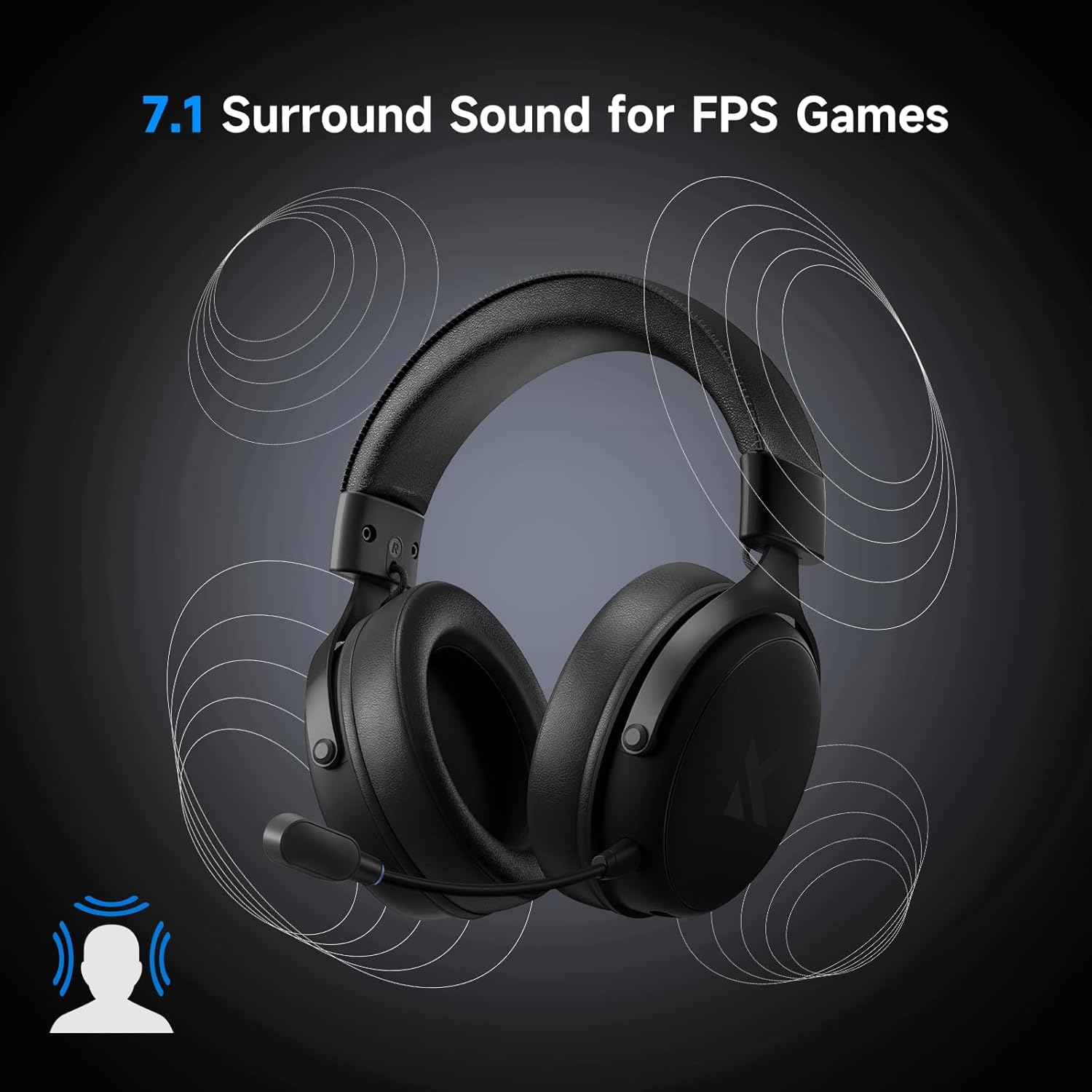
Image: The MCHOSE V9 PRO headset with visual cues indicating 7.1 surround sound, illustrating its immersive audio capabilities for gaming.
3.3. Mantemento
- Clean earcups and headband with a soft, dry cloth.
- Evite expoñer os auriculares a temperaturas ou humidade extremas.
- Almacene nun lugar limpo e seco cando non estea en uso.
3.4. Specifications (Headset)
- Condutores: Neodimio de 53 mm
- Son: 7.1 Son envolvente
- Micrófono: Cancelación de ruído AI
- Conectividade: 2.4GHz Wireless, Bluetooth, USB Wired
- Duración da batería: Up to 250 hours (approximate, depending on usage)
- Peso: Aproximadamente 275 g

Imaxe: Detallada view of the MCHOSE V9 PRO headset, highlighting its 9-position adjustable headband, ultra-skin-friendly materials, impressive 250-hour battery life, and lightweight design at only 275 grams.
4. MCHOSE G98 PRO Wireless Mechanical Keyboard
4.1. Configuración
The G98 PRO keyboard supports Tri-Mode connection: 2.4GHz wireless, Bluetooth, and wired USB.
- Conexión sen fíos de 2.4 GHz:
- Ensure the USB wireless receiver is plugged into your computer.
- Set the keyboard's connection switch to 2.4G mode.
- The keyboard will automatically connect. An indicator light will confirm the connection.
- Conexión Bluetooth:
- Set the keyboard's connection switch to BT mode.
- Press and hold FN + 1/2/3 to enter pairing mode for one of the three Bluetooth channels. The indicator light will flash.
- On your device, search for Bluetooth devices and select "MCHOSE G98 PRO".
- The indicator light will become solid once paired. You can switch between paired devices using FN + 1/2/3.
- Conexión USB con cable:
- Connect the USB-C charging cable to the keyboard and to a USB port on your computer.
- Set the keyboard's connection switch to USB mode.
- O teclado funcionará como un dispositivo con cable e cargarase simultaneamente.

Image: MCHOSE G98 PRO Wireless Mechanical Keyboard, showcasing its 96% layout with purple keycap accents.
4.2. En funcionamento
- Deseño: The G98 PRO features a 96% layout with 99 keys, retaining essential arrow keys and a number pad in a compact form factor.
- Retroiluminación RGB: Use FN key combinations to cycle through various RGB lighting effects, adjust brightness, and change speed. Refer to the quick guide for specific key combinations.
- Interruptores intercambiables en quente: The keyboard supports hot-swappable 3/5-pin mechanical switches, allowing users to customize their typing experience without soldering. Use the provided switch puller to carefully remove and insert switches.
- Custom Gasket Structure: The 5-layer gasket structure provides a flexible and cushioned typing feel, reducing vibrations and enhancing sound profile.
- MCHOSE HUB Software: Download and install the MCHOSE HUB software for advanced customization, including key remapping, macro creation, and lighting effects.
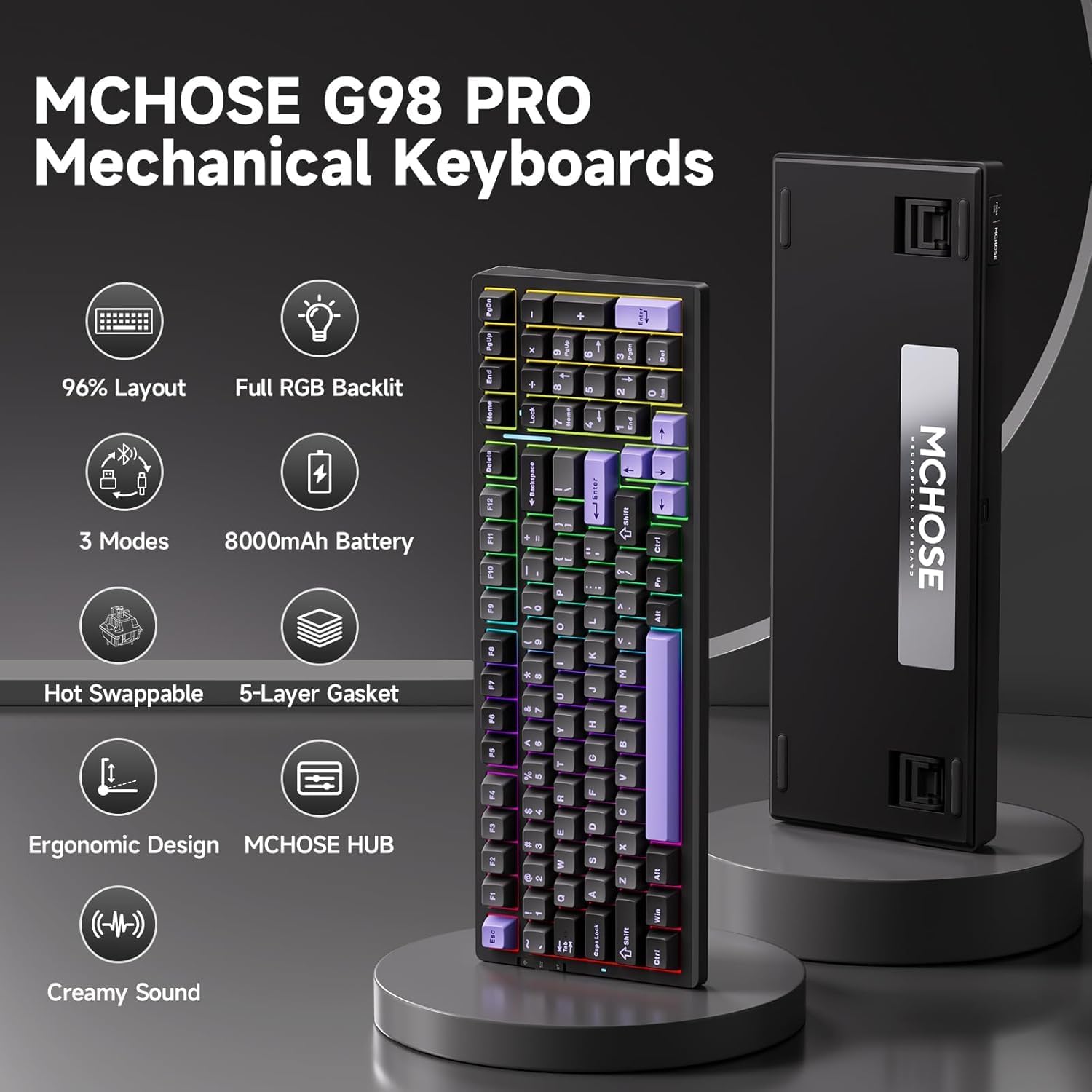
Imaxe: Máis deview of the MCHOSE G98 PRO Mechanical Keyboard, detailing its 96% layout, full RGB backlighting, tri-mode connectivity, 8000mAh battery, hot-swappable design, 5-layer gasket structure, and ergonomic design.
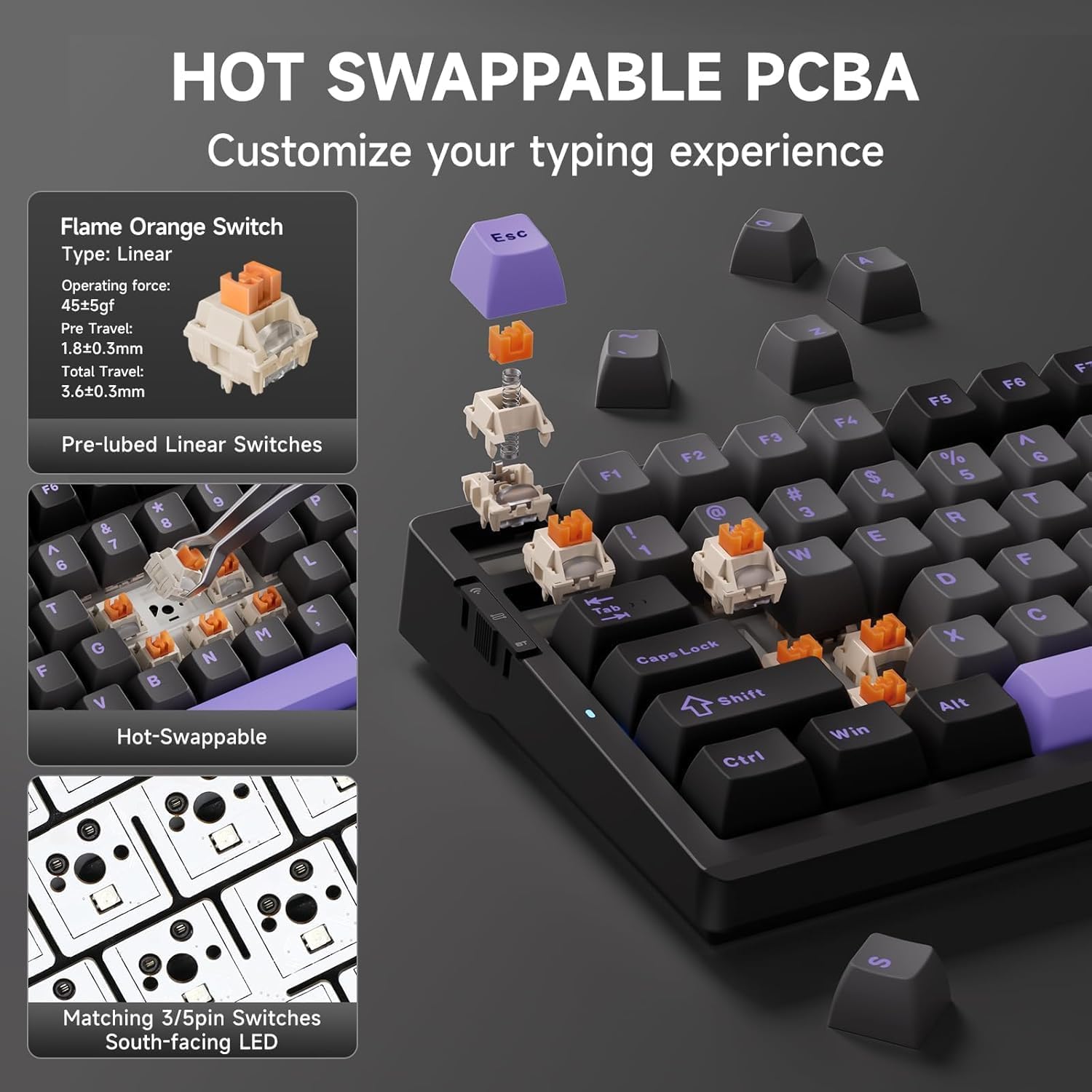
Image: Close-up demonstrating the hot-swappable PCBA of the MCHOSE G98 PRO keyboard, showing how switches like the Flame Orange Linear Switch can be easily removed and replaced.
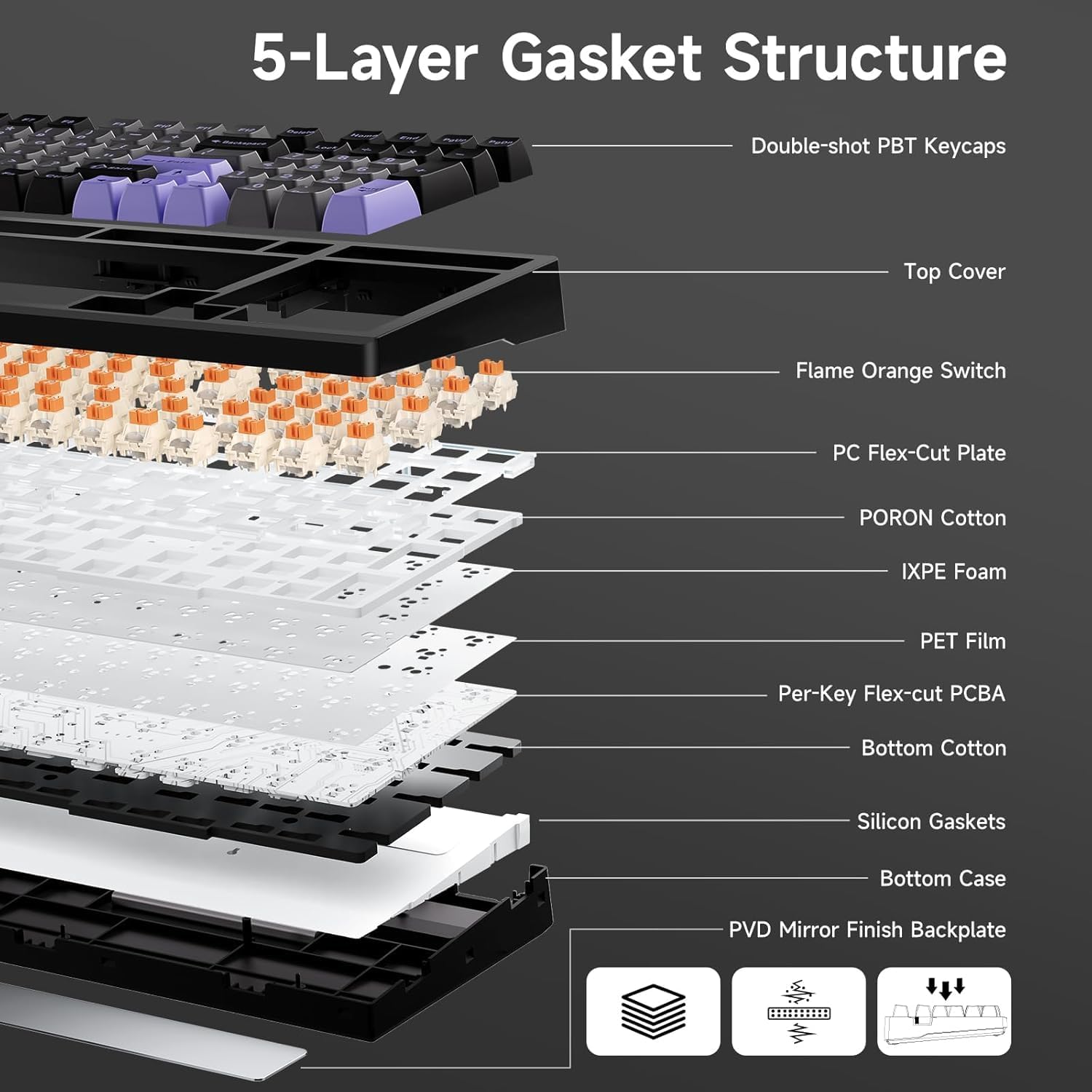
Imaxe: Explosión view diagram of the MCHOSE G98 PRO keyboard's 5-layer gasket structure, illustrating components like double-shot PBT keycaps, switches, PC flex-cut plate, various foam layers, and silicon gaskets.
4.3. Mantemento
- Limpeza: Use the provided keycap puller to remove keycaps for cleaning. Use a soft brush or compressed air to remove dust and debris from between switches. Wipe keycaps with a damp pano.
- Substitución do interruptor: Use the switch puller to carefully remove switches. Align new switches with the PCB pins and press gently until they click into place. Ensure pins are not bent.
- Carga da batería: Connect the USB-C cable to a power source. The indicator light will show charging status. The 8000mAh battery provides extended usage.
4.4. Specifications (Keyboard)
- Deseño: 96 % (99 teclas)
- Conectividade: 2.4GHz Wireless, Bluetooth (BT5), USB Wired
- Batería: 8000 mAh
- Interruptores: Hot-swappable (compatible with 3/5-pin mechanical switches)
- Estrutura: 5-Layer Gasket
- Retroiluminación: Full RGB
5 Solución de problemas
Se tes problemas, consulta as seguintes solucións habituais:
| Problema | Causa posible | Solución |
|---|---|---|
| Headset/Keyboard not connecting wirelessly | Low battery, incorrect mode, receiver not plugged in, interference. | Charge the device. Ensure the USB receiver is securely plugged in. Switch to the correct connection mode (2.4G or BT). Move closer to the receiver. |
| Non hai son dos auriculares | Volume too low, incorrect audio output device selected, headset not connected. | Increase volume. Check your device's sound settings to ensure the MCHOSE V9 PRO is selected as the output. Reconnect the headset. |
| O micrófono non funciona | Microphone muted, incorrect input device selected, microphone not fully inserted. | Unmute the microphone. Check your device's sound settings to ensure the MCHOSE V9 PRO microphone is selected as the input. Ensure the microphone is firmly attached. |
| As teclas do teclado non responden | Low battery, switch issue, software glitch. | Charge the keyboard. Try a wired connection. If a specific key, try replacing the switch. Restart your computer. |
| A iluminación RGB non funciona | Iluminación apagada, problema de software. | Use FN key combinations to cycle through lighting modes and brightness. Check MCHOSE HUB software settings. |
6. Garantía e soporte
MCHOSE products come with a standard manufacturer's warranty. For detailed warranty information, please refer to the warranty card included in your package or visit the official MCHOSE website. For technical support, troubleshooting assistance, or to download the MCHOSE HUB software, please visit the MCHOSE Store on Amazon or the official MCHOSE support page.