
Introdución
This manual provides detailed instructions for the setup, operation, and maintenance of your Voistek Wireless Headset VS886BTC-US. Designed for clear communication and comfortable use, this headset features a noise-canceling microphone, dual connectivity options, and long battery life, making it suitable for various professional and personal applications.
O que hai na caixa
Verifica que todos os elementos estean presentes no teu paquete:
- Voistek Wireless Headset
- Estación de carga
- USB Dongle (USB-A/USB-C compatible)
- Cable de carga USB-C
- Manual de usuario (este documento)

Image: The Voistek Wireless Headset package contents, showing the headset, charging station, USB dongle, and charging cables.
Produto rematadoview
Familiarize yourself with the components and controls of your Voistek Wireless Headset.
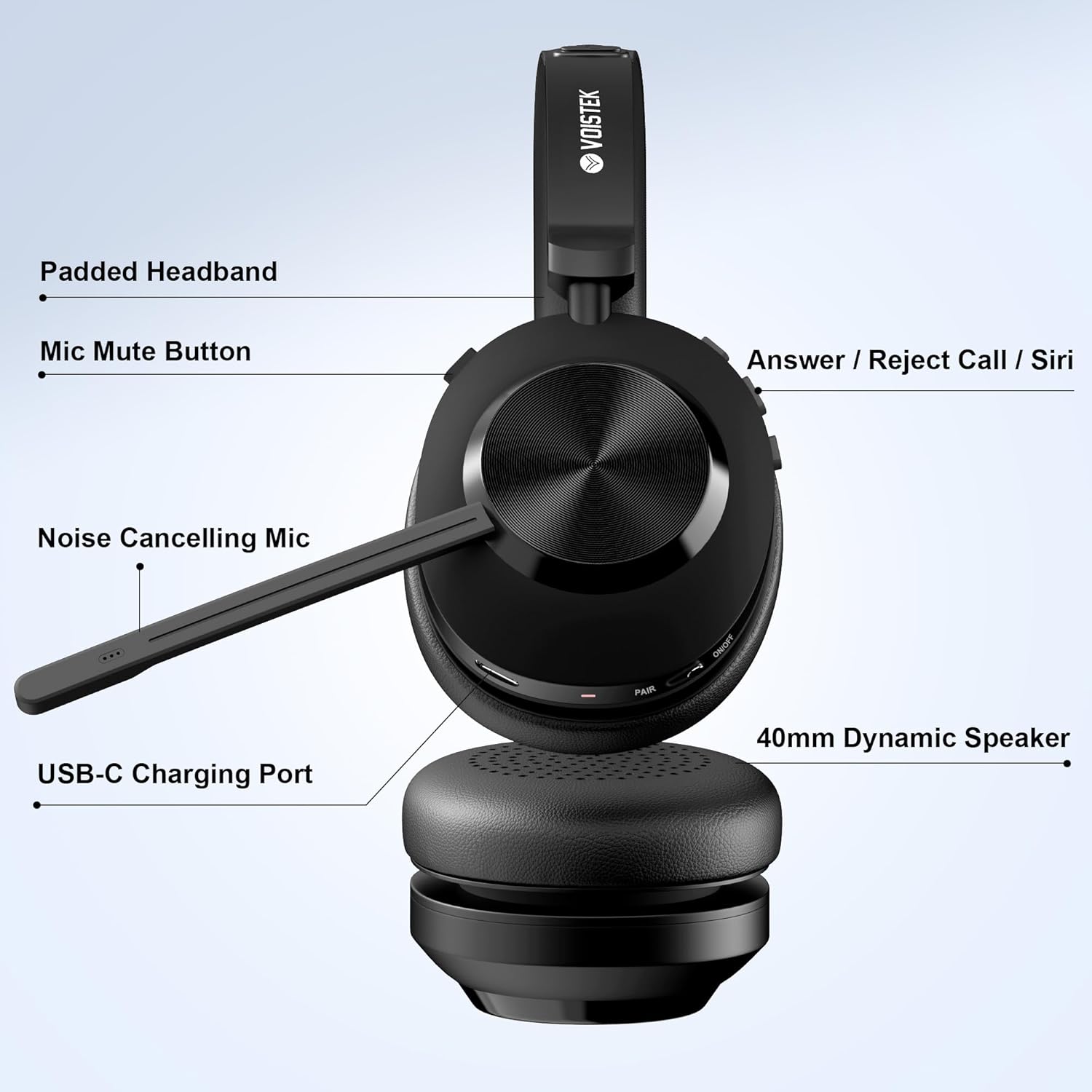
Image: Labeled diagram of the Voistek Wireless Headset, highlighting key features such as the padded headband, mic mute button, call control button, noise-canceling microphone, USB-C charging port, and 40mm dynamic speaker.
Características principais:
- Micrófono con cancelación de ruído: Dual beamforming microphones reduce background noise for clear voice transmission.
- Conectividade dual: Connects via Bluetooth 5.3 or the included USB-A/C dongle.
- Audio Premium: 40mm dynamic drivers deliver clear sound for calls and media.
- Batería de longa duración: Up to 45 hours of working time on a single charge.
- Carga rápida: A 5-minute quick charge provides power for urgent calls.
- Compatibilidade universal: Optimized for Microsoft Teams, Zoom, Skype, Google Meet, VoIP, Windows, MacOS, iOS, iPadOS, and Android devices.
- Deseño ergonómico: Features a padded headband, 90° rotatable soft memory foam earmuffs, adjustable metal headband, and a 270° flexible microphone.
- Lixeiro: Weighs approximately 190g for comfortable extended wear.
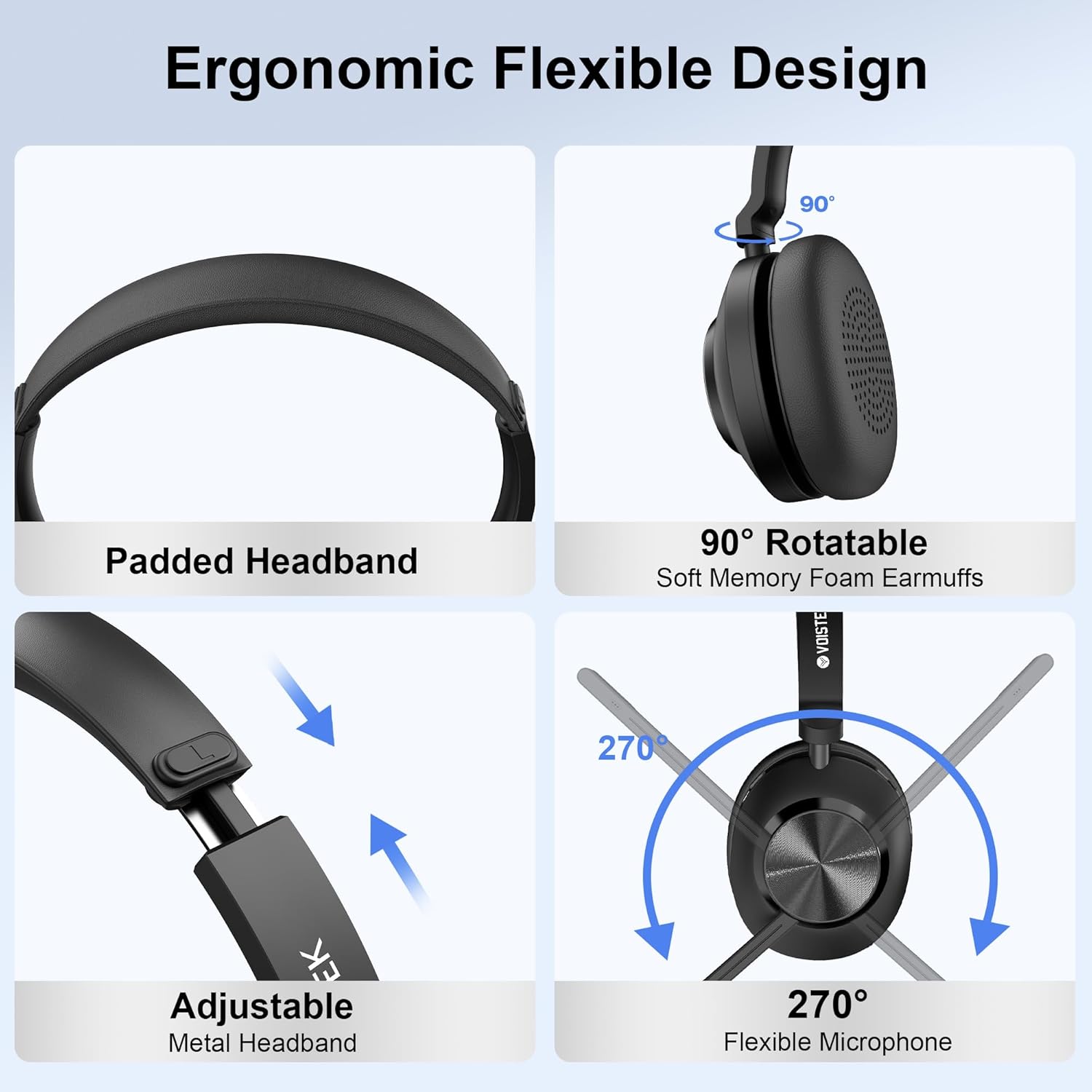
Image: Visual representation of the headset's ergonomic features, including its padded headband, rotatable earmuffs, adjustable headband, and flexible microphone.
Configuración
1. Carga inicial
Before first use, fully charge your headset. You can charge it using the included charging station or by connecting the USB-C cable directly to the headset.
- Usando a estación de carga: Place the headset onto the charging station. Ensure the charging contacts align. The indicator light on the station will show charging status.
- Carga directa: Connect the USB-C charging cable to the headset's USB-C port and to a power source (e.g., computer USB port, wall adapter).
2. Conexión a un dispositivo
Your Voistek headset offers two primary connection methods: Bluetooth and USB Dongle.
Conexión Bluetooth:
- Encendido: Press and hold the Power button on the headset until you hear a power-on prompt.
- Entrar no modo de emparellamento: With the headset powered on, press and hold the Multi-function button (often the call answer/reject button) until the LED indicator flashes blue and red, indicating pairing mode.
- Activar Bluetooth no dispositivo: On your smartphone, tablet, or computer, go to Bluetooth settings and ensure Bluetooth is enabled.
- Seleccionar auriculares: In the list of available devices, select "BT-88" (or similar name). Once connected, the LED indicator will turn solid blue.
Video: This video demonstrates the process of connecting the Voistek Wireless Headset to a device via Bluetooth, showing the headset being worn, answering a call, and the Bluetooth pairing screen on a smartphone.
USB Dongle Connection (for PC/Laptop):
- Inserir dongle: Plug the USB dongle into an available USB-A or USB-C port on your computer.
- Acendido dos auriculares: Turn on your headset. It will automatically attempt to connect to the dongle.
- Instalación de controladores: Your computer should automatically install the necessary drivers. This may take a few moments.
- Verificar a conexión: Once connected, the LED on the dongle will typically turn solid blue, and the headset will indicate a successful connection. You may need to select the headset as the default audio input/output device in your computer's sound settings.
Operación
Xestión de chamadas:
- Responder/Finalizar chamada: Prema o botón multifunción unha vez.
- Rexeitar a chamada: Manteña premido o botón multifunción durante 2 segundos.
- Silenciar/Activar o micrófono: Press the dedicated Mic Mute button on the microphone boom.
Control de volume:
- Aumentar o volume: Preme o botón Subir volume.
- Diminuír o volume: Prema o botón para baixar o volume.
Asistente de voz (Siri/Asistente de Google):
- Activar: Prema dúas veces o botón multifunción para activar o asistente de voz do dispositivo.
Emparejamento multipunto:
The headset supports connecting to two Bluetooth devices simultaneously (e.g., a computer and a smartphone). To use multipoint pairing:
- Pair the headset with the first device.
- Desactiva o Bluetooth no primeiro dispositivo.
- Put the headset back into pairing mode and pair it with the second device.
- Re-enable Bluetooth on the first device. The headset should now be connected to both devices.

Image: A user wearing the Voistek Wireless Headset, demonstrating its comfortable fit and suitability for extended work sessions.
Cargando o teu auricular
The Voistek Wireless Headset offers flexible charging options to ensure you're always ready for your next call or task.
Charging via Charging Station:
Simply place your headset onto the charging station. The station's indicator light will confirm that charging has begun. This method provides a convenient storage and charging solution.
Direct Charging via USB-C:
For direct charging, connect the provided USB-C cable to the charging port on the headset and to a compatible USB power source. The headset's LED indicator will show charging status.
Battery Life and Charging Time:
- Tempo de traballo: Ata 45 horas cunha carga completa.
- Tempo de carga: Aproximadamente 1.5 horas para unha carga completa.
- Carga rápida: A 5-minute charge can provide sufficient power for urgent calls.
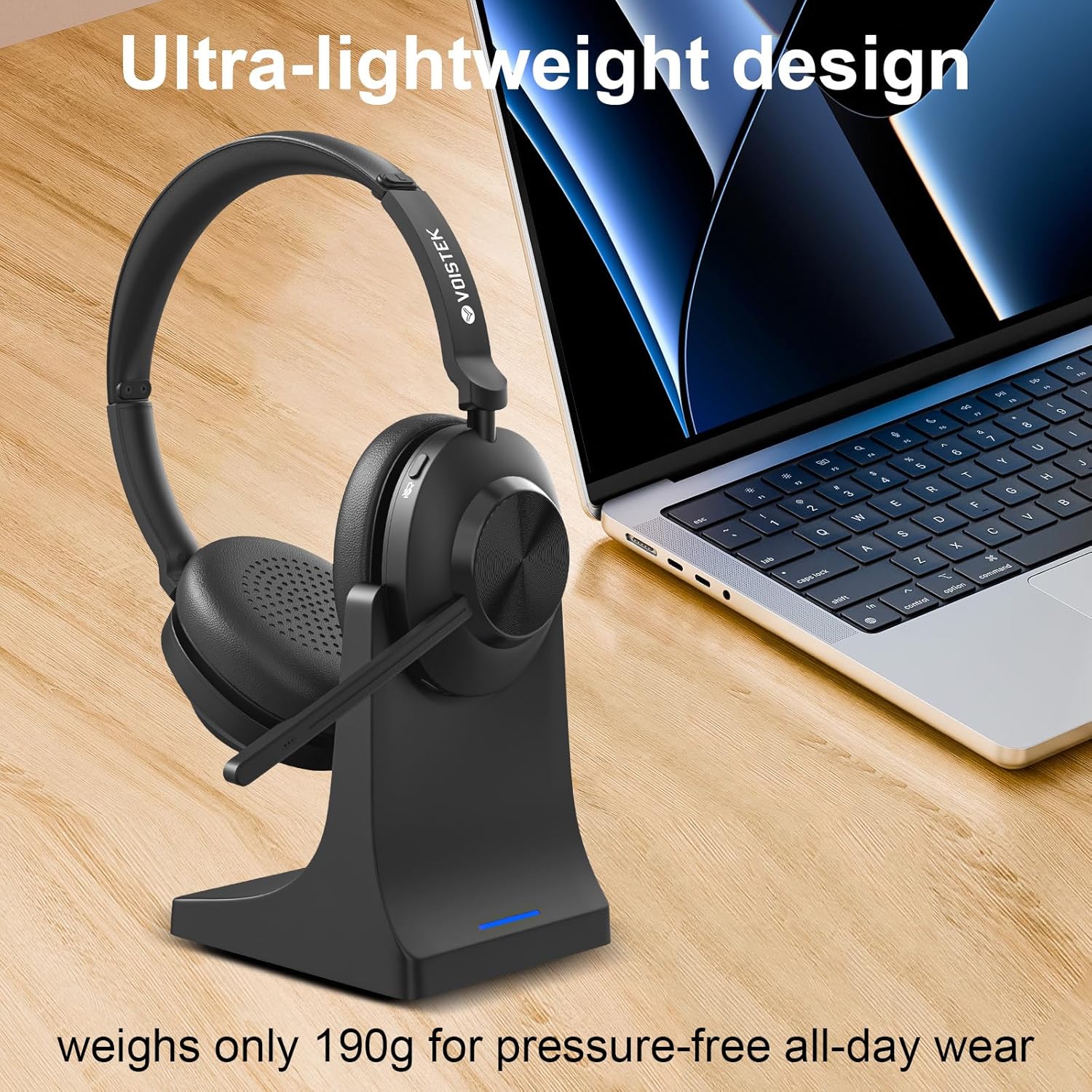
Image: The Voistek Wireless Headset on its charging dock, highlighting its lightweight design and ease of charging.
Especificacións
| Nome do modelo | Dual Ear |
| Número de modelo do artigo | VS886BTC-US |
| Tecnoloxía de conectividade | Sen fíos (Bluetooth 5.3) |
| Alcance Bluetooth | 10 metros |
| Tamaño do controlador de audio | 40 milímetros |
| Resposta en frecuencia | 20 kHz |
| Sensibilidade | 121 dB |
| Impedancia | 32 ohmios |
| Duración da batería | 45 horas |
| Tempo de carga | 1.5 horas |
| Peso do elemento | 250 gramos (8.8 onzas) |
| Material | ABS, Aluminum, Faux Leather |
| Dispositivos compatibles | Cellphones, Laptops, Desktops, Tablets |
| Características especiais | Adjustable Headband, Lightweight, Multipoint Pairing |
Resolución de problemas
If you encounter issues with your Voistek Wireless Headset, refer to the following common solutions:
No Power / Not Charging:
- Ensure the charging cable is securely connected to both the headset/charging station and the power source.
- If using the charging station, verify that the headset is correctly seated and the charging contacts are aligned.
- Proba cun porto USB ou un adaptador de alimentación diferente.
Cannot Pair / Connect:
- Make sure the headset is in pairing mode (LED flashing blue and red).
- Asegúrate de que o Bluetooth estea activado no teu dispositivo e que sexa detectable.
- Achega os auriculares ao teu dispositivo.
- Forget the headset from your device's Bluetooth list and attempt to pair again.
- If using the USB dongle, ensure it is properly inserted and your computer's audio settings are configured to use the headset.
Poor Audio Quality / Microphone Issues:
- Check the headset's volume levels and your device's volume settings.
- Asegúrate de que o micrófono non estea silenciado.
- Confirm the headset is selected as the default input/output device in your application (e.g., Zoom, Teams) and operating system settings.
- Afástese de fontes de interferencias (por exemplo, routers Wi-Fi ou outros dispositivos Bluetooth).
Garantía e Atención ao Cliente
Your Voistek headset includes a 30-day return and refund policy. Additionally, lifetime customer support is provided. For assistance, please contact Voistek customer support via Amazon. Our expert support team is available to respond quickly and reliably to any inquiries or issues you may have.