
1. Introdución
This manual provides detailed instructions for the installation, operation, and maintenance of your Potegrap Outdoor Security Camera (Model T-CQ1052-W20V). Please read this manual thoroughly before using the product to ensure proper function and safety. Keep this manual for future reference.
The Potegrap T-CQ1052-W20V is a high-definition outdoor security camera designed for comprehensive home surveillance. It features 2K resolution, dual-band 2.4GHz and 5GHz WiFi connectivity, 360-degree pan and tilt functionality, advanced motion detection with tracking, color night vision, two-way audio, and optional AI-powered features with cloud storage.
2. Información de seguridade
- Ensure the power adapter is suitable for your local power supply and is properly grounded.
- Do not expose the camera to extreme temperatures outside its operating range (-4°F to 122°F / -20°C to 50°C).
- Evite colocar a cámara preto de campos electromagnéticos fortes.
- Non intente desmontar nin modificar a cámara. Isto anulará a garantía.
- Manteña a cámara e os seus accesorios fóra do alcance dos nenos.
- Clean the camera lens with a soft, dry cloth only.
3. Contido do paquete
Comprobe se o paquete contén os seguintes elementos:
- Potegrap Outdoor Security Camera (Model T-CQ1052-W20V) - 2 units
- Adaptadores de alimentación
- Parafusos e ancoraxes de montaxe
- Plantilla de montaxe
- Manual de usuario (este documento)

Figura 3.1: Two Potegrap T-CQ1052-W20V outdoor security cameras, highlighting their 2K resolution, 5G WiFi capability, and US-based cloud storage option. A smartphone screen displays a live view dende a cámara.
4. Produto rematadoview
4.1 Características principais
- Resolución 2K HD: Ofrece vídeos claros e detalladostage (2560x1440).
- WiFi de banda dual: Admite redes de 2.4 GHz e 5 GHz para unha conectividade flexible e estable.
- Cobertura 360°: Features 355° horizontal pan and 90° vertical tilt for comprehensive area monitoring.
- Advanced Motion Detection & Tracking: Automatically detects and follows moving objects.
- Visión nocturna en cor: Ofrece vídeo a toda cor mesmo en condicións de pouca luz.
- Audio bidireccional: Micrófono e altofalante integrados para comunicación en tempo real.
- Modo de privacidade: Physically rotates the camera lens for enhanced privacy when needed.
- Almacenamento flexible: Supports local TF (Micro SD) card storage (up to 128GB, not included) and optional US-based cloud storage.
- AI Features (Subscription Required): Includes person, vehicle, and animal detection, along with a 911 emergency alarm integration.
- Resistente á intemperie: Designed to operate in various outdoor conditions, from -4°F to 122°F (-20°C to 50°C).

Figura 4.1: A banner image promoting the Potegrap AI-Powered WiFi Camera, emphasizing its smart and safe features including 911 Emergency Alarm, US-Based Cloud storage, and integrated AI capabilities.

Figura 4.2: This image explains the camera's dual-band WiFi support, indicating that it can connect to both 2.4GHz (longer transmission distance) and 5GHz (superior network performance) networks.
5. Configuración
5.1 Instalación da aplicación e creación de contas
- Download the official Potegrap security camera application from your smartphone's app store (available for iOS and Android).
- Abre a aplicación e segue as instrucións que aparecen na pantalla para crear unha nova conta ou iniciar sesión se xa tes unha.
5.2 Instalación física
The camera is designed for both indoor and outdoor use. Choose a location that provides the desired viewing angle and has access to a power outlet.
- Use the provided mounting template to mark the drill holes on your chosen surface (wall or ceiling).
- Drill holes and insert the wall anchors if mounting on drywall or masonry.
- Secure the camera's mounting bracket using the provided screws.
- Fixe a cámara ao soporte de montaxe.
- Conecta o adaptador de corrente á cámara e conéctao a unha toma de corrente.

Figura 5.1: This banner emphasizes the camera's easy installation for both indoor and outdoor environments, showing a person installing it outdoors and examples of its placement inside a home and outside.
5.3 Conectando a Wi-Fi
- Ensure your smartphone is connected to the same Wi-Fi network (2.4GHz or 5GHz) you intend to connect the camera to.
- Na aplicación, toca en "Engadir dispositivo" ou na icona "+".
- Select your camera model and follow the in-app instructions, which typically involve scanning a QR code displayed on your phone with the camera or entering Wi-Fi credentials.
- Wait for the camera to connect to the network. A voice prompt or LED indicator will confirm successful connection.
5.4 Instalación da tarxeta SD (opcional)
For local storage, insert a TF (Micro SD) card (up to 128GB, not included) into the designated slot on the camera. Ensure the camera is powered off before inserting or removing the card. Format the SD card via the app after installation for optimal performance.
6. Funcionamento da cámara
6.1 En directo View e control de panorámica/inclinación
Open the Potegrap app and select your camera to access the live view. Use the on-screen controls to pan (rotate horizontally 355°) and tilt (rotate vertically 90°) the camera lens to adjust your viewángulo de ing.
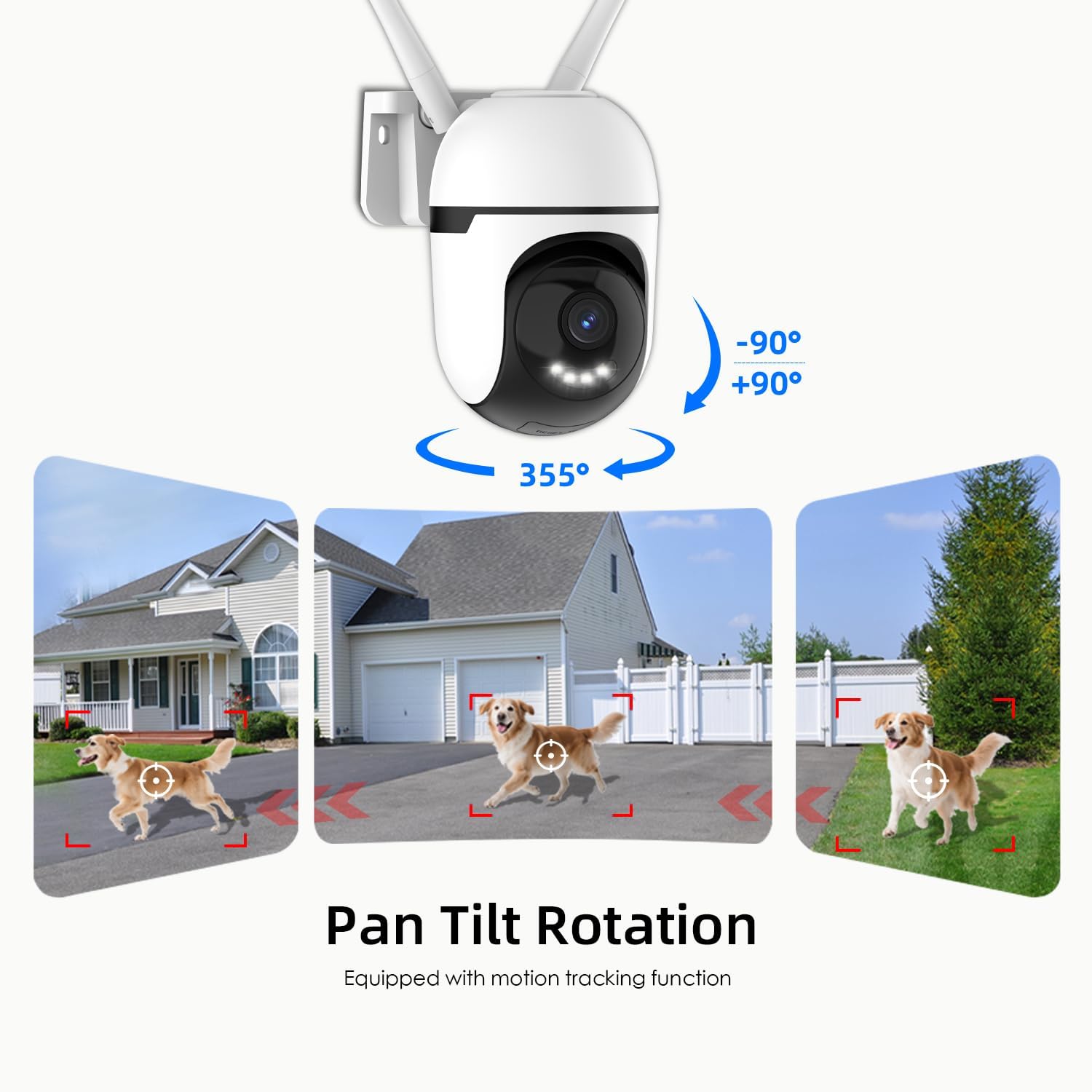
Figura 6.1: This graphic demonstrates the camera's pan and tilt functionality, allowing for a 360-degree horizontal view (355°) and vertical adjustment (90°), illustrated by different perspectives of a dog in a yard.

Figura 6.2: This image highlights the camera's 360-degree coverage (355° pan, 90° tilt) and motion tracking, showing its ability to monitor a wide area including children playing and a dog.
6.2 Detección e seguimento de movemento
The camera can detect motion and automatically track moving objects within its field of view. You will receive real-time alerts on your smartphone when motion is detected.
- Activar/Desactivar: Access camera settings in the app to turn motion detection on or off.
- Sensibilidade: Axusta a sensibilidade da detección de movemento para minimizar as falsas alarmas.
- Zonas de detección: Define áreas específicas dentro do alcance da cámara view for motion detection to focus on, ignoring irrelevant areas.

Figura 6.3: This image illustrates the camera's auto-tracking motion detection, showing the camera following a moving subject (a child) within its field of view.

Figura 6.4: An illustration of how to set up custom detection zones to reduce unnecessary alerts, showing a dog within a defined zone and a corresponding motion detection notification.
6.3 Conversación bidireccional
Use the two-way audio feature to communicate with individuals near the camera. Tap the microphone icon in the live view to speak, and listen through the camera's speaker.

Figura 6.5: This image illustrates the two-way talk feature, enabling real-time audio communication between a person near the camera outdoors and another person using the mobile app indoors.
6.4 Visión nocturna
The camera offers multiple night vision modes:
- Classic IR Night Vision: Standard black and white infrared view.
- Visión nocturna en cor: Utilizes built-in lights to provide full-color video in low-light conditions.
- Visión nocturna intelixente: Stays in IR mode and switches to color night vision upon detection of motion.
Adjust night vision settings in the app to suit your preferences.

Figura 6.6: This image compares the camera's night vision capabilities: classic infrared (black and white), full-color night vision, and intelligent night vision that activates color upon detection.
6.5 Modo de privacidade
Activate Privacy Mode via the app to physically rotate the camera lens downwards, ensuring your privacy when the camera is not needed for surveillance.

Figura 6.7: The camera's privacy mode is shown, where the lens physically rotates to obscure the view, and the mobile application confirms the mode is active.
6.6 Gravación e almacenamento
The camera supports 24/7 continuous recording and event-triggered recording. Footage pódese almacenar de dúas maneiras:
- Local TF Card Storage: Insert a Micro SD card (up to 128GB) for local storage without a subscription. Ensure the card is formatted through the app.
- US-Based Cloud Storage: An optional subscription service provides cloud storage, often including advanced AI analysis features.
Acceso gravado footage through the playback section of the Potegrap app.

Figura 6.8: This image details the storage options: US-based cloud storage (subscription needed for AI functions) and local TF card storage (up to 128GB, not included) for secure data.
6.7 AI Features (Subscription Required)
Enhance your security with AI-powered features, available with a cloud storage subscription:
- Detección de persoas: Differentiates human shapes from other moving objects.
- Detección de vehículos: Identifies vehicles, reducing irrelevant alerts.
- Detección de animais: Recognizes animals, useful for pet monitoring or filtering wildlife alerts.
- 911 Emergency Alarm: Integrates with emergency services for rapid response during critical events.

Figura 6.9: The camera's intelligent alarm feature is depicted, showing a detected person and an option within the mobile application to initiate a 911 emergency call.
7. Mantemento
- Limpeza: Regularly wipe the camera lens and body with a soft, dry cloth to remove dust and dirt. Do not use harsh chemicals or abrasive cleaners.
- Actualizacións de firmware: Check the app periodically for firmware updates. Keeping your camera's firmware updated ensures optimal performance and security.
- Ciclo de enerxía: Se a cámara ten problemas, proba a desconectala da fonte de alimentación durante 10 segundos e logo volve a conectala.
8 Solución de problemas
| Problema | Causa posible | Solución |
|---|---|---|
| A cámara non se conecta á wifi. | Incorrect Wi-Fi password; camera too far from router; router settings (e.g., firewall). | Verify Wi-Fi password. Move camera closer to router. Ensure router supports 2.4GHz or 5GHz. Temporarily disable firewall for setup. Reset camera and try again. |
| Poor video quality or blurry image. | Dirty lens; insufficient lighting; network bandwidth issues. | Clean the camera lens. Ensure adequate lighting for optimal color night vision. Check your internet speed. |
| As alertas de detección de movemento son demasiado frecuentes ou non funcionan. | Sensitivity set too high/low; detection zone not configured correctly. | Adjust motion detection sensitivity in the app. Configure specific detection zones to focus on relevant areas. |
| Non se pode view gravado footage from SD card. | SD card not formatted; SD card full or corrupted; app issue. | Ensure the SD card is correctly inserted and formatted via the app. Check if the SD card is full. Some advanced playback features or continuous recording may require a cloud subscription. |
| AI features (person/vehicle detection, 911 alarm) are not active. | Subscription required for AI features. | These advanced AI features typically require an active cloud storage subscription. Check your subscription status in the app. |
| A cámara non responde. | Problema de alimentación; fallo de software. | Check power connection. Perform a power cycle (unplug and replug). If issues persist, perform a factory reset (refer to app for instructions). |
9. Especificacións
| Característica | Detalle |
|---|---|
| Número de modelo | T-CQ1052-W20V |
| Marca | Potegrap |
| Resolución | 2K HD (2560x1440), 3 MP |
| Conectividade | Dual-band 2.4GHz & 5GHz WiFi |
| Fonte de enerxía | Eléctrico con cable |
| Rango de panorámica/inclinación | 355° horizontal, 90° vertical |
| Visión Nocturna | Color Night Vision, IR Night Vision, Intelligent Night Vision |
| Opcións de almacenamento | TF (Micro SD) Card (up to 128GB, not included), US-Based Cloud Storage (subscription required) |
| Audio | Two-Way Talk (Built-in microphone and speaker) |
| Temperatura de funcionamento | -4 °F a 122 °F (-20 °C a 50 °C) |
| Dimensións (L x W x H) | 3.9 x 3.1 x 4.3 polgadas |
| Peso do elemento | 1.57 libras (0.71 quilogramos) |
| Dispositivos compatibles | Teléfono intelixente (iOS, Android) |
10. Garantía e soporte
For warranty information, please refer to the documentation included with your purchase or contact Potegrap customer support. Protection plans may be available for extended coverage.
If you encounter any issues or have questions regarding your Potegrap security camera, please contact our customer support team through the official Potegrap websitio web ou a información de contacto proporcionada na aplicación.