
Introdución
This manual provides detailed instructions for the setup, operation, maintenance, and troubleshooting of your Axtel One BT Stereo Wireless Headset. This headset is designed for professional use, offering reliable Bluetooth connectivity, noise-cancelling microphones, and high-definition speakers for clear communication and audio playback.
Contido do paquete
Verifica que todos os elementos estean presentes no teu paquete:
- Axtel One BT Stereo Wireless Headset
- Dongle USB-A
- Estación de carga
- Cable de carga USB-C
- Manual de usuario (este documento)

Image: Axtel One BT Stereo Wireless Headset placed on its charging base, showing the headset and base as a complete unit.
Produto rematadoview
Familiarize yourself with the components of your Axtel One BT Stereo Wireless Headset.

Imaxe: Lateral view of the Axtel One BT Stereo Wireless Headset with the microphone boom extended, highlighting the earcups and headband.
Compoñentes dos auriculares:
- Diadema axustable: Para un axuste cómodo.
- Almofadas para oídos: Vegan leather and memory foam for comfort.
- Boom do micrófono: Flexible arm with dual noise-cancelling microphones.
- Botóns de control: Located on the earcup for call management (answer/reject/mute) and volume.
- Porto USB-C: For direct charging of the headset.
- Busy Light Indicator: Signals availability during calls.
Charging Station & USB-A Dongle:

Image: The Axtel One BT Charging Station, a black stand designed to hold and charge the headset.
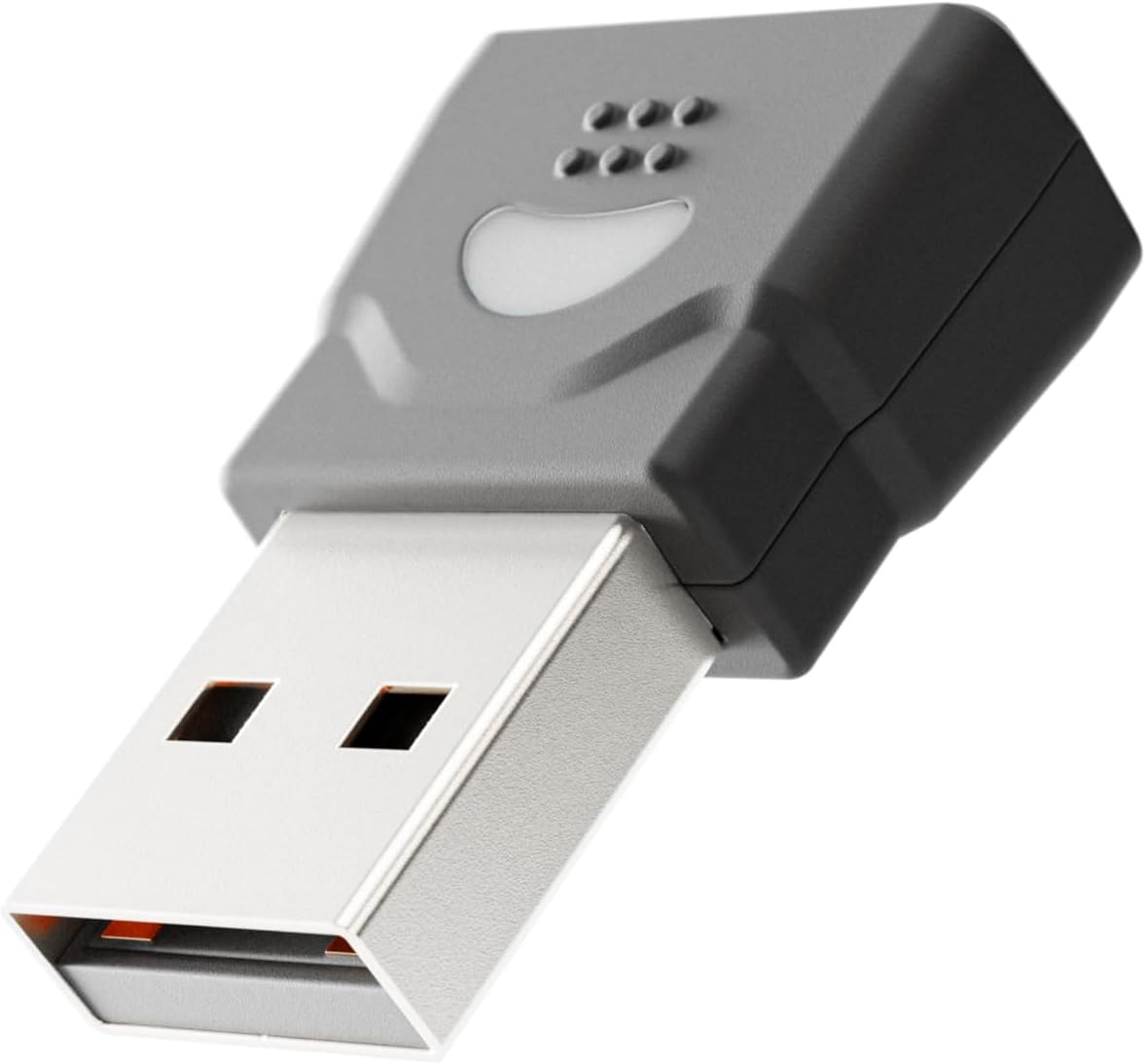
Image: The compact USB-A dongle, used for connecting the headset to a computer without built-in Bluetooth.
- Estación de carga: Provides a convenient dock for charging and storing the headset.
- Adaptador USB-A: Enables wireless connection to computers without Bluetooth or for enhanced stability.
Configuración
1. Cargando os auriculares
Before initial use, fully charge your headset. A full charge takes approximately 2 hours and provides up to 40 hours of talk or music time. A 20-minute fast charge can provide several hours of use.
- Usando a estación de carga: Connect the USB-C charging cable to the charging station and then to a power source (e.g., computer USB port or wall adapter). Place the headset onto the charging station. The headset's indicator light will show charging status.
- Carga directa por USB-C: Connect the USB-C charging cable directly to the USB-C port on the headset and then to a power source.
2. Connecting to a Computer via USB-A Dongle (Plug & Play)
For seamless connection to your computer, use the included USB-A dongle.
- Insert the USB-A dongle into an available USB-A port on your computer.
- The dongle's indicator light will blink, then turn solid when connected to the headset.
- Power on your headset. It will automatically pair with the dongle.
- Your computer should recognize the headset as an audio device. You may need to select "Axtel One BT" as your default audio input/output device in your system settings.
3. Connecting via Bluetooth (Mobile Devices / Computers with Bluetooth)
To connect to a mobile device or a computer with built-in Bluetooth:
- Asegúrese de que os auriculares están apagados.
- Press and hold the Power button on the headset until the indicator light flashes blue and red, indicating pairing mode.
- No teu dispositivo (teléfono intelixente, tableta, ordenador), vai á configuración de Bluetooth e activa Bluetooth.
- Select "Axtel One BT" from the list of available devices.
- Once paired, the headset's indicator light will turn solid blue.
Instrucións de funcionamento
Encendido/apagado
- Encendido: Manteña premido o botón de acendido durante 2 segundos.
- Apagado: Manteña premido o botón de acendido durante 3 segundos.
Controis de chamadas
The headset features integrated controls for managing calls.
- Responder/Finalizar chamada: Prema o botón Chamar unha vez.
- Rexeitar a chamada: Manteña premido o botón Chamar durante 2 segundos.
- Silenciar/Activar o micrófono: Press the Mute button (usually located on the microphone boom or earcup) once during a call.
Controis de audio
- Subir volume: Preme o botón Subir volume.
- Baixar volume: Prema o botón para baixar o volume.
Microsoft Teams and UC Platform Compatibility
The Axtel One BT Stereo Headset is optimized for Microsoft Teams and compatible with other Unified Communications (UC) platforms such as Zoom, Skype, and Webex. For optimal performance, ensure the headset is selected as the default audio device within the application settings.
Indicador luminoso de ocupado
The integrated busy light indicator automatically illuminates when you are on a call, signaling to others that you are occupied and minimizing interruptions.
Mantemento
Limpeza
- Wipe the headset and charging station with a soft, dry, anti-static cloth.
- Non use produtos químicos agresivos, disolventes de limpeza ou deterxentes fortes.
Coidado da batería
- Para prolongar a duración da batería, evite descargar completamente os auriculares con frecuencia.
- Garde os auriculares nun lugar fresco e seco cando non os utilice durante períodos prolongados.
Earcup Maintenance
The vegan leather and memory foam ear cushions are designed for comfort and can be swapped for hygiene and durability. Refer to the manufacturer's website or support for instructions on replacing ear cushions.
Resolución de problemas
| Problema | Causa posible | Solución |
|---|---|---|
| Non hai son dos auriculares | Headset not powered on; Not paired; Incorrect audio device selected; Volume too low. | Ensure headset is powered on. Re-pair the headset. Check computer/device audio settings and select "Axtel One BT". Increase headset and device volume. |
| O micrófono non funciona | Microphone muted; Incorrect input device selected; Microphone boom not positioned correctly. | Unmute the microphone. Check computer/device audio settings and select "Axtel One BT" as input. Ensure microphone boom is close to your mouth. |
| Non se pode conectar a través de Bluetooth | Headset not in pairing mode; Device Bluetooth off; Out of range; Interference. | Put headset in pairing mode (flashing blue/red). Ensure device Bluetooth is on. Move headset closer to device. Turn off other Bluetooth devices temporarily. |
| Problemas de carga | Cable or charging station not connected properly; Faulty cable/port; Headset not seated correctly on station. | Check all cable connections. Try a different USB port or power adapter. Ensure headset is firmly seated on the charging station. |
| Mala calidade de audio | Weak signal; Interference; Low battery. | Move closer to the connected device. Avoid sources of strong electromagnetic interference. Charge the headset fully. |
Especificacións
| Nome do modelo | ONE BT Stereo with charging base |
| Número de modelo | AXH-ONEBTD |
| Tecnoloxía de conectividade | Sen fíos (Bluetooth) |
| Colocación do oído | Sobre orella |
| Factor de forma | Na Orella |
| Cor | Negro |
| Tamaño do controlador de altofalante | 40 mm HD Speakers |
| Micrófono | Dual Noise-Cancelling Microphones (ENC) |
| Capacidade da batería | 500 mAh |
| Tempo de conversa | Ata 40 horas |
| Tempo de Música | Ata 40 horas |
| Tempo de espera | Ata 8.5 días |
| Tempo de carga | Up to 2 hours (via USB-C) |
| Acoustic Protection Technology | Yes, < 118 dB(A) |
| Procesamento de sinal dixital (DSP) | Si |
| Control automático de ganancia (AGC) | Si |
| Indicador luminoso de ocupado | Si |
| Material do coxín | Memory foam with vegan leather finish |
| Compatibilidade da plataforma | Compatible with major communication platforms (MS Teams, Zoom, Skype, Webex) |
| Dongle USB-A | Incluído no paquete |
| Fabricante | Axtel |
Información da garantía
The Axtel One BT Stereo Wireless Headset comes with a 1 ano de garantía limitada do fabricante. This warranty covers defects in materials and workmanship under normal use. Please retain your proof of purchase for warranty claims. For full terms and conditions, please refer to the official Axtel websitio ou póñase en contacto co servizo de atención ao cliente.
Apoio
If you encounter any issues not covered in the troubleshooting section or require further assistance, please contact Axtel customer support. You can find contact information on the official Axtel websitio.
Recursos en liña: For the latest drivers, firmware updates, and FAQs, visit the Axtel support page.