
1. Introdución
This manual provides detailed instructions for the GUSGU G7 Wireless Gaming Controller. Please read this guide thoroughly to ensure proper setup, operation, and maintenance of your device. The GUSGU G7 controller offers advanced features such as an interactive screen, Hall Effect joysticks and triggers, programmable buttons, and broad compatibility across multiple platforms.
2. Produto rematadoview
Familiarize yourself with the components and features of your GUSGU G7 Wireless Gaming Controller.

Figura 2.1: Fronte view of the GUSGU G7 Wireless Gaming Controller, showcasing its transparent red design and button layout.
2.1 Características principais
- Interactive Display Screen: For on-the-fly configuration of settings.
- Joysticks de efecto Hall: Drift-free precision with adjustable dead zones.
- Hall Effect Dual-Stage Desencadenantes: Customizable trigger travel for various game genres.
- Botóns de retroceso programables: Four customizable buttons for macros and shortcuts.
- Sensor xiroscópico de 6 eixes: Para o control de movemento en xogos compatibles.
- Motores de vibración asimétrica: Four levels of haptic feedback.
- Multiple Connectivity Modes: Bluetooth 5.1, 2.4GHz wireless, and USB-C wired.
- Alta taxa de votación: 1000Hz for ultra-fast input in wired/2.4GHz modes.
- Batería de longa duración: 1000mAh battery providing up to 18 hours of gameplay.
3. Configuración
3.1 Carga do controlador
Before initial use, fully charge the controller. Connect the supplied USB-C cable to the controller's charging port and the other end to a compatible USB power source (e.g., PC, USB wall adapter). The interactive screen will indicate charging status. A full charge provides up to 18 hours of gameplay.
3.2 Emparellamento e conexión iniciais
The GUSGU G7 supports three connection methods: Bluetooth, 2.4GHz wireless, and USB-C wired.
3.2.1 2.4GHz Wireless Connection (PC, Android TV)
- Insert the 2.4GHz USB receiver into an available USB port on your device (PC, Android TV).
- Activa o controlador premendo o botón Inicio.
- The controller will automatically attempt to connect to the receiver. The interactive screen will display connection status.
3.2.2 Bluetooth Connection (iOS, Android, Switch, PS4)
- Asegúrate de que o Bluetooth estea activado no teu dispositivo.
- On the controller, press and hold the Home button until the interactive screen displays pairing mode.
- On your device, search for Bluetooth devices and select "GUSGU G7" from the list.
- Once paired, the interactive screen will confirm the connection.
3.2.3 USB-C Wired Connection (PC, Switch, PS4)
- Connect the USB-C cable from the controller to a USB port on your device.
- O controlador cambiará automaticamente ao modo con fíos.
- For Switch and PS4, ensure the console's settings allow for wired controller communication.
4. Funcionamento
4.1 Using the Interactive Display Screen
The interactive screen allows for direct adjustment of controller settings without external software. Press the 'H' button for 3 seconds to enter the menu. Navigate using the D-pad and confirm selections with the 'A' button. Use 'B' to go back.
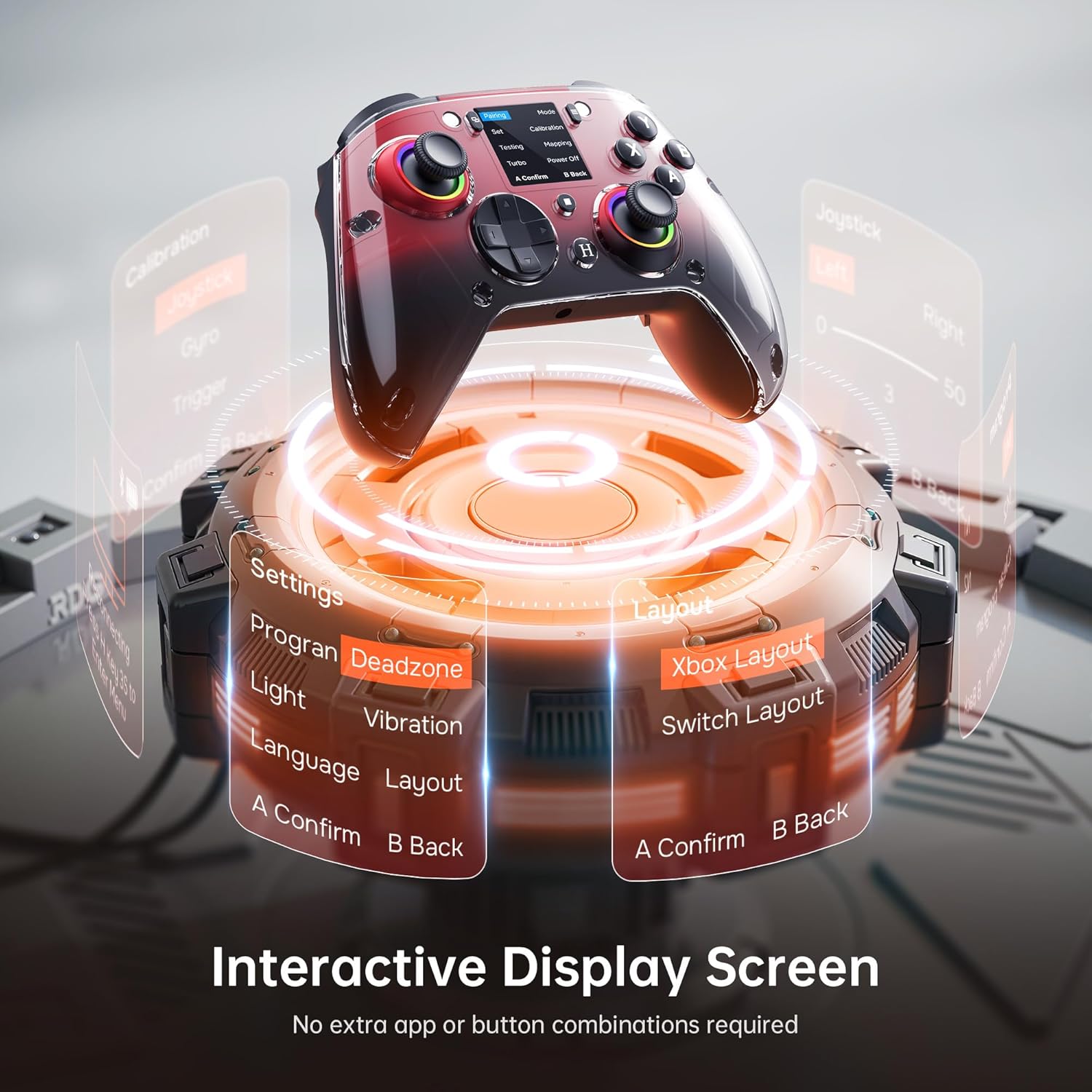
Figure 4.1: The interactive display screen allows for easy adjustment of settings like dead zones, vibration, and button layouts.
- Configuración: Adjust vibration intensity, joystick dead zones, trigger sensitivity, and lighting effects.
- Programa: Configure the four programmable back buttons (M1, M2, N1, N2).
- Deseño: Switch between Xbox and Switch button layouts.
- Calibración: Calibrate joysticks, gyro, and triggers if needed.
4.2 Botóns de retroceso programables
The GUSGU G7 features four programmable back buttons (M1, M2, N1, N2) located on the underside of the controller. These can be assigned to single button presses, sequences, or macros via the interactive screen's "Program" menu. This allows for quick execution of complex commands during gameplay.
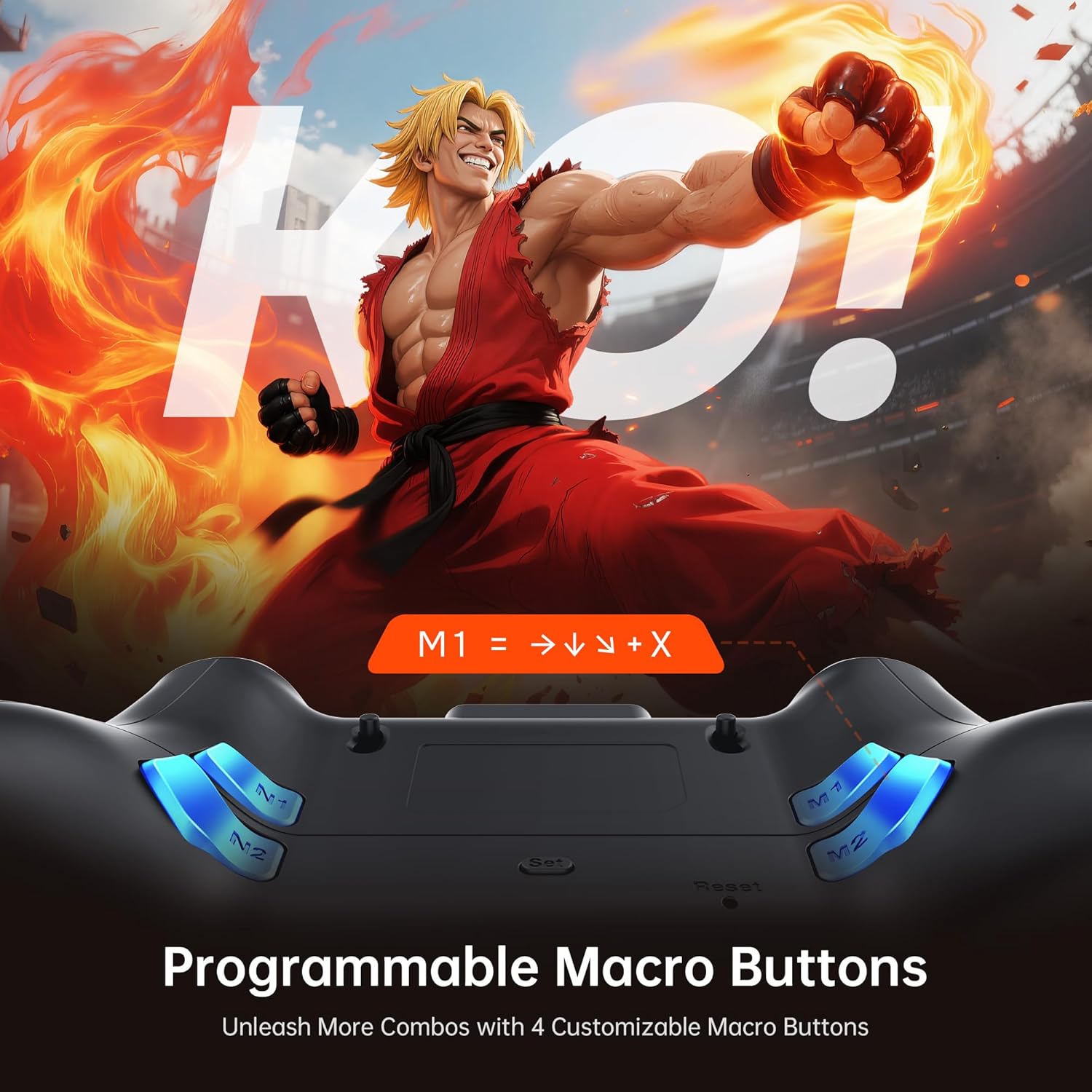
Figure 4.2: The four programmable back buttons (M1, M2, N1, N2) on the rear of the controller, designed for custom macros and shortcuts.
4.3 Hall Effect Joysticks and Adjustable Dead Zones
The Hall Effect joysticks provide precise, drift-free control. Dead zones can be customized from 0% to 50% using the interactive screen to match your preference and game requirements. A smaller dead zone offers more immediate response, while a larger one can prevent unintended inputs.

Figure 4.3: Illustration of the Hall Effect joystick mechanism and the concept of adjustable dead zones for enhanced precision.
4.4 Hall Effect Dual-Stage Triggers
The triggers feature a dual-stage mechanism, allowing you to switch between short-pull for quick actions (e.g., shooting in FPS games) and full-pull for precise control (e.g., acceleration in racing games). This can be configured through the interactive screen.

Figure 4.4: Visual representation of the dual-stage trigger functionality, demonstrating its application in different gaming scenarios.
4.5 Motion Control (6-Axis Gyro Sensor)
The built-in 6-axis gyroscope provides precise motion sensing for games that support tilt or motion-based controls. This enhances immersion in titles requiring realistic steering, aiming, or flight mechanics.
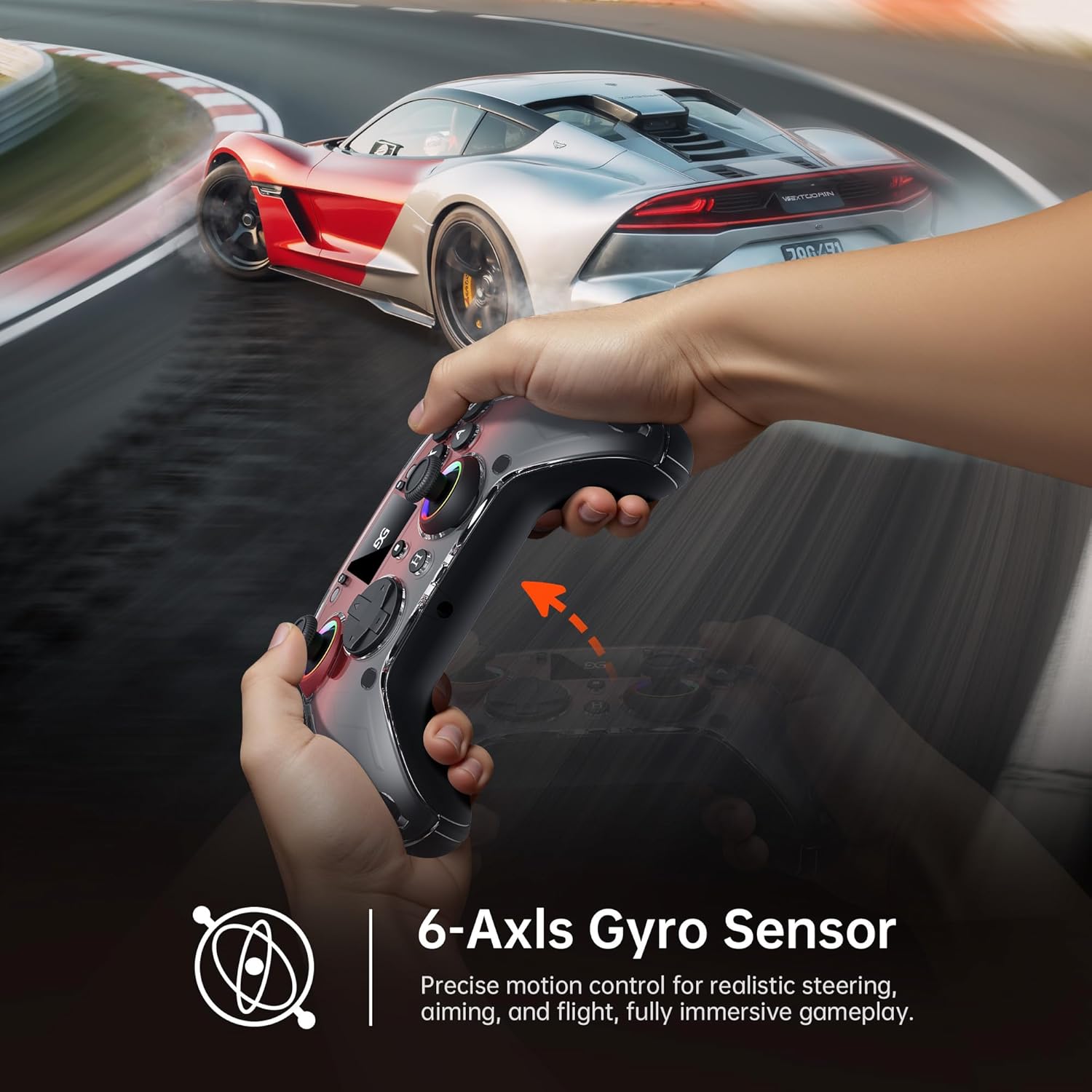
Figure 4.5: A user demonstrating motion control with the GUSGU G7 controller in a racing game, highlighting the 6-axis gyro sensor.
4.6 Retroalimentación de vibración
Dual asymmetric vibration motors provide four levels of haptic feedback, accurately replicating in-game events such as impacts, explosions, or engine rumble. Vibration intensity can be adjusted via the interactive screen.
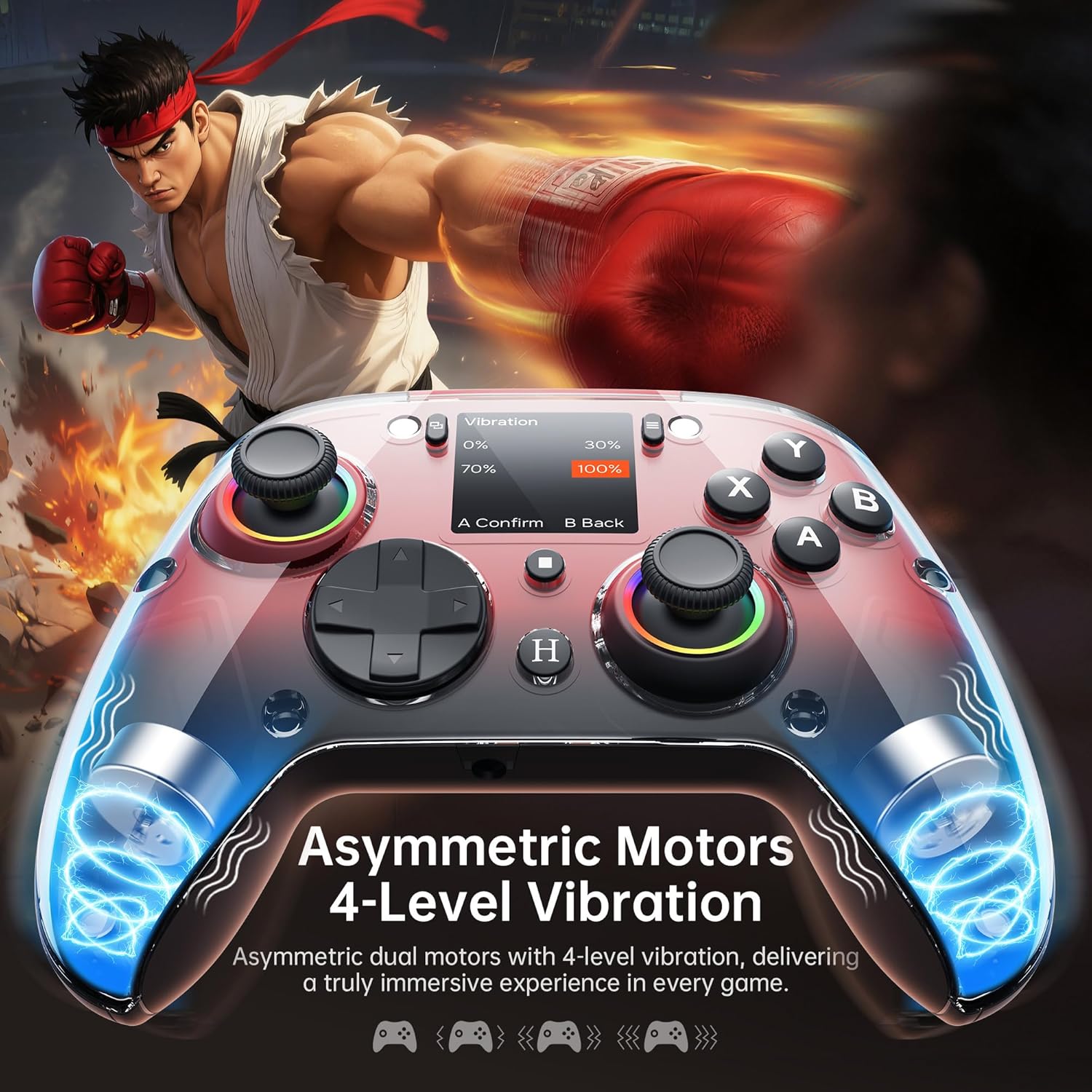
Figura 4.6: Interno view of the GUSGU G7 controller illustrating the asymmetric vibration motors and their four adjustable intensity levels.
4.7 Saída de audio
The 3.5mm headphone jack supports game audio output when the controller is connected via USB cable to a Nintendo Switch (Switch 1) or PlayStation 4. Audio output is not supported on other devices such as PC or mobile phones.
5. Compatibilidade
The GUSGU G7 Wireless Gaming Controller offers broad compatibility across various platforms:

Figure 5.1: The GUSGU G7 controller displayed with a list of compatible devices including PC, mobile, gaming consoles, and in-car systems.
- PC: Windows 10 and above (X-input, D-input modes).
- iOS: iOS 14.0 e superior.
- Android: Android 9.0 e superior.
- Nintendo Switch (NS): Supports Switch mode.
- PlayStation 4 (PS4): Supports PS4 mode.
- Tesla Arcade: Compatible with Tesla in-car gaming systems.
Note: The GUSGU G7 controller is currently not compatible with Xbox or PlayStation 5 consoles.
6. Mantemento
To ensure the longevity and optimal performance of your GUSGU G7 controller, follow these maintenance guidelines:
- Limpeza: Use un pano suave e seco para limpar o controlador. Para a sucidade persistente, dóreo lixeiramenteampEnxágüe o pano con auga. Evite o uso de produtos químicos agresivos ou produtos de limpeza abrasivos.
- Almacenamento: Garde o controlador nun lugar fresco e seco, lonxe da luz solar directa e de temperaturas extremas.
- Coidado da batería: Avoid fully discharging the battery frequently. If storing for an extended period, charge the controller to approximately 50% to preserve battery health.
- Xestión de cables Non dobre nin tire excesivamente do cable USB-C para evitar danalo.
7 Solución de problemas
If you encounter issues with your GUSGU G7 controller, refer to the following common solutions:
| Problema | Solución |
|---|---|
| O controlador non se acende. | Ensure the controller is charged. Connect it to a power source using the USB-C cable. |
| O controlador non se conecta sen fíos. |
|
| Joystick drift or inaccurate input. |
|
| Os botóns programables non funcionan. | Verify the button assignments in the "Program" menu on the interactive screen. Ensure they are correctly configured. |
| No audio from 3.5mm jack. | Ensure the controller is connected via USB-C to a Nintendo Switch (Switch 1) or PlayStation 4. Audio is not supported on PC or mobile devices. Check device audio settings. |
8. Especificacións
| Característica | Detalle |
|---|---|
| Número de modelo | GUSGU G7 |
| Conectividade | Bluetooth 5.1, sen fíos de 2.4 GHz, USB-C con cable |
| Taxa de votación | 1000Hz (Wired/2.4GHz), 250Hz (Bluetooth) |
| Joysticks | Hall Effect, Adjustable Dead Zones (0-50%) |
| Disparadores | Hall Effect, Dual-Stage with Adjustable Travel |
| Botóns programables | 4 Back Buttons (M1, M2, N1, N2) |
| Sensor de movemento | Xiroscopio de 6 eixes |
| Vibración | Dual Asymmetric Motors, 4 Levels Adjustable |
| Capacidade da batería | 1000 mAh |
| Duración da batería | Ata 18 horas |
| Jack de audio | 3.5mm (Switch 1, PS4 via USB only) |
| Compatibilidade | PC (Win 10+), iOS (14.0+), Android (9.0+), NS, PS4, Tesla Arcade |
| Dimensións | 7.72 x 5.16 x 2.83 polgadas |
| Peso | 16 onzas |
9. Garantía e soporte
GUSGU is committed to providing quality products and customer satisfaction. While specific warranty details are not provided in this manual, GUSGU offers lifetime customer support for its products.
For further assistance, technical support, or warranty inquiries, please visit the official GUSGU websitio web ou póñase en contacto co seu departamento de atención ao cliente a través do establecemento onde se comprou o produto.
Tamén podes visitar o GUSGU Store on Amazon para obter máis información e recursos de apoio.