
Introdución
The ASUS TUF Gaming VG249QM5A is a 23.8-inch Full HD monitor designed for an enhanced gaming experience. It incorporates a 240Hz refresh rate and 0.3ms response time, alongside AMD FreeSync™ Premium and NVIDIA® G-SYNC® compatibility for smooth visuals. This monitor offers improved color performance, Gaming AI features, and convenient control via the DisplayWidget Center.
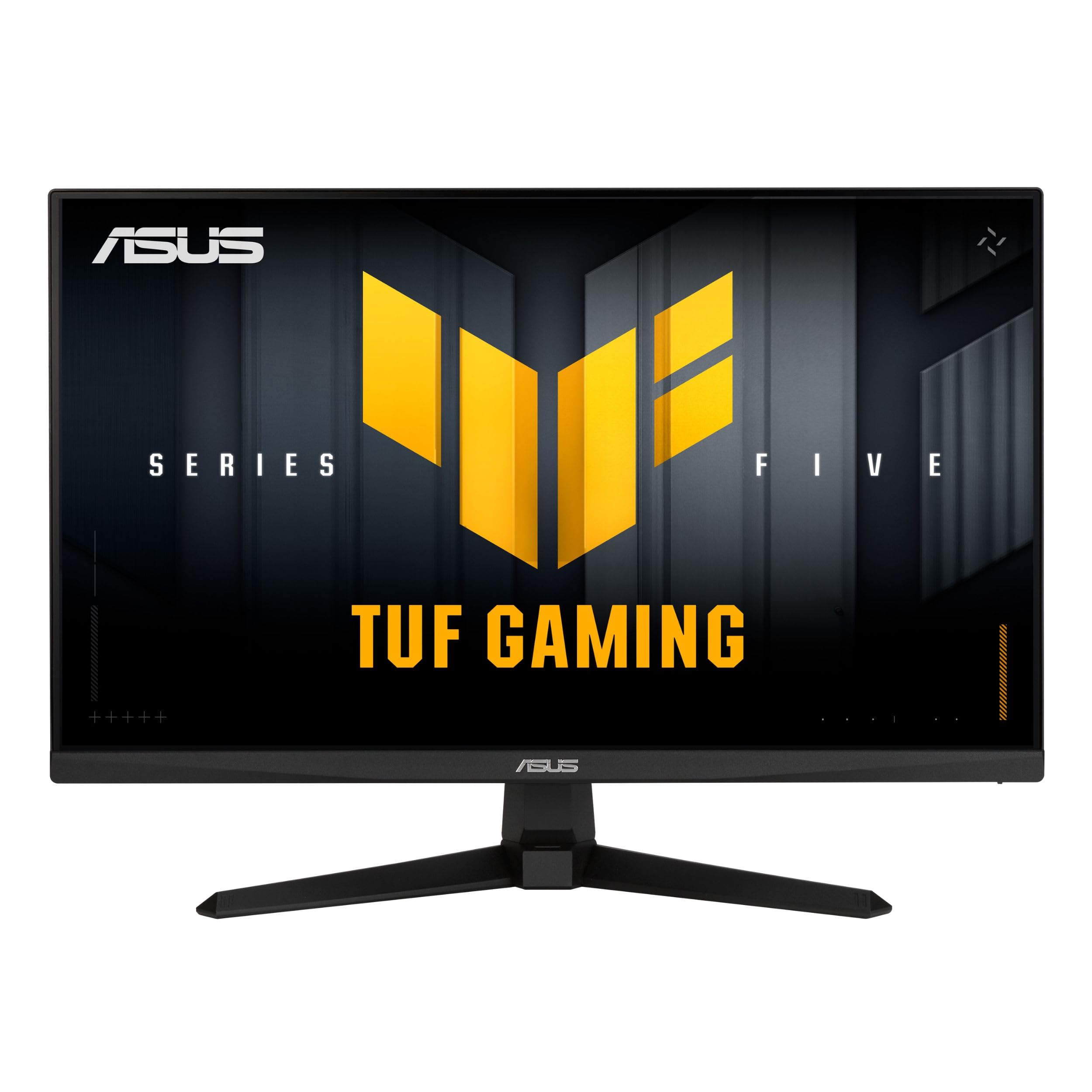
Imaxe: Fronte view of the ASUS TUF Gaming VG249QM5A monitor.
O que hai na caixa
Verify that all the following items are present in your product packaging:
- ASUS TUF Gaming VG249QM5A Monitor
- Cable DisplayPort
- Desaparafusador en forma de L
- Cable de alimentación
- Guía de inicio rápido
- Tarxeta de garantía
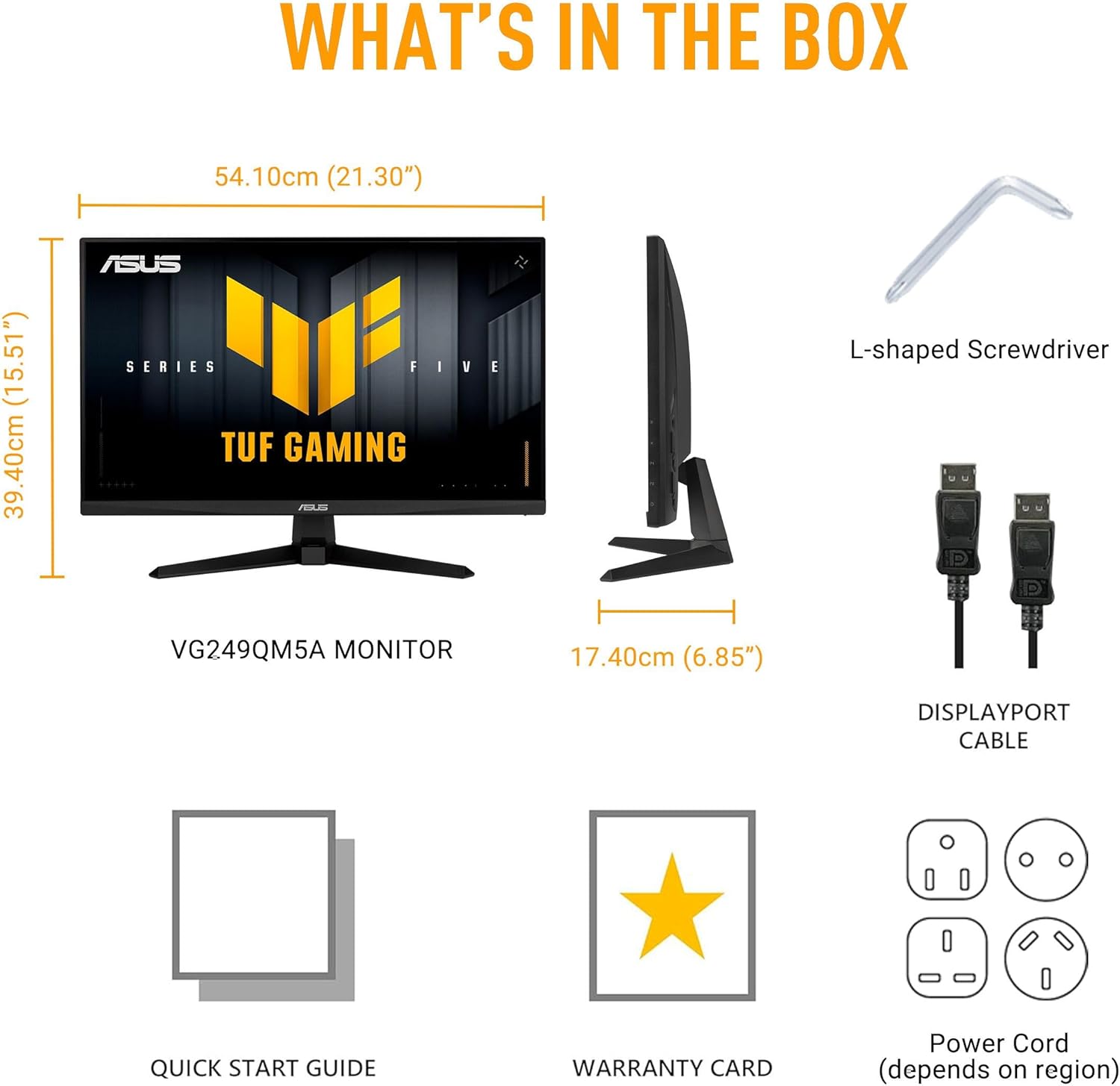
Image: Diagram showing the monitor, DisplayPort cable, L-shaped screwdriver, power cord, quick start guide, and warranty card included in the box.
Configuración
1. Montaxe do monitor
Carefully remove the monitor and its components from the packaging. Attach the stand base to the stand neck, then secure the assembled stand to the back of the monitor panel. Ensure all connections are firm.
2. Cables de conexión
Conecta os cables necesarios ao monitor e ao ordenador:
- Cable de alimentación: Connect one end of the power cord to the monitor's power input and the other end to a power outlet.
- Cable DisplayPort: For optimal performance, connect the included DisplayPort cable from your computer's graphics card to the DisplayPort input on the monitor.
- Cables HDMI: Alternatively, you can use HDMI cables to connect to the monitor's HDMI 2.0 ports.
- Conector para auriculares: Connect your headphones or external speakers to the earphone jack for audio output.

Image: The monitor connected to a desktop computer with various cables.

Imaxe: Primeiro plano view of the monitor's rear ports, including two HDMI 2.0 ports, one DisplayPort, and an earphone jack.
Funcionamento do monitor
Key Performance Features
- Panel IPS rápido: Experience vibrant colors and wide viewángulos de inflexión.
- Frecuencia de actualización de 240 Hz: Provides extremely fluid visuals for fast-paced gaming.
- 0.3ms Response Time (min): Minimizes motion blur and ghosting for sharp images.
- G-SYNC Compatible & FreeSync Premium: Ensures tear-free and stutter-free gameplay by synchronizing the monitor's refresh rate with your GPU's frame rate.
- Extreme Low Motion Blur Sync (ELMB SYNC): Enables ELMB simultaneously with variable refresh rate technologies, further reducing ghosting and tearing.
- Gama de cores sRGB do 99 %: Delivers accurate and rich color reproduction.

Image: Infographic highlighting key upgrades including speed (0.3ms, 240Hz), fluidity (FreeSync Premium, G-SYNC, ELMB SYNC), Gaming AI, colors (99% sRGB), and simplicity (DisplayWidget Center).

Imaxe: A mostra do monitorasing a high-speed gaming scene, emphasizing its fast IPS, Full HD, 0.3ms, and 240Hz capabilities.

Image: A visual comparison demonstrating improved game fluidity with Variable Refresh Rate (VRR) enabled, highlighting G-SYNC, FreeSync Premium, and ELMB SYNC.
Gaming AI Technology
The monitor includes TUF Gaming A.I. technology with AI-powered features to enhance your gaming experience:
- Dynamic Crosshair: Ofrece unha mira en pantalla para mellorar a precisión do apuntado.
- AI Visual: Optimizes visual settings based on game content.

Image: Demonstrations of Dynamic Crosshair (before and after) and AI Visual (before and after) features in gaming scenarios.
Centro DisplayWidget
The DisplayWidget Center software allows for easy access to On-Screen Display (OSD) settings and monitor adjustments using your mouse. This provides a user-friendly interface for customizing various display parameters, managing firmware updates, and controlling multi-screen setups.

Image: A screenshot of the DisplayWidget Center interface, showing options for customizable settings, firmware update notifications, and multiscreen control.
Eye Care Features and Ergonomic Design
This monitor incorporates features designed to reduce eye strain during extended use and offers flexible positioning options:
- Pantalla antirreflexo: Reduces reflections from ambient light, improving visibility.
- Filtro de luz azul: Adjustable levels to reduce harmful blue light emissions.
- Tecnoloxía sen parpadeos: Eliminates screen flickering to minimize eye fatigue.
- Deseño ergonómico: The stand allows for tilt, swivel, pivot, and height adjustments to achieve a comfortable viewposición de ing.
Video: An official ASUS video demonstrating the eye care features (anti-glare, blue light filter, flicker-free) and ergonomic design of ASUS monitors, including adjustable stand functionality.
Mantemento
Para garantir a lonxevidade e o rendemento óptimo do seu monitor, siga estas pautas de mantemento:
- Limpeza da pantalla: Limpe a pantalla con suavidade cun pano suave e sen pelusa. Para marcas difíciles, d suavementeampEnxágüe o pano con auga ou cun limpador de pantallas especializado. Evite produtos químicos agresivos ou materiais abrasivos.
- Limpeza do Casing: Use un pano suave e seco para limpar o monitor casing.
- Ventilación: Asegúrate de que as aberturas de ventilación do monitor estean despexadas e non obstruídas para evitar o sobrequecemento.
- Manexo: Evite colocar obxectos pesados sobre o monitor ou aplicar unha presión excesiva sobre a pantalla.
- Apagado: Apague sempre o monitor cando non o use durante períodos prolongados.
Resolución de problemas
Se tes problemas co monitor, consulta os seguintes pasos habituais para a resolución de problemas:
- Sen pantalla/alimentación:
- Comprobe se o cable de alimentación está conectado correctamente tanto ao monitor como á toma de corrente.
- Asegúrate de que o botón de acendido do monitor estea premido.
- Verifique que a toma de corrente funcione.
- Sen sinal:
- Confirm that the video cable (DisplayPort or HDMI) is securely connected to both the monitor and your computer's graphics card.
- Ensure the correct input source is selected on the monitor (use the OSD menu).
- Comprobe se o seu ordenador está acendido e non está en modo de suspensión.
- Problemas de calidade de imaxe (cores borrosas, distorsionadas, incorrectas):
- Axusta a resolución e a frecuencia de actualización do teu ordenador para que coincidan coa resolución nativa do monitor (1920 x 1080) e a frecuencia de actualización desexada (ata 240 Hz).
- Reset the monitor's display settings to factory defaults via the OSD menu.
- Actualiza os controladores da túa tarxeta gráfica.
- Check for physical damage to the video cable.
- Pantalla parpadeante:
- Ensure Flicker-Free technology is enabled (if applicable via OSD or DisplayWidget Center).
- Check for external interference from other electronic devices.
If the issue persists after attempting these steps, please contact ASUS customer support.
Especificacións
| Característica | Especificación |
|---|---|
| Marca | ASUS |
| Número de modelo | VG249QM5A |
| Tamaño da pantalla | 24 polgadas (23.8 polgadas viewcapaz) |
| Resolución de pantalla | 1920 x 1080 píxeles (Full HD) |
| Resolución máxima de pantalla | 1920 x 1080 píxeles |
| Taxa de actualización | 240 Hz |
| Tempo de resposta | 0.3ms (min) |
| Tipo de panel | IPS rápido |
| Gama de cores | 99 % sRGB |
| Tecnoloxía de sincronización adaptativa | G-SYNC Compatible, FreeSync Premium |
| Relación de aspecto | 16:9 |
| Descrición da superficie da pantalla | Mate |
| Conectividade | DisplayPort, HDMI 2.0 (x2), Earphone Jack |
| Peso do elemento | 7.5 libras |
| Dimensións do produto (LxWxH) | 6.9 x 21.3 x 15.5 polgadas |
| Cor | NEGRO |
Garantía e Soporte
The ASUS TUF Gaming VG249QM5A monitor typically comes with a 3 anos de garantía do fabricante. Please refer to the included Warranty Card for specific terms, conditions, and registration details.
Para obter asistencia técnica, descargas de controladores ou máis axuda, visite o sitio web de asistencia oficial de ASUS websitio:
When contacting support, have your monitor's model number (VG249QM5A) and serial number readily available.