
1. Introdución
This manual provides detailed instructions for the setup, operation, and maintenance of your Yoidesu 4G LTE USB Modem. This device functions as a mobile WiFi hotspot, allowing multiple terminals to access the internet via a 4G LTE network. Please read this manual thoroughly before using the product to ensure proper functionality and safety.
2. Contido do paquete
Verifica que todos os elementos estean presentes no paquete:
- 1 x Portable WiFi Modem (Yoidesu 4G LTE USB Modem)
- 1 x Manual de usuario (este documento)
3. Especificacións
| Característica | Descrición |
|---|---|
| Tipo de elemento | WiFi Modem |
| Material | ABS |
| Enderezo IP predeterminado | 192.168.100.1 |
| Bandas LTE compatibles | B1, B3, B7, B8, B20, B38, B40, B41 |
| Velocidade máxima | Ata 150 Mbps |
| SSID predeterminado | 4G--xxxx (where xxxx is a unique identifier) |
| Default WiFi Key | 1234567890 |
| Tipo de ranura para tarxetas | Standard SIM card (not included) |
| Cor | Branco |
4. Instrucións de configuración
Follow these steps to set up your 4G LTE USB Modem:
- Inserir tarxeta SIM: Locate the standard SIM card slot on the modem. Carefully insert your activated standard SIM card into the slot. Ensure the SIM card is correctly oriented as indicated on the device or in the diagram below.

Figure 4.1: Yoidesu 4G LTE USB Modem with SIM card slot visible.
- Conectar á enerxía: Plug the USB modem into a power source. This can be a USB port on a computer, a USB wall adapter, or a power bank. The device will power on automatically.
- Luces indicadoras: Observe the indicator lights on the modem. A steady light typically indicates a successful connection to the 4G network. Refer to the troubleshooting section if the light behavior is unexpected.

Figure 4.2: The modem providing WiFi connectivity to multiple devices.
5. Instrucións de funcionamento
Once the modem is powered on and connected to the 4G network, you can begin using it as a WiFi hotspot.
5.1 Conexión de dispositivos
- Activar WiFi: On your device (e.g., smartphone, laptop, tablet), enable WiFi.
- Busca de redes: Busca available WiFi networks. You should see a network named "4G--xxxx" (where xxxx is a unique identifier for your modem).
- Conectar: Select the modem's network and enter the default WiFi key: 1234567890.
- Múltiples dispositivos: The modem supports up to 8 connected devices simultaneously, including mobile phones, laptops, computers, and smart TVs.
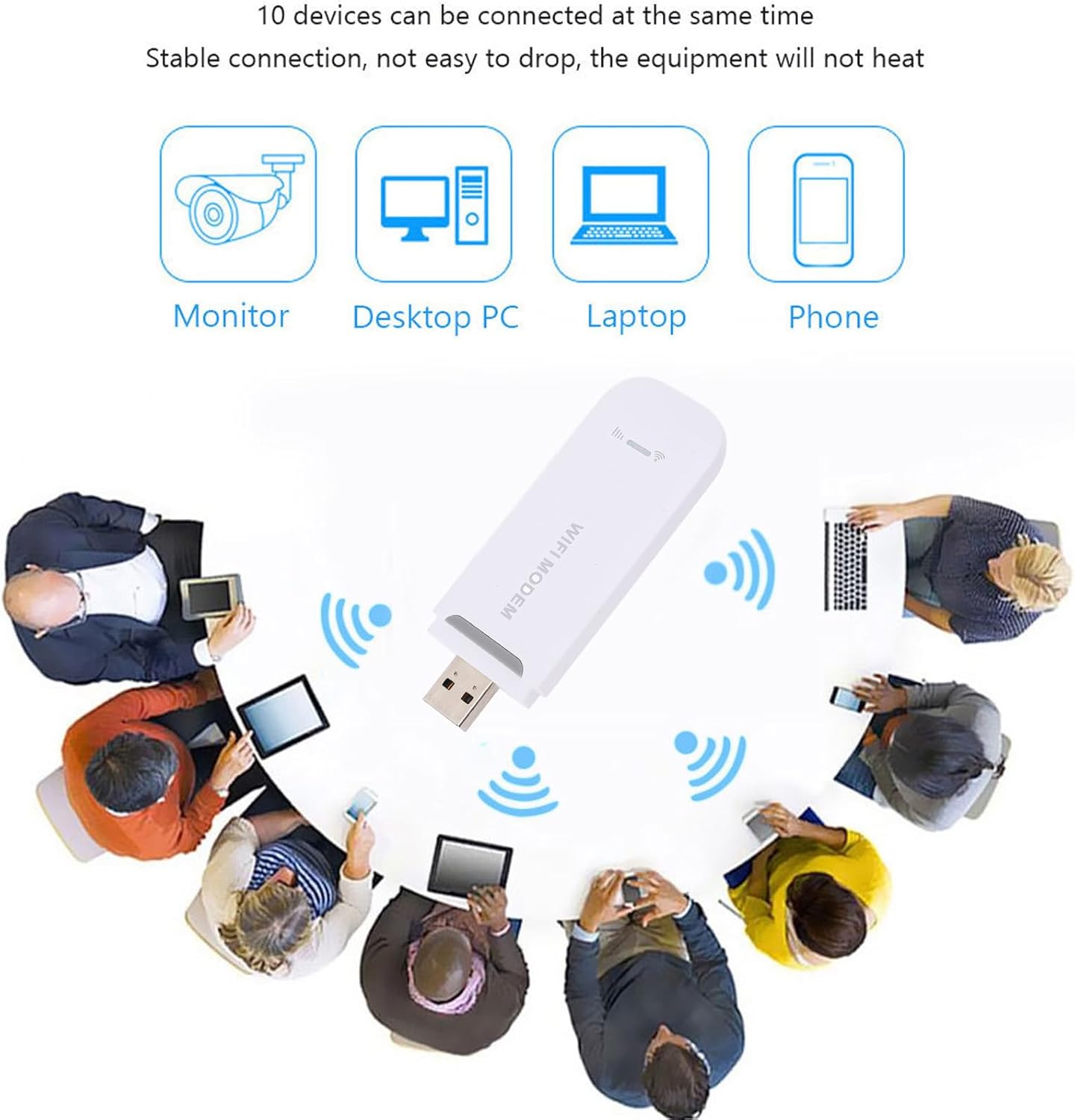
Figure 5.1: Multiple devices connected to the modem's WiFi network.
5.2 Características de seguridade
The Yoidesu 4G LTE USB Modem utilizes WPA and WPA2 WiFi encryption protocols to secure your network and prevent unauthorized access. It is recommended to change the default WiFi key for enhanced security.

Figure 5.2: Device security features.
5.3 Accessing Modem Settings
To access advanced settings, such as changing the SSID or WiFi password, connect a device to the modem's WiFi network and open a web browser. Enter the default IP address 192.168.100.1 into the address bar. You may be prompted for a username and password (refer to the modem's label or packaging for default credentials, if any).
6. Mantemento
To ensure the longevity and optimal performance of your Yoidesu 4G LTE USB Modem, follow these maintenance guidelines:
- Limpeza: Use a soft, dry cloth to clean the exterior of the modem. Avoid using liquid cleaners or abrasive materials.
- Almacenamento: Store the modem in a cool, dry place away from direct sunlight, extreme temperatures, and humidity when not in use.
- Manexo: Manexa o dispositivo con coidado. Evita deixalo caer ou someterlo a impactos fortes.
- Ventilación: Ensure the modem has adequate ventilation during operation to prevent overheating.
7 Solución de problemas
If you encounter issues with your Yoidesu 4G LTE USB Modem, refer to the following common problems and solutions:
| Problema | Causa posible | Solución |
|---|---|---|
| Sen conexión a internet | SIM card not inserted correctly or not activated. No 4G signal. Incorrect WiFi password. | Ensure SIM card is properly inserted and active. Move to an area with better 4G coverage. Verify WiFi password. Restart the modem. |
| O dispositivo non se acende | No power supply. Faulty USB port/adapter. | Connect to a different USB power source. Try a different USB port or wall adapter. |
| Velocidade de internet lenta | Weak 4G signal. Too many connected devices. Network congestion. | Relocate the modem for better signal. Disconnect unnecessary devices. Contact your mobile network provider. |
| Non se pode conectar á rede wifi | Incorrect WiFi password. Modem not broadcasting WiFi. | Double-check the WiFi password. Ensure the modem is powered on and indicator lights are normal. Restart the modem and your connecting device. |
8. Garantía e soporte
Your Yoidesu 4G LTE USB Modem is covered by a manufacturer's warranty for 90 days from the date of purchase. This warranty covers defects in materials and workmanship under normal use.
For technical support, warranty claims, or further assistance, please contact Yoidesu customer service or visit the official Yoidesu store page:
Yoidesu Store: https://www.amazon.com/stores/Yoidesu/page/9E42D849-CC6F-49C2-A653-8E737C09458E
Please have your product model (B0F8C11LBZ) and purchase information ready when contacting support.