
VGN F1 Pro Max
VGN F1 Pro Max Wireless Gaming Mouse User Manual
Model: F1 Pro Max
Introdución
This manual provides detailed instructions for the setup, operation, maintenance, and troubleshooting of your VGN F1 Pro Max Wireless Gaming Mouse. Please read this manual thoroughly before using the product to ensure optimal performance and longevity.

Image: VGN F1 Pro Max Wireless Gaming Mouse, showcasing its ergonomic design and white finish.
Contido do paquete
Verifica que todos os elementos estean presentes no paquete:
- VGN F1 Pro Max Mouse
- USB Type-A Receiver
- Paracord style USB-C to USB-A Cable
- USB Extension Adapter
- Cinta de agarre do rato
- Manual de usuario (este documento)

Image: Contents of the VGN F1 Pro Max Mouse package, including the mouse, cables, receiver, and grip tape.
Produto rematadoview
Familiarize yourself with the various components of your VGN F1 Pro Max mouse:

Image: Diagram illustrating the various buttons and features of the VGN F1 Pro Max mouse, including the LED indicator, scroll wheel, left/right/forward/backward buttons, DPI button, optical sensor, power switch, receiver storage slot, and feet.
- Botóns esquerda/dereita: Funcións estándar de clic do rato.
- Roda de desprazamento: Para a función de desprazamento e clic central.
- Botóns de avance/retroceso: Side buttons for navigation, customizable via software.
- Botón DPI: Located on the underside, used to cycle through DPI settings.
- Interruptor de alimentación: On/Off switch on the underside.
- Sensor óptico: PAW 3395 sensor for tracking movement.
- Receiver Storage Slot: Compartment on the underside to store the USB receiver.
- Porto USB-C: Para carga e conexión por cable.
Configuración
1. Cargar o rato
Before initial use, fully charge the mouse. Connect the USB-C end of the provided cable to the mouse and the USB-A end to a powered USB port on your computer or a USB charger. The LED indicator will show charging status.
- Luz laranxa: Carga en curso.
- Luz verde: Battery level normal (fully charged or sufficient charge).
- Luz vermella: Battery low, recharge soon.
2. Connecting Wirelessly (2.4GHz)
- Locate the USB Type-A receiver. It may be stored in the slot on the underside of the mouse.
- Plug the USB receiver into an available USB-A port on your computer. For optimal signal, use the included USB Extension Adapter to position the receiver closer to the mouse.
- Acenda o rato usando o interruptor de alimentación que se atopa na parte inferior.
- Your computer should automatically detect the mouse.
3. Connecting Wired
To use the mouse in wired mode, connect the USB-C end of the provided cable directly to the mouse and the USB-A end to your computer. The mouse will function immediately and charge simultaneously.
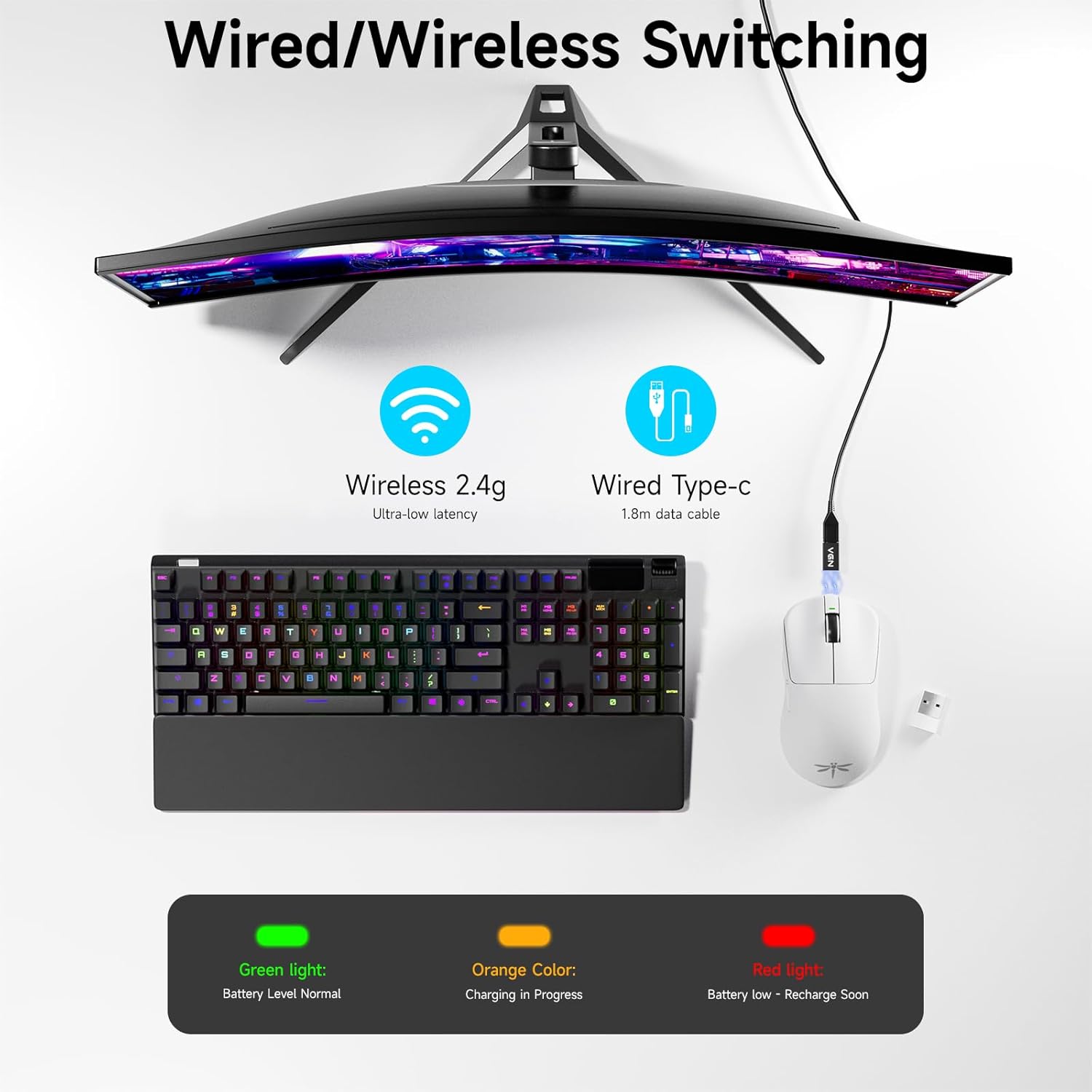
Image: Diagram showing the VGN F1 Pro Max mouse connected via 2.4GHz wireless with a dongle and via USB-C cable for wired mode, along with battery indicator lights.
4. Installing VGN HUB Driver (Optional for Customization)
For advanced customization of buttons, DPI settings, and polling rate, download and install the VGN HUB driver software from the official VGN website. This software allows you to remap buttons, create macros, and fine-tune performance settings.
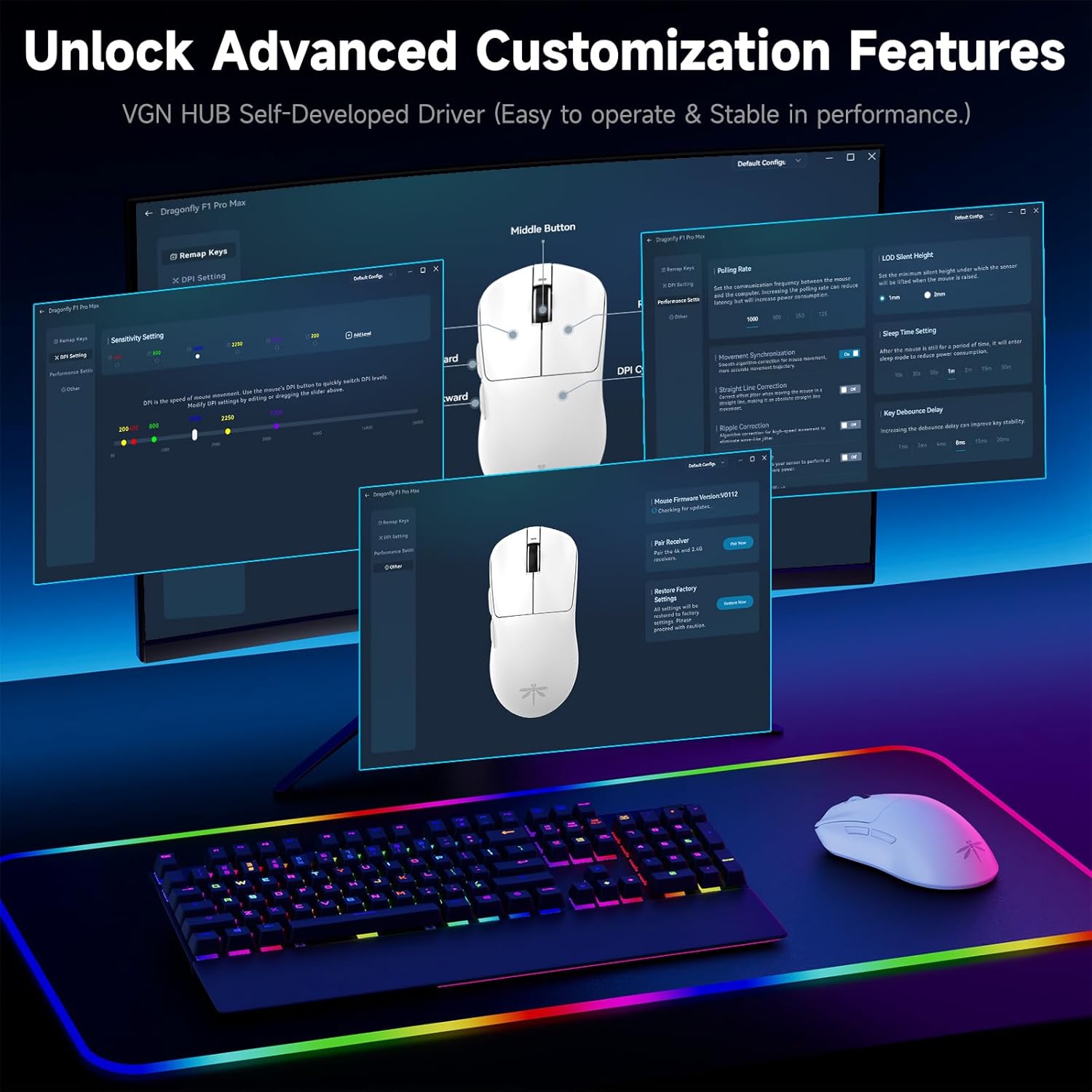
Image: Screenshot of the VGN HUB software interface, demonstrating options for button remapping, DPI settings, and performance adjustments.
5. Applying Mouse Grip Tape (Optional)
The package includes optional grip tape. You can apply this tape to the sides or buttons of the mouse for enhanced grip and comfort, according to your preference.
Instrucións de funcionamento
Encendido/apagado
Use the physical switch on the underside of the mouse to turn it on or off. Turning off the mouse when not in use conserves battery life.
Axuste de DPI
The mouse features an adjustable DPI range from 50 to 26,000. Press the DPI button on the underside of the mouse to cycle through preset DPI levels. The LED indicator may change color or flash to indicate the current DPI setting. Fine-tuning and custom DPI steps can be configured using the VGN HUB software.

Image: Illustration of the VGN F1 Pro Max mouse highlighting its adjustable DPI range from 50 to 26,000.
Taxa de votación
The mouse supports a polling rate of 1000Hz by default. An additional receiver (often included or available separately) may be required to achieve a 4000Hz polling rate. The polling rate can be adjusted via the VGN HUB software.
Botóns programables
The VGN F1 Pro Max features 6 programmable buttons. These buttons can be customized using the VGN HUB software to assign specific functions, macros, or key bindings according to your preferences.
Indicador de estado da batería
The LED indicator near the scroll wheel provides visual feedback on the battery status:
- Verde: Nivel normal de batería.
- Laranxa: Carga en curso.
- Vermello: Low battery, requires recharging.
Automatic Sleep and Energy Saving
To conserve battery, the mouse will enter a light sleep mode after 1 minute of inactivity and a deep sleep mode after 5 minutes of inactivity. Moving the mouse or pressing any button will wake it up.
Mantemento
Limpeza do rato
Regularly clean your mouse to maintain performance and hygiene. Use a soft, dry, lint-free cloth to wipe the surface. For stubborn dirt, slightly dampEnxágüe o pano con auga ou unha solución de limpeza suave. Evite o uso de produtos químicos agresivos ou materiais abrasivos.
Mantemento de sensores
Ensure the optical sensor on the underside of the mouse remains clean and free of dust or debris. Use a cotton swab or compressed air to gently clean the sensor area if tracking issues occur.
Coidado da batería
To prolong battery life, avoid fully discharging the mouse frequently. Recharge the mouse when the red LED indicator appears. Store the mouse in a cool, dry place when not in use for extended periods.

Image: Illustration emphasizing the VGN F1 Pro Max mouse's 200-hour battery life, indicating long usage between charges.
Resolución de problemas
O rato non responde
- Asegúrese de que o rato estea acendido.
- Comprobe o nivel da batería; recargue se é necesario.
- For wireless connection, ensure the USB receiver is securely plugged into a working USB port and is within range. Try a different USB port.
- Para a conexión con cable, asegúrate de que o cable USB-C estea conectado correctamente tanto ao rato como ao ordenador. Proba cun porto ou cable USB diferente.
- Reinicia o teu ordenador.
Intermittent Connectivity or Lag
- Ensure the USB receiver is not obstructed and is close to the mouse. Use the USB Extension Adapter if needed.
- Avoid placing the receiver near other wireless devices or sources of electromagnetic interference (e.g., Wi-Fi routers, other wireless peripherals).
- Asegúrate de que o rato estea completamente cargado.
DPI or Button Customization Issues
- Ensure the VGN HUB software is correctly installed and updated to the latest version.
- Verify that the mouse is connected to the computer when attempting to apply settings via the software.
- Save changes within the software after making adjustments.
Especificacións
| Marca | VGN |
| Número de modelo | F1 Pro Max |
| Tecnoloxía de conectividade | 2.4GHz Wireless, USB-C Wired |
| Tecnoloxía de detección de movemento | Optical (PAW 3395 Sensor) |
| Rango de DPI | 50 - 26,000 DPI (axustable) |
| Velocidade de seguimento IPS | 650 IPS |
| Taxa de votación | 1000Hz (up to 4000Hz with additional receiver) |
| Botóns | 6 Botóns programables |
| Tipo de cambio | Kailh Black Gold Mamba (100 Million Clicks) |
| Duración da batería | Ata 200 horas |
| Peso do elemento | 55 g (1.94 onzas) |
| Dimensións do produto | 4.8 x 2.5 x 0.1 polgadas |
| Compatibilidade | Windows, Mac, Linux, Chrome OS, PS/Xbox/Steam Deck |

Image: Close-up of a Kailh Black Gold Mamba switch, highlighting the durable components used in the mouse buttons.
Garantía e Soporte
VGN provides comprehensive support for its products:
- Garantía: A 12-month warranty covers inherent product issues from the date of purchase.
- Soporte técnico: Lifetime technical assistance is available for all VGN products.
- Atención ao cliente: A 24/7 online support team is available to assist with any damage, malfunctions, or missing parts. Please contact VGN customer service for assistance.
For further assistance, please visit the official VGN websitio web ou póñase en contacto directamente co servizo de atención ao cliente.
Ask a question about this manual
Ask about setup, troubleshooting, compatibility, parts, safety, or missing instructions. Manuals+ will review the question and use this page’s manual context to help answer it.