
1. Introdución
The Broadlink RM5plus is a 5th-generation universal smart remote designed to control over 5,000 infrared (IR) appliances. This device acts as a smart home hub, enabling remote control and automation of your TV, air conditioner, fans, set-top boxes, and other IR 38KHz devices. It integrates with voice assistants like Alexa and Google Home for hands-free operation. This manual provides essential information for setting up, operating, and maintaining your RM5plus device.

Image 1.1: The Broadlink RM5plus central hub with icons representing various IR-controlled devices it can manage, including set-top boxes, TVs, audio systems, fans, and air conditioners.
2. Contido do paquete
Verifique que todos os elementos estean presentes no seu paquete:
- Broadlink RM5plus Hub
- Cable USB
3. Produto rematadoview
The RM5plus features a compact design with essential indicators and ports for easy use.

Imaxe 3.1: Parte dianteira e traseira view of the Broadlink RM5plus, highlighting the LED indicator, USB charging port, and reset button. Dimensions are also provided: 1.70 inches (4.32 cm) height and 1.89 inches (4.80 cm) diameter.
Estado do indicador LED
- Azul intermitente: O dispositivo está en modo de sincronización.
- Azul Sólido: Device is connected to Wi-Fi and operating normally.
- Sen luz: Device is powered off or in standby mode.
4. Configuración
Follow these steps to set up your Broadlink RM5plus.

Image 4.1: Visual guide for the initial setup process, illustrating checking the LED, connecting to 2.4GHz Wi-Fi, adding IR devices via the app, and linking with voice assistants.
4.1. Descarga e instalación da aplicación
- Descarga o BroadLink aplicación desde a tenda de aplicacións do teu teléfono intelixente (iOS ou Android).
- Rexístrate para obter unha nova conta ou inicia sesión se xa tes unha.
4.2. Powering On and Wi-Fi Connection
- Connect the RM5plus to a power source using the provided USB cable.
- Ensure the LED indicator is flashing blue, indicating it's in pairing mode. If not, press and hold the reset button until it flashes.
- Open the BroadLink app, tap 'Add Device', and follow the on-screen instructions to connect the RM5plus to your 2.4GHz Wi-Fi network.
- Importante: The RM5plus only supports 2.4GHz Wi-Fi. It is not compatible with 5GHz or mesh routers. Your Wi-Fi SSID and password must be under 32 characters.
4.3. Adding IR Devices
Once the RM5plus is connected to Wi-Fi, you can add your infrared-controlled appliances.
- In the BroadLink app, select your RM5plus device.
- Tap 'Add Appliance' and choose the type of device (e.g., TV, AC, Fan).
- The app will guide you through selecting a brand from its database or using the manual IR learning function if your device is not listed.
5. Instrucións de funcionamento
5.1. Remote Control from Anywhere
Control your IR appliances remotely using the BroadLink app from any location with internet access.
- Ensure your RM5plus is connected to your home Wi-Fi and has a stable internet connection.
- Use the virtual remote controls within the BroadLink app to operate your devices.

Image 5.1: A visual representation of remote control functionality, showing a user operating an air conditioner via a smartphone, with the RM5plus acting as the intermediary.
5.2. Hands-Free Voice Control
Integrate your RM5plus with Alexa or Google Home for voice-activated control.
- Link your BroadLink account with Alexa or Google Home through their respective apps.
- Use voice commands for preset functions (e.g., "Alexa, turn on the TV," "Hey Google, set AC to 22 degrees").
- Nota: Buttons learned manually via "UserDefine" may not be directly recognized by third-party voice assistants.
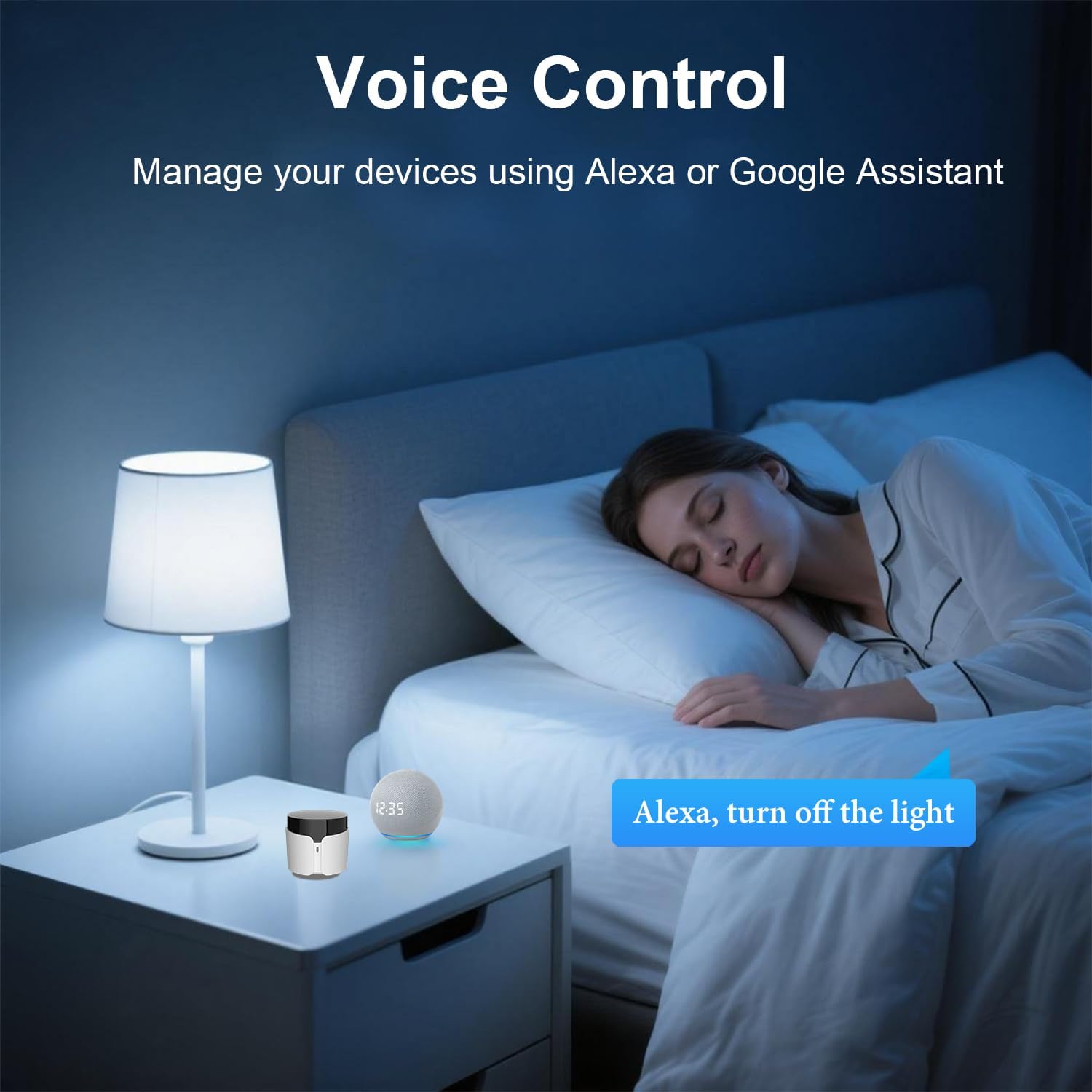
Image 5.2: An illustration of voice control in a bedroom setting, where the RM5plus and a smart speaker enable hands-free operation, such as turning off lights.
5.3. Smart Scenes, Scheduling & Automation
Create custom scenes and schedules to automate your home appliances.
- Escenas: Combine multiple actions into a single command (e.g., "Movie Night" scene to turn on TV, speakers, and DVD player).
- Programación: Set timers for devices to turn on/off automatically at specific times (e.g., turn on AC before you arrive home).

Image 5.3: A screenshot of the BroadLink app demonstrating the 'Preset Scenes' feature, where users can configure single-tap actions for various routines like 'Sleep' or 'Come Home'.

Imaxe 5.4: Ex.amples of timer and scheduling functions, showing an air conditioner turning on at 8:00 AM, a fan at 11:00 AM, a TV at 3:00 PM, and an air conditioner turning off at 11:00 PM.
5.4. Manual IR Learning ("UserDefine")
If your device is not found in the BroadLink database, you can manually teach the RM5plus commands from your original remote.
- In the BroadLink app, select the RM5plus and choose the "UserDefine" option for a new appliance.
- Follow the app's instructions to point your original remote at the RM5plus and press the desired buttons. The RM5plus will learn and store these IR signals.
- Importante: IR signals require direct line-of-sight and do not pass through walls or furniture. For optimal performance, place the RM5plus in the same room as the appliances you wish to control.
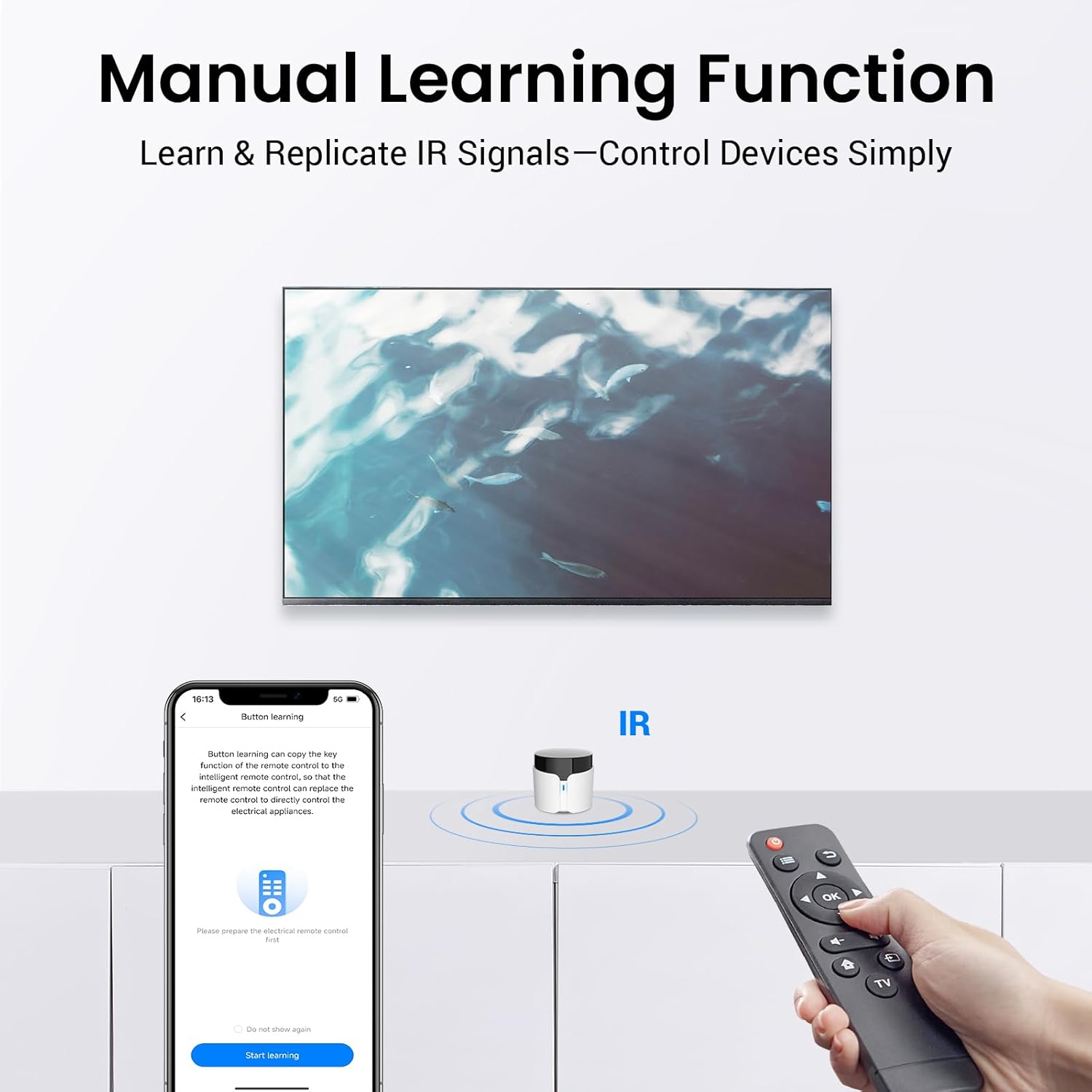
Image 5.5: The manual learning function in action, showing the BroadLink app guiding the user to teach the RM5plus commands from an existing IR remote control.
6. Mantemento
- Manteña o dispositivo limpo limpo cun pano suave e seco.
- Evite expoñer o dispositivo á luz solar directa, a altas temperaturas ou a humidade excesiva.
- Non intente desmontar nin reparar o dispositivo vostede mesmo. Póñase en contacto co servizo de atención ao cliente se xorden problemas.
- Ensure the RM5plus has a clear line of sight to the IR appliances it controls for reliable operation.
7 Solución de problemas
| Problema | Causa posible | Solución |
|---|---|---|
| O dispositivo non se pode conectar á wifi. | Incorrect Wi-Fi band (5GHz), incorrect password, SSID/password too long, weak signal. | Ensure you are connecting to a 2.4GHz Wi-Fi network. Verify Wi-Fi password. Check if SSID/password is under 32 characters. Move the RM5plus closer to the router. |
| IR appliances not responding. | No line-of-sight, incorrect IR code, device not supported. | Ensure the RM5plus has a clear line of sight to the appliance. Try re-learning the IR code using the "UserDefine" function. Confirm the appliance uses 38KHz IR. |
| O control por voz non funciona. | BroadLink account not linked, manually learned buttons not recognized, incorrect commands. | Verify BroadLink account is correctly linked in Alexa/Google Home app. Use preset commands for voice control. Manually learned buttons may not be compatible with voice assistants. |
| O indicador LED está apagado. | No power, device malfunction. | Check USB cable connection and power adapter. Try a different power source. If the issue persists, contact support. |
8. Especificacións
| Característica | Detalle |
|---|---|
| Marca | Broadlink |
| Nome do modelo | RM5plus |
| Tecnoloxía de conectividade | Infrared (IR 38KHz), Wi-Fi 2.4GHz |
| Número máximo de dispositivos compatibles | 5000+ |
| Dispositivos compatibles | TVs, Air Conditioners, Fans, Set Top Boxes, Audio Systems, etc. (IR 38KHz only) |
| Compatibilidade de control de voz | Amazon Alexa, Google Home |
| Entrada de enerxía | USB (cable incluído) |
| Cor | Branco |
| País de Orixe | China |
9. Información de seguridade
- Non expoña o dispositivo á auga nin á humidade.
- Manter fóra do alcance dos nenos.
- Use only the provided USB cable and a compatible power adapter.
- Evite colocar o dispositivo preto de fontes de calor ou baixo a luz solar directa.
10. Garantía e soporte
For warranty information and technical support, please refer to the official BroadLink website or contact BroadLink customer service through the app. Keep your purchase receipt for warranty claims.