
1. Introdución
This manual provides instructions for setting up, operating, and maintaining your Cudy AX1500 WiFi 6 Mesh Wi-Fi System. The M1500 system is designed to provide seamless whole-home Wi-Fi coverage, replacing traditional routers and extenders.
2. Contido do paquete
Verifique que o seu paquete conteña os seguintes elementos:
- M1500 Mesh Units (3 units for the 3-Pack)
- Power Adapters (one for each M1500 unit)
- Cable Ethernet
- Guía de instalación
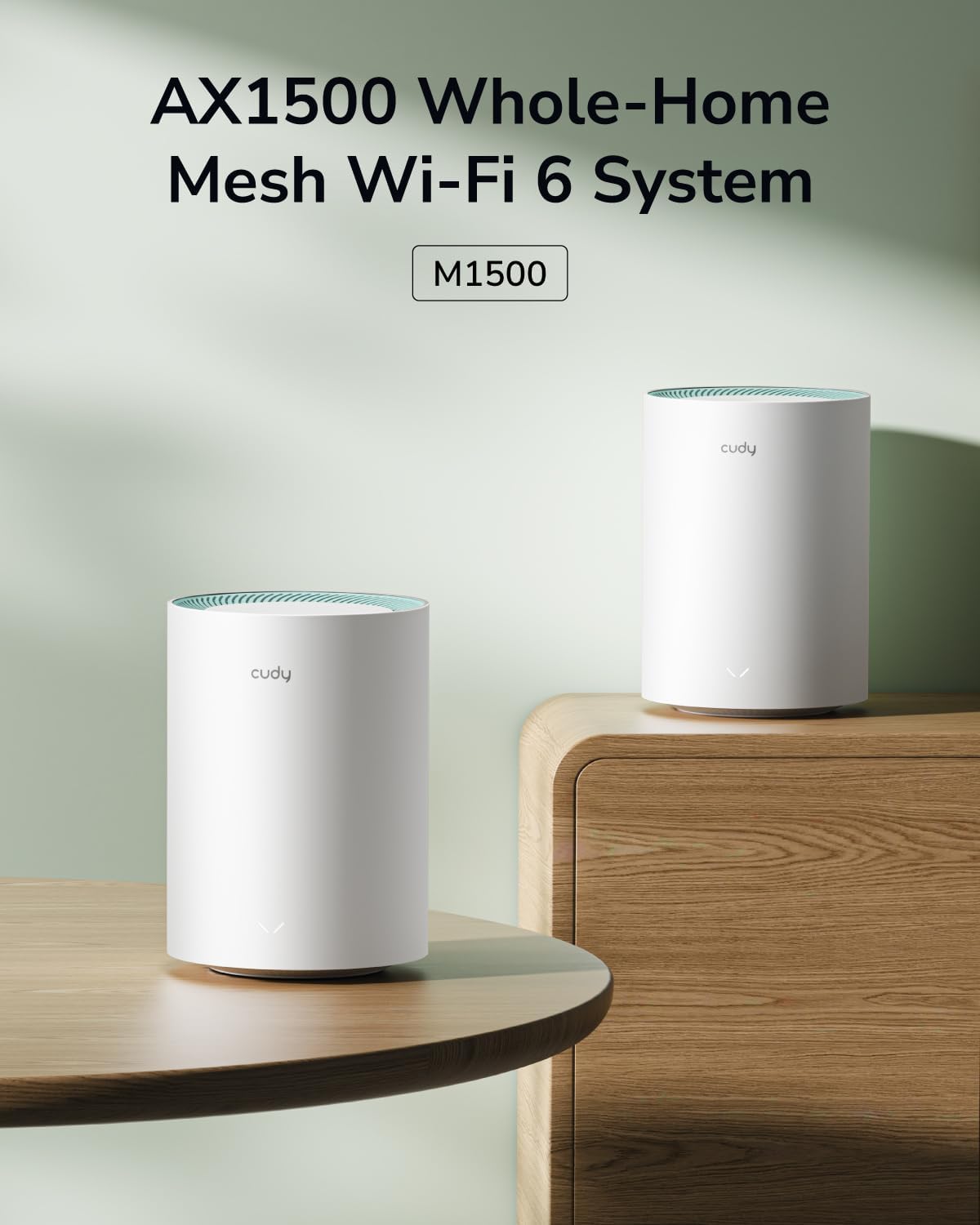
Image: Contents of the Cudy M1500 3-Pack, including three mesh units, power adapters, an Ethernet cable, and an installation guide.
3. Guía de configuración
Follow these steps to set up your Cudy M1500 Mesh Wi-Fi System:
- Descarga a aplicación Cudy: Busca "Cudy" in your mobile app store (iOS or Android) and download the official Cudy application.
- Connect the Primary Unit:
- Connect one M1500 unit to your modem using the provided Ethernet cable. Plug one end into the WAN/LAN port of the M1500 unit and the other end into your modem's Ethernet port.
- Connect the power adapter to the M1500 unit and plug it into a power outlet.
- Wait for the unit to power on and the LED indicator to show a stable status (refer to the LED indicator section in the full manual for specific status meanings).
- Configuración inicial a través da aplicación:
- Open the Cudy app on your smartphone.
- Follow the on-screen instructions to create a Cudy account or log in.
- The app will guide you through detecting the primary M1500 unit and configuring your new Wi-Fi network name (SSID) and password.
- Add Additional Mesh Units:
- Place the remaining M1500 units in desired locations within your home, ensuring they are within range of each other and the primary unit for optimal signal.
- Connect power adapters to these units and plug them into power outlets.
- In the Cudy app, select the option to add new mesh units. The app will automatically detect and pair the new units with your existing mesh network. Alternatively, you can use the WPS/Pair button on the units for synchronization.

Image: Screenshot of the Cudy App, illustrating the user-friendly interface for setting up and managing the mesh Wi-Fi system.
4. Instrucións de funcionamento
4.1. Wi-Fi sen interrupcións para toda a casa
The Cudy M1500 Mesh Wi-Fi System creates a unified network with a single Wi-Fi name (SSID) throughout your home. Devices automatically connect to the strongest signal as you move, ensuring uninterrupted connectivity.

Image: A diagram illustrating how Cudy Mesh units provide seamless Wi-Fi coverage across multiple rooms in a home.
4.2. Dual-Band Wi-Fi 6 Performance
The system operates on dual bands (2.4 GHz and 5 GHz) with Wi-Fi 6 (802.11ax) technology, offering speeds up to 300 Mbps on 2.4 GHz and 1201 Mbps on 5 GHz. This allows for efficient handling of multiple connected devices and high-bandwidth activities like streaming and gaming.

Image: A Cudy M1500 unit displayed with graphical indicators showing 1201 Mbps on 5 GHz and 300 Mbps on 2.4 GHz, highlighting its Wi-Fi 6 capabilities.
4.3. Gigabit Ethernet Ports
Each M1500 unit is equipped with three Gigabit Ethernet ports. These ports can be used for wired connections to devices such as PCs, gaming consoles, or smart TVs, providing stable and high-speed internet access. The system also supports Ethernet backhaul, allowing units to connect to each other via Ethernet for improved performance.

Imaxe: Traseira view of a Cudy M1500 unit, clearly showing the Gigabit Ethernet ports (LAN/WAN) and the power input.
4.4. Funcións avanzadas
- Modo de punto de acceso: Configure the M1500 units to function as access points to extend an existing wired network.
- Formación de feixe: Focuses Wi-Fi signals directly towards connected devices for stronger, more reliable connections.
- Control parental: Manage internet access for specific devices or users, including time limits and content filtering.
- Calidade de servizo (QoS): Prioritize network traffic for specific applications or devices to ensure optimal performance for critical tasks.
- Acceso remoto: Manage your network settings and connected devices remotely via the Cudy app.
- Soporte para clientes VPN: Supports PPTP, L2TP, and WireGuard VPN protocols for secure and private network access.

Image: Icons representing VPN client support, including WireGuard, PPTP, and L2TP protocols.
5. Mantemento
To ensure optimal performance and longevity of your Cudy M1500 Mesh Wi-Fi System:
- Actualizacións de firmware: Regularly check for and install firmware updates via the Cudy app or web interface. As actualizacións adoitan incluír melloras de rendemento, parches de seguranza e novas funcionalidades.
- Colocación: Place units in open areas, away from obstructions like large metal objects, thick walls, and other electronic devices that may cause interference. Cudy recommends placing units centrally in your home.
- Limpeza: Keep the units clean and dust-free. Use a soft, dry cloth to wipe the exterior. Do not use liquid cleaners.
- Ciclo de enerxía: If you experience network issues, try power cycling the units (unplug from power, wait 10 seconds, then plug back in).
6 Solución de problemas
If you encounter issues with your Cudy M1500 Mesh Wi-Fi System, refer to the following common solutions:
| Problema | Solución |
|---|---|
| Sen acceso a Internet |
|
| Mal sinal wifi ou zonas mortas |
|
| Velocidades lentas |
|
| Difficulty Setting Up via App |
|
7. Especificacións
| Característica | Detalle |
|---|---|
| Marca | Cudy |
| Nome do modelo | Paquete de 3 M1500 |
| Clase de banda de frecuencia | Dobre banda |
| Estándar de comunicación sen fíos | 802.11ac, 802.11ax (Wi-Fi 6) |
| Taxa de transferencia de datos | AX1500 (1201 Mbps en 5 GHz, 300 Mbps en 2.4 GHz) |
| Tecnoloxía de conectividade | Ethernet, Wi-Fi |
| Número de portos | 3 Gigabit Ethernet ports per unit |
| Ancho de banda do porto LAN | 1000 Mbps |
| Cobertura | Up to 2500 square feet (for 3-Pack) |
| Método de control | Aplicación |
| Protocolo de seguridade | WPA/WPA2/WPA3 |
| Sistema Operativo | OpenWRT |
| Características especiais | Access Point Mode, Beamforming, Parental Control, QoS, Remote Access, Multi-VPN Support (PPTP/L2TP/WireGuard) |
| Dispositivos compatibles | PC, Smartphone, Security camera, Tablet |
| Dimensións do artigo (L x W x H) | 4.33 cm de longo x 6.08 cm de ancho x 4.33 cm de alto |
| Peso do elemento | 900 gramos |
8. Garantía e soporte
The Cudy M1500 Mesh Wi-Fi System comes with a 2 ano de garantía.
For technical support, troubleshooting assistance, or warranty claims, please visit the official Cudy website or contact Cudy customer support. The Cudy app also provides resources and direct support options.


