
1. Produto rematadoview
The CITLLA PRO MAX E510 is an ergonomic wireless mouse designed for comfort and efficiency across multiple devices. It features dual Bluetooth and 2.4G wireless connectivity, adjustable DPI settings, and a unique smart flying scroll wheel with a side thumb wheel for enhanced navigation.

Image: The CITLLA PRO MAX E510 Wireless Bluetooth Mouse in white, showcasinpolo seu deseño ergonómico e os seus múltiples botóns.
2. Instrucións de configuración
2.1 Carga inicial
Before first use, fully charge the mouse using the provided USB-C cable. The charging port is located at the front of the mouse. A full charge can last up to 60 days. The mouse features an auto-sleep mode after 15 minutes of inactivity to conserve battery life.
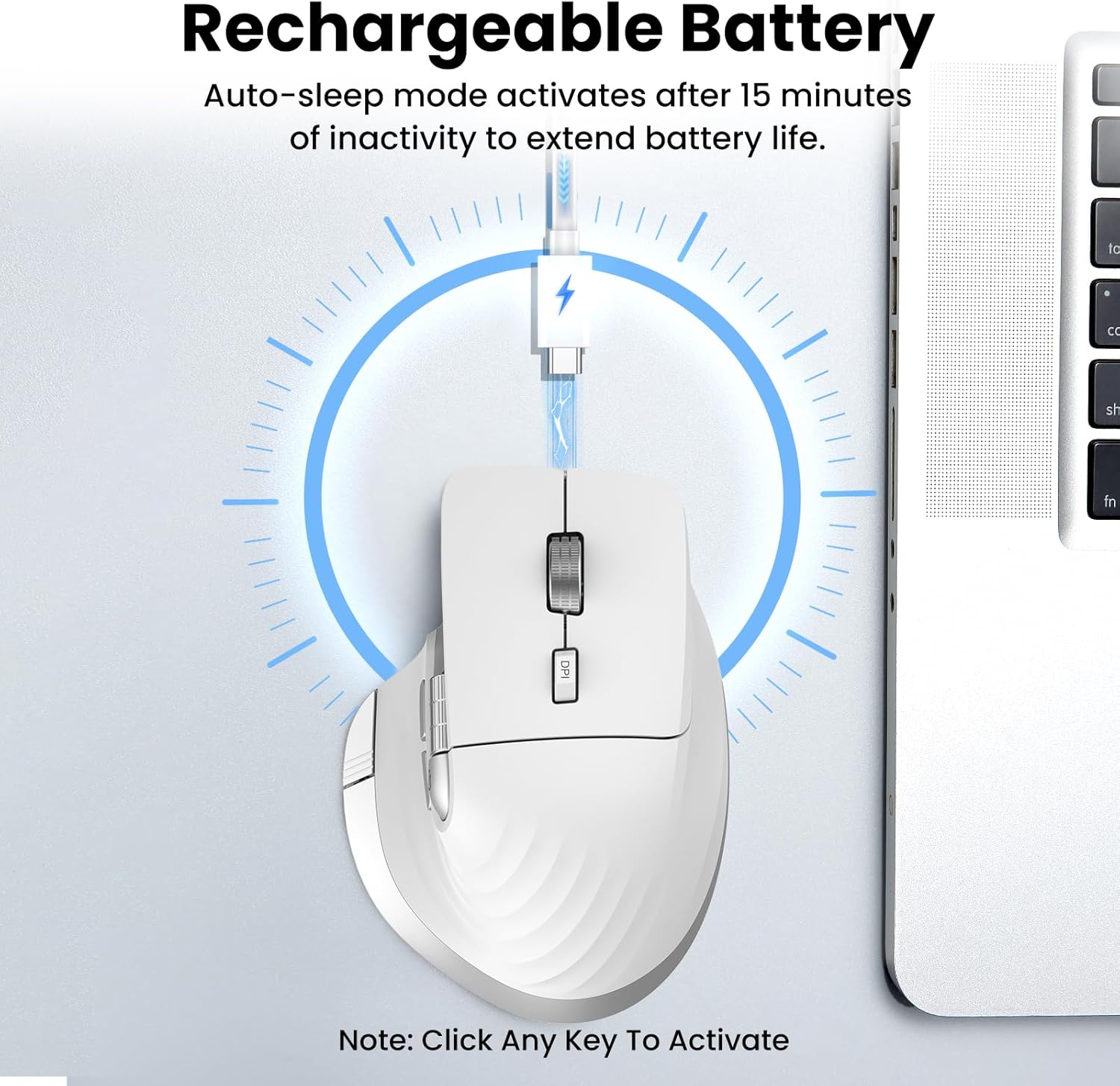
Image: The mouse connected to a USB-C charging cable, illustrating the rechargeable battery feature.
2.2 Conexión a dispositivos
The mouse supports connection to up to three devices via 2.4G wireless (USB receiver) and two Bluetooth channels (Bluetooth 1, Bluetooth 2).
- Conexión sen fíos 2.4G:
- Localiza o receptor USB gardado no compartimento da parte inferior do rato.
- Conecte o receptor USB a un porto USB dispoñible no seu ordenador.
- Acenda o rato usando o interruptor de acendido/apagado situado na parte inferior.
- Press the 'Devices Switch Button' (labeled 6 in the button diagram) until the white indicator light for 2.4G (labeled 7) illuminates. The mouse should now be connected.
- Bluetooth Connection (Bluetooth 1 / Bluetooth 2):
- Acende o rato usando o interruptor On/Off.
- Press the 'Devices Switch Button' (6) to select either Bluetooth 1 (blue indicator) or Bluetooth 2 (green indicator).
- Press and hold the 'Devices Switch Button' for 3-5 seconds until the selected Bluetooth indicator light starts flashing rapidly. This indicates pairing mode.
- No teu dispositivo (portátil, tableta, teléfono intelixente), vai á configuración de Bluetooth e busca novos dispositivos.
- Select "CITLLA E510" (or similar name) from the list of available devices to pair.
- Unha vez vinculado, o indicador luminoso deixará de parpadear e permanecerá fijo.

Image: Diagram showing the mouse wirelessly connected to a laptop, desktop monitor, and tablet, illustrating its multi-device capability.
3. Instrucións de funcionamento
3.1 Funcións dos botóns

Image: Detailed diagram of the mouse buttons and their corresponding functions.
- 1. Left Button: Función estándar do clic esquerdo.
- 2. Right Button: Función estándar do clic dereito.
- 3. Smart Flying Scroll Wheel: For ultra-fast, nearly silent vertical scrolling.
- 4. DPI Button: Press to cycle through 4 adjustable DPI levels (1000/1600/2400/3200).
- 5. Side Wheel: For fast horizontal scrolling.
- 6. Devices Switch Button: Press to switch between connected devices (2.4G, Bluetooth 1, Bluetooth 2). Press and hold to enter Bluetooth pairing mode.
- 7. Devices Indicators: White for 2.4G, Blue for Bluetooth 1, Green for Bluetooth 2. Also includes a low power indicator.
- 8. Forward/Back Buttons: Navigate forward/back in web browsers or switch applications (macOS).
- 9. Return to Desktop Button: Instantly minimizes all windows to show the desktop (Windows only). For macOS, this button can be used for Full Screen (Control+Command+F).
3.2 Scrolling Functions
The mouse features two distinct scrolling mechanisms:
- O Roda de desprazamento voadora intelixente (3) on top provides smooth and rapid vertical scrolling, ideal for long documents or web páxinas.
- O Roda Lateral (5) allows for horizontal scrolling, which is particularly useful for navigating wide spreadsheets or timelines.
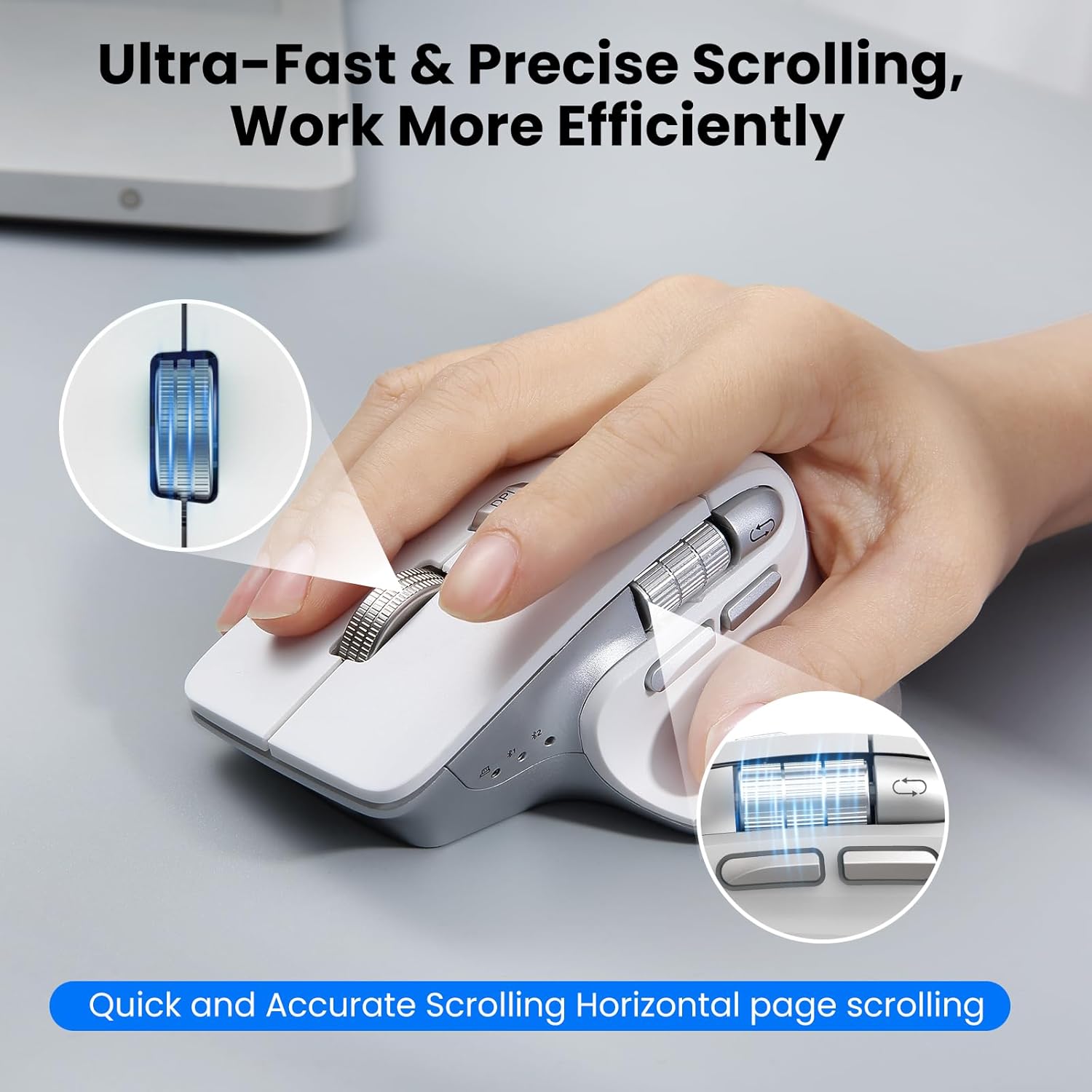
Image: A hand operating the mouse, highlighting the smart flying scroll wheel and the side thumb wheel for efficient navigation.
3.3 Axuste de DPI
The DPI (Dots Per Inch) button (4) allows you to adjust the cursor sensitivity. Press the DPI button to cycle through the four available settings: 1000, 1600, 2400, and 3200 DPI. Choose a setting that best suits your task, whether it's precise graphic design or fast-paced gaming.

Image: A visual representation of the 4-level adjustable DPI settings (1000, 1600, 2400, 3200 DPI).
3.4 Características especiais
- Deseño de clic silencioso: The mouse is engineered for quiet operation, making it suitable for shared workspaces and quiet environments.
- Return to Desktop (Windows Only): The dedicated button (9) provides a quick way to minimize all open windows and display your desktop. This feature is specific to Windows operating systems.

Image: A laptop screen showing multiple open windows, with an arrow indicating the 'Return to Desktop' button on the mouse minimizing them.
3.5 Product Feature Video
Video: An official product video from CITLLA showcasing the key features and functionality of the PRO MAX E510 Wireless Bluetooth Mouse, including its ergonomic design, multi-device connectivity, and smart scrolling.
4. Mantemento
4.1 Limpeza
To maintain optimal performance, regularly clean your mouse. Use a soft, dry cloth to wipe the exterior. For stubborn dirt, a slightly damp pódese usar un pano, garantindo que non entre humidade nos compoñentes internos. Evite produtos químicos agresivos ou materiais abrasivos.
4.2 Coidado coa batería
The mouse is equipped with a rechargeable battery. Charge it using a standard USB-C cable. The low power indicator will alert you when charging is needed. To prolong battery life, the mouse enters an auto-sleep mode after 15 minutes of inactivity. Click any button to reactivate it.
5 Solución de problemas
- O rato non responde:
- Asegúrese de que o rato estea acendido.
- Comprobe o nivel da batería e cárguea se é necesario.
- Verify the correct connection mode (2.4G, BT1, BT2) is selected using the Devices Switch Button.
- Para 2.4G, asegúrate de que o receptor USB estea conectado correctamente.
- Para Bluetooth, volva emparellar o rato co dispositivo.
- O movemento do cursor é errático ou lento:
- Adjust the DPI setting using the DPI button (4) to a higher sensitivity.
- Asegúrate de que o sensor do rato estea limpo e libre de obstrucións.
- Usa o rato sobre unha superficie axeitada (por exemplo, unha alfombrilla de rato).
- Non se pode cambiar entre dispositivos:
- Ensure all devices are properly paired/connected to their respective channels (2.4G, BT1, BT2).
- Press the Devices Switch Button (6) firmly to cycle through the connections.
- Return to Desktop button not working:
- This feature is only supported on Windows systems.
- Asegúrate de que o teu sistema operativo Windows estea actualizado.
6. Especificacións
| Dimensións do produto | 4.6 x 2.6 x 0.04 polgadas |
| Peso do elemento | 6.7 onzas |
| Baterías | 1 batería non estándar (incluída) |
| Tecnoloxía de conectividade | Bluetooth, USB sen fíos de 2.4 G |
| Características especiais | 4 Way Scrolling, Ergonomic Design, Rechargeable, Silent Click, Wireless |
| Tecnoloxía de detección de movemento | Óptica |
7. Compatibilidade
The CITLLA PRO MAX E510 Wireless Bluetooth Mouse is compatible with a wide range of operating systems:
- Windows
- Mac OS
- Chrome OS
- Linux
- iOS
- Android

Image: Icons for Android, Linux, Windows, Chrome OS, and Mac OS, indicating wide compatibility.
8. Que hai na caixa
- CITLLA PRO MAX E510 Wireless Bluetooth Mouse
- Cable de carga USB-C
- 2.4G USB Receiver (stored in mouse)
- Manual de usuario
9. Garantía e soporte
For warranty information, technical support, or any inquiries regarding your CITLLA PRO MAX E510 Wireless Bluetooth Mouse, please refer to the contact information provided in the packaging or visit the official CITLLA website. Our customer service team is available to assist you with any product-related concerns.