
1. Introdución
This manual provides essential information for setting up, operating, maintaining, and troubleshooting your new HP All-in-One Desktop PC, Model 0024. Please read these instructions carefully to ensure proper use and longevity of your device.

Image 1.1: HP All-in-One Desktop PC, showing the display, keyboard, and mouse.
2. Contido do paquete
Verifica que todos os elementos estean presentes no paquete:
- HP All-in-One Desktop PC (Model 0024)
- Teclado con fíos
- Rato con fío
- Adaptador de alimentación e cable
3. Configuración
3.1 Desembalaxe
- Carefully remove the PC and accessories from the packaging.
- Place the PC on a stable, flat surface.
3.2 Conexión de periféricos
Connect the keyboard, mouse, and power adapter to the appropriate ports on the back of the PC.
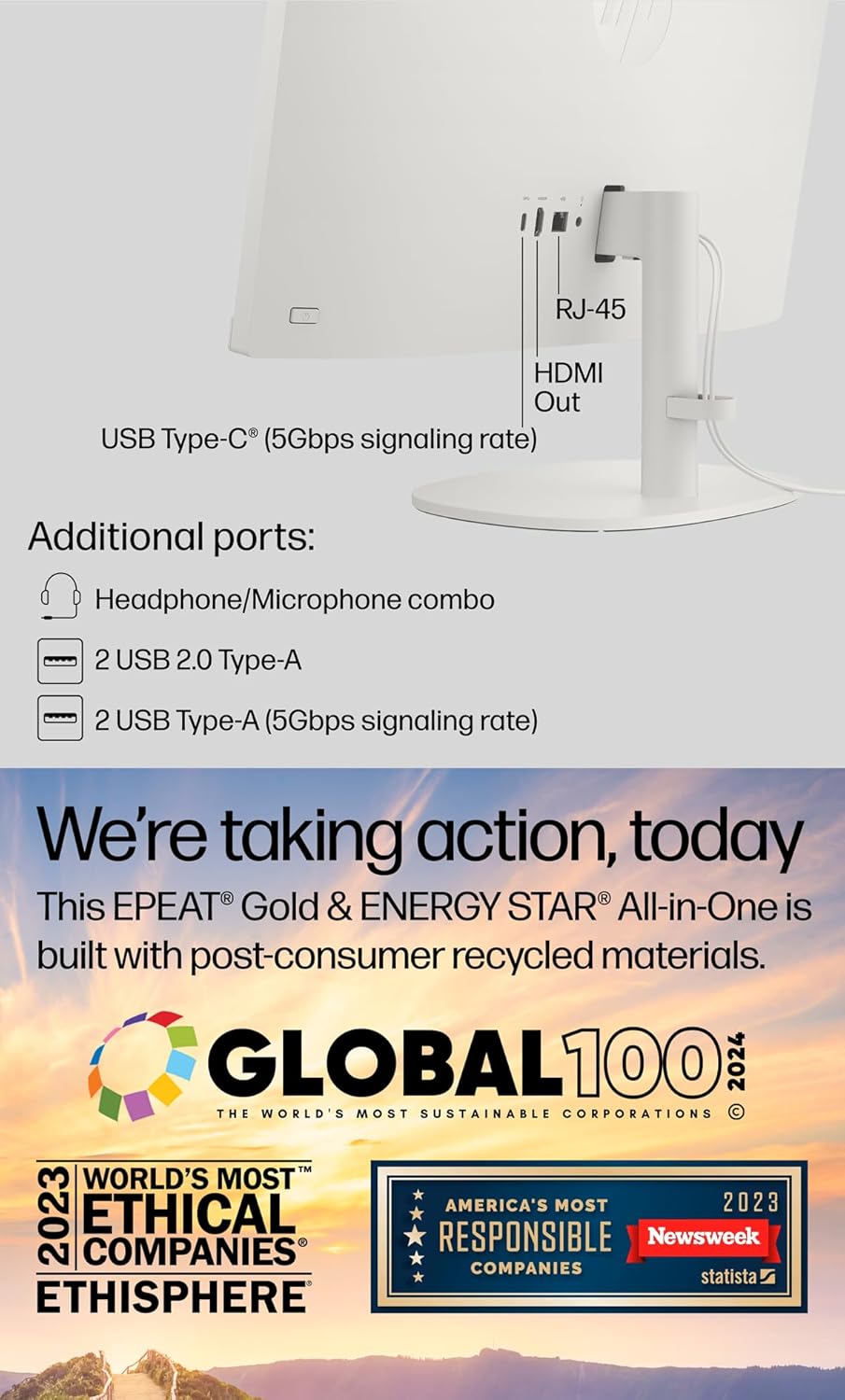
Imaxe 3.1: Traseira view of the HP All-in-One PC, highlighting the various ports for connectivity.
- Potencia: Connect the power cable to the power adapter, then to the PC and a wall outlet.
- Teclado e rato: Connect the USB cables from the keyboard and mouse to any available USB Type-A ports on the PC.
- Pantalla externa (opcional): If using an external monitor, connect it to the HDMI-out port.
- Rede (opcional): Para unha conexión a internet por cable, conecte un cable Ethernet ao porto RJ-45.
3.3 Acendido inicial e configuración de Windows 11
- Press the power button, usually located on the side or bottom bezel of the display.
- Follow the on-screen instructions to complete the Windows 11 initial setup, including language, region, network connection, and user account creation.
- The myHP application may guide you through additional setup steps for HP-specific features.

Image 3.2: The myHP application interface, designed to simplify initial PC setup and management.
4. Manexo do teu PC
4.1 Basic Navigation (Windows 11)
Familiarize yourself with the Windows 11 interface:
- Menú Inicio: Acceder a aplicacións, configuracións e opcións de enerxía.
- Barra de tarefas: Pin frequently used applications and view programas abertos.
- Escritorio: Your primary workspace for icons and open windows.
4.2 Conectividade
- Wi-Fi 6: To connect to a wireless network, click the network icon in the taskbar, select your desired network, and enter the password.
- Bluetooth: Enable Bluetooth in Windows Settings to pair with wireless devices like headphones or speakers.
- Ethernet: If connected via RJ-45, your PC will automatically detect the wired network.
4.3 Using the Camera and Microphone
The HP All-in-One PC features an HP True Vision 720p HD privacy camera and integrated dual array digital microphones, suitable for video calls and online meetings.

Image 4.1: A user engaged in a video conference, demonstrating the PC's camera and microphone capabilities.
- Privacy Camera: The camera includes a physical privacy shutter. Slide the shutter to cover the lens when not in use.
- Micrófonos: The dual array microphones are designed to capture clear audio and reduce background noise.
4.4 Portos superadosview
The PC offers a variety of ports for connecting external devices:

Image 4.2: Detailed diagram illustrating the location and type of ports on the HP All-in-One PC.
- USB tipo C (5 Gbps): Só para transferencia de datos.
- USB Type-A (5Gbps): Portos USB de alta velocidade para periféricos.
- USB 2.0 tipo A: Portos USB estándar para periféricos.
- HDMI-out 1.4: Connects to an external display.
- Combinación de auriculares/micrófono: Para entrada e saída de son.
- RJ-45: Para conexión de rede Ethernet con fíos.
5. Mantemento
5.1 Limpeza
- Visualización: Use un pano suave e sen pelusa lixeiramente dampLavar con auga ou cun limpador de pantallas. Evitar produtos químicos agresivos.
- Chasis: Limpe cun pano suave e seco.
- Teclado e rato: Use compressed air to remove dust from crevices.
5.2 Actualizacións de software
Actualiza o teu sistema operativo e os controladores regularmente para garantir un rendemento e unha seguridade óptimos.
- Actualización de Windows: Ir a Configuración > Actualización de Windows para comprobar e instalar actualizacións.
- Asistente de asistencia de HP: Use the pre-installed HP Support Assistant application to manage HP-specific driver and software updates.
5.3 Copia de seguranza de datos
Fai unha copia de seguranza regularmente do teu importante files a unha unidade externa ou almacenamento na nube para evitar a perda de datos.
6 Solución de problemas
Esta sección aborda problemas comúns cos que podes atoparte.
- Sen enerxía:
Ensure the power cable is securely connected to the PC and the wall outlet. Test the outlet with another device. - Sen visualización:
Check if the PC is powered on. If an external monitor is connected, ensure it is also powered on and correctly connected via HDMI. - Sen conexión a Internet:
For Wi-Fi, verify your network password and router status. For Ethernet, ensure the cable is properly connected to the RJ-45 port and your router. - O teclado ou o rato non responden:
Check USB connections. Try connecting them to different USB ports. - Rendemento lento:
Close unnecessary applications. Check for available Windows updates. Consider running a disk cleanup or antivirus scan.
7. Especificacións
Key technical specifications for the HP All-in-One Desktop PC, Model 0024.

Image 7.1: Physical dimensions of the HP All-in-One PC.
| Característica | Descrición |
|---|---|
| Modelo | 0024 |
| Procesador | Intel Celeron J4025 (2.0 GHz base, up to 2.9 GHz, 2 cores) |
| Mostrar | 21.5-inch FHD (1920 x 1080), VA, Anti-Glare, 250 nits, 72% NTSC |
| RAM | 12 GB de DDR4 (configurable ata 64 GB) |
| Almacenamento | 1TB PCIe NVMe M.2 SSD (Configurable up to 2TB) |
| Sistema Operativo | Windows 11 Home, de 64 bits |
| Gráficos | Gráficos Intel UHD integrados |
| Webleva | HP True Vision 720p HD privacy camera with dual array digital microphones |
| Conectividade sen fíos | Wi-Fi 6, Bluetooth |
| Portos | 1x USB Type-C (5Gbps), 2x USB Type-A (5Gbps), 2x USB 2.0 Type-A, 1x HDMI-out 1.4, 1x Headphone/Microphone combo, 1x RJ-45 |
| Dimensións (L x W x H) | 19.30 x 7.05 x 14.99 polgadas |
| Peso | 12.56 libras |
8. Garantía e soporte
Your HP All-in-One Desktop PC comes with a standard manufacturer's warranty. For detailed warranty information, please refer to the warranty card included with your product or visit the official HP support websitio.
For technical assistance, driver downloads, or further support, please visit the HP Support website or contact HP customer service. Keep your product model number (0024) and serial number ready when contacting support.