
1. Introdución
Thank you for choosing the EWEADN V20 Wired Typewriter Mechanical Keyboard and Mouse Combo. This product combines a classic typewriter aesthetic with modern mechanical gaming features, designed for enhanced typing and gaming experiences. This manual provides detailed instructions to help you set up, operate, and maintain your new device.
2. Contido do paquete
- EWEADN V20 Wired Typewriter Mechanical Keyboard
- Mouse para xogos con cable
- USB-C Cable (for keyboard connection)
- USB-A to USB-C Adapter (if needed for mouse or keyboard)
- Manual de usuario / Guía rápida
3. Configuración
3.1 Conexión do teclado e do rato
The EWEADN V20 combo is designed for plug-and-play functionality via wired USB connection. No additional drivers or software are required for basic operation.
- Localiza o porto USB-C no teclado (normalmente está no bordo superior).
- Conecta un extremo do cable USB-C fornecido ao teclado.
- Connect the USB-A end of the cable to an available USB port on your computer. If your computer only has USB-C ports, use the provided USB-A to USB-C adapter.
- For the mouse, connect its integrated USB cable to another available USB-A port on your computer.
- The keyboard backlight will illuminate upon successful connection.
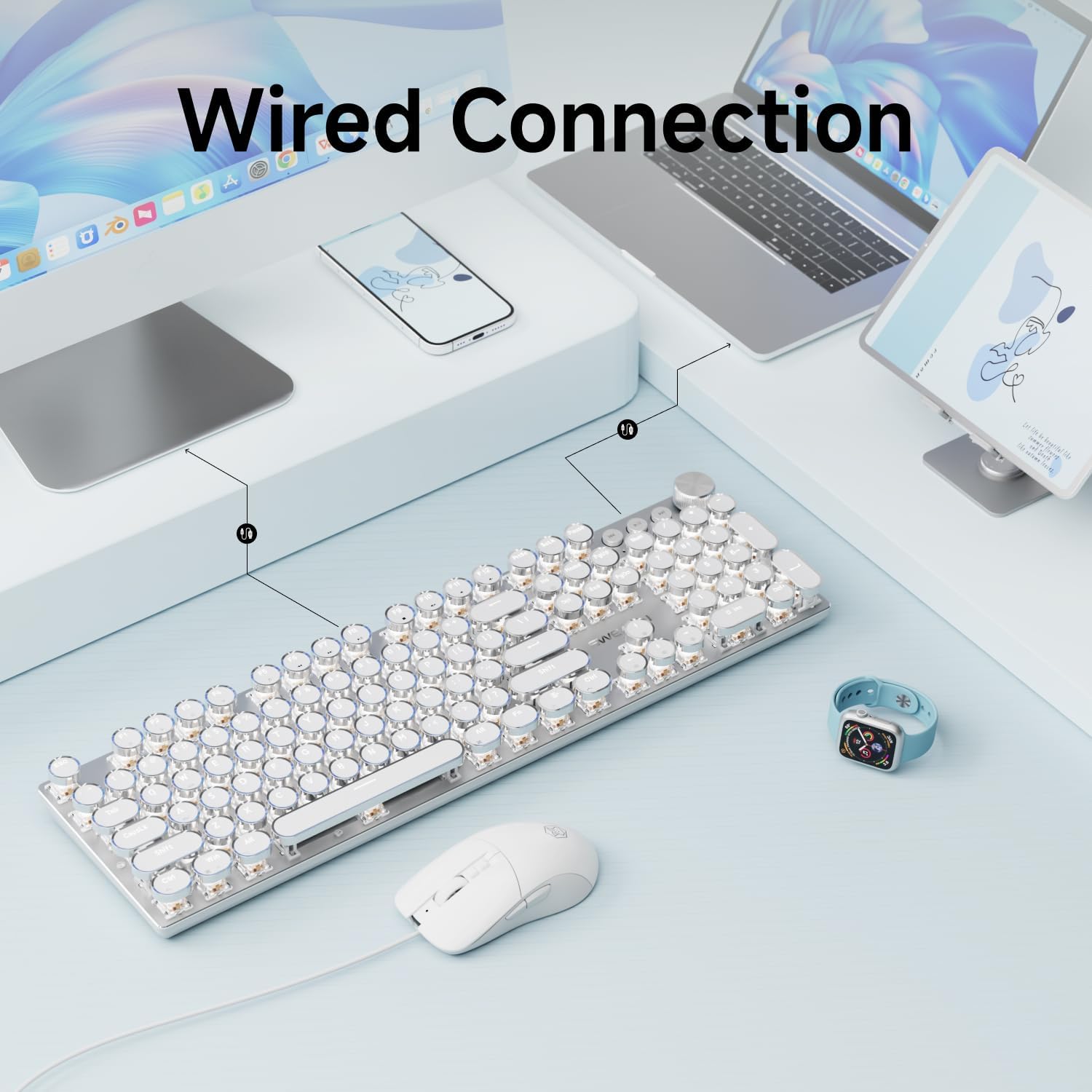
Figura 3.1: Diagram illustrating the wired connection of the keyboard and mouse to a computer.
3.2 Compatibilidade do sistema
The keyboard and mouse combo is compatible with a wide range of operating systems:
- Windows 7/8/10/XP/Vista
- Linux
- Mac OS
To switch between Windows and Mac layouts:
- Mantén premido "FN + TAB" simultaneously to toggle between Windows and Mac system layouts.

Figura 3.2: Visual guide for switching between Windows (FN+W) and Mac (FN+A) layouts.
4. Instrucións de funcionamento
4.1 Características do teclado
- Interruptores mecánicos: Equipped with custom pink switches that feature a smooth linear feeling and low resistance without a tactile bump feel.
- 104 Keys Anti-Ghosting: This mechanical gaming keyboard adopts anti-ghosting technology for all keys. When multiple keys are pressed at the same time, the keyboard can accurately identify each key operation, avoiding key conflicts and errors.
- Metal Panel and Electroplated Punk Keycaps: The typewriter gaming keyboard panel is made of top-grade aluminum alloy, with a metallic matte texture, sturdy and robust enough to protect it from scratch. The floating keycaps are carefully crafted using metal plating technology.
- Deseño ergonómico: Includes dual-section feet for adjustable typing angles.

Figura 4.1: Acabadoview of the EWEADN V20 keyboard and mouse combo highlighting key features such as electroplated punk keycaps, mechanical switches, full key anti-ghosting, metal panel, ergonomics design, 19 lighting effects, multimedia knob, and dual-section foot.

Figura 4.2: Detailed specifications of the custom white switches, including key force (40±10gf), trigger route (4.0±0.4mm), and key strokes (100 million times).

Figura 4.3: Explotou view illustrating the gasket structure of the keyboard, showing electroplated keycaps, mechanical white switches, metal panel, PCB, and bottom cover.
4.2 Backlight LED Control
The keyboard features 19 lighting effects and 8 game backlight modes. All lighting is a single color (white).
- Switch Basic Lighting Effects: Preme "FN + INS" to cycle through 19 basic lighting effects.
- Choose Game Backlight Modes: Preme "FN + 1~8" to select from 8 pre-set game backlight modes.
- Axustar o brillo: Preme "FN + ↑" para aumentar o brillo e "FN + ↓" para diminuír o brillo (5 niveis).
- Axustar a velocidade: Preme "FN + ←" to decrease lighting speed and "FN + →" to increase lighting speed.
- Record/Store Button: Preme "FN + DEL" to record or store custom lighting settings.

Figura 4.4: Visual guide for controlling keyboard lighting effects, speed, and brightness using FN key combinations.
4.3 Multimedia Control Knob
The rotary multimedia knob provides quick access to volume and lighting adjustments.
- Modo de cambio: Preme "FN + Knob" to switch between Light mode and Volume mode.
- Axustar volume/brillo: Turn the knob to adjust volume (in Volume mode) or brightness (in Light mode).
- Mute/Change Light Effects: Press the knob to mute/unmute audio (in Volume mode) or change light effects (in Light mode).

Figura 4.5: Illustration of the rotary multimedia knob and its functions for adjusting volume/brightness and changing light effects.
4.4 Características do rato
The wired gaming mouse is plug-and-play and features an optical sensor for precise movements.
- 7 Botóns: Includes Left Click, Right Click, Scroll Wheel/Middle Button, Forward Button, Back Button, DPI+, and DPI-.
- DPI axustable: Adjust DPI settings between 800-1200-1600-2400 for customized cursor movement speed.

Figura 4.6: Diagram showing the layout of the 7 buttons on the wired gaming mouse.

Figura 4.7: Illustration demonstrating the 4 adjustable DPI levels (800-2400) for the wired mouse.
5. Mantemento
- Limpeza: Use a soft, dry cloth to wipe down the keyboard and mouse surfaces. For deeper cleaning, use a slightly damp cloth with mild soap, ensuring no liquid enters the device.
- Coidado das teclas: The electroplated keycaps are durable, but avoid harsh chemicals or abrasive materials that could damage the finish.
- Xestión de cables Manteña os cables desenredados e evite curvas pronunciadas para evitar danos.
- Almacenamento: Garde o teclado e o rato nun lugar seco e libre de po cando non os estea a usar.
6 Solución de problemas
| Problema | Solución |
|---|---|
| O teclado/rato non responde |
|
| A luz de fondo non funciona |
|
| Incorrect key layout (Windows/Mac) |
|
| Mouse cursor movement is too fast/slow |
|
7. Especificacións
- Modelo: V20
- Marca: SEUNKWANG
- Fabricante: EWEADN
- Conectividade: Wired (USB-C for keyboard, USB-A for mouse)
- Tipo de teclado: Mechanical, Typewriter Style
- Interruptores de chave: Custom Pink Switches
- Teclas: Electroplated Punk Keycaps
- Número de chaves: 104
- Anti-fantasmas: Full Key
- Retroiluminación: Single Color (White), 19 effects, 8 game modes, 5 brightness levels
- Control multimedia: Rotary Knob (Volume/Light)
- DPI do rato: 800-1200-1600-2400 adjustable
- Mouse Buttons: 7
- Compatibilidade: Windows 7/8/10/XP/Vista, Linux, Mac OS
- Material: Metal (keyboard panel)
- Peso do artigo: 2.35 libras
- Dimensións do paquete: 17.72 x 8.31 x 1.89 polgadas
8. Garantía e soporte
For any questions, troubleshooting assistance, or warranty claims, please contact our customer support team.
- Soporte por correo electrónico: eweadnkeyboard@outlook.com
- Soporte en liña: Visit the SEUNKWANG Store on Amazon and use the "Ask a question" option.

Figura 8.1: Contact information for pre-sales Q&A, troubleshooting, accessories reissue, and returns/exchanges.