
1. Introdución
The EWEADN NK20 is a versatile wireless mechanical numpad designed for enhanced productivity and gaming. It features tri-mode connectivity (2.4GHz wireless, Bluetooth 5.0, and USB-C wired), hot-swappable switches, a multifunction knob, RGB backlighting, and durable PBT keycaps. This manual provides detailed instructions to help you set up, operate, and maintain your NK20 numpad.

Image: EWEADN NK20 Wireless Retro Mechanical Numpad, showcasing its design and key layout.

Imaxe: Máis deview of NK20 features including 1000mAh battery, tri-mode connectivity, volume control knob, gasket structure, RGB backlight, and hot-swappable design.
2. Contido do paquete
Verifique que todos os elementos estean presentes no seu paquete:
- EWEADN NK20 Wireless Mechanical Numpad
- Cable USB-C
- 2.4GHz Wireless Receiver (Dongle)
- Ferramenta de extracción de teclas/interruptores
- Spare Mechanical Switches (3 pieces)
- Manual de usuario

Image: All items included in the NK20 package: numpad, USB-C cable, switch puller, spare switches, 2.4G dongle, and manual.
3. Configuración
3.1. Charging the Numpad
The NK20 Numpad is equipped with a 1000mAh rechargeable battery. Before first use, it is recommended to fully charge the device.
- Connect the provided USB-C cable to the numpad's USB-C port and the other end to a USB power source (e.g., computer USB port, wall adapter).
- Indicador de carga: The LED indicator will show charging status. Typically, a red light indicates charging, and a green light indicates a full charge. Refer to the specific indicator lights on your device for exact behavior.
- A full charge can provide 30-50 days of use, depending on backlight usage and other factors.

Image: Diagram illustrating the 1000mAh battery and indicator lights for low battery (red flashes), charging (red solid), and fully charged (green solid).
3.2. Modos de conectividade
The NK20 Numpad supports three connection modes: 2.4GHz wireless, Bluetooth 5.0, and USB-C wired. Use the toggle switch on the top of the numpad to select your desired mode.

Image: Visual representation of the three connectivity modes: Bluetooth, 2.4GHz Wireless, and USB-C Wired.
Conexión sen fíos de 3.2.1 GHz
- Locate the 2.4GHz USB receiver (dongle) in the package.
- Conecta o receptor de 2.4 GHz a un porto USB dispoñible do teu ordenador.
- Set the mode switch on the numpad to '2.4G'.
- The numpad should automatically connect to your device.
3.2.2. Conexión Bluetooth 5.0
- Set the mode switch on the numpad to 'BT'.
- On your device (computer, laptop, smartphone, tablet), enable Bluetooth and search for new devices.
- To enter pairing mode, press FN + 1, FN + 2, ou FN + 3 to select a Bluetooth channel. The indicator light for the selected channel will flash rapidly, indicating it is ready for pairing.
- Select 'EWEADN NK20' (or similar name) from the list of available Bluetooth devices on your host device.
- Unha vez vinculado, o indicador luminoso deixará de parpadear e permanecerá fijo.
- You can pair up to three Bluetooth devices and switch between them by pressing FN + 1, FN + 2, ou FN + 3.
3.2.3. Conexión con cable USB-C
- Connect the provided USB-C cable to the numpad's USB-C port and the other end to your computer's USB port.
- Set the mode switch on the numpad to 'Cable'.
- The numpad will function as a wired device and will also charge simultaneously.
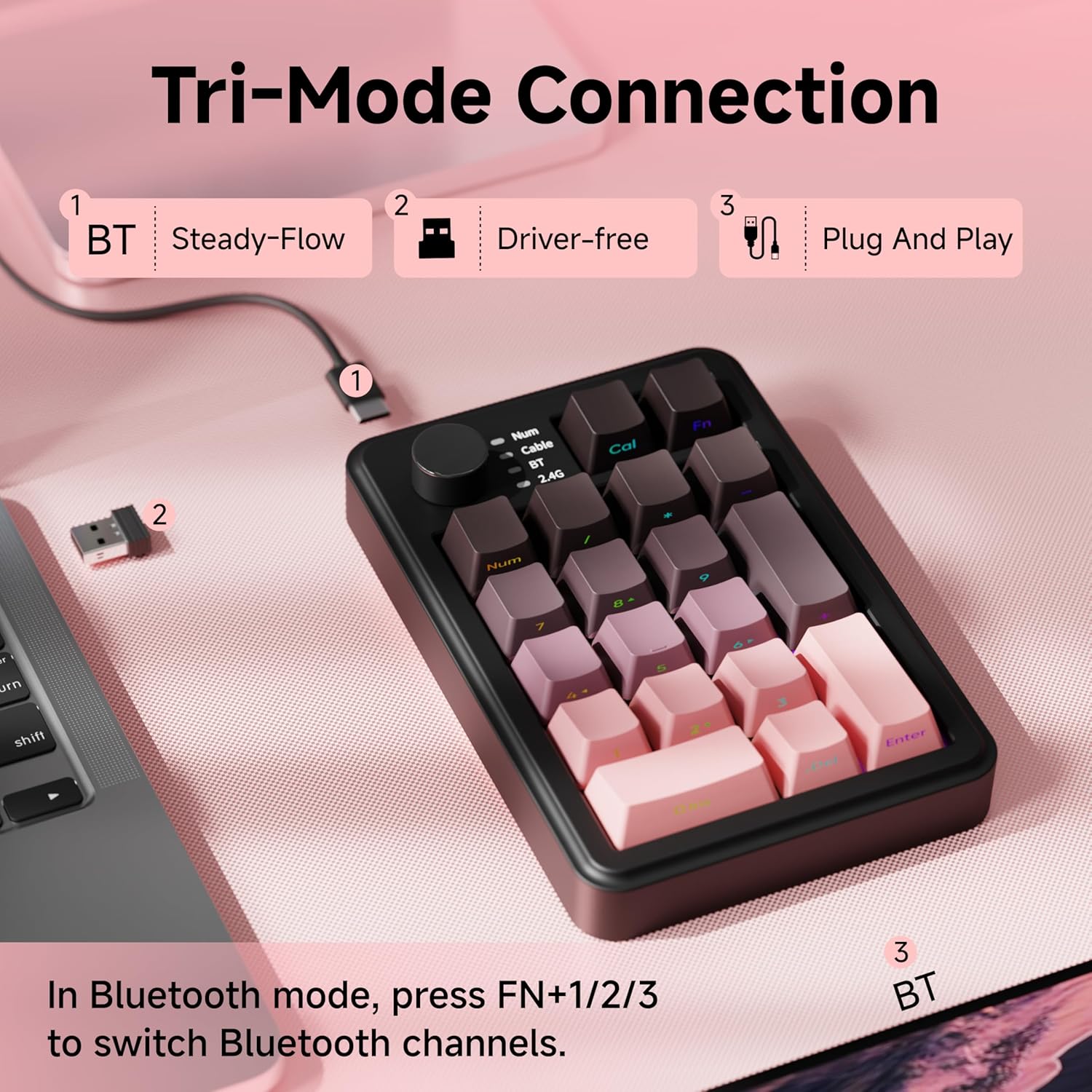
Imaxe: Detallada view of the NK20 Numpad demonstrating the three connection methods: Bluetooth, 2.4GHz dongle, and USB-C cable, with instructions for Bluetooth channel switching.
4. Instrucións de funcionamento
4.1. Funcións clave
- The NK20 features 19-key anti-ghosting technology, ensuring all key presses are registered accurately, even when multiple keys are pressed simultaneously.
- The 'CAL' key provides quick access to your computer's calculator application.
- The 'Num' key toggles the numeric keypad function on and off.
4.2. Botón multifunción
The top-mounted knob provides convenient multimedia control:
- Xirar no sentido das agullas do reloxo: Aumenta o volume.
- Rotate Anti-clockwise: Diminúe o volume.
- Preme cara abaixo: Silencia ou activa o son.

Image: Visual guide to the multifunction knob's operations: clockwise for volume up, anti-clockwise for volume down, and press for mute/unmute.

Image: Close-up of the multifunction knob, highlighting its use for adjusting multimedia volume.
4.3. Control da retroiluminación RGB
The NK20 Numpad features customizable RGB backlighting. Use the following key combinations to control the lighting effects:
- FN + [+] / [-]: Axusta o brillo da retroiluminación.
- FN + [7]: Switches between different lighting effects.
- FN + [NUM]: Toggles the backlight on or off.
- FN + [<] / [>]: Switches main backlight effect.
- FN + [↑] / [↓]: Switches main backlight colors.
- FN + [←] / [→]: Adjusts main backlight speed.
- Long press FN for 3 seconds: Restaura a configuración de fábrica.

Image: Visual guide to RGB backlight controls, showing key combinations for brightness, effect switching, and on/off.

Image: Chart detailing key combinations for customizing RGB effects, including brightness, color, and speed adjustments, and restoring factory settings.
5. Interruptores intercambiables en quente
The NK20 Numpad features a hot-swappable design, allowing you to easily change mechanical switches without soldering. It uses a gasket structure for improved typing feel and sound.
- The numpad comes with Baima Axis linear switches, known for a comfortable typing experience.
- You can replace the existing switches with most 3-pin or 5-pin mechanical switches.
- Use the included switch puller tool to carefully remove switches. Insert new switches by aligning the pins with the sockets and pressing gently until they click into place.
- The numpad features south-facing LEDs, which are compatible with most custom keycap sets.
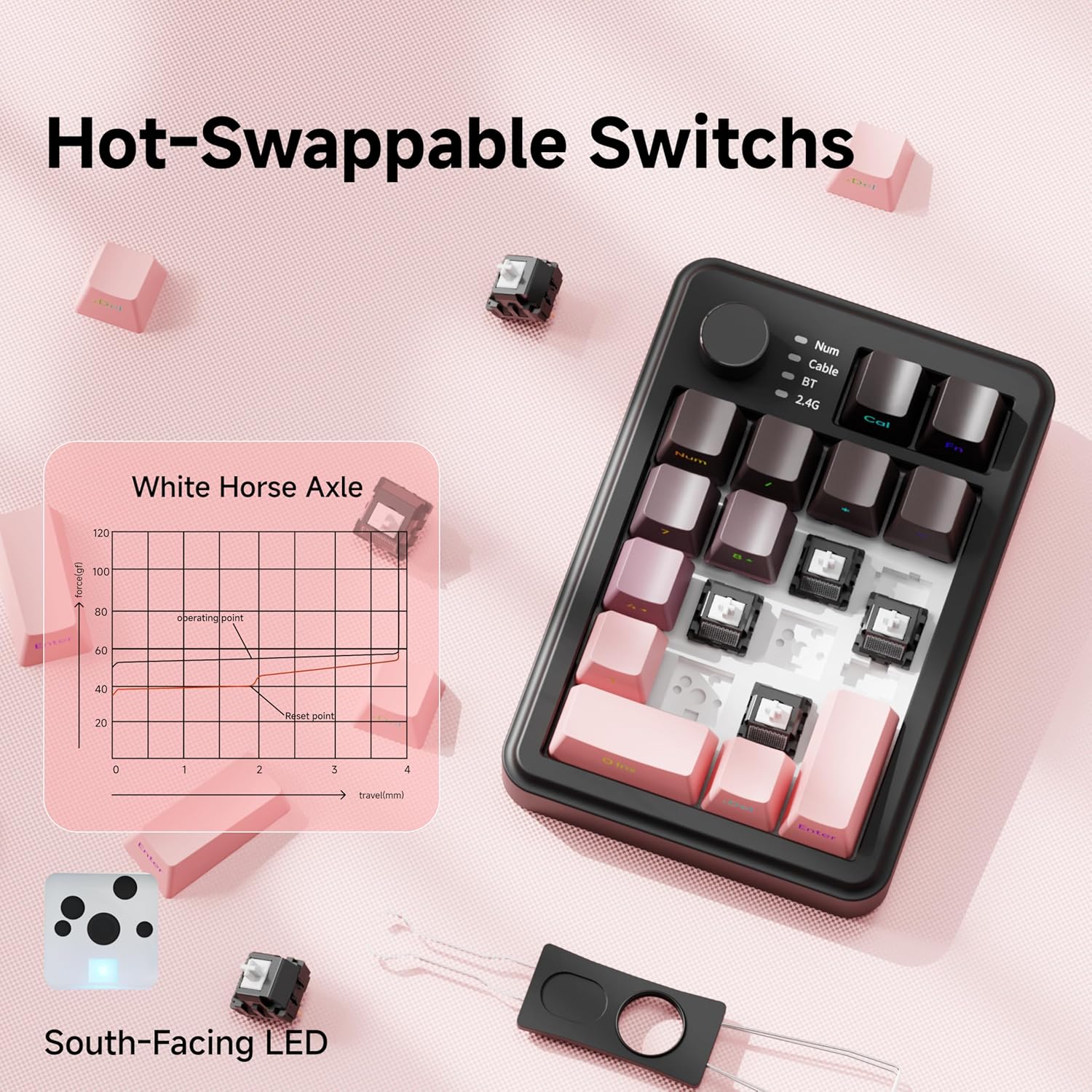
Image: The NK20 Numpad with several switches removed, showing the hot-swappable sockets, along with a switch puller tool and spare switches.

Image: Illustration of the NK20 Numpad's full key hot-swappable capability, including details on Baima Axis switches and south-facing LEDs.
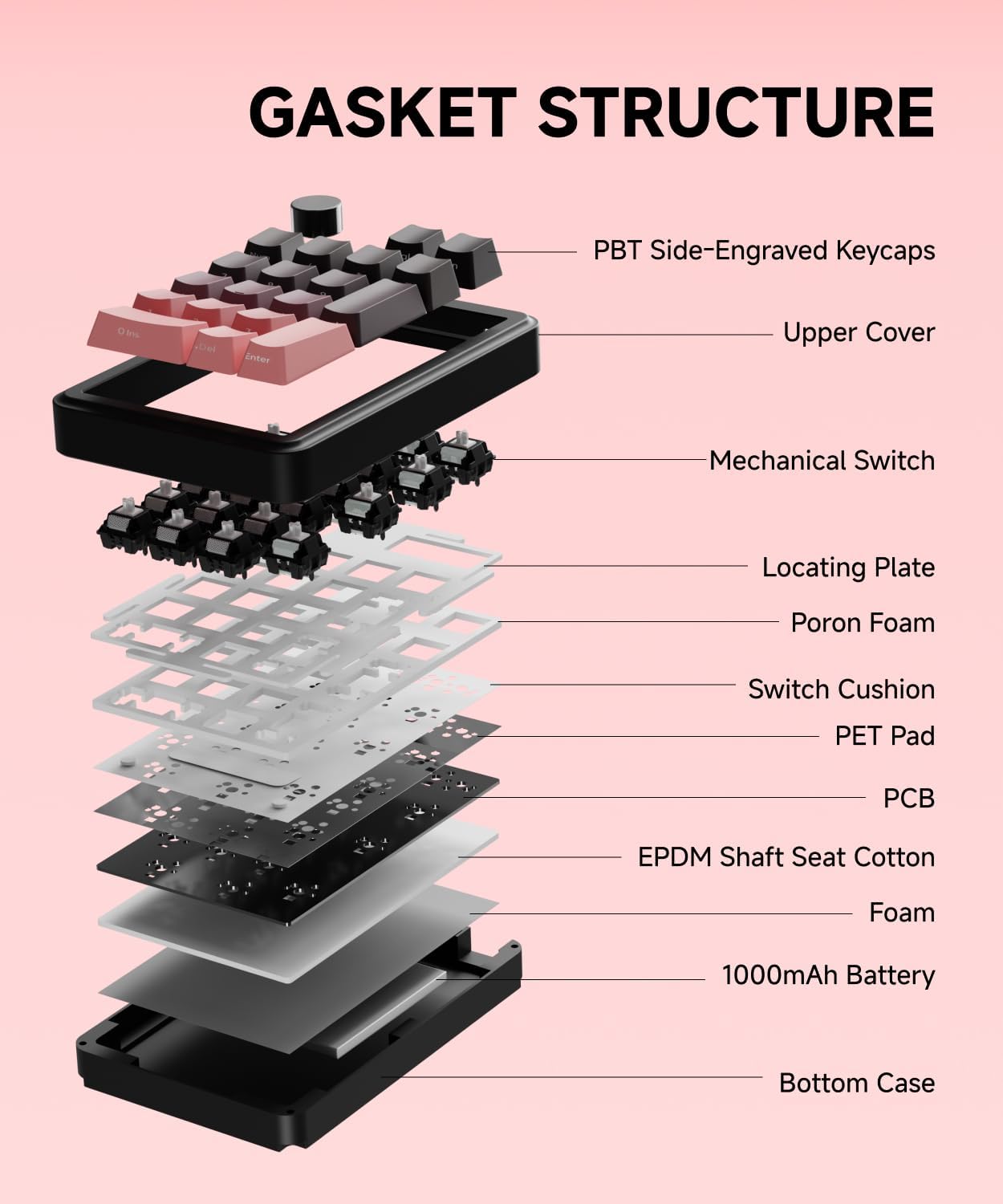
Imaxe: Explosión view diagram of the NK20 Numpad's gasket structure, showing layers like PBT keycaps, upper cover, mechanical switch, locating plate, Poron foam, switch cushion, PET pad, PCB, EPDM shaft seat cotton, foam, 1000mAh battery, and bottom case.
6. Mantemento
To ensure the longevity and optimal performance of your NK20 Numpad, follow these maintenance guidelines:
- Limpeza: Use a soft, dry cloth to wipe the surface of the numpad. For dust and debris between keycaps, use a can of compressed air. For stubborn dirt, you may carefully remove keycaps using the provided keycap puller and clean underneath.
- Evitar líquidos: Do not expose the numpad to excessive moisture or liquids. If liquid spills occur, immediately disconnect the numpad and allow it to dry completely before use.
- Almacenamento: Store the numpad in a cool, dry place away from direct sunlight and extreme temperatures.
7 Solución de problemas
If you encounter issues with your NK20 Numpad, refer to the following common problems and solutions:
- Numpad not responding in 2.4GHz mode:
- Ensure the 2.4GHz receiver is securely plugged into a USB port.
- Verify the numpad's mode switch is set to '2.4G'.
- Tenta conectar o receptor a un porto USB diferente. - Problemas de conexión Bluetooth:
- Ensure the numpad's mode switch is set to 'BT'.
- Make sure Bluetooth is enabled on your host device.
- Re-enter pairing mode by pressing FN + 1/2/3 and re-pair the device.
- Check if the numpad is already connected to another device. - As teclas non se rexistran ou se escriben dúas veces:
- This could indicate a loose or faulty switch. Use the switch puller to remove the affected switch and re-seat it firmly. If the issue persists, try replacing it with one of the spare switches. - A retroiluminación non funciona ou é tenue:
- Ensure the backlight is turned on (FN + NUM).
- Adjust brightness using FN + [+] / [-].
- The battery might be low; charge the numpad. - Numpad not charging:
- Verify the USB-C cable is properly connected to both the numpad and the power source.
- Try a different USB-C cable or power source.
- Ensure the numpad's mode switch is set to 'Cable' for wired charging. - Multifunction knob not working:
- Ensure the numpad is properly connected to your device.
- Check if any software or system settings are overriding multimedia controls.
Se estes pasos non resolven o problema, ponte en contacto co servizo de atención ao cliente.
8. Especificacións
| Característica | Detalle |
|---|---|
| Número de modelo | NK20 |
| Tecnoloxía de conectividade | Sen fíos de 2.4 GHz, Bluetooth 5.0, USB-C con cable |
| Dispositivos compatibles | Laptop, PC (Windows, macOS, iOS, Android) |
| Descrición do teclado | Gaming Numpad |
| Características especiais | Backlit, Hot-Swappable, Lightweight, Rechargeable, Multifunction Knob |
| Capacidade da batería | 1000 mAh |
| Retroiluminación del teclado | RGB |
| Material | Plastic, PBT Keycaps |
| Peso do elemento | 1.04 libras (aprox. 472 g) |
| Dimensións do paquete | 7.36 x 6.22 x 2.24 polgadas |
9. Garantía e soporte
Your EWEADN NK20 Numpad comes with a manufacturer's warranty. For specific warranty details, please refer to the documentation included with your purchase or contact customer support.
For any questions, troubleshooting assistance, or support needs, please contact:
Soporte por correo electrónico: eweadnkeyboard@outlook.com

Image: Illustration of available after-sales support services including pre-sales Q&A, troubleshooting, accessories reissue, and returns/exchanges, with the support email address.