
1. Introdución
The Tiqvi 10-inch Digital Photo Frame is designed to help you easily store and share your most cherished memories. Featuring a vibrant IPS touch screen and seamless WiFi connectivity, this frame allows you to receive photos and videos directly from family and friends via the Frameo app. With ample internal storage and a rechargeable battery, it offers a convenient and elegant way to display your digital photos.
Características principais:
- WiFi & Frameo App Compatibility: Effortlessly share photos and videos through the Frameo application, supporting up to 500 users.
- Gran capacidade de almacenamento: Equipped with expandable internal memory, capable of storing thousands of photos and videos.
- Pantalla clara e brillante: The IPS screen delivers vivid colors and sharp details for a beautiful viewing experience of your memories.
- Control táctil intuitivo: Provides easy and intuitive navigation for all users.
- Deseño elegante e práctico: Includes a stand, offers wall-mounting options, and features an energy-efficient design.
2. Que hai na caixa
Comprobe o contido do paquete para asegurarse de que estean presentes todos os elementos:
- Tiqvi 10-inch Digital Photo Frame (with WiFi and Frameo App)
- Adaptador de alimentación
- Soporte de escritorio
- Manual de usuario (este documento)
3. Produto rematadoview
Familiarízate cos compoñentes do teu marco de fotos dixital.
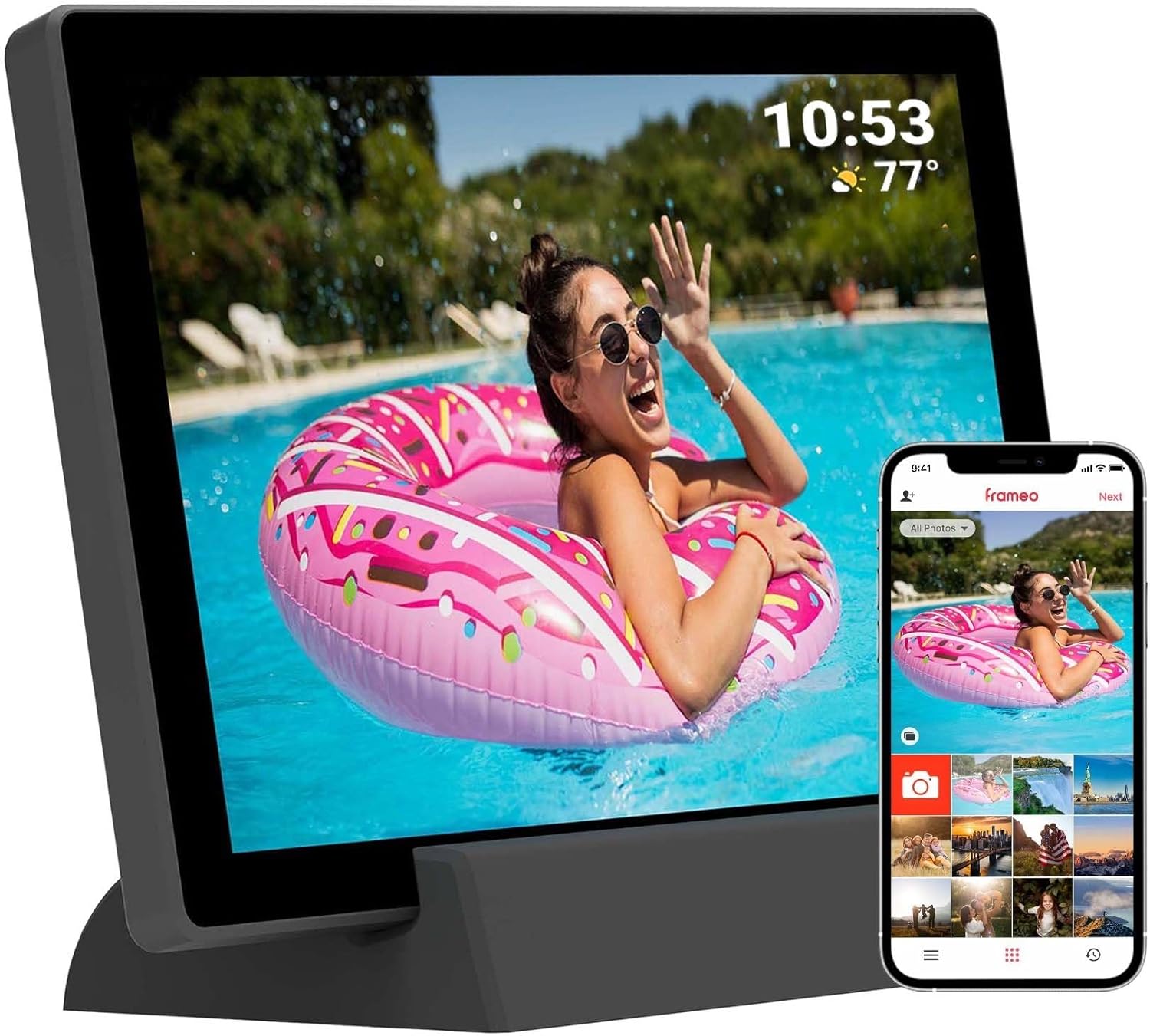
Figura 3.1: Fronte view of the Tiqvi 10-inch Digital Photo Frame, showcasing its display and the accompanying Frameo app on a smartphone. The frame is designed for easy photo sharing and display.

Figure 3.2: The Tiqvi 10-inch Digital Photo Frame positioned on a surface, illustrating its dimensions and how it fits into a home environment. A "10"" label indicates its screen size.
Compoñentes físicos:
- Pantalla táctil IPS de 10 polgadas: Main display for photos and videos, with touch functionality for navigation.
- Botón de encendido: Located on the back or side, used to turn the frame on/off or put it to sleep.
- Porto de alimentación: Para conectar o adaptador de alimentación.
- Ranura para tarxetas MicroSD: For expanding storage or importing photos directly.
- Restablecer burato: A small pinhole for factory reset.
- Built-in Stand/Mounting Holes: For desktop placement or wall mounting.
4. Configuración
4.1 Acendido inicial e configuración básica
- Charge the Frame: Before first use, connect the power adapter to the frame's power port and plug it into a wall outlet. Allow the frame to charge fully. The frame has a 3000mAh rechargeable battery.
- Encendido: Press and hold the power button on the back of the frame for a few seconds until the screen lights up.
- Selección do idioma: Siga as instrucións na pantalla para seleccionar o idioma que prefira.
- Fuso horario e data: Set the correct time zone, date, and time.
4.2 Conectando a Wi-Fi
- From the initial setup wizard or the settings menu, select "Wi-Fi".
- The frame will scan for available Wi-Fi networks. Select your network from the list.
- Enter your Wi-Fi password using the on-screen keyboard and tap "Connect".
- Once connected, a Wi-Fi icon will appear on the status bar.
4.3 Setting Up the Frameo App
The Frameo app is essential for sending photos and videos to your digital frame.
- Descarga a aplicación: On your smartphone or tablet, download the "Frameo" app from the App Store (iOS) or Google Play Store (Android).
- Crear unha conta: Open the Frameo app and follow the instructions to create a new account or log in if you already have one.
- Connect to Your Frame:
- On your Tiqvi frame, go to "Add Friend" or "Connect to App" in the settings.
- A unique code will be displayed on the frame's screen.
- In the Frameo app on your phone, enter this code to link your device to the frame.
- Add Users/Friends: You can invite family and friends to send photos to your frame by sharing the unique code with them. The frame supports adding up to 500 users.
5. Instrucións de funcionamento
5.1 Navigating the Touch Screen
The Tiqvi frame features an intuitive touch screen interface:
- Toca: To select an item or open a menu.
- Pasar o dedo: To scroll through photos or menu options.
- Pinch-to-Zoom: To zoom in or out on a photo (if supported by software).
5.2 Engadir fotos e vídeos
There are two primary ways to add media to your frame:
- Via Frameo App (Recommended):
- Abre a aplicación Frameo no teu teléfono intelixente.
- Select the photos or videos you wish to send.
- Choose the recipient frame(s) and tap "Send". The media will appear on your frame once downloaded.
- Via MicroSD Card:
- Insert a MicroSD card containing your photos/videos into the frame's MicroSD card slot.
- The frame will prompt you to import the media. Follow the on-screen instructions to transfer files to the frame's internal memory.
- The frame has 32GB internal memory and supports expansion via microSD.
5.3 Managing Photos and Settings
Access the frame's settings by tapping the gear icon (⚙️) on the home screen or during a slideshow.
- My Photos: View all photos stored on the frame. You can delete individual photos or select multiple for deletion.
- Amigos: Manage connected users and add new ones.
- Configuración:
- Visualización: Adjust brightness, sleep mode, and slideshow interval.
- Presentación de diapositivas: Customize transition effects and display order.
- Wi-Fi: Change or reconnect to Wi-Fi networks.
- Almacenamento: View storage usage and manage imported media.
- Acerca de: Check firmware version and device information.
- Rotación automática: The frame supports automatic rotation, adjusting the display orientation based on how it's positioned.
6. Mantemento
Proper care will extend the life of your digital photo frame.
- Limpeza da pantalla: Use a soft, lint-free cloth (e.g., microfiber cloth) to gently wipe the screen. For stubborn smudges, slightly dampEnxágüe o pano con auga ou unha solución para limpar pantallas. Do not spray liquids directly onto the screen.
- Limpeza xeral: Wipe the frame's body with a dry, soft cloth. Avoid abrasive cleaners or solvents.
- Actualizacións de software: Periodically check for software updates in the frame's settings menu (if available). Updates can improve performance and add new features.
- Battery Care (for Rechargeable Model): To prolong battery life, avoid fully discharging the battery frequently. If storing the frame for an extended period, charge it to about 50% before storage and recharge every few months.
- Condicións ambientais: Keep the frame away from extreme temperatures, direct sunlight, and high humidity. Ensure proper ventilation.
7 Solución de problemas
If you encounter issues with your Tiqvi digital photo frame, refer to the following common problems and solutions:
| Problema | Causa posible | Solución |
|---|---|---|
| O cadro non se acende. | Problema de batería baixa ou do adaptador de corrente. | Ensure the power adapter is securely connected and plugged into a working outlet. Allow the frame to charge for at least 30 minutes before attempting to power on again. |
| Non se pode conectar á wifi. | Contrasinal incorrecto, sinal débil ou problema co enrutador. | Double-check the Wi-Fi password. Move the frame closer to the Wi-Fi router. Restart your router and the frame. Ensure your Wi-Fi network is 2.4GHz (most frames do not support 5GHz). |
| As fotos non aparecen no marco. | Not sent correctly via app, or storage issues. | Verify that photos were successfully sent from the Frameo app. Check the frame's storage capacity in settings. Ensure the frame is connected to Wi-Fi to receive new photos. |
| Touch screen is unresponsive. | Fallo temporal do software. | Restart the frame by holding the power button until it turns off, then power it back on. If the issue persists, perform a factory reset (refer to the manual for specific instructions, usually involves a pinhole reset button). |
| A batería non se está cargando. | Faulty adapter or cable, or battery issue. | Ensure the power adapter and cable are not damaged. Try a different power outlet. If the issue persists, contact customer support. |
If the problem persists after trying these solutions, please contact Tiqvi customer support for further assistance.
8. Especificacións
| Característica | Detalle |
|---|---|
| Número de modelo | TVH10009 |
| Tamaño da pantalla | 10 polgadas |
| Tipo de visualización | Pantalla táctil IPS |
| Almacenamento interno | 32 GB (almacena ata 80,000 fotos) |
| Almacenamento ampliable | Ranura para tarxetas MicroSD |
| Conectividade | WiFi (Frameo App compatible) |
| Batería | Batería recargable de 3000 mAh |
| Dimensións | 29 x 19 x 2.51 cm |
| Peso | 7.1 g |
| Cor | Negro |
| País de Orixe | China |
9. Garantía e soporte
Información da garantía: This product comes with a standard manufacturer's warranty. Please refer to the purchase documentation or contact your retailer for specific warranty terms and conditions. Keep your proof of purchase for warranty claims.
Atención ao cliente: For technical assistance, troubleshooting beyond this manual, or warranty inquiries, please contact Tiqvi customer support. Contact information can typically be found on the product packaging, the manufacturer's official websitio web ou a través do seu punto de venda.
We recommend visiting the official Frameo website for app-specific support and updates: https://frameo.net/