
1. Introdución
Thank you for choosing the Tiqvi 10-inch Digital Photo Frame. This device allows you to easily display and share your cherished memories with family and friends. Featuring a vibrant IPS display, Wi-Fi connectivity, and integration with the Frameo app, this digital photo frame offers a convenient way to enjoy your photos and videos. This manual provides detailed instructions for setup, operation, maintenance, and troubleshooting to ensure you get the most out of your new device.

Image 1.1: Tiqvi 10-inch Digital Photo Frame with Frameo App.
This image shows the Tiqvi 10-inch Digital Photo Frame displaying a family photo on its screen. Next to it, a smartphone screen illustrates the Frameo application interface, demonstrating how photos can be managed and shared with the frame.
2. Que hai na caixa
Ao desembalar, comproba o contido do paquete para asegurarte de que estean presentes todos os elementos:
- Tiqvi 10-inch Digital Photo Frame
- Adaptador de alimentación
- Stand
- Manual de usuario (este documento)

Image 2.1: Package Contents.
This image displays the items included in the product package: the Tiqvi 10-inch Digital Photo Frame, its power adapter, and a stand. Dimensions of the frame (26cm width, 18cm height) are also indicated.
3. Produto rematadoview
The Tiqvi Digital Photo Frame is designed for ease of use and vibrant display of your memories.
Características principais:
- Pantalla IPS de 10 polgadas: Offers vivid colors and sharp details for photos and videos.
- Conectividade Wi-Fi: Enables easy sharing of photos and videos via the Frameo app.
- Frameo App Compatibility: Share memories with up to 500 users.
- Memoria interna de 32 GB: Stores thousands of photos and videos, expandable with a microSD card.
- Interfaz de pantalla táctil: Intuitive navigation and easy operation.
- Rotación automática: Adjusts photo orientation for perfect display in portrait or landscape mode.
- Opcións de montaxe: Includes a stand and supports wall mounting.
- Eficiencia enerxética: Deseñado para un baixo consumo de enerxía.

Image 3.1: Frame in a home setting.
This image shows the Tiqvi Digital Photo Frame placed on a white desk in a minimalist room, displaying a family photo. It highlights the frame's aesthetic integration into a home environment.
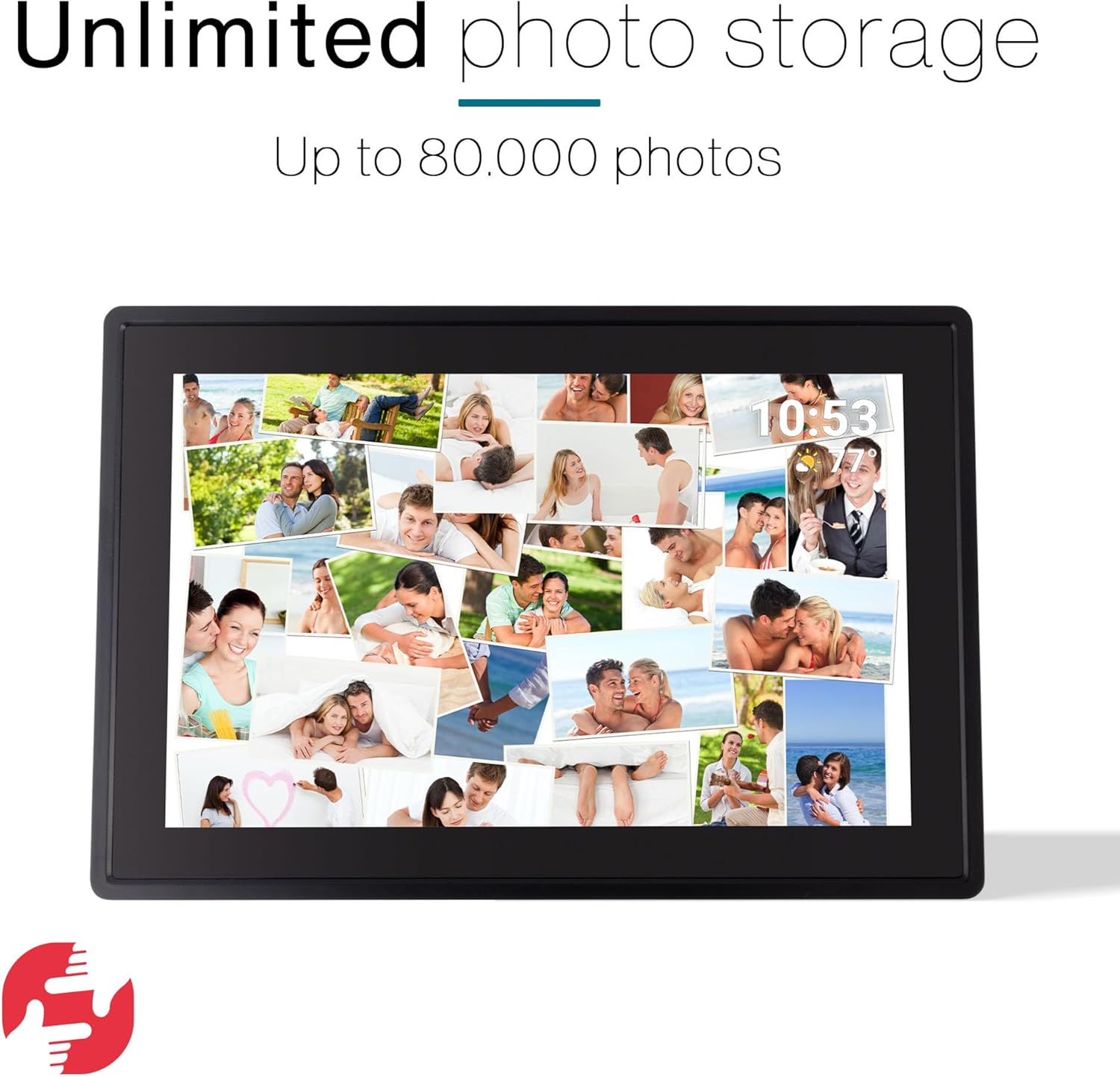
Image 3.2: Unlimited Photo Storage.
The image depicts the digital photo frame filled with a collage of numerous personal photos, emphasizing its large storage capacity for up to 80,000 photos.
4. Configuración
4.1 Encendido inicial
- Unpack the digital photo frame and all accessories.
- Attach the stand to the back of the frame, or prepare for wall mounting if desired.
- Connect the power adapter to the frame's power port and then plug it into a power outlet.
- O marco acenderase automaticamente e mostrará a pantalla de configuración inicial.
4.2 Conexión Wi-Fi
- On the initial setup screen, select your preferred language.
- Follow the on-screen prompts to connect to your Wi-Fi network. Select your network from the list and enter the password.
- Once connected, the frame will synchronize with the current date and time.
4.3 Frameo App Setup
- Download the Frameo app from the Google Play Store or Apple App Store on your smartphone or tablet.
- Open the Frameo app and create an account.
- On your digital photo frame, locate the unique code (usually found in the settings under 'Add friend' or 'Connect').
- In the Frameo app, enter this code to link your device to the frame.

Image 4.1: Connect with the Frameo App.
This image shows the Tiqvi Digital Photo Frame displaying a scenic landscape. Above the frame, the Google Play and App Store logos are visible, indicating where users can download the Frameo application to connect with the device.
5. Instrucións de funcionamento
Navegación con pantalla táctil 5.1
The Tiqvi Digital Photo Frame features a responsive touchscreen for easy navigation:
- Pasar o dedo: Pasa o dedo cara á esquerda ou á dereita para navegar polas fotos.
- Toca: Tap on a photo to view it in full screen or access options.
- Pinch-to-Zoom: Use two fingers to zoom in or out on a photo.
- Configuración: Access the settings menu by swiping down from the top of the screen or tapping the gear icon.
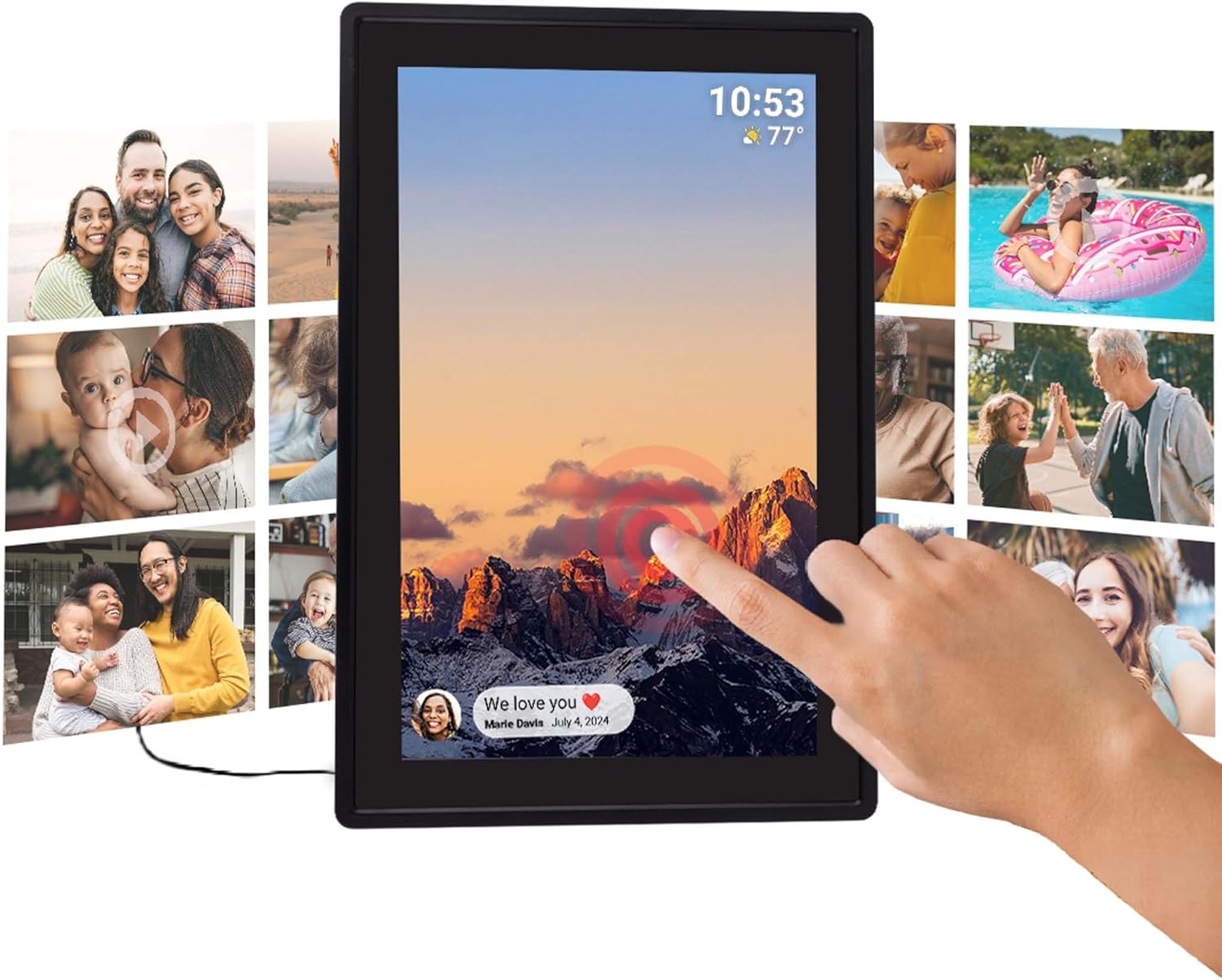
Image 5.1: Touchscreen Interaction.
This image illustrates a hand touching the screen of the Tiqvi Digital Photo Frame, which displays a mountain landscape and a notification bubble at the bottom left, demonstrating the interactive touchscreen functionality.
5.2 Engadir fotos e vídeos
Photos and videos can be added to your frame primarily through the Frameo app. Refer to Section 6 for detailed instructions on using the app.
You can also transfer media via a microSD card (not included). Insert the microSD card into the designated slot on the frame. The frame will prompt you to import photos/videos from the card.
5.3 Rotación automática
The frame features an auto-rotate function that automatically adjusts the orientation of your photos and videos to match how the frame is positioned (portrait or landscape). This ensures your content is always displayed correctly.

Image 5.2: Auto-Rotate Function.
This image shows two Tiqvi Digital Photo Frames side-by-side, one in landscape orientation and the other in portrait. Both frames display the same mountain sunset image, illustrating the automatic rotation feature that adjusts the display based on the frame's physical orientation.
5.4 Xestión da configuración
Access the settings menu to customize various aspects of your frame, including:
- Visualización: Adjust brightness, sleep mode, and slideshow interval.
- Wi-Fi: Change or connect to new Wi-Fi networks.
- Almacenamento: View uso e xestión do almacenamento files.
- Amigos: Manage connected Frameo users.
- Acerca de: View device information and check for software updates.
6. Frameo App Integration
The Frameo app is the primary method for sending photos and videos to your Tiqvi Digital Photo Frame. It allows you to share moments instantly with connected frames, no matter where you are.
6.1 Envío de fotos e vídeos
- Open the Frameo app on your smartphone or tablet.
- Select the photos or videos you wish to send from your device's gallery.
- Choose the Tiqvi frame (or multiple frames) you want to send the media to.
- Add a caption if desired and tap 'Send'.
- The photos/videos will appear on your digital photo frame shortly, provided it is connected to Wi-Fi.

Image 6.1: Sharing via Frameo App.
This image shows the Tiqvi Digital Photo Frame displaying a family photo. A smartphone next to it shows the Frameo app interface, demonstrating the process of selecting and sharing photos to the frame.
6.2 Connecting with Friends and Family
The Frameo app allows you to connect with up to 500 users, enabling multiple people to send photos to your frame. Each user needs to download the Frameo app and use the unique code from your frame to establish a connection.

Image 6.2: Connect with Anyone.
This image illustrates the global sharing capability of the Frameo app. The digital photo frame displays a selfie, while a smartphone shows a person sending a photo from America to a frame located in the Netherlands, highlighting the ability to share photos and videos with anyone, anywhere.
7. Mantemento
7.1 Limpeza da pantalla
Para limpar a pantalla táctil, limpe con coidado cun pano suave e sen pelusa. Para manchas difíciles, límpeaa lixeiramenteampen the cloth with water or a screen-cleaning solution. Avoid using harsh chemicals or abrasive materials, as these can damage the screen.
7.2 Coidados xerais
- Keep the frame away from direct sunlight, extreme temperatures, and high humidity.
- Evite deixar caer a estrutura ou sometela a impactos fortes.
- Ensure proper ventilation around the frame to prevent overheating.
- Non intente desmontar nin reparar o dispositivo vostede mesmo. Póñase en contacto co servizo de atención ao cliente se xorden problemas.
8 Solución de problemas
If you encounter any issues with your Tiqvi Digital Photo Frame, please refer to the following common solutions:
| Problema | Posible Solución |
|---|---|
| O marco non se acende. | Asegúrate de que o adaptador de corrente estea conectado correctamente tanto á estrutura como a unha toma de corrente que funcione. Proba cunha toma diferente. |
| Non se pode conectar á wifi. | Check if your Wi-Fi router is on and working. Re-enter the Wi-Fi password carefully. Move the frame closer to the router. Restart the frame and your router. |
| As fotos non aparecen no marco. | Verify the frame is connected to Wi-Fi. Ensure the Frameo app is linked correctly and photos were sent successfully. Check the frame's storage capacity. |
| A pantalla táctil non responde. | Reinicia o marco desconectando e volvendo conectar o adaptador de corrente. Asegúrate de que a pantalla estea limpa e libre de residuos. |
| Frame is slow or freezing. | Restart the frame. Clear some storage space if it's nearly full. Check for and install any available software updates. |
9. Especificacións
| Característica | Detalle |
|---|---|
| Número de modelo | TVH10006 |
| Marca | Tiqvi |
| Tamaño da pantalla | 10 polgadas |
| Tipo de visualización | Pantalla táctil IPS |
| Conectividade | Wi-Fi |
| Memoria interna | 32 GB (ampliable mediante tarxeta microSD) |
| Fonte de enerxía | Eléctrico |
| Dimensións do produto | 35 x 20 x 2.51 cm |
| Peso do produto | 7.1 g |
| País de Orixe | China |
10. Garantía e soporte
For warranty information, please refer to the documentation provided at the time of purchase or contact your retailer. Tiqvi is committed to providing quality products and customer satisfaction.
If you require technical assistance or have questions not covered in this manual, please contact Tiqvi customer support through the contact information provided on the official Tiqvi websitio web ou a túa plataforma de compra.
Software updates are provided as available; please check the frame's settings for the latest updates to ensure optimal performance and features.