
1. Introdución
Welcome to your new KPKUE Frameo Digital Picture Frame. This 12.7-inch Wi-Fi enabled digital photo frame features a 1440x1080P IPS touch screen, designed to display your cherished photos and videos with clarity and vibrant colors. With 64GB of built-in storage and support for external SD cards/USB flash drives up to 128GB, you can store thousands of memories. This manual provides detailed instructions to help you set up, operate, and maintain your digital picture frame.
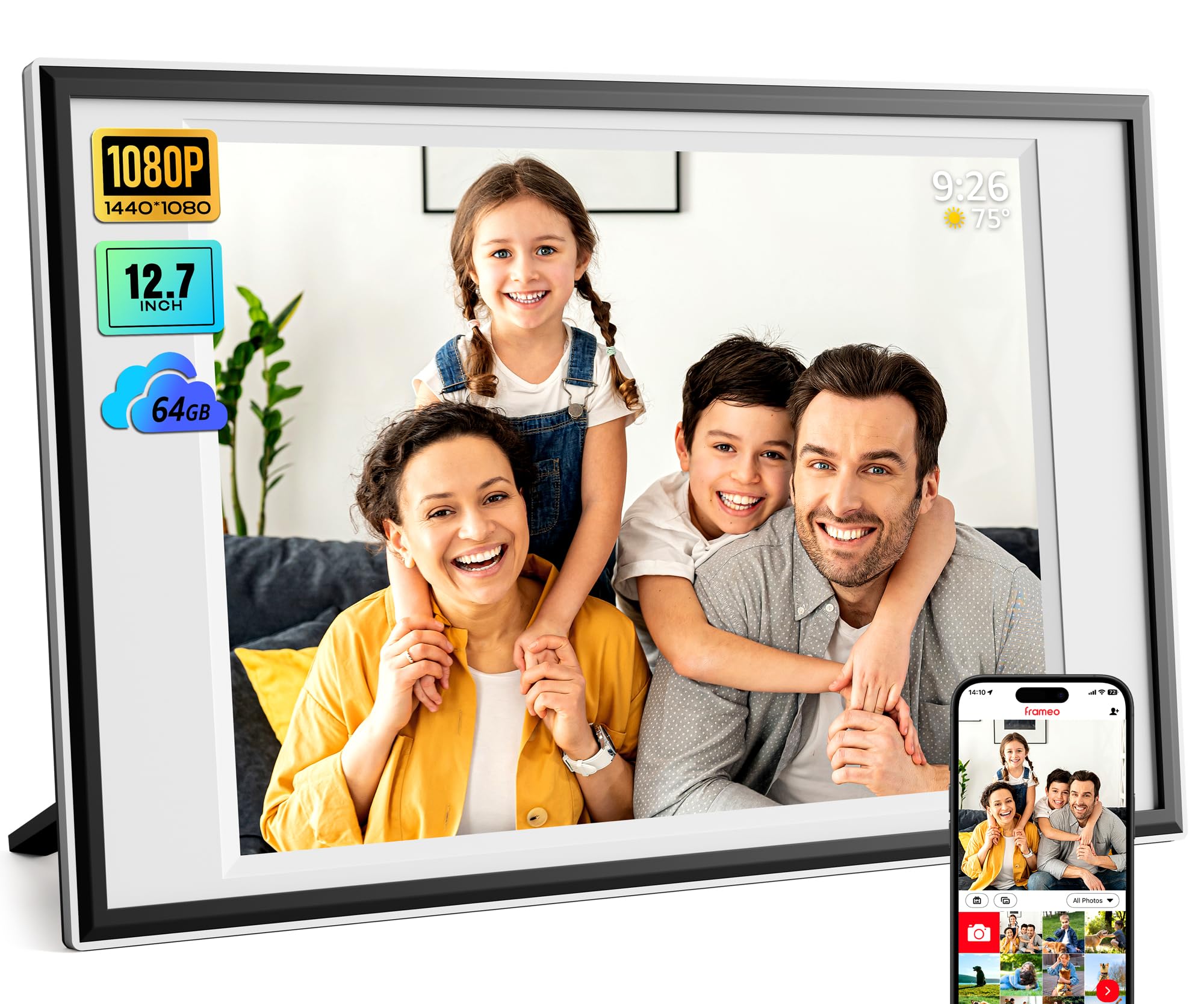
Image: The KPKUE Frameo Digital Picture Frame, 12.7 inches, showcasing a family photo on a tabletop.
2. Configuración
2.1 Desembalaxe e colocación inicial
Carefully remove all components from the packaging. The frame can be placed on a tabletop using the included stand or mounted on a wall. The auto-rotation feature automatically adjusts the display orientation.
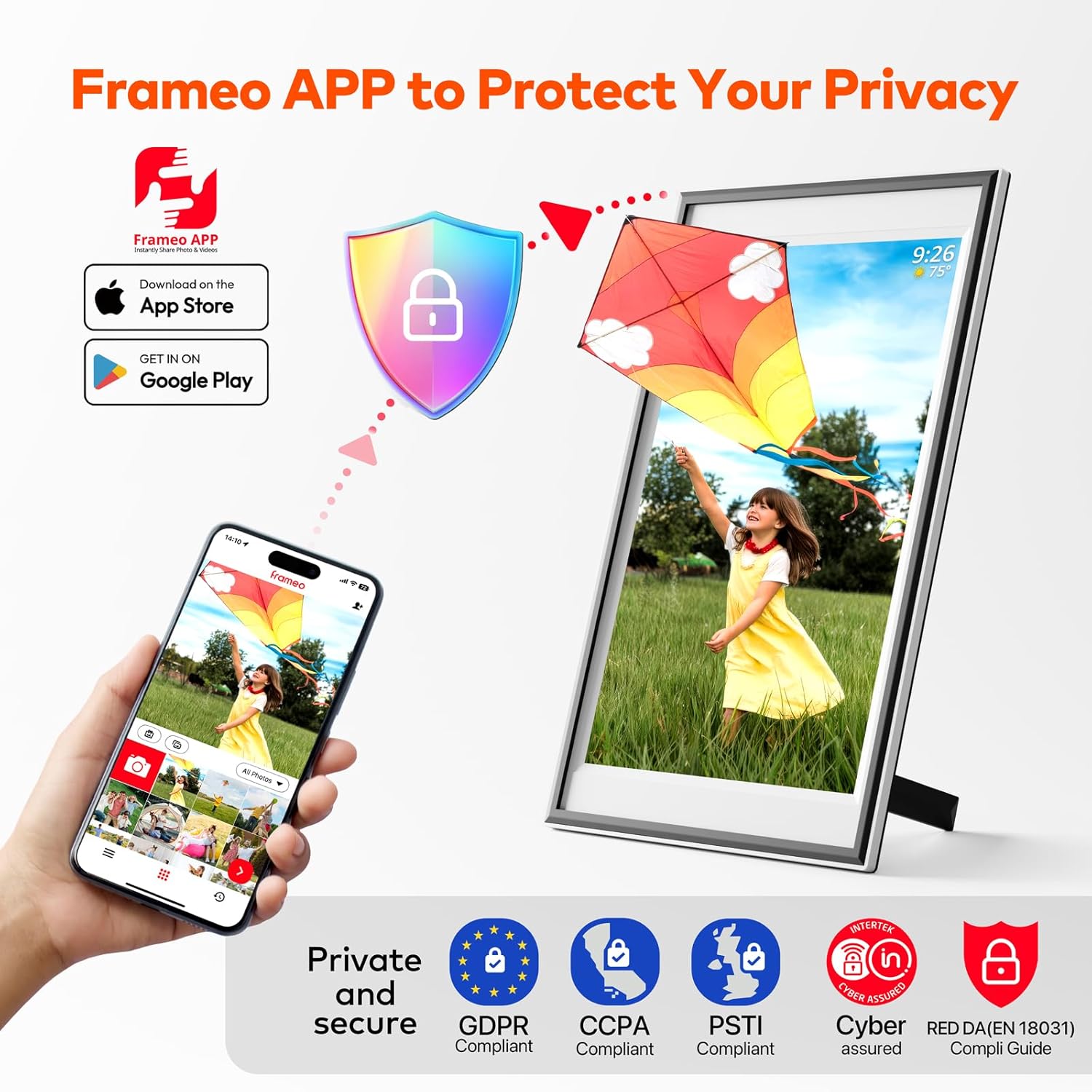
Image: Diagram showing the dimensions (15.7 x 9.84 inches) and various ports (SD card slot, USB-A, Type-C, DC In, 3.5mm Headphone Jack) on the back of the KPKUE Frameo Digital Picture Frame.
2.2 Powering On and Wi-Fi Connection
- Connect the power adapter to the DC In port on the frame and plug it into a power outlet.
- The frame will automatically power on. Follow the on-screen instructions to select your language and time zone.
- Connect the frame to your 2.4GHz Wi-Fi network. This is essential for using the Frameo app.
2.3 Frameo App Setup
The Frameo app allows you to easily send photos and videos to your frame from anywhere in the world.
- Download the free "Frameo" app from the App Store (iOS) or Google Play (Android).
- Crea unha conta ou inicia sesión.
- On your digital frame, tap the "Add Friend" icon to generate a unique code.
- In the Frameo app on your smartphone, enter this code to connect your device to the frame.

Image: A visual guide demonstrating how to download the Frameo app from app stores and connect it to the digital picture frame using a generated code.
2.4 Sharing with Friends and Family
You can invite unlimited friends and family to send photos and videos to your frame. Share the unique code generated by your frame with them. They will need to download the Frameo app and enter the code to connect.

Image: An illustration depicting how multiple users can share photos and videos to the digital frame from various geographical locations using the Frameo app and Wi-Fi connectivity.
3. Funcionamento do marco dixital
Navegación con pantalla táctil 3.1
The 12.7-inch IPS touch screen allows for intuitive navigation. Swipe left or right to browse through photos and videos. Tap on a photo to access options like reacting, hiding, or adjusting the display.

Image: A hand touching the screen of the digital picture frame, illustrating the touch functionality and on-screen menu for settings like brightness, clock, and weather forecast.
3.2 Photo and Video Management
- Uploading via Frameo App: Select photos/videos (up to 15 seconds for videos) in the app, add captions, and send them to your frame.
- Uploading via SD Card/USB Flash: Insert an SD card or USB flash drive (FAT32 format only) into the respective slot. You can transfer photos/videos directly to the frame's internal memory or play them directly from the external storage. There is no time limit for videos uploaded this way.
- Uploading via Computer: Connect the frame to a computer using a USB-C cable to transfer files.
- Función de reacción: Touch the "React" feature on the frame to send emojis back to loved ones in real-time, letting them know how you feel about the photos they sent.

Image: A visual representation of the four methods for adding photos to the digital frame: via USB flash drive, computer, the Frameo app, and an SD card.
3.3 Configuración personalizada
Access the settings menu by tapping the screen and selecting the gear icon. Here you can customize various aspects:
- Modo de presentación: Adjust the display order, duration of each photo, and transition effects.
- Brillo: Axusta o brillo da pantalla segundo as túas preferencias.
- Modo de suspensión: Set a schedule for the frame to automatically turn off and on, saving energy.
- Opcións de visualización: Choose to show/hide captions, clock, and weather information.
- Rotación automática: The frame automatically adjusts the photo orientation whether placed horizontally or vertically.

Imaxe: A presentación do marco dixitalasing a family photo, emphasizing its gravity sensing and auto-rotate features for both tabletop and wall-mounted displays.
3.4 Reprodución de vídeo
The frame supports MP4 video format and features built-in dual stereo speakers for an immersive experience. Videos uploaded via SD card/USB flash have no time limit, while app uploads are limited to 15 seconds.
Video: A seller-provided video demonstrating the features of the digital picture frame, including photo and video display, and its ease of use for sharing memories.
4. Mantemento
- Limpeza da pantalla: Use a soft, lint-free cloth to gently wipe the screen. Avoid using harsh chemicals or abrasive materials.
- Limpeza do cadro: Limpe o exterior do marco cun pano seco ou lixeiramente húmidoamp pano.
- Actualizacións de software: Ensure your frame is connected to Wi-Fi to receive automatic software updates, which improve performance and add new features.
5 Solución de problemas
- O cadro non se acende: Asegúrate de que o adaptador de corrente estea conectado correctamente tanto á estrutura como a unha toma de corrente que funcione.
- Problemas de conectividade wifi: Check if your Wi-Fi network is active and within range. Restart your router and the digital frame. Ensure you are connecting to a 2.4GHz network.
- As fotos non se cargan a través da aplicación: Verify that the frame is connected to Wi-Fi and the code entered in the app is correct. Check your internet connection on your smartphone.
- External Storage Not Recognized: Ensure the SD card or USB flash drive is formatted to FAT32. Try reinserting the storage device or using a different one.
- Pantalla sen resposta: Restart the frame by unplugging it and plugging it back in. If the issue persists, perform a factory reset (refer to the settings menu for this option).
6. Especificacións
| Número de modelo | DP-10B |
| Tamaño da pantalla | 12.7 polgadas |
| Resolución | 1440x1080p IPS Touch Screen |
| Almacenamento interno | 64GB (stores 8000+ photos) |
| Soporte de almacenamento externo | Up to 128GB (SD Card/USB Flash, FAT32 format) |
| Conectividade | Wi-Fi de 2.4 GHz |
| Dimensións do produto | 15.67 x 9.84 x 0.99 polgadas |
| Peso do elemento | 4.27 libras |
| Fabricante | KPKUE |
7. Garantía e soporte
Your KPKUE Digital Picture Frame comes with a garantía dun ano. For any technical assistance or customer service inquiries, please do not hesitate to contact our dedicated after-sale team. We offer Soporte 24/7 para garantir a súa completa satisfacción.
Contact information can typically be found on the product packaging or through the official KPKUE websitio.