
RayNeo XRGF35
Manual do usuario das lentes RayNeo Air 3s AR/XR
Model: XRGF35
Introdución
Welcome to the RayNeo Air 3s AR/XR Glasses user manual. This guide provides detailed instructions on how to set up, operate, maintain, and troubleshoot your new AR/XR glasses. Please read this manual thoroughly before using the device to ensure optimal performance and safety.

Image: The RayNeo Air 3s AR/XR Glasses, showcasing o seu elegante deseño.
O que hai na caixa
Upon unboxing your RayNeo Air 3s, verify that all components are present:
- RayNeo Air 3s x 1
- Marco de lentes graduadas (sample) x 1
- Cable de datos x 1
- Nose pad component x 1
- Carry case x 1
- Glasses cleaning cloth x 1
- Manual de usuario x 1

Image: A visual representation of the RayNeo Air 3s packaging contents, including the glasses, case, cables, and accessories.
Guía de configuración
1. Axuste para maior comodidade
The RayNeo Air 3s glasses are designed for a customizable fit. Adjust the nose pads and temples for optimal comfort and display alignment.
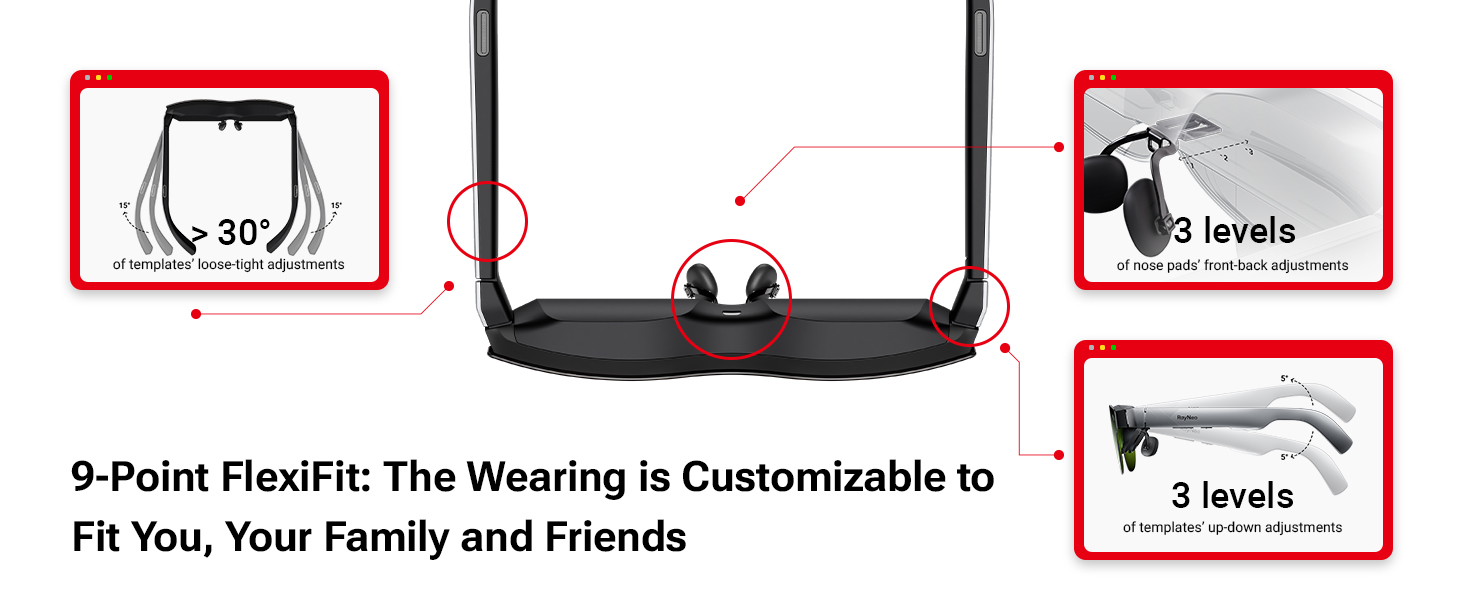
- Almohadillas nasais: The nose pad component can be adjusted to three levels for front-back positioning.
- Templos: The temples offer three levels of up-down adjustments and over 30 degrees of loose-tight adjustments to ensure a secure yet comfortable fit.
- Lentes graduadas: If you require prescription correction, use the included prescription-lens frame. Consult an optician to have your prescription lenses fitted into this frame, which then attaches to the glasses.
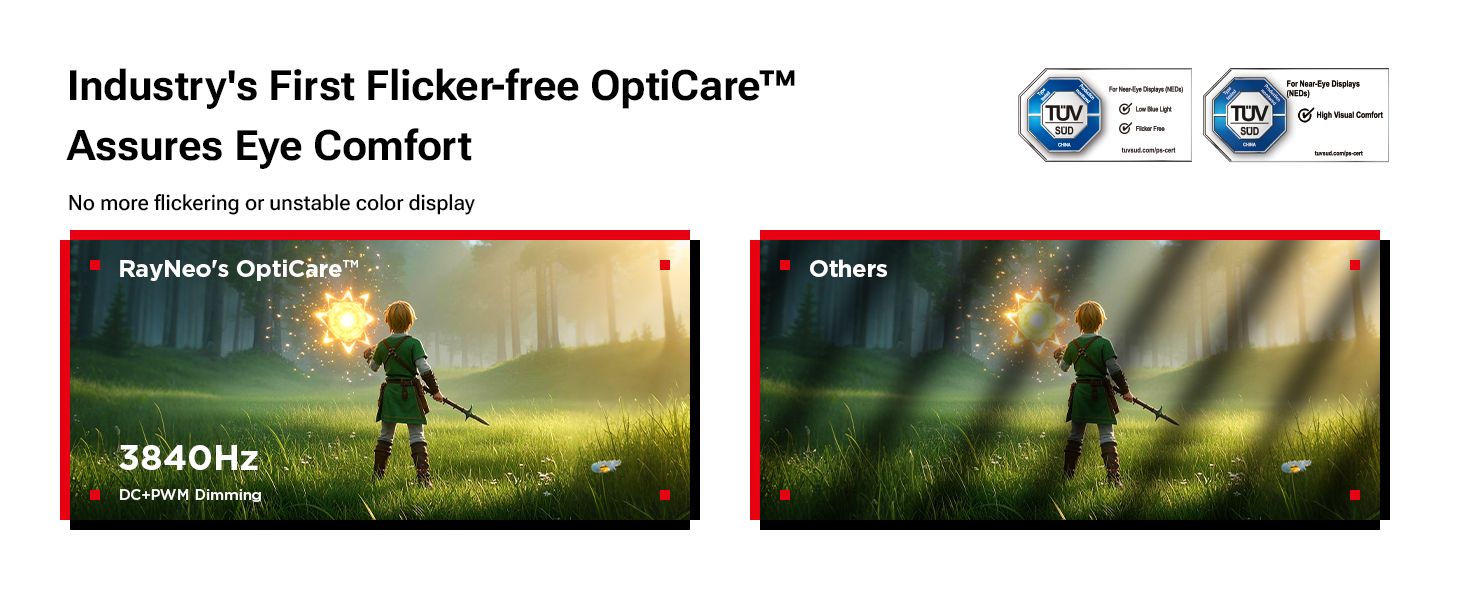
Image: Diagram illustrating the 9-Point FlexiFit system, showing adjustable nose pads and temple arms for personalized comfort.
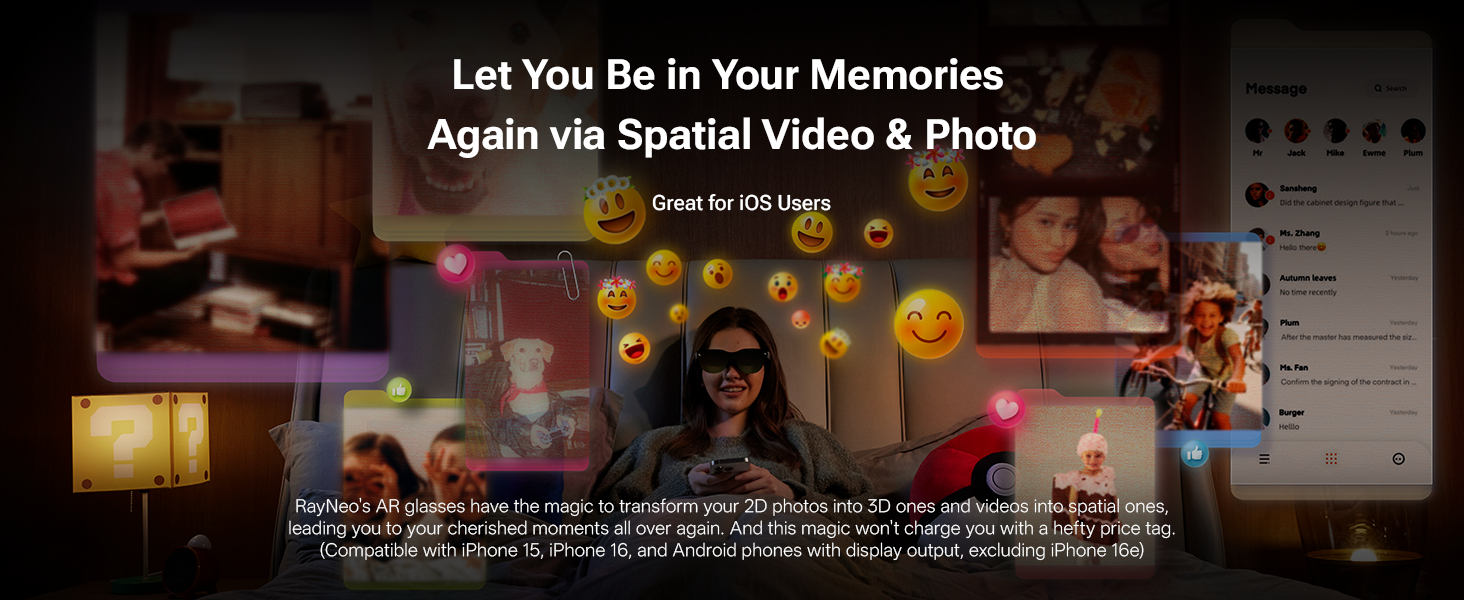
Image: The RayNeo Air 3s glasses with an attachable frame for custom myopia lenses, demonstrating how prescription correction can be integrated.
2. Conexión a dispositivos
The RayNeo Air 3s supports various connection methods for broad compatibility.
- Direct Connection (Plug & Play): Connect directly to devices with a Type-C port supporting display output (e.g., certain smartphones, tablets, laptops).
- Type-C to Glasses and Charging Adapter: For extended use while charging your device, connect via a Type-C adapter.
- HDMI to Glasses and Charging Adapter (Coming Soon): Future support for HDMI devices will allow connection and charging simultaneously.
- JoyDock for Nintendo Switch Gaming: Use the JoyDock accessory (sold separately) to connect to Nintendo Switch (original), PS5, and Steam Deck for an enhanced gaming experience.
- Pocket TV: Connect with Pocket TV (sold separately) for access to various Google TV videos and streams.

Image: A diagram illustrating various connection methods for the RayNeo Air 3s, including direct USB-C, Type-C adapter, HDMI adapter, JoyDock, and Pocket TV.

Image: The RayNeo Air 3s glasses shown connected to a smartphone, laptop, and gaming console, demonstrating its wide compatibility.
Instrucións de funcionamento
1. Modos de visualización
The RayNeo Air 3s offers versatile display modes optimized for different content types. Switch between modes using the dedicated button on the glasses.
- Modo de xogo: Provides a 120 Hz refresh rate for smooth, responsive gaming.
- Modo de película: Enhances deep contrast and color for an immersive cinematic experience.
- Modo estándar: Suitable for everyday tasks and general viewing.
Imaxe: Visual examples of the Movie, Game, and Standard display modes, highlighting their optimized visual characteristics.
2. Funcións de audio
Experience high-quality audio with the integrated dual opposing acoustic chambers. For private listening, activate Whisper Mode 2.0.
- Dual Opposing Acoustic Chambers: Delivers rich, clear sound with enhanced bass and minimal sound leakage.
- Whisper Mode 2.0: Reduces sound leakage, ensuring privacy in public or quiet environments.

Image: A user enjoying immersive audio with the RayNeo Air 3s, illustrating the concept of cinematic sound and Whisper Mode.
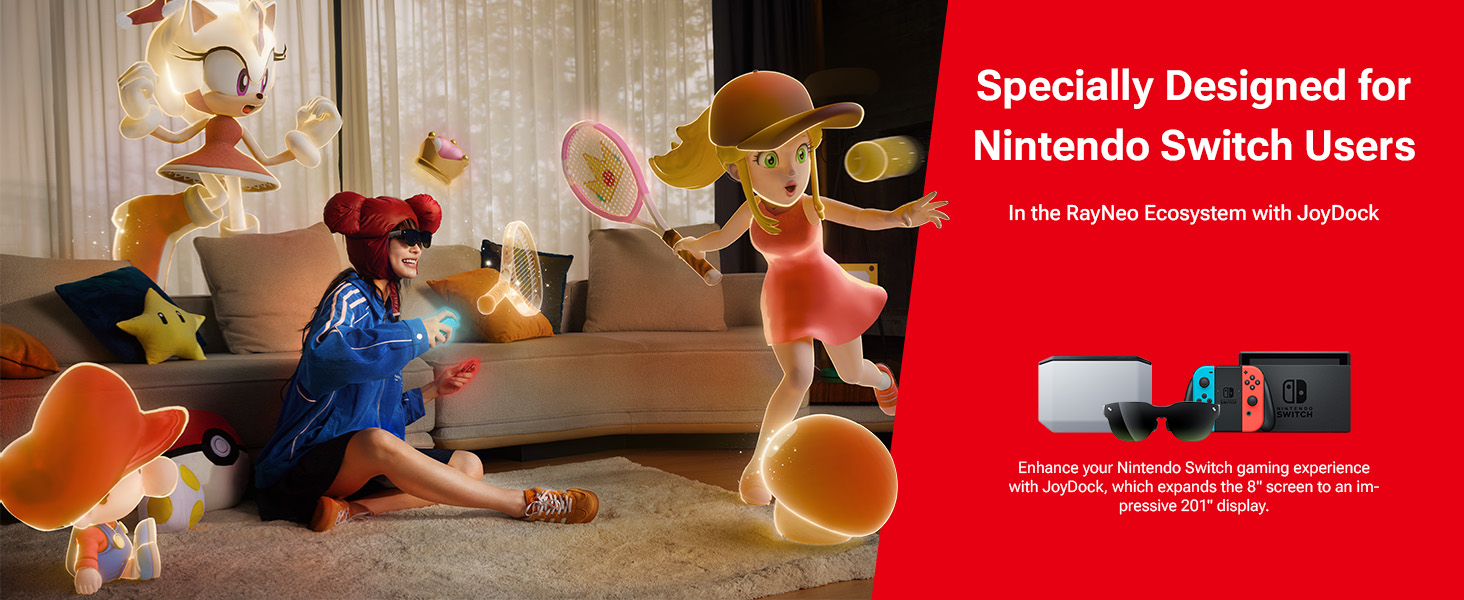
Image: A comparison showing the effect of Whisper Mode, with sound contained for private listening versus sound potentially disturbing others.
3. Spatial Video and Photo Transformation
Transform 2D photos and videos into immersive 3D and spatial experiences. This feature is particularly beneficial for iOS users (compatible with iPhone 15, iPhone 16, and Android phones with display output, excluding iPhone 16e).

Image: A user experiencing spatial video and photo transformation with the RayNeo Air 3s, showing floating images and emojis around them.
Mantemento e coidados
Proper care ensures the longevity and optimal performance of your RayNeo Air 3s glasses.
- Limpeza: Use the provided glasses cleaning cloth to gently wipe the lenses and frame. Avoid abrasive materials or harsh chemicals.
- Almacenamento: When not in use, store the glasses in the provided carry case to protect them from dust, scratches, and impacts.
- Temperatura: Avoid exposing the glasses to extreme temperatures, both hot and cold, as this can affect internal components.
- Exposición ao líquido: Keep the glasses away from liquids. They are not waterproof.
Resolución de problemas
This section addresses common issues you might encounter with your RayNeo Air 3s glasses.
| Problema | Causa posible | Solución |
|---|---|---|
| Sen pantalla/Pantalla negra |
|
|
| Flickering display or unstable colors |
|
|
| Sound leakage/Lack of privacy |
|
|
| Axuste incómodo |
|
|
Especificacións
| Característica | Detalle |
|---|---|
| Número de modelo | XRGF35 |
| Tecnoloxía de visualización | HueView Micro-OLED |
| Virtual Screen Size | 201 inches (at 6m distance) |
| Taxa de actualización | 120 Hz (Game Mode) |
| Precisión da cor | 98% DCI-P3, 145% sRGB, ΔE<2 |
| Relación de contraste | 200,000:1 |
| Protección dos ollos | OptiCare (3840 Hz hybrid dimming, TÜV SÜD certified low blue light & flicker-free) |
| Audio | Dual Opposing Acoustic Chambers, Whisper Mode 2.0 |
| Conectividade | USB Type-C (DisplayPort Alt Mode), compatible with JoyDock, Pocket TV |
| Dimensións | 5.98 x 6.55 x 2.01 polgadas |
| Peso | 2.88 onzas (0.18 libras) |
| Cor | Negro |
| Fabricante | RayNeo Co., Ltd. |
Garantía e Soporte
For warranty information and technical support, please refer to the official RayNeo website or contact RayNeo customer service. Keep your proof of purchase for warranty claims.
RayNeo offers protection plans for extended coverage. Details on 2-Year and 3-Year Protection Plans are available from authorized retailers.
Fabricante: RayNeo Co., Ltd.
Oficial Websitio: Visit the RayNeo Store on Amazon
Ask a question about this manual
Ask about setup, troubleshooting, compatibility, parts, safety, or missing instructions. Manuals+ will review the question and use this page’s manual context to help answer it.