
Introdución
This manual provides detailed instructions for the setup, operation, and maintenance of your TELE System UP Stick Google TV 4K UHD HDMI streaming device. Please read this manual thoroughly before using the device to ensure proper functionality and to maximize your viewexperiencia ing.

Image: The TELE System UP Stick, an Ultra HD 4K Streaming Player, featuring Google TV branding and logos for Dolby, HDMI, HEVC, and Bluetooth technologies.
O que hai na caixa
Verifique que todos os seguintes elementos estean incluídos no seu paquete:
- TELE System UP Stick Google TV 4K UHD HDMI device
- Control remoto Bluetooth
- Baterías para o mando a distancia
- HDMI Cable/Extender
- Quick Start Guide and Warranty Sheet

Imaxe: Fronte view of the TELE System UP Stick Google TV 4K UHD HDMI device, showing its compact design and the 'UP Stick' logo with a green indicator light.
Instrucións de configuración
1. Conectando o dispositivo
- Insert the UP Stick: Plug the TELE System UP Stick directly into an available HDMI port on your television. If space is limited, use the provided HDMI extender cable.
- Conectar enerxía: Connect the power adapter (not explicitly listed in box, but implied by "Power=5V=1A" on back image) to the UP Stick and then to a power outlet. The device can also be powered via a TV's USB port (0.5A is sufficient).
- Seleccione entrada HDMI: Turn on your television and select the corresponding HDMI input source to which the UP Stick is connected.
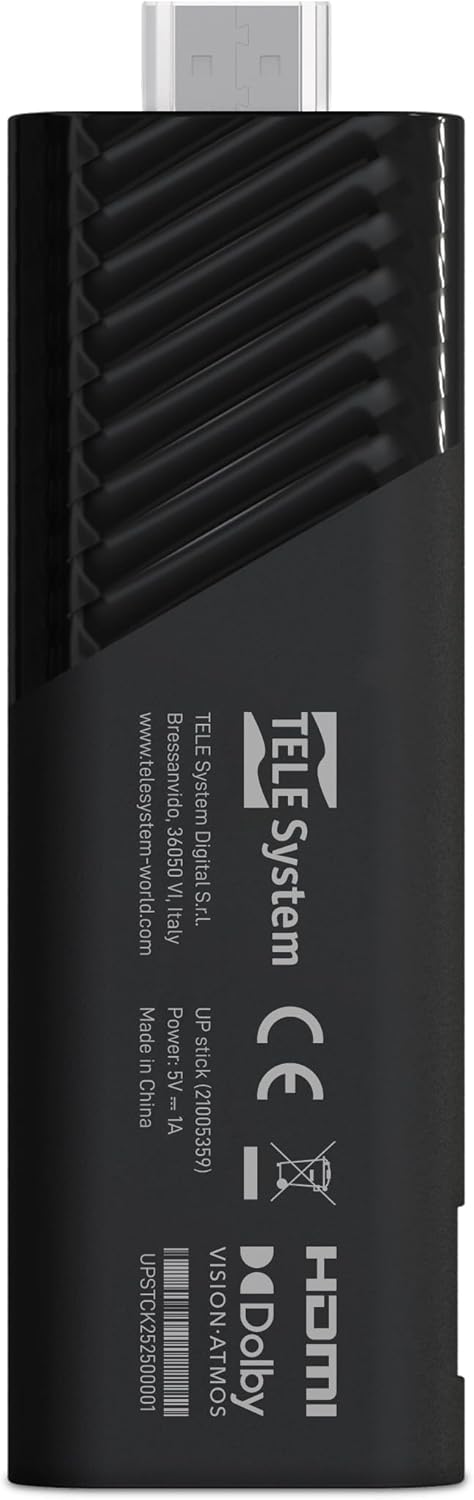
Imaxe: Costas view of the TELE System UP Stick, displaying regulatory marks, HDMI connector, and power input specifications (5V=1A).
2. Emparejamento de control remoto
Upon first use, the remote control may need to be paired with the UP Stick:
- Insert the provided batteries into the Bluetooth remote control.
- Follow the on-screen instructions to pair the remote. Typically, this involves pressing and holding specific buttons (e.g., Home and Back) simultaneously until a pairing confirmation appears on the screen.

Image: The TELE System UP Stick remote control, featuring a prominent voice control button and dedicated buttons for popular streaming services like YouTube, Netflix, Prime Video, and Disney+.
3. Initial Software Setup
Once connected and powered on, the device will guide you through the initial setup process:
- Selección do idioma: Escolle o teu idioma preferido.
- Conexión Wi-Fi: Select your Wi-Fi network from the list and enter the password. The device supports dual-band Wi-Fi for stable 4K streaming.
- Inicio de sesión na conta de Google: Sign in with your Google account. This is necessary to access Google TV features, download apps from the Google Play Store, and use Google Assistant.
- Google TV Configuration: Follow the prompts to configure Google TV, including accepting terms of service and setting up personalized recommendations.

Image: A screenshot of the Google TV interface, displaying icons for popular streaming services such as Netflix, Prime Video, Apple TV, Disney+, and YouTube, indicating broad app compatibility.
Instrucións de funcionamento
Navegando por Google TV
The Google TV interface organizes your content from various streaming services into a single, personalized home screen. Use the remote control's directional pad to navigate through menus, select content, and launch applications.
- Pantalla de inicio: Displays recommended content, installed apps, and quick access to different categories (Movies, Shows, Apps, Library).
- Aplicacións: Accede a todas as aplicacións instaladas. Podes descargar máis desde Google Play Store.
- Busca: Use the search function to find specific titles, actors, or genres across all your streaming services.
Using Google Assistant (Voice Control)
The remote control features a dedicated button for Google Assistant. Press this button and speak your commands or questions into the remote's microphone.
- Busca de contido: Say "Find action movies" or "Open Netflix."
- Control do dispositivo: Say "Turn up the volume" or "Pause."
- Información: Ask "What's the weather?" or "Who directed this movie?"

Image: A television screen displaying the Google Assistant interface, prompted by a voice command, alongside the remote control, illustrating the voice control feature.
Contido en streaming
The UP Stick supports 4K UHD streaming with Dolby Vision, Dolby Atmos, and HDR10+ for an enhanced audio-visual experience. Access your favorite streaming services directly from the Google TV home screen or through their dedicated apps.
- Servizos compatibles: Netflix, Disney+, Prime Video, YouTube, DAZN, Apple TV+, NOW, RaiPlay, and more.
- Instalación da aplicación: Download additional apps from the Google Play Store. The device has 32 GB of internal storage for apps and data.
Usando Google Cast
The built-in Google Cast functionality allows you to stream content directly from your compatible smartphone, tablet, or computer to your television via the UP Stick.
- Ensure your mobile device and the UP Stick are connected to the same Wi-Fi network.
- Abre unha aplicación compatible (por exemplo, YouTube, Netflix) no teu dispositivo móbil.
- Toca a icona de transmisión
 within the app and select your UP Stick from the list of available devices.

Image: The TELE System UP Stick shown alongside a smartphone displaying content being cast to a television, highlighting the Google Cast feature.
Mantemento
- Limpeza: Usa un pano suave e seco para limpar o dispositivo. Non empregues produtos de limpeza líquidos nin aerosois.
- Actualizacións de software: The UP Stick will periodically receive software updates to improve performance and add new features. Ensure your device is connected to the internet to receive these updates automatically. You can also manually check for updates in the device settings.
- Xestión de almacenamento: Regularly check the available storage space (32 GB total) and uninstall unused applications to maintain optimal performance.
Resolución de problemas
No Picture/No Signal
- Ensure the UP Stick is securely plugged into the HDMI port on your TV.
- Comprobe que o seu televisor estea configurado na fonte de entrada HDMI correcta.
- Check that the UP Stick is receiving power and its indicator light is on.
- Try plugging the UP Stick into a different HDMI port on your TV.
O control remoto non responde
- Comprobe e substitúa as pilas do mando a distancia.
- Ensure there are no obstructions between the remote and the UP Stick.
- Attempt to re-pair the remote control by following the pairing instructions in the Setup section.
Problemas de conexión Wi-Fi
- Verifica que o teu enrutador Wi-Fi estea acendido e funcione correctamente.
- Check if other devices can connect to your Wi-Fi network.
- Restart your Wi-Fi router and the UP Stick.
- Asegúrate de introducir o contrasinal de wifi correcto.
Aplicación que se bloquea ou conxela
- Pecha a aplicación problemática e ábrea de novo.
- Clear the app's cache and data through the device settings (Settings > Apps > [App Name] > Clear cache/Clear data).
- Asegúrate de que a aplicación estea actualizada á súa última versión.
- Restart the UP Stick.
Especificacións
| Nome do modelo | UP Stick |
| Marca | Tele System |
| Tecnoloxía de conectividade | WiFi, HDMI, Google Cast |
| Tipo de conector | HDMI |
| Características especiais | Dolby Vision, Dolby Atmos, HDR10+, HLG, HEVC, AV1, Google Cast |
| Resolución | 4K (3840 píxeles) |
| Servizos de Internet compatibles | Netflix, Disney+, Prime Video, YouTube, DAZN, Apple TV+, NOW, RaiPlay |
| Factor de forma | Stick de TV |
| Cor | Negro |
| Dimensións do produto (LxWxH) | 30 x 20 x 110 milímetros |
| RAM instalada | 2 GB |
| Capacidade de almacenamento | 32 GB |
| Dispositivos compatibles | TV, smartphone, tablet, personal computer |
| Códec de vídeo | H.264, H.265/HEVC, AV1 |
| Compatibilidade do fogar intelixente | Compatible with digital home systems |
| País de Orixe | China |
Información da garantía
The TELE System UP Stick Google TV 4K UHD HDMI device is covered by a 2-year manufacturer's warranty from the date of purchase. This warranty covers defects in materials and workmanship under normal use. Please retain your proof of purchase for warranty claims.
For specific details regarding warranty terms and conditions, refer to the warranty sheet included in your product package or contact Tele System customer support.
Atención ao cliente
For technical assistance, troubleshooting, or further inquiries regarding your TELE System UP Stick, please contact Tele System customer support. Refer to the contact information provided in the warranty sheet or visit the official Tele System websitio.
Fabricante: Tele System
Websitio: www.telesystem-world.com